
Do you know what a TF card is? Is there a reliable approach for you to recover data from TF card? How can you resolve TF card errors? All those questions will be answered in this MiniTool post. If you are curious about this, let’s start together.
Overview of a TF Card
Working as one of the majority of data storage devices, memory cards have gradually become essential for transferring or saving data. TF cards are worth to be mentioned as a popular memory card type. Despite our focus on how to recover data from TF cards, we’d like to give an overview of TF cards and show you the differences between TF cards and SD cards at the very beginning.
A TF card, shortened for a TransFlash card, was developed and initially released by SanDisk in 2004. As a type of memory card, the TF card is used to expand the storage space of several devices with small storage, such as digital cameras, Steam Deck, smartphones, GPS devices, and so on.
Years later, this memory card is renamed a microSD card because of its smaller size. Then, you may have a question: is the SD card or microSD card similar to the TF card? In fact, they are not the totally same one.
SD card or microSD card is designed with a secure function – the write protection switch – to protect data away from unexpected change or deletion whereas the TF card doesn’t have such a function. However, the TF card has a faster read and write speed compared with the SD card.
You can learn more differences between the TF card and microSD card from this post.
How to Recover Data from TF Card
With a basic understanding of TF cards, we can now dive into the TF card recovery approach. Similar to other data storage devices, TF cards are vulnerable to data loss, which might be caused by human errors, device issues, virus infections, and more.
However, different from data loss from the Windows internal disk, data lost from the TF card can only be recovered with the assistance of professional data recovery services. How can you choose an ideal data recovery tool among the numerous ones on the market?
Here are several aspects you should take into consideration, such as data recovery efficiency, secure data recovery environment, technical support, cost-effectiveness, etc. With the overall consideration, MiniTool Power Data Recovery is highly recommended.
About MiniTool Power Data Recovery
This free file recovery software is specifically designed to recover lost files from diverse data storage devices, encompassing external and internal hard drives, USB flash drives, memory cards, and other storage media that can be recognized by Windows.
MiniTool Power Data Recovery can recover types of files, such as photos, documents, videos, audio, webpages, compressed folders, and more. Furthermore, this tool can be used to handle diverse data loss cases, ranging from simple deletion to device failure.
As long as your files are not overwritten, running MiniTool Power Data Recovery gives you a chance to successfully get files back. You can get the free edition of this software and start to recover data from TF card with the following guide.
MiniTool Power Data Recovery FreeClick to Download100%Clean & Safe
Step 1. Launch the software and scan the TF card.
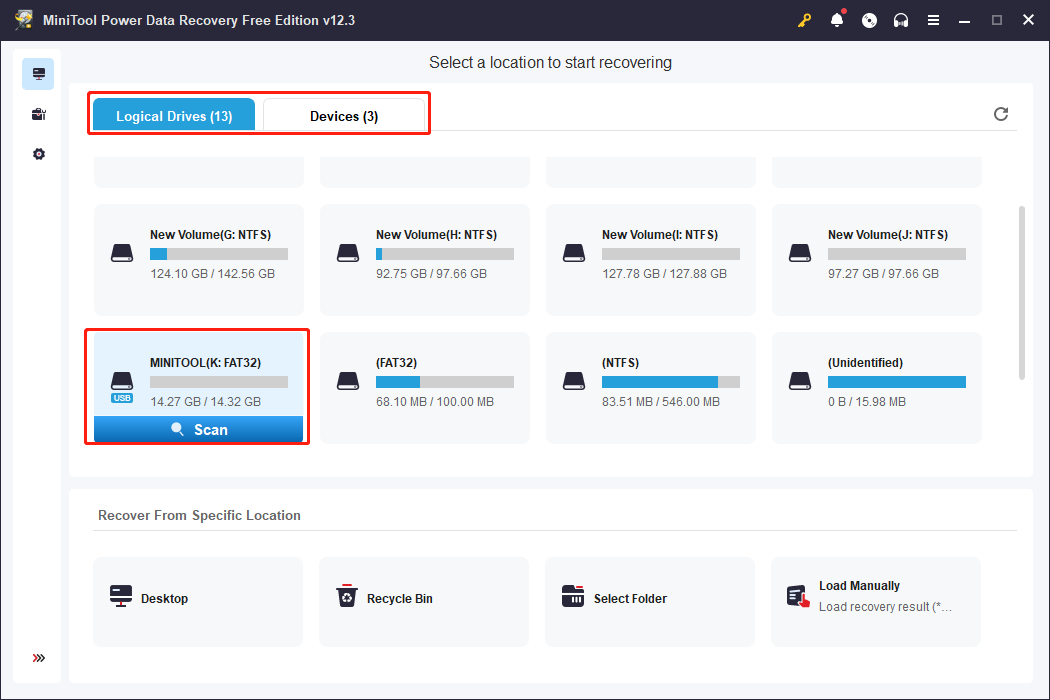
After getting MiniTool Power Data Recovery Free, you can launch it to enter the main interface, where all the detected partitions and disks are displayed. Connect your TF card to the computer via a card reader.
Generally, the partition of the TF card has a USB label listed under the Logical Drives. Move the mouse cursor to the partition and click Scan. In case you cannot discern the specific partition, just switch to the Devices tab and choose the TF card to scan directly.
Step 2. Browse the file list on the result page to find the wanted items.
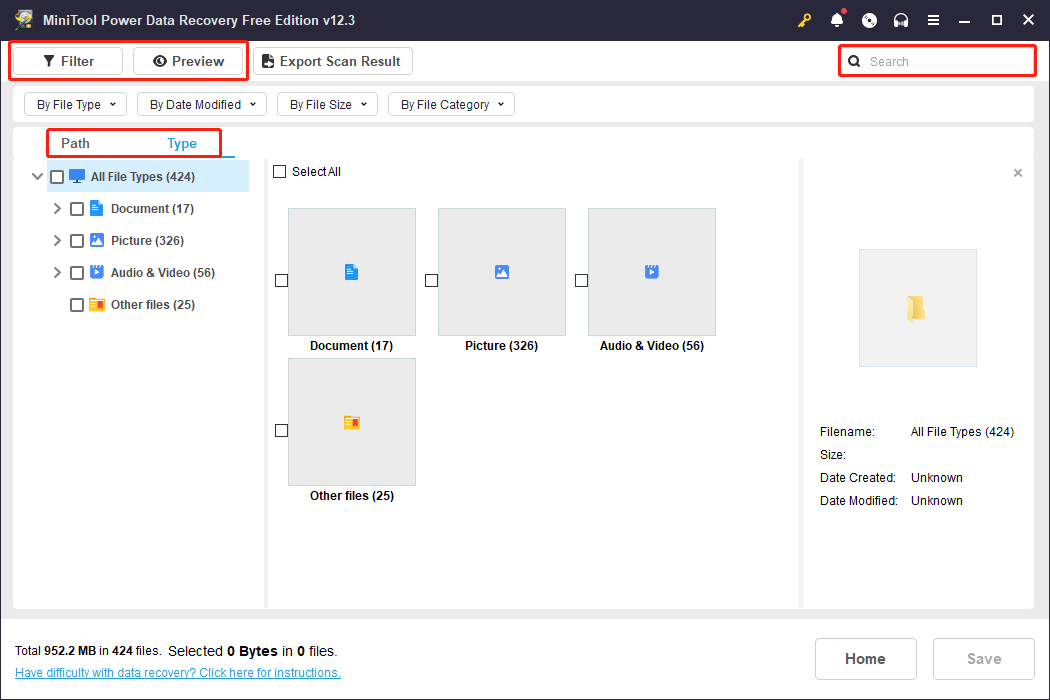
In order to find all the files stored on the TF card, you are suggested to wait patiently for the end of the scan process. All files are listed under the Path tab in accordance with the original file path on the result page. Expand the Existing Files, Deleted Files, and Lost Files folder to locate required items.
To quickly discover the target files, utilize the following three features to screen out unnecessary files:
- Type: Under this tab, files are categorized by file type and file format. For instance, to recover a PNG file from the TF card, you can choose the Picture classification and browse the PNG sort.
- Filter: Clicking on the Filter button at the top of the toolkit will expand several filter criteria, including file size, file type, file category, and file last modified date. Set those filter conditions effectively based on your requirements.
- Search: Type the file name, either the full or the partial name, into the search box and press Enter to find all the matched files. Moreover, this feature helps to locate a specific file format by typing the file extension into the search box instead.
Step 3. Choose and recover the wanted files.
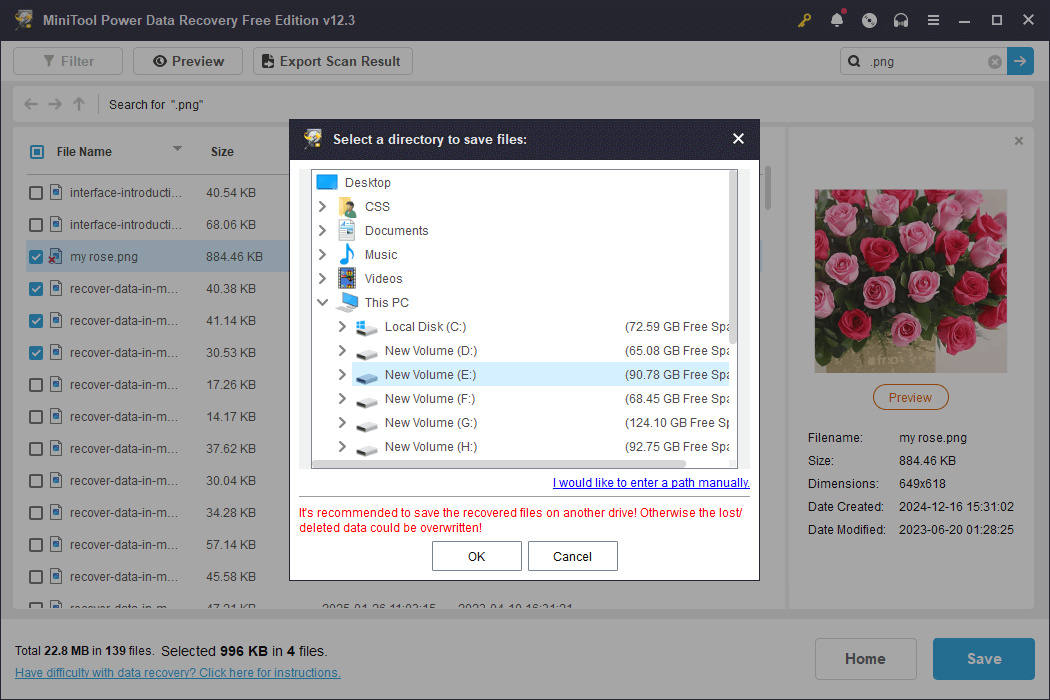
After using the above features to locate the demand items, there is one more feature to improve the data recovery accuracy, the Preview feature. Double-click on the file to verify the file content before saving. Pictures, videos, documents, audio, and other files are supported for previewing. Check the specific file formats that support previewing from this page.
Afterward, tick files from the list and click Save. In the prompt window, you should choose a destination different from the original one. Data overwriting might cause failure in data recovery.
This is all about how to recover a TF card with MiniTool Power Data Recovery. One additional thing is that MiniTool Power Data Recovery Free can only recover 1GB of files. If you want to retrieve more files, you need to get an advanced edition to break the limit of data recovery capacity.
Considering the requirements of functions and technical support vary for different users, MiniTool provides several editions. You can go to the License Comparison page to obtain more detailed information.
How to Protect Files in TF Card
Although secure data recovery services provide a chance to recover deleted files from TF card, it is not a 100% reliable choice. When your TF card gets severely physical damage or the lost files are overwritten by new data, it is difficult to recover files with any data recovery utilities. Therefore, you are highly advised to back up the crucial files in advance.
Option 1. Use a Cloud Storage
Cloud storage media enables you to back up files without buying a new physical disk. Furthermore, most cloud storage media can back up files automatically, like OneDrive, Google Drive, Dropbox, and more. Nevertheless, it also has some deficiencies. For instance, data cannot be backed up properly without a stable network connection or when the storage meets the maximum limit.
Option 2. Use Third-party Data Backup Utilities
In addition to cloud storage, there are several secure third-party backup software, like MiniTool ShadowMaker. This software supports backing up files, folders, partitions, and disks within a few clicks. Moreover, it is capable of backing up files automatically according to the set backup period. This tool provides three different types of backup, including Full Backup, Incremental Backup, and Differential Backup. The three different types can avoid duplicated backup files. Here is the detailed backup process.
Step 1. Download and install MiniTool ShadowMaker on your computer.
MiniTool ShadowMaker TrialClick to Download100%Clean & Safe
Step 2. Connect your TF card to the computer and launch the software. On the main interface, change to the Backup tab.
Step 3. Click SOURCE and select Folders and Files or Disks and Partitions to locate what you want to backup. Click OK to confirm.
Step 4. Click DESTINATION to opt for a destination for the backup files and click OK.
Step 5. Before starting the backup process, you can choose the Options button to set the backup types and periods. You are able to set the backup type under the Backup Scheme tab and configure the backup periods under the Schedule Settings section.
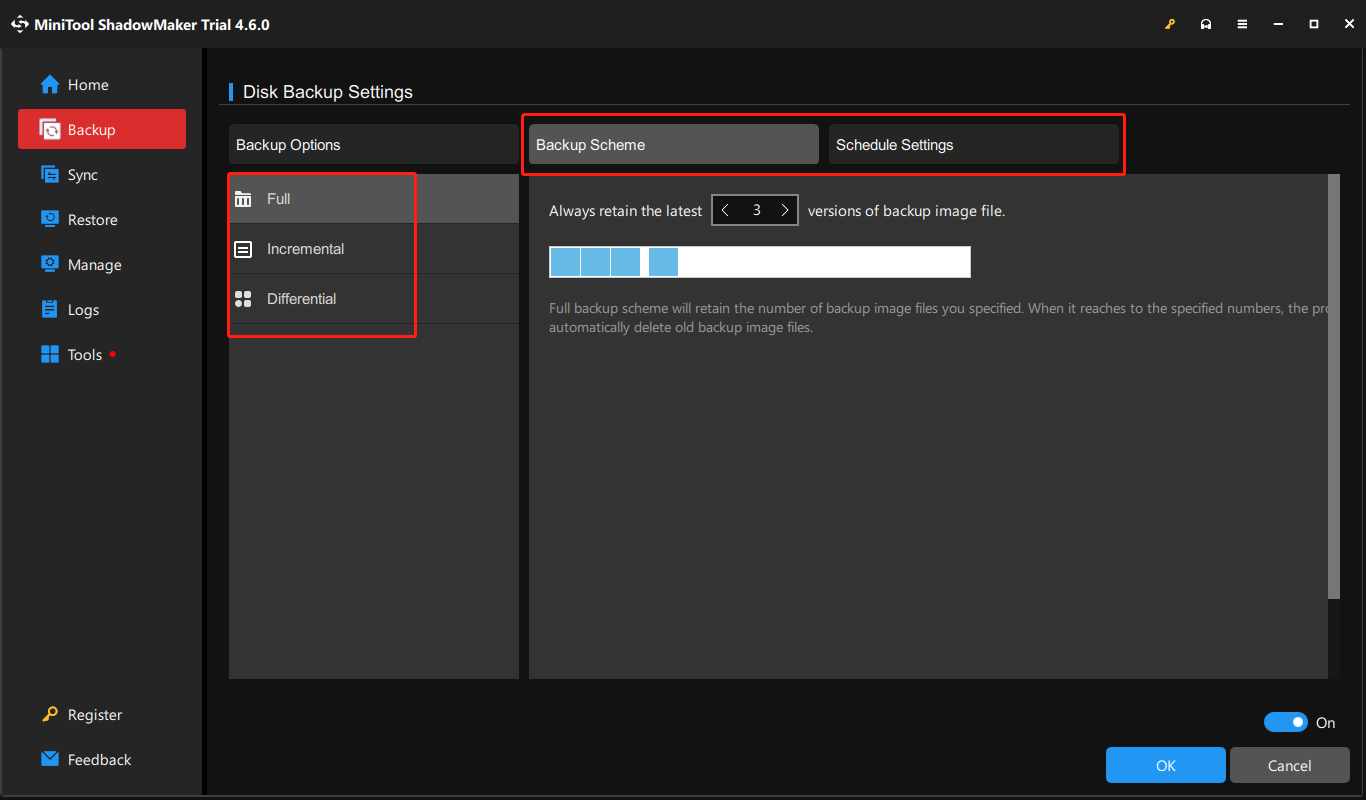
Step 6. After those settings are completed, click OK to save your options. Returning to the Backup interface, click Back Up Now to start the process.
Common Methods to Repair TF Card Issues
As convenient as the TF card, it is fragile to experience memory card errors under several unexpected situations. Here we have listed three common fixes for general card errors. If you are troubled by the TF card not being recognized, blank, or other issues, try the following methods to repair the TF card by yourself.
#1. Run the CHKDSK Command
Logical errors can happen without any signs on your TransFlash memory card, preventing you from normal access, proper storage, or performing other operations. To resolve the logical errors on the disk, you can run the CHKDSK utility to check and repair them automatically as an easy method.
Step 1. Connect the TF card to your computer. Press Win + R to launch the Run window.
Step 2. Type cmd into the text box and press Shift + Ctrl + Enter to run Command Prompt as administrator.
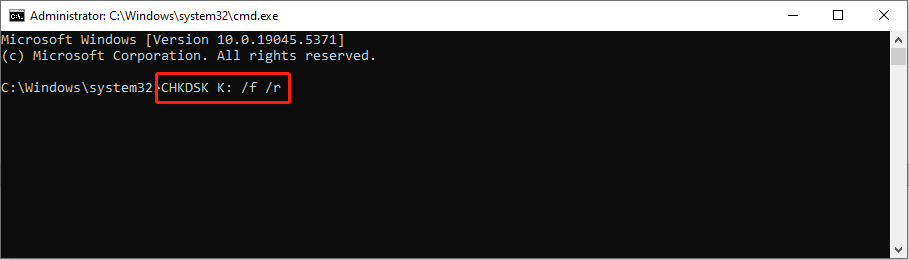
Step 3. Type CHKDSK X: /f /r and press Enter to execute the command line. You should replace X with the actual drive letter of the TF card.
#2. Reinstall the Connected Driver
If the computer fails to recognize the TF card after connecting, apart from the TF card issues, the computer driver could be the cause as well. You can reinstall or upgrade the target driver to fix the TF card not identifying issue.
Step 1. Press Win + X and select Device Manager from the WinX menu.
Step 2. Choose Disk drives to find the card reader driver.
Step 3. Right-click on the device and choose Uninstall device from the context menu.
Step 4. Click Uninstall again to confirm.
To update the driver, you can just select the Update device from the same context menu.
Afterward, reconnect the TF card to reinstall the driver.
#3. Format the TF Card
If the simple solutions above cannot fix the TF card error, formatting can be the best option to handle most logical issues. However, this method will remove all the files stored on the TF card. Provided the TF card cannot be accessed, you need to recover files from TransFlash card with the help of MiniTool Power Data Recovery to avoid secondary damage to data during the formatting process.
MiniTool Power Data Recovery FreeClick to Download100%Clean & Safe
Owing to the different situations, here are three options for you to format the TF card.
- Via File Explorer: Press Win + E to open File Explorer and locate the TF card. Right-click on it and choose Format. Later, set the drive letter and file system of the TF card and click Start.
- Via Disk Management: Press Win + X and choose Disk Management from the menu. Right-click on the TF card partition and choose Format. There will be a small prompt window where you need to set the file system and volume label. Click OK to format it.
- Via Third-party Partition Manager: Partition managers such as MiniTool Partition Wizard are not only able to format the partition or disk but also capable of checking and repairing disk errors. You can get this software and read this post to learn how to format the partition easily.
MiniTool Partition Wizard FreeClick to Download100%Clean & Safe
Conclusion
This is the end of this post. After reading, you should know how to recover data from TF card by yourself and fix some common memory card errors. In the event of a TF card malfunction, you should first rescue data out of it. MiniTool Power Data Recovery can be your ideal option.
Should you have any problems in using MiniTool software, please feel free to contact us via [email protected]. We are always ready to give you professional assistance.
User Comments :