
If your Ring video was deleted from the cloud, contact Ring tech support within 72 hours to retrieve it. If downloaded videos were deleted from your local storage, use data recovery software to recover deleted Ring videos. Read on this MiniTool post to get more information!
Doorbell cameras have become increasingly popular lately, as they allow users to monitor and secure their residences and workplaces, providing visibility from anywhere.
However, what happens if important footage is lost unexpectedly?
As the user’s actual experience below shows, it’s not uncommon to lose recordings from home or office doorbell security cameras like Ring.
“When a RING video is deleted... is it really gone? Does RING store a backup on its server? How long is it stored? I want to know that the videos I delete are truly gone forever. Can anyone help recover it?”reddit.com
Ring has recommended that users save the videos to their local storage devices before them being automatically deleted.
However, many users still experience video loss from Ring, regardless of whether they have saved the videos on their devices.
You might be facing a similar situation now.
Before we fix the issue, here is the detailed information about the Ring video you may be concerned about.
About Ring Videos
Ring LLC produces smart home devices designed to enhance home security. With video doorbells, security systems, and surveillance cameras, users can identify visitors through recorded footage.
Ring provides three optional subscription plans that allow you to view and download video recordings: Ring Basic, Standard, and Premium.
Depending on the plan you choose, it records video whenever it detects motion, someone presses the doorbell, or you activate Live View.
These clips enable you to catch intruders, monitor package arrivals, see who is at your door, or simply check on the children.
Here come two questions: where are Ring recordings stored? And how long does Ring keep videos?
Q1. Where Are Ring Videos Stored
Ring keeps recorded videos in a cloud storage space, enabling users to review, share, and delete them.
Ring devices save recordings on secure Amazon AWS servers, but this option is only available when users subscribe to the paid plans (Basic, Standard, and Premium).
In other words, without a subscription, you can still view the live feed from your Ring device; however, it will not record or store any videos in the cloud.
Q2. How Long Does Ring Store Video
Ring stores video recordings for up to 180 days if you have a subscription plan; however, the typical duration is often 30 days in the UK and EU, or 60 days in the US, Latin America, Middle East, and Asia, and this can be modified through the app or online.
You can set the storage duration for each device to different lengths, such as 1, 7, 14, 30, 60, 90, 120, or 180 days.
For the 24/7 Recording mode, recorded videos are only accessible with a Premium subscription and are stored for just 14 days.
Once these timeframes have passed, the videos are permanently deleted from Ring’s cloud servers.
If you are looking to recover deleted Ring videos, keep reading to get more details.
Can You Recover Deleted or Lost Ring Videos
The possibility of Ring video recovery varies based on where and how the Ring video file was deleted.
Before exploring this question, you must know the causes of Ring video loss or deletion.
Causes of Ring Video Loss
Here are the most common reasons:
- Accidental Deletion: Deleting a video from the Ring app or web interface only requires a few taps or clicks. Moreover, you might inadvertently delete downloaded Ring videos from your devices.
- Automatic Deletion: By default, Ring videos are kept in the cloud for up to 60 days.
Possible Situations to Recover a Deleted Ring Video
Whether deleted Ring videos can be recovered depends on your specific situation. The following table summarizes when recovery is possible.
| Recoverable Cases | Local Storage: If you had earlier saved the video onto your device, like computers, phones, or USB drives, you might be able to recover deleted Ring videos with the help of professional data recovery software like MiniTool Power Data Recovery. Cloud Storage (Within 72 Hours): Ring will save the videos deleted from the cloud storage for 72 hours. In this period, contact tech support to recover them. |
| Unrecoverable Cases | App/Web Deletion: If you delete a video from the cloud server through the Ring app or website, there is no way to recover the Ring files. Ring does not maintain logs or backups of deleted videos. Cloud Storage (After 72 Hours): Once 72 hours have passed since a video was deleted from Ring’s cloud storage, Amazon Web Services (AWS) will permanently delete the file, and recovery will no longer be possible. |
The following methods show you how to recover Ring videos.
Method 1. Recover Ring Videos with Data Recovery Software
When you save Ring videos to your computer, an external drive, or a flash drive, ensure that you thoroughly check the folder where you keep your recordings.
If you cannot find Ring videos stored on your computer, check the Recycle Bin.
If the deleted files are not present in the Recycle Bin, consider using a specialized Windows data recovery software to retrieve them.
How to choose a video recovery tool? The suitable and reliable application should be:
- User-friendly in design and functionality.
- Thorough in addressing various data loss scenarios.
- Effective in both speed and the success rate of secure data recovery.
- Compatible with a range of devices, operating systems, and file systems.
MiniTool Power Data Recovery meets all the requirements, and you can give it a shot.
Below are some frequently asked questions you may be curious about:
Q1. Does MiniTool Power Data Recovery support the video file type?
A: Yes, this tool supports recovering video, audio, photo, document, and archive files. As long as the deleted or lost files haven’t been replaced by new data, this tool can assist in retrieving them.
Q2. What types of storage devices can MiniTool Power Data Recovery scan?
A: This free data recovery software can scan a variety of storage devices, including internal hard drives, external hard drives, USB flash drives, SD cards, and others.
Q3. Under which circumstances can MiniTool Power Data Recovery restore files?
A: This robust file recovery tool can retrieve files lost for numerous reasons, such as accidental deletion, missing partitions, disk formatting, corrupted drives, virus attacks, or even system failures.
Q4. Is MiniTool Power Data Recovery available for free?
A: This software has several editions, and the free version allows users to recover up to 1 GB of data without charge.
Now, download the free edition of this tool and use it to recover deleted Ring videos on Windows.
MiniTool Power Data Recovery FreeClick to Download100%Clean & Safe
Step 1. Launch the software to go to its main interface. Find the target partition where the deleted Ring videos should exist, move your cursor on it, and click the Scan button.
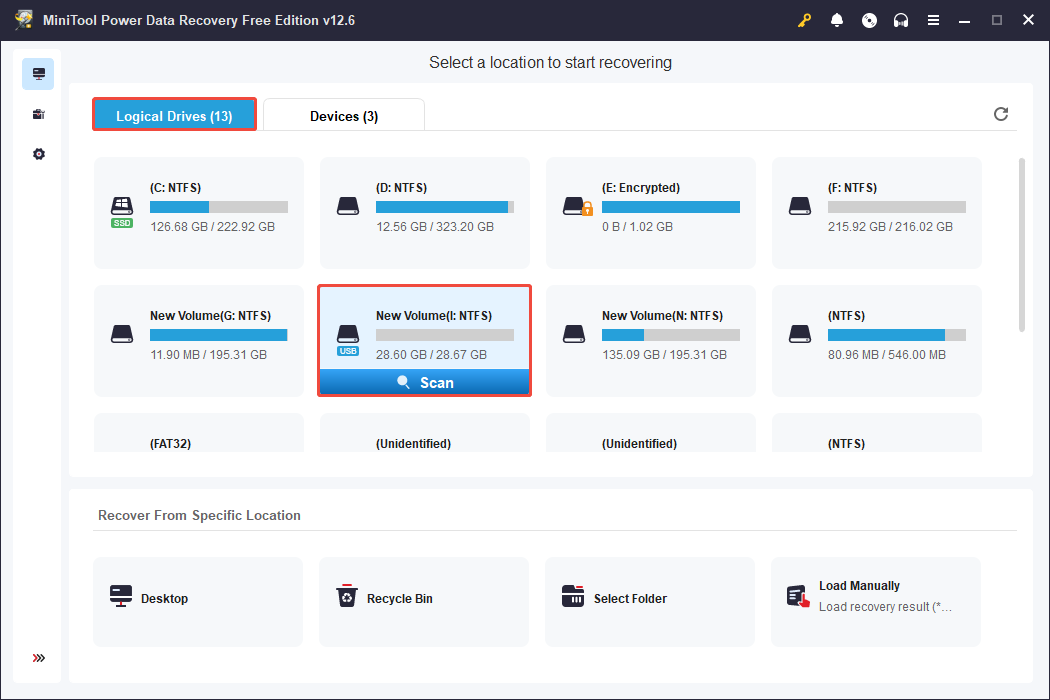
Wait patiently to get a full scan result.
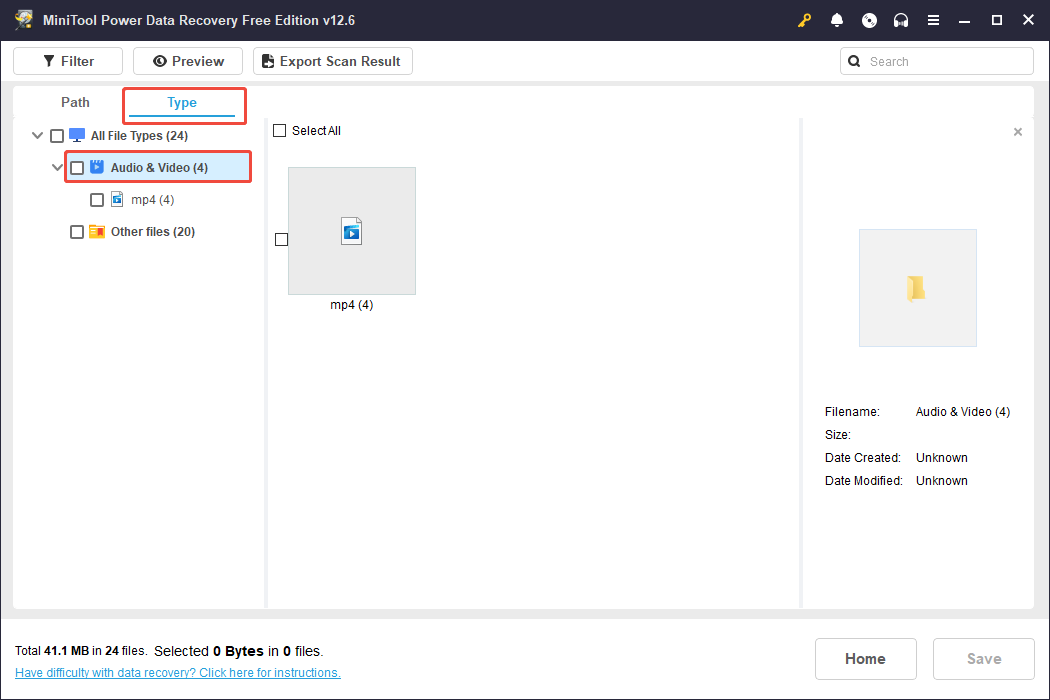
Step 2. Once the full scan is done, you can directly go to the Type category and expand Audio & Video to find all video files. You can right-click on a file to change the view mode between list and thumbnails.
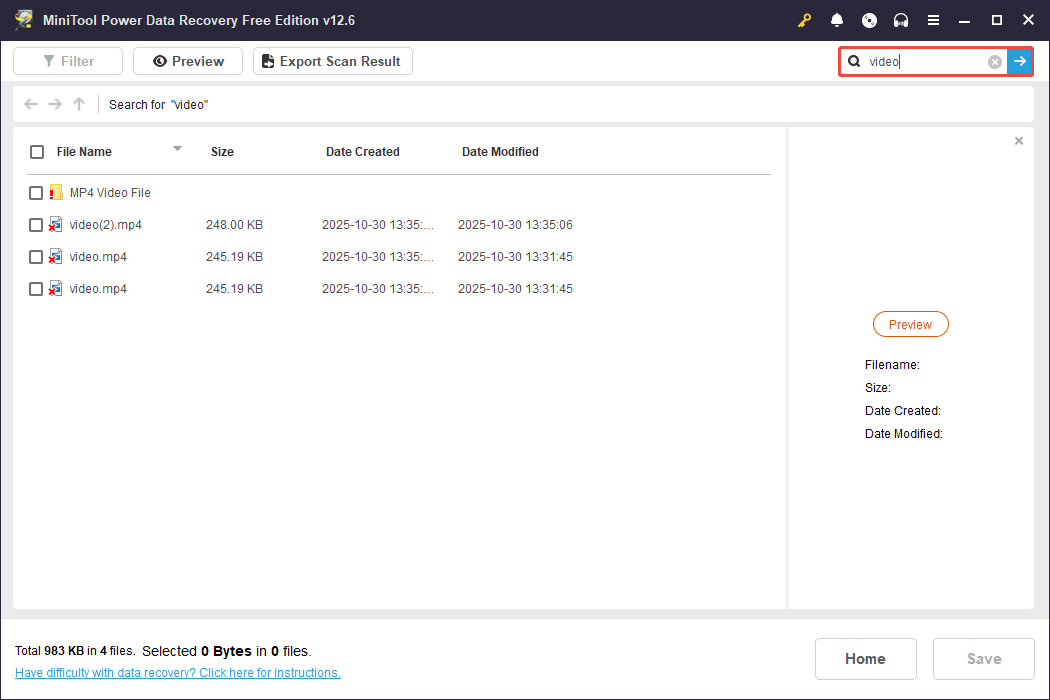
To locate specific files, try using the Search feature by typing the entire or partial file name in the box and pressing Enter.
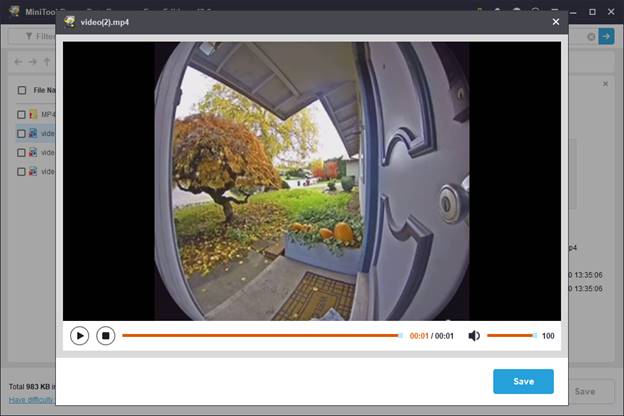
To make sure that the selected files are desired, double-click each file to preview.
Step 3. Tick all required files and click the Save button. Then you will be prompted to choose a location to store the recovered files. Select one separate from the original location and click OK to confirm.
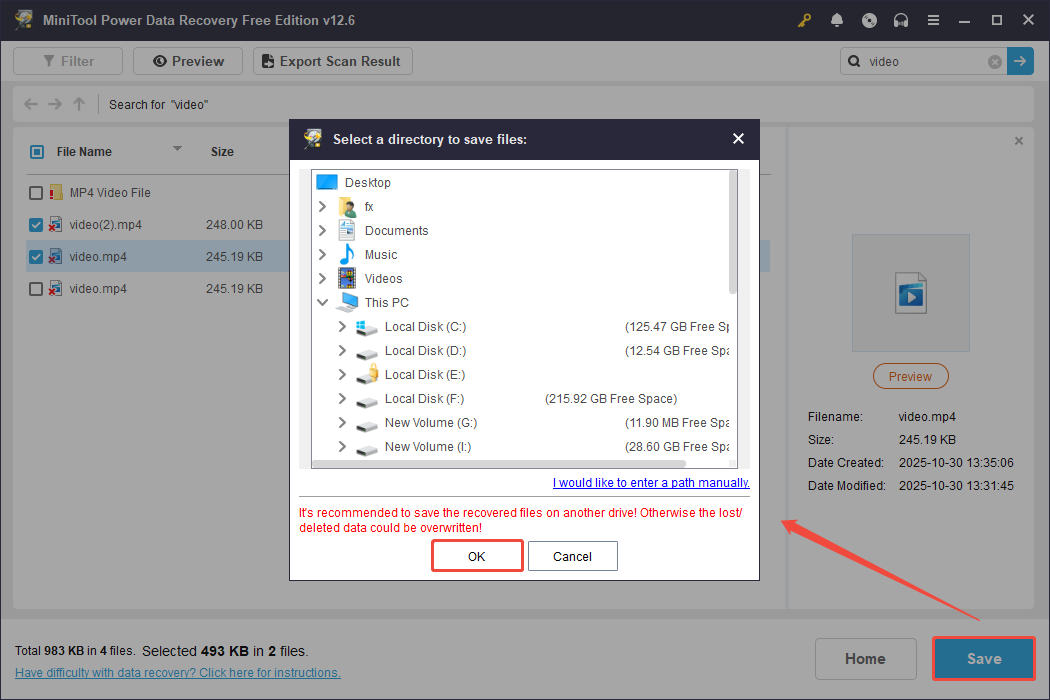
If you need to recover more than 1 GB of data or access advanced features, the Personal and Business editions are available.
These instructions focus on recovering Ring videos stored locally on your computer. Next, we will explain how to recover Ring videos deleted from the cloud.

Method 2. Recover Deleted Ring Videos via Ring Support
Once a Ring video is deleted from cloud storage, it can no longer be retrieved unless you contact tech support within 72 hours. After this period, Ring permanently deletes the video from its servers.
Here are two ways to get in touch with tech support:
- Chat with the support team via live chat on Ring’s website, available to US users from 5 AM to 9 PM MST.
- Call 1-800-656-1918, as this helpline operates 24/7.
After you make contact, you won’t need to take any further action. The tech support team will then be able to assist you in recovering the recently deleted Ring videos from the servers.
How to Prevent Future Ring Video Loss
Here are some suggestions that you can follow to protect your Ring videos in the future:
- Understand storage limits and check your subscription: Keep in mind that videos stored in the Ring cloud are accessible for a limited duration, based on your subscription plan, and will be automatically removed after that time if not downloaded.
- Download important videos: To avoid losing valuable footage, save it from the Ring app to a secure location, like your computer or an external hard drive.
- Utilize local storage: Think about using a Ring Alarm Pro, which provides local storage to help mitigate the risk of video loss.
In the next part, we introduce how to download important Ring videos to save them to a safe location.
How to Download Ring Videos
You can choose to download individual videos using the Ring app. Alternatively, you have the option to download up to 50 videos at once from your Ring.com account in bulk.
Here are the two methods available: the web browser and the Ring app.
Option 1. Download via a Web Browser
Follow the instructions to download recordings from a website:
Step 1. Launch your web browser, navigate to the Ring official website, and log in to your Ring account.
Step 2. Go to the History section and click on Manage.
Step 3. Locate the videos you wish to save and select them.
Step 4. Click on Download.
Step 5. You might be prompted to enter your password again. If so, please do so.
The Ring videos will be time-stamped and downloaded to your computer as a .zip file. After extracting, you will be able to access and view each .mp4 file individually.
Option 2. Download via the Ring App
To download Ring videos from the Ring app, follow these steps:
Step 1. Open the Ring app.
Step 2. Go to the hamburger menu.
Step 3. Select History.
Step 4. Find the video you wish to download, then tap the three dots menu.
Step 5. Hit the Share button and then select Download.
Final Words
In conclusion, we have introduced the main information for Ring videos, including the subscription, file location, and the duration for deleted files.
Based on your situation, you should understand the options for recovering deleted Ring videos. To recover downloaded Ring videos, try using MiniTool Power Data Recovery. To restore deleted videos from the cloud, contact Ring’s support team within 72 hours.
To prevent further Ring video loss, consider downloading important files to a local storage.
If you encounter issues while using MiniTool software, reach out to us at [email protected].
User Comments :