
Are you using Audacity to record or edit audio tracks? It should be a frustrating experience when recordings in Audacity are lost or deleted. This MiniTool guide is the right place for you to get feasible solutions to recover Audacity audio recordings when they are deleted or unsaved.
Audacity is a free and open-source digital audio editor and recording application software. This software is available for Windows, Mac, Linux, and other Unix-like operating systems. It contains plenty of features like recording, converting, non-destructive editing, and making precise adjustments, allowing you to make professional post-processing of audio files. But data loss may also happen on such powerful software because of software crashes and other reasons. This post shows you methods to recover Audacity audio recordings in different situations.
Part 1: Recover Audacity Audio Recordings
After recording or editing audio or project files, you can export the changed files to your computer. However, it doesn’t imply your files are safe. Digital data are prone to be lost due to various reasons, ranging from human errors to device issues. When your Audacity recordings are lost from your PC, try the following solutions to get them back.
Solution 1: Recover Deleted Audacity Recordings from the Recycle Bin
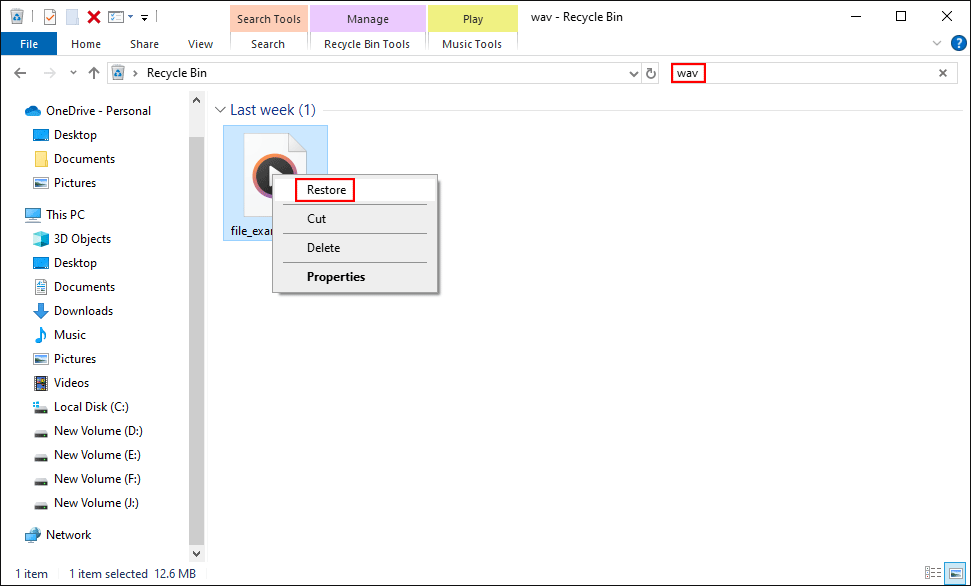
If the Audacity recordings are simply deleted from the save folder, restoring them from the Recycle Bin can be the easiest task. Files deleted from the internal disk will be sent to the Recycle Bin and be kept here for several days. You should be familiar with the Recycle Bin recovery. Here is a brief guidance:
Step 1: Double-click on the Recycle Bin icon on your desktop to open it.
Step 2: Look through the deleted file list to locate the required Audacity recording. You can also type the name of the deleted file to filter out unmatched options.
Step 3: Right-click on the file and choose Restore. The chosen file will be recovered to the original location automatically.
However, finding no desired files in the Recycle Bin is also a common scenario. How can you recover deleted Audacity recordings in such a situation? You can move on to the second solution.
Solution 2: Recover Lost Audacity Recordings with Audio File Recovery Software
Generally, permanently deleted files can’t be restored in typical methods. You should seek professional help from professionals or specialized data recovery software. Choosing secure data recovery services can be a cost-effective decision. To select a suitable data recovery software, you should consider its compatibility, functions, security, support, and price. Taken together, MiniTool Power Data Recovery can be an optimal selection.
This tool is able to recover audio files in WAV, OGG, MO3, M4A, AU, and other formats. Additionally, documents, pictures, videos, compressed folders, and other types of files are supported to restore. You can get MiniTool Power Data Recovery Free to see if it can find your needed files.
MiniTool Power Data Recovery FreeClick to Download100%Clean & Safe
Guide to Restore Audacity Recordings
After properly installing MiniTool Power Data Recovery, refer to the tutorial below to complete Audacity recovery.
You can launch the software to enter the main interface, which displays partitions and devices. Choose the partition that saves lost Audacity recordings, usually the C drive, and click Scan.
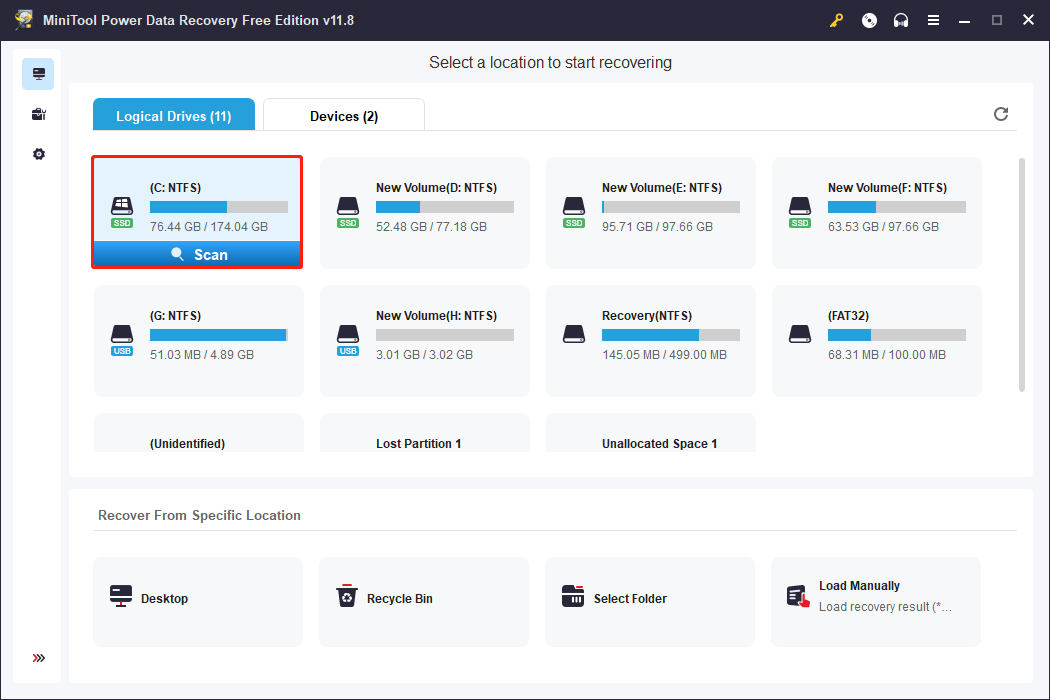
Optionally, this software enables you to scan a specific folder. If you know which folder stores exported Audacity recordings, click Select Folder at the bottom section to locate the target folder, then click Select Folder to scan the folder.
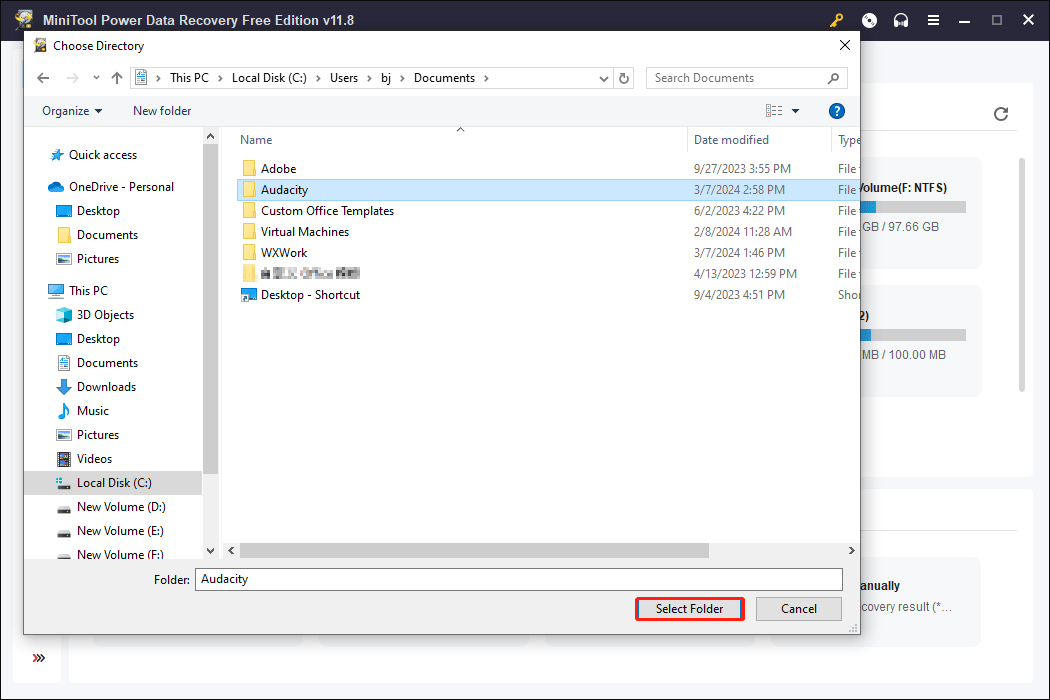
For the best data recovery result, you are advised to wait until the scan process completes. All the found files will be classified into different folders according to file status under the Path tab. Switching to the Type tab helps to look for files by type and format.
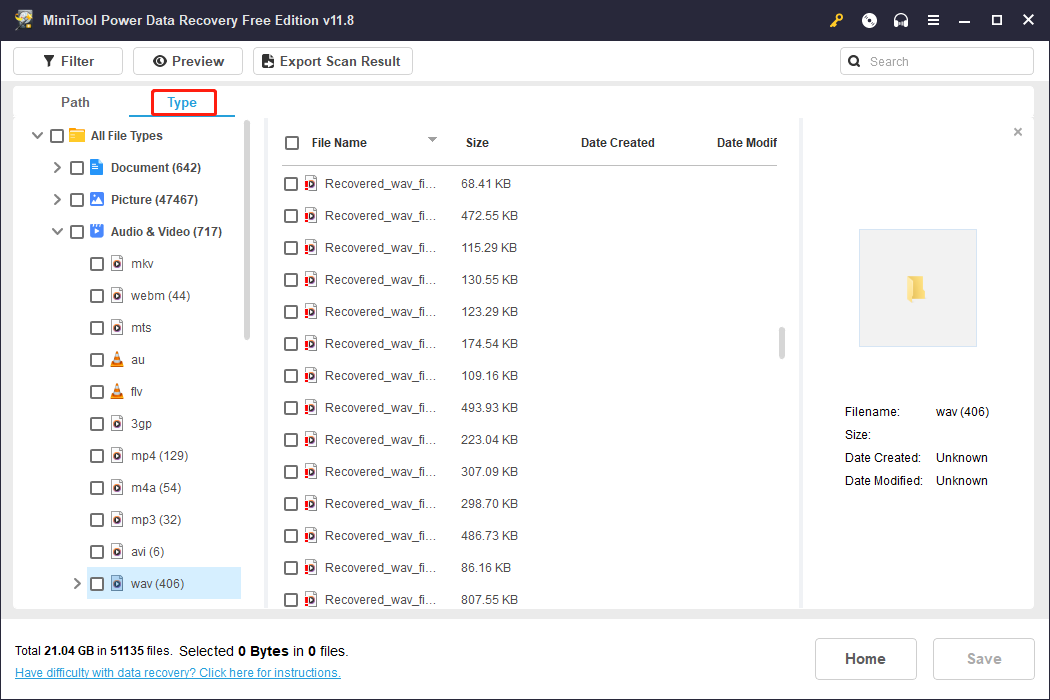
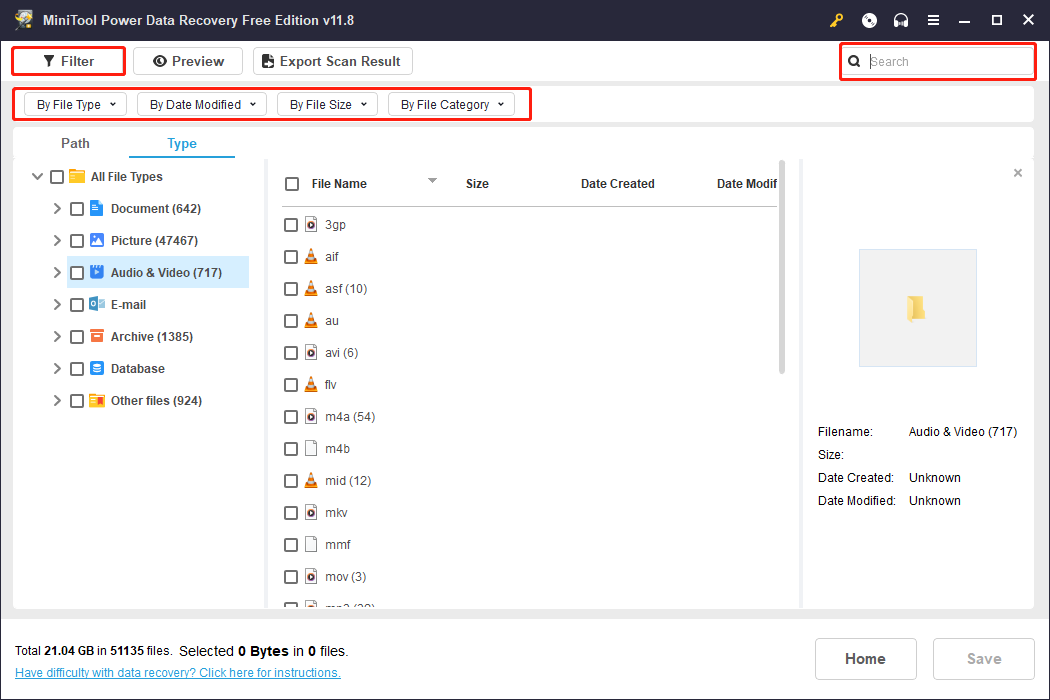
As Audacity supports saving files in several formats, using the features below can highly improve data recovery efficiency.
- Filter: This feature can filter out unnecessary files rooted in certain conditions, such as specific file size, file type, last modified date, and file category.
- Search: This function is used to find certain files using their names. You can type their names or file extensions and hit Enter to filter matched files among numerous files.
- Preview: To ensure the recovered file is what you need, previewing the file content is essential. Audio, videos, images, and documents are supported to preview in this software.
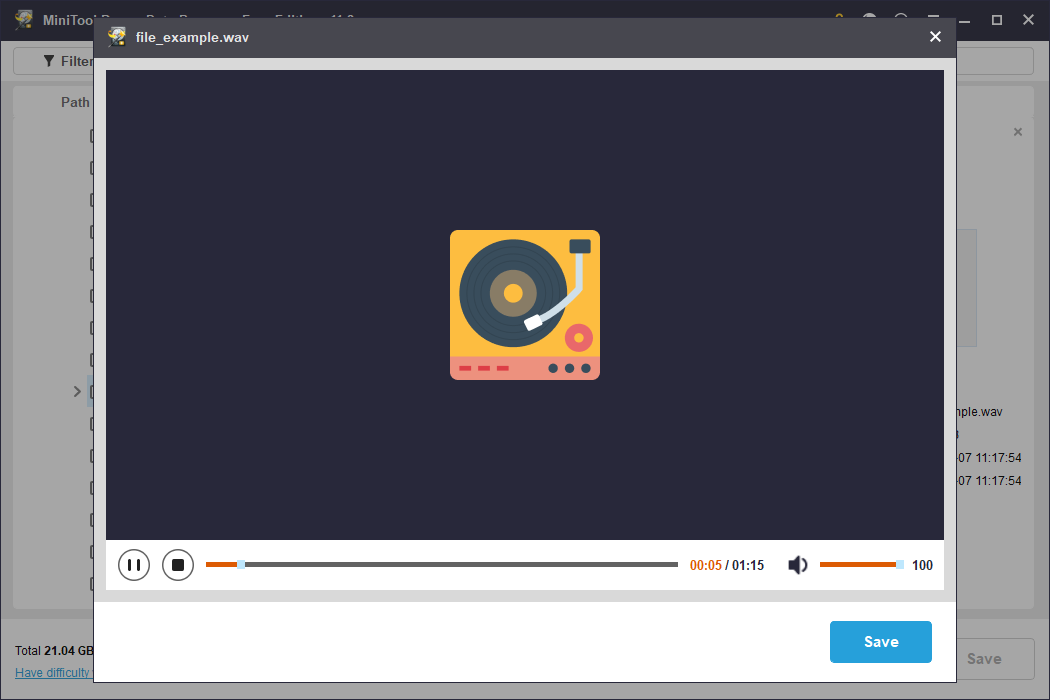
Finally, you can tick all the files you need to restore and click the Save button. In the prompt small window, you should choose a destination for the chosen files. Do not save them to the original path as saving new data probably overwrites old data, leading to a failed data recovery result.
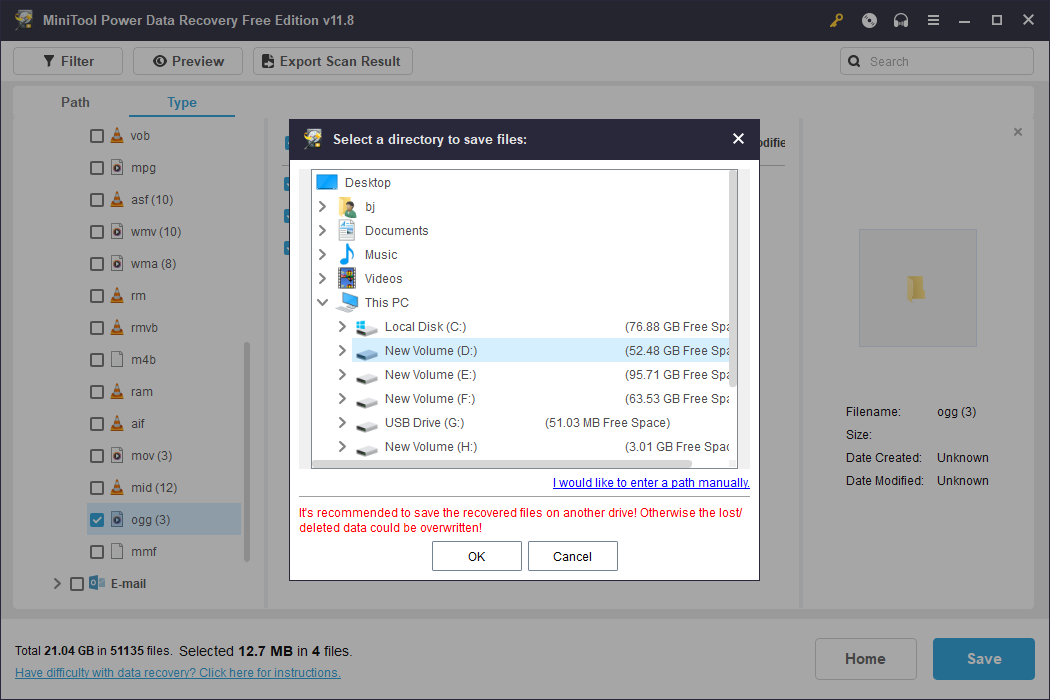
One more tip is that MiniTool Power Data Recovery Free provides only 1GB of free data recovery capacity. If you need to recover more files, you can break this limit by upgrading to a premium edition. Running advanced editions allows you to recover data from an unbootable computer and other tricky situations.
If you run Audacity on Mac, you can complete Audacity recovery easily with Stellar Data Recovery for Mac as well. This software is capable of restoring lost documents, pictures, videos, audio, emails, and other files from different devices. Besides, it provides two scan modes and is equipped with other powerful functions. You can get this software by clicking the download button below, and then follow the tutorial in this post.
Data Recovery for MacClick to Download100%Clean & Safe
More Information About MiniTool Power Data Recovery
MiniTool Power Data Recovery, designed by MiniTool Software, comprehensively fits all Windows operating systems. Besides, you can run this software to recover data from multiple data storage devices that can be recognized by Windows, encompassing USB drives, external hard drives, SD cards, memory sticks, digital cameras, CD/DVD, etc.
Moreover, this tool not only retrieves deleted files, but also recovers files from RAW hard discs, lost partitions, formatted USB flash drives, and other cases.
Solution 3: Recover Lost Audacity Recordings from Previous Versions
This solution doesn’t work for everyone since you may have no previous versions of the folder saved Audacity recordings on your computer. To continue with this method, you should ensure that you have backed up the Audacity folder either with File History or with the created system restore points.
Both File History and System Restore are Windows backup utilities. If you have any backups of the Audacity folder, please try to recover Audacity audio recordings with the following steps.
Step 1: Press Win + E to open File Explorer and navigate to the Audacity folder with this path: C:\Users\username\Documents\Audacity.
Step 2: Right-click on this folder and choose Restore previous versions from the context menu.
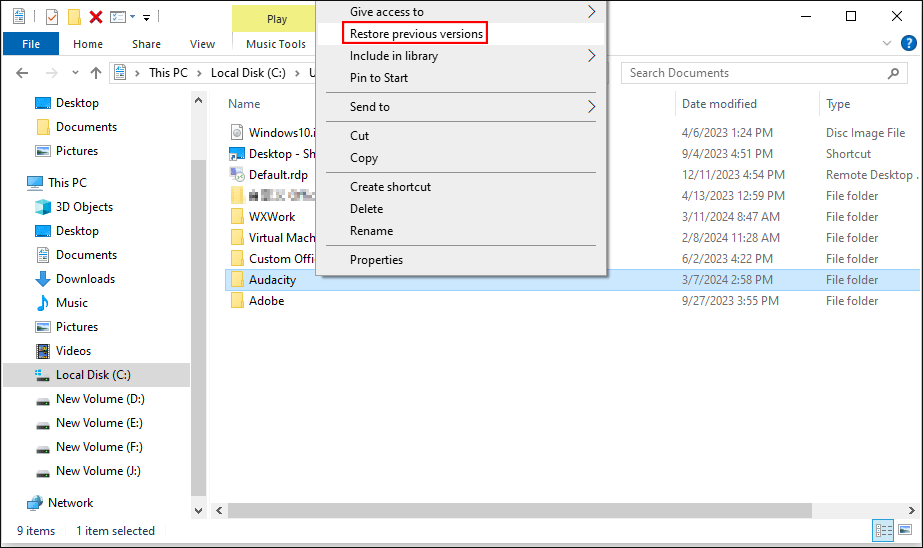
Step 3: Choose one edition that contains the lost Audacity recordings and select Restore.
Then, you can check if the lost recording files are recovered.
Part 2: Recover Unsaved Audacity Recordings
Despite deleted files, you may experience data loss due to software corruption or device damage. Software corruption always happens during the process of editing files without any signs. Hence, unsaved files are at risk of lost. Here are three methods for you to recover unsaved Audacity audio recordings.
Solution 1: Find Unsaved Audacity Files from the Temporary Folder
Similar to working on Microsoft Office, Audacity will save the editing tracks in its temporary folder. This folder is created automatically and allows you to find unsaved files here. You can go further to learn how to get the unsaved Audacity recordings back from the Temporary folder.
Step 1: You should know where the temporary folder is located. You can open Audacity and press Ctrl + P to open the Preference settings window. Then, shift to the Directories tab to find the location of temporary files.
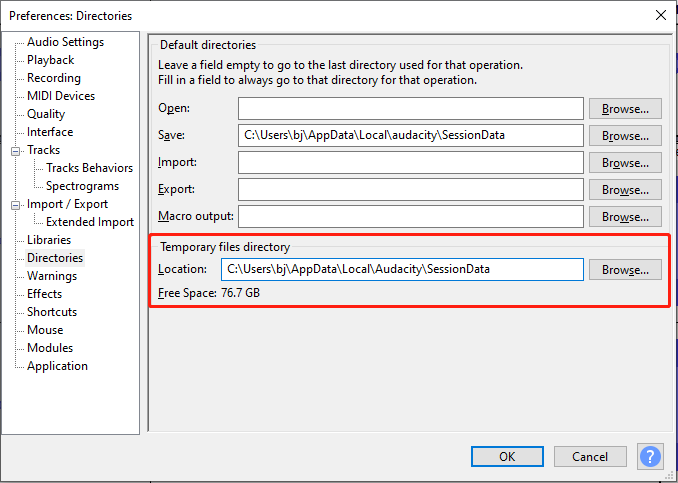
Typically, the path varies from Windows operating system.
In Windows 11/10/8: C:\Users\username\AppData\Local\Audacity\SessionData;
In Windows 7: C:\Users\username\AppData\Local\Temp\audacity_1_2_temp;
In Windows XP: C\Documents and Settings\Local Settings\Temp\audacity_1_2_temp.
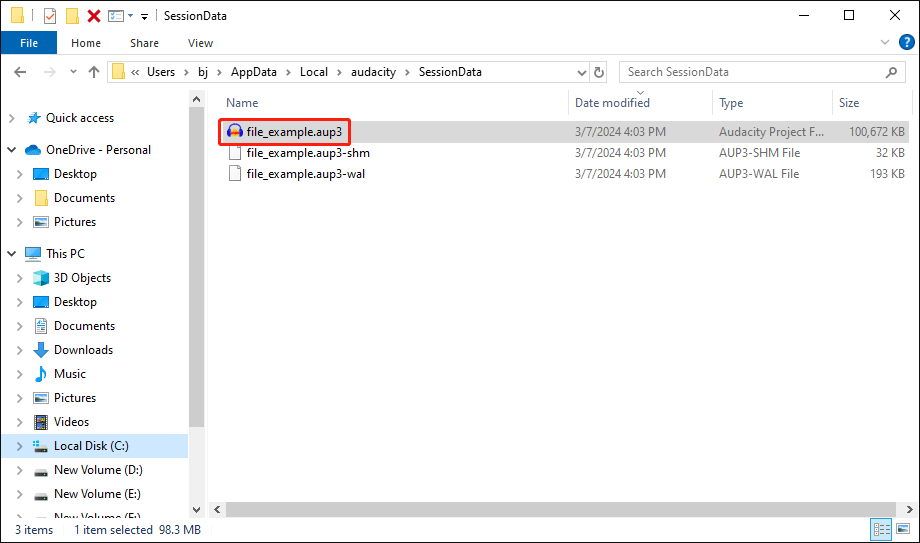
Step 2: Navigate to the temporary folder in File Explorer to choose the unsaved file with the aup3 extension. You can drag the file into Audacity or choose File > Open to open the file, then you can continue the editing or save the file to another location.
Solution 2: Recover Unsaved Audacity Files with Automatic Crash Recovery
Audacity may crash due to misoperations or software issues. When it crashes, you have no time to save the file you are editing. But Audacity has an advanced feature, Automatic Crash Recovery, to recover unsaved files the next time you launch the software. This Audacity recovery utility is specifically designed to tackle unexpected software crashes.
When you launch the program again, you will receive a prompt window shown in the image below. To recover unsaved Audacity recordings, choose the required project in the window and click Recover Selected. If you skip this window, the unsaved file will be discarded.
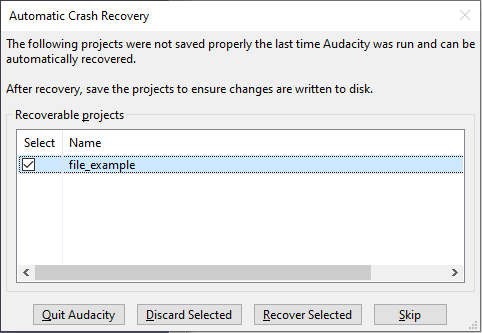
Afterward, this file will be opened in Audacity. You can save the recording to the desired location.
Part 3: How to Protect Audacity Recordings
What can you do to prevent Audacity recordings and other files from losing? The best way is to back them up. If you have backed up Audacity recordings, even if the original files are lost, you can easily get them back without worrying about data recovery failures.
How to back up Audacity recordings and other files? I highly recommend you with MiniTool ShadowMaker. This backup software allows you to design backup schemes based on your situation. You can make scheduled backups and choose backup types using this tool. It provides three backup types: full, incremental, and difference backup.
You can experience backup features with MiniTool ShadowMaker in a 30-day free trial period.
MiniTool ShadowMaker TrialClick to Download100%Clean & Safe
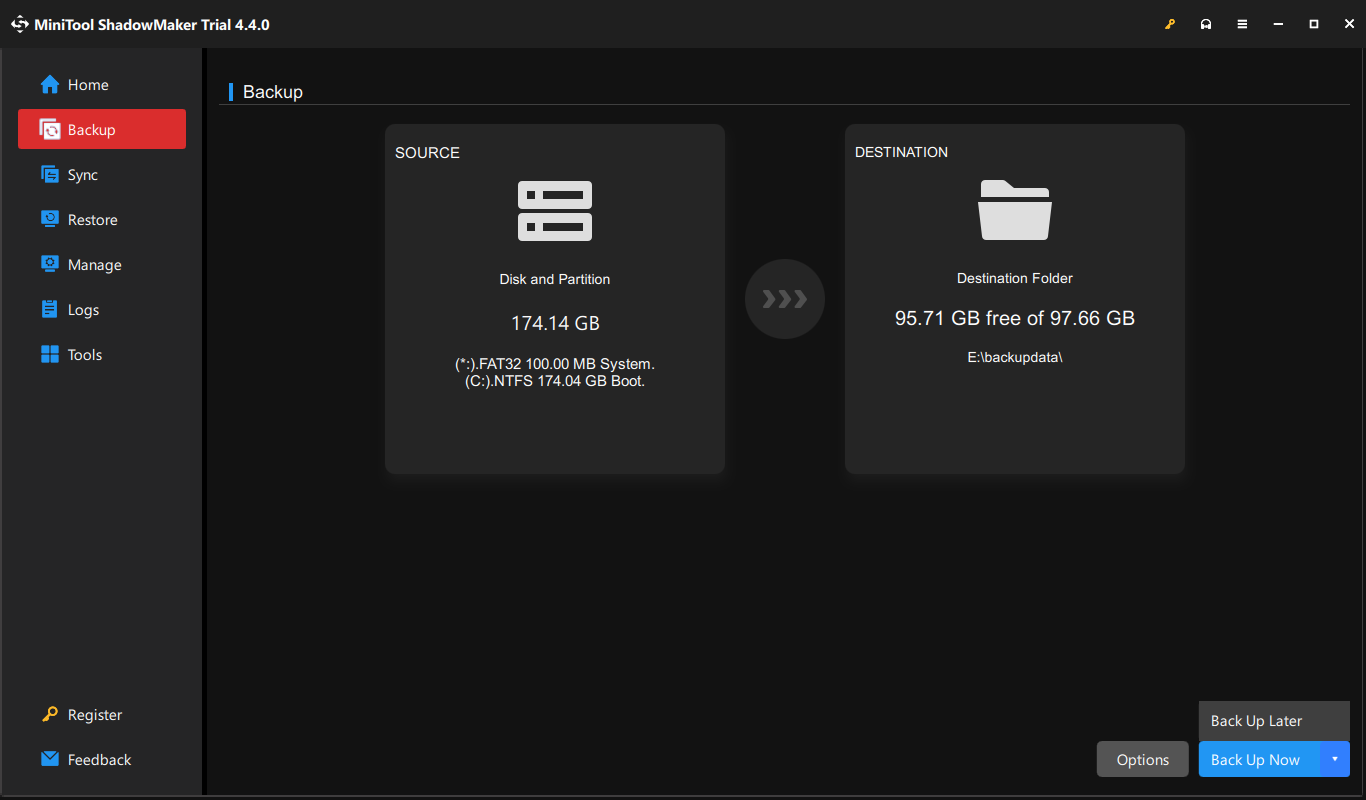
Once successfully download and install MiniTool ShadowMaker on your computer, you can launch it and start to back up Audacity recordings under the Back Up tab.
Click SOURCE to choose the folder that saves Audacity files on your computer and click OK.
For Windows users, you can go to the C:\Users\username\AppData\Local\Audacity\SessionData path or the C\Users\username\Documents\Audacity path.
Click DESTINATION to choose where to save backups and click OK to return to the main interface.
Now, you can click Back Up Now at the bottom right to start the backup process. To further the configuration of the backup process, you can choose Back Up Later instead.
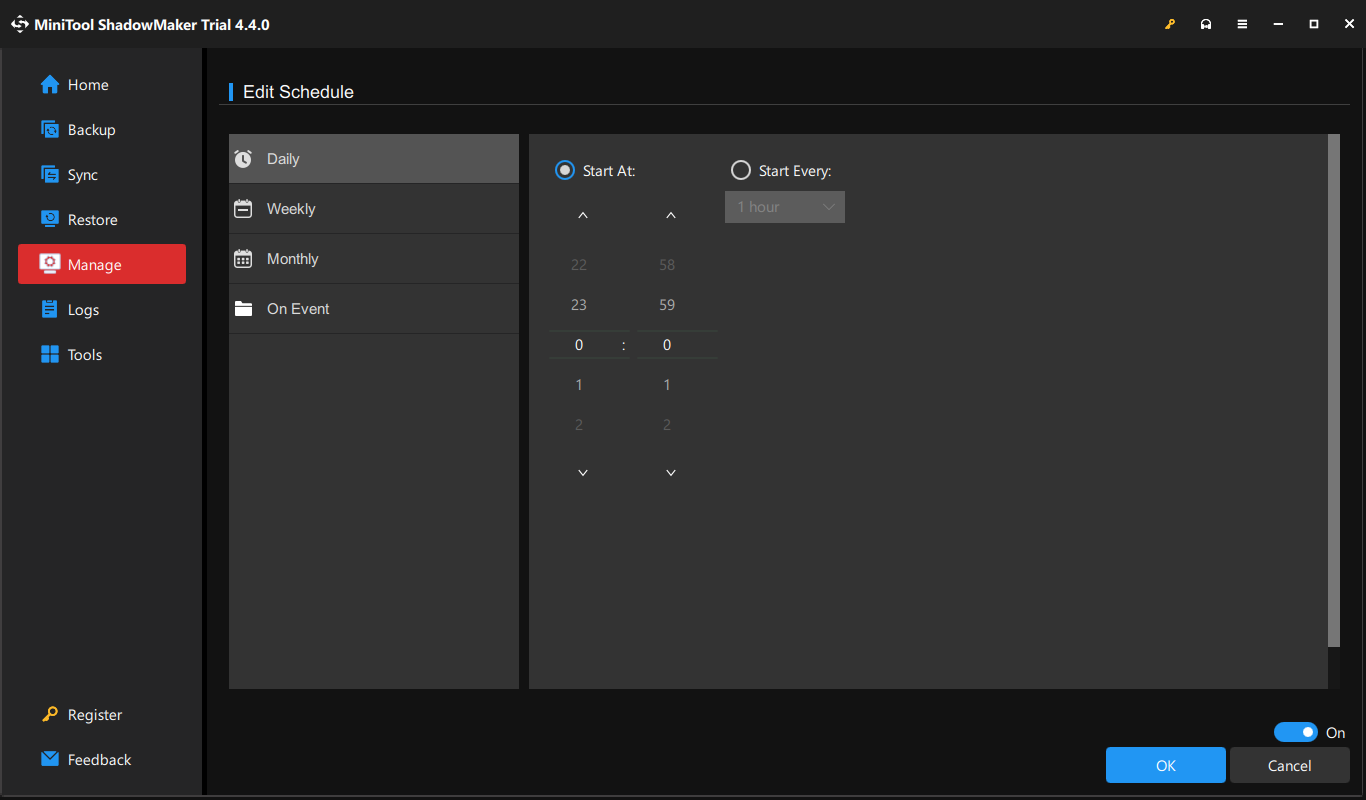
Then, go to the Manage tab to find the suspended backup process, click the three-dot icon, and choose Edit Schedule from the dropdown menu, where you can set the automatic backup period.
Part 4: Wrapping Up
You should know how to recover Audacity audio recordings when they are deleted or unsaved after reading this post. Prevention is always better than recovery. You should bring up a habit of periodically backing up files. However, if files are unfortunately lost, you need to restore them as soon as possible. To ensure the highest data recovery success rate, you are advised to use data recovery software, like MiniTool Power Data Recovery.
MiniTool Power Data Recovery FreeClick to Download100%Clean & Safe
Hope you can successfully get lost Audacity files back with this guidance. If you have any puzzles when using MiniTool software, please feel free to let us know via [email protected].
User Comments :