
To recover LOST.DIR files on an SD card, follow the instructions provided by this MiniTool post to rename LOST.DIR files, use professional data recovery software, or run CHKDSK. Additionally, we provide some useful tips to protect your SD card data.
If you are using an SD card on an Android device, you may have noticed a directory labeled LOST.DIR, and discovered this folder containing unnamed, extension-less files.
The LOST.DIR folder, a system-generated directory, is useful for storing files that couldn’t be saved correctly, which can help in retrieving them.
If you want to recover these extension-less files, try renaming them.
Suppose you have mistakenly deleted the LOST.DIR files due to thinking they are useless malware; consider using a professional data recovery tool.
Before proceeding to the specific solutions, read on to understand the LOST.DIR folder and files within it.
About LOST.DIR Files
LOST.DIR is short for “lost directory”. It is a default system folder found on Android devices and SD cards, designed to serve as a “safety net” for fragmented or corrupted files.
This directory is typically located in the root directory of an Android device’s storage, either on the external SD card or the internal storage.
Usually, when your device encounters an unexpected issue, it transfers incomplete or corrupted files to the LOST.DIR folder to prevent additional system errors.
Common situations that lead to the creation of LOST.DIR files include:
- The application crashes on your smartphone.
- Improperly ejecting the SD card.
- Removing the SD card while it is being read or written to.
- The Android phone unexpectedly freezes or shuts down abruptly.
- You suddenly force-restart the Android device without closing all the apps.
- The SD card keeps disconnecting or unmounting.
Causes of LOST.DIR File Loss
After learning about LOST.DIR, here are some common reasons why the LOST.DIR files are lost:
- Accidental Deletion: You may not know the LOST.DIR folder and think it is malware or just an unnecessary folder occupying space. Therefore, you may intentionally remove the directory to tidy up your SD cards.
- Mistakenly Formatting: Sometimes, when you format an SD card, the LOST.DIR folder can be unintentionally deleted.
- Unexpected Corruption: Regularly removing the SD card without properly ejecting it can cause file corruption or data loss in the LOST.DIR folder.
Why do LOST.DIR files become inaccessible?
Usually, LOST.DIR files cannot be opened directly because they lack file extensions.
Without a suffix like .jpg, .mp4, or .docx, your device doesn’t recognize which application to use to open them.
Furthermore, if the SD card is corrupted or damaged, the LOST.DIR files may be fragmented, leading to data being spread across different storage blocks.
How to Recover LOST.DIR Files on an SD Card
There are three main methods to recover LOST.DIR files, including renaming the files, using MiniTool Power Data Recovery, and running the error check command.
Keep reading to get more details.
Method 1. Rename Files
If you have just a few LOST.DIR files to recover and know their original formats, consider renaming them by adding a file extension.
Here’s the procedure to follow:
Step 1. Insert your SD card into your computer with a card reader. Then, press Win + E to open File Explorer.
Step 2. Find the LOST.DIR folder on the SD card.
Step 3. Choose a file in the LOST.DIR folder, right-click it, and select Rename.
Attach a common file extension depending on your guess of the file type. For example, .png or .jpg for images, .mp4 for videos, and .docx for documents.
Step 4. Try opening the renamed file by using the appropriate program. For instance, the Photos app for .jpg files.
If it succeeds, carry on with the same for the remaining files.
This solution can be very labor-intensive when dealing with a large volume of files, and the likelihood of success is low, particularly for fragmented LOST.DIR files.
If you assign the incorrect extension to a file, it will still not open, resulting in wasted time as you try out various suffixes.
To carry out a LOST.DIR recovery, using LOST.DIR recovery software is usually a more effective option. Continue reading to get the instructions.
Method 2. Use MiniTool Power Data Recovery
If you have deleted a LOST.DIR file or want to recover the original file lost on an SD card, using data recovery software is a highly recommended solution.
MiniTool Power Data Recovery is a reliable data recovery tool designed for recovering lost, deleted, and corrupted files from various storage devices such as SD cards, HDDs, and USB drives.
Its user-friendly interface makes it ideal for novices, while its sophisticated scanning algorithms deliver impressive recovery success rates, even for fragmented LOST.DIR files.
With numerous data recovery tools available, MiniTool Power Data Recovery is the best option for recovering LOST.DIR files from SD cards.
Here are its main benefits:
1. Wide Compatibility
The software is compatible with all leading SD card brands, like SanDisk, Samsung, and Kingston, and supports all standard file systems, including FAT32 and exFAT.
Additionally, it can recover LOST.DIR files from corrupted, formatted, or even physically harmed SD cards if the card is recognized by the computer.
It also supports data recovery for hard drives, USB drives, SSDs, and more, and compatible with Windows 11/10/8/8.1.
2. 100% Safe and Secure
MiniTool Power Data Recovery is a read-only data restore tool, meaning it does not write or change any data on your SD card throughout the recovery process.
This ensures there’s no danger of additional data corruption and provides secure data recovery.
3. Extra Powerful Features
In addition to LOST.DIR recovery, MiniTool Power Data Recovery can restore lost images, videos, documents, and various other files.
It can recover files lost due to accidental deletion, formatting, virus attacks, or system failures.
4. Free Edition
This free data recovery software allows you to recover 1GB of files for free.
Download and install MiniTool Power Data Recovery by clicking the button below.
MiniTool Power Data Recovery FreeClick to Download100%Clean & Safe
Here’s a step-by-step guide to using it to recover LOST.DIR files on Windows:
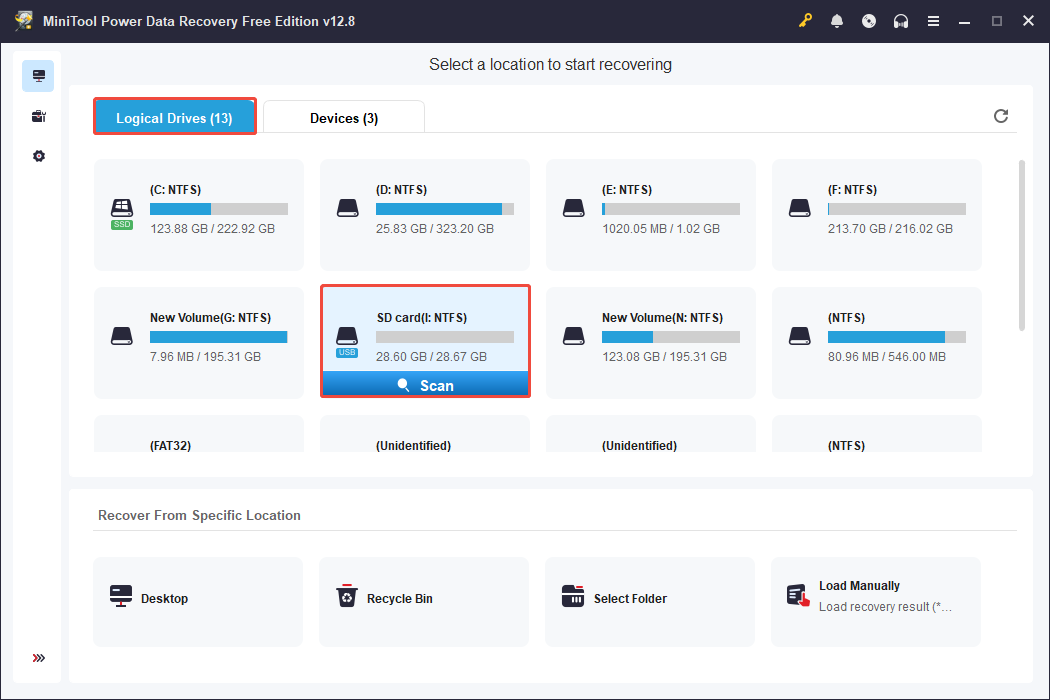
Step 1. Select the Target SD Card to Scan
Launch MiniTool Power Data Recovery to enter its main interface.
You’ll see a list of all detected partitions under the Logical Drives tab, including your internal hard drives, external drives, and the connected SD card.
Select the SD card (with a USB icon) that contains the LOST.DIR folder and click the Scan button to start the scanning process.
Step 2. Locate and Preview Wanted LOST.DIR Files
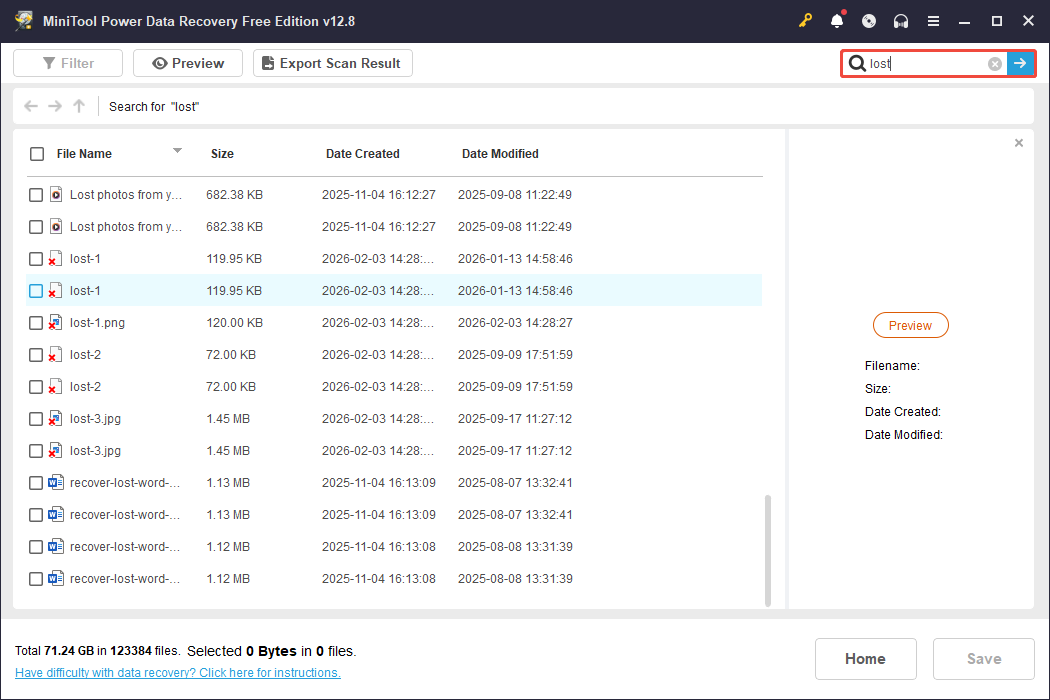
Once the scan is complete, MiniTool Power Data Recovery will display all recoverable files in a clear, organized interface under the Path tab.
Additionally, there are two features to locate desired files effectively: Filter and Search.
- Filter: This option enables you to narrow your files based on file type, date modified, file size, and file category. This helps to further focus your search scope.
- Search: Type a complete or partial file name in the Search box and press Enter. The program will promptly recognize and present relevant items found in the scan results.
Step 3. Select and Recover the Needed Files
Select the LOST.DIR files you want to restore and click the Save button. In the pop-up window, choose a safe location to save the recovered files and click OK.
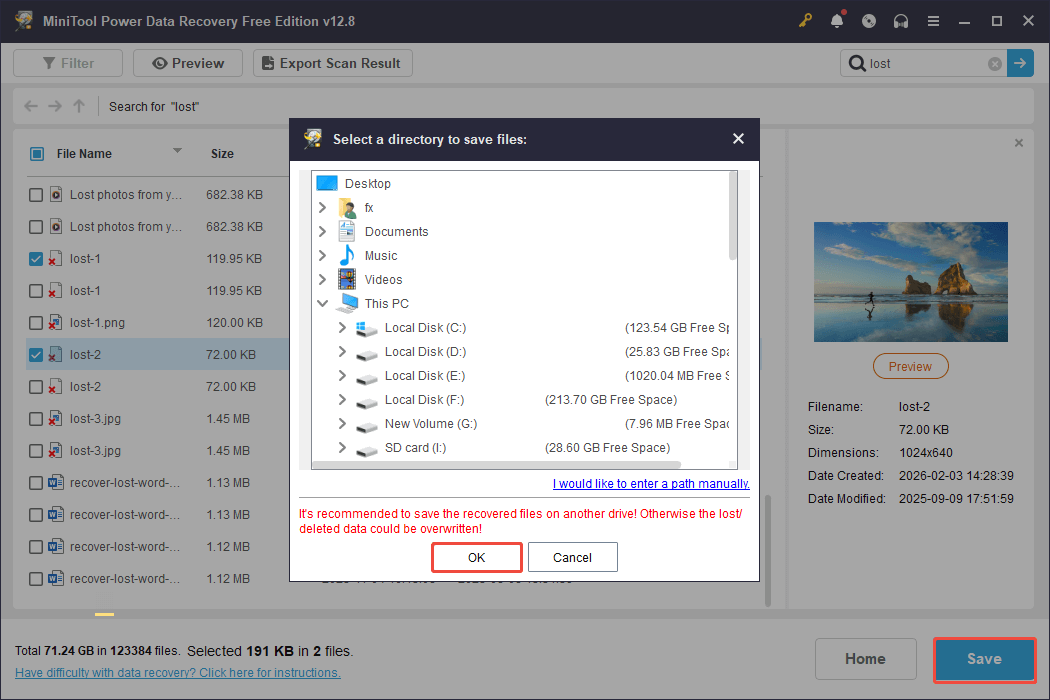
Once the recovery process is complete, go to the selected save location to see the recovered files. To open these LOST.DIR files, rename them by adding relevant suffixes.
Method 3. Run CHKDSK
When the SD card’s file system is faulty or corrupted, its folders or files may become invisible or inaccessible. When connected to your computer, you may see a prompt saying “this disk has a problem”.
In this case, use the CHKDSK command to detect and repair file system errors on the SD card.
Follow these steps to do it:
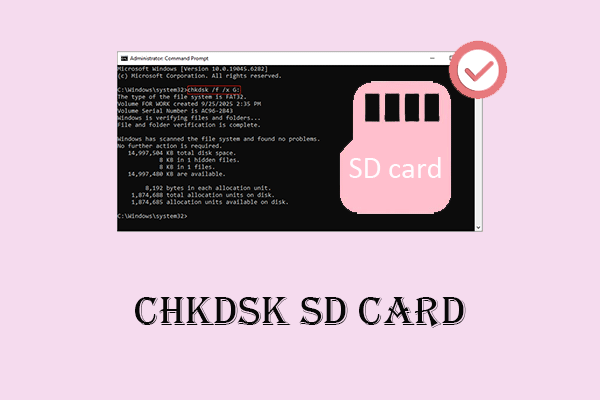
Step 1. Press Win + S to open the Windows Search bar, type cmd in the box, right-click on Command Prompt, and select Run as administrator.
Step 2. Type chkdsk /f /r /x I:, then press Enter to address any errors (Replace “I” with your specific drive letter for the SD card).
- /f: Fixes any errors on the disk.
- /r: Detects bad sectors and recovers readable data (includes the functionality of /f).
- /x: Forces the volume to unmount (also includes the functionality of /f).
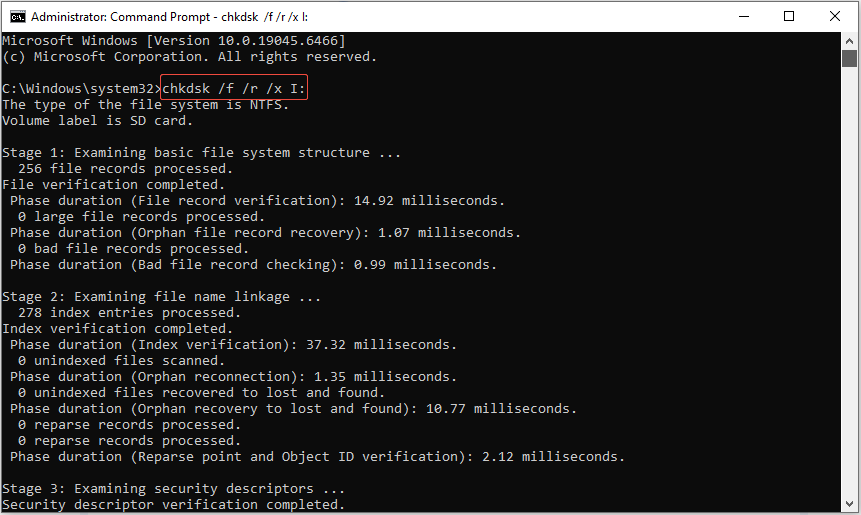
The system will start scanning and correcting errors on the SD card. This operation may take several minutes, depending on the size of the card and the severity of the errors.
Once the repair process finishes, restart your computer and verify whether the SD card is functioning properly again.
Finally, open File Explorer and check your LOST.DIR files.
Tips to Prevent LOST.DIR File Loss on SD Cards
After successfully recovering your LOST.DIR files, follow these suggestions to protect your data securely and to avoid future LOST.DIR problems:
- Check the integrity of recovered files: Open the restored files to confirm they are complete and accessible.
- Properly eject SD cards: Always use the “Safely Remove Hardware” feature on Windows before removing an SD card from your computer. This ensures that all ongoing file transfers are finished, minimizing the chance of data fragmentation.
- Prevent unexpected device shutdowns: Keep your Android device charged while transferring files, and refrain from turning it off or restarting it during the operation.
- Choose high-quality SD cards: Use reliable and high-speed SD cards from well-known brands. Inexpensive, low-grade cards are more susceptible to corruption and data loss.
- Back up recovered data/SD cards: Save SD card data in several locations, such as your computer’s internal drive, an external hard drive, and a cloud storage solution.
Wrap Thing Up
To sum up, this post explores how to recover LOST.DIR files on an SD card on Windows.
If your files are still stored in the LOST.DIR folder, try renaming these files to make them available.
If you accidentally deleted your LOST.DIR files or have formatted the SD card, consider using MiniTool Power Data Recovery.
For a corrupted SD that makes LOST.DIR files unavailable, use the CHKDSK command to repair the file system.
After recovering LOST.DIR files, follow the suggestions above to protect your SD card data.
If you have any problems with MiniTool tools, please send us an email via [email protected].
FAQs About LOST.DIR File Recovery
Step 1. Find the folder in your File Manager located in internal storage or on the SD card. Typically, the files consist of random numbers without any file extensions.
Step 2. You’ll need to assign the right suffixes, such as .jpg for images, .mp4 for videos, or .docx for documents.
Step 3. Once you’ve renamed the file, click on it and open it using the suitable application.
It often shows empty, so you can safely delete it, but it will return after restarting the device.
However, if the folder has important files, deleting it will permanently delete those files.
To avoid the creation of LOST.DIR files, always unmount the SD card before ejecting it, and save your progress by closing apps before turning off the device.
User Comments :