
Music typically exists as digital files on the computers and mobile devices we use every day. But sometimes, these files go missing, leaving users wondering: How do I recover lost music files?
Don’t worry. This article will show you how to recover music files on any device.
Common Music Loss Scenarios and Causes
First, here is why and how your music files get lost. Learn the causes to avoid music file loss in your daily use.
1. Music File Loss Due to Misuse
- Accidental deletion: You may accidentally delete music files or entire folders.
- Disk formatting: Formatting a hard drive, USB drive, or SD card will erase all music files.
2. Device Failure or Damage
- Hard drive damage: Mechanical failure or bad sectors may make files inaccessible.
- SD card/USB drive damage: Frequent plugging and unplugging or improper removal can damage files.
- Mobile device failure: System failure on a phone or other mobile device can lead to music loss.
3. Software or Sync Issues
- Music player or management software crashes: Errors during syncing or updating can also cause file loss.
- Cloud sync failure: The cloud service may not sync correctly or may accidentally delete local files.
4. Viruses or Malware
- Virus infection: Some viruses can delete or hide music folders.
- Software attacks: Some malicious programs may encrypt or lock files, preventing access.
After knowing the causes, start recovering the lost music.
First Aid: Check the Backups and Cloud Storage on Any Device
If you have backed up your music files, then restoring directly from the backup is the fastest and easiest way.
Choose the appropriate method based on your device to restore music files from your backup.
1. For Windows
- File History: Go to Control Panel > System and Security > File History > Restore personal files. And then browse the backup location to see if your music files are included.
- Third-party backup software: Check the backup software to restore music files from backups.
2. For Mac
- Time Machine: Click the Time Machine icon in the upper-right corner of the screen. Select the Music folder to see if there are any historical versions available for restoration.
- iCloud Drive: Open iCloud Drive in Finder to confirm that your music files have synced.
3. For Android
- Google Drive: Open the Google Drive app or webpage, find the music file, and click Download to restore it to your phone.
- Local backup: If you’ve backed up music files to an SD card or computer, simply connect the device to your phone, and copy music files to your phone’s Music folder.
4. For iPhone
- iCloud: Go to Settings and tap your Apple ID. Tap iCloud > iCloud Backup to view the backup date.
- iTunes: If you have backed up files using iTunes, connect your iPhone to your computer and view the backup details in Finder or iTunes.
If you did not back up your music files or if restoring from a backup was unsuccessful, proceed to further recovery methods.
How to Recover Music Files on Windows
This section explains how to recover music files for Windows users.
Way 1: Restore from the Recycle Bin
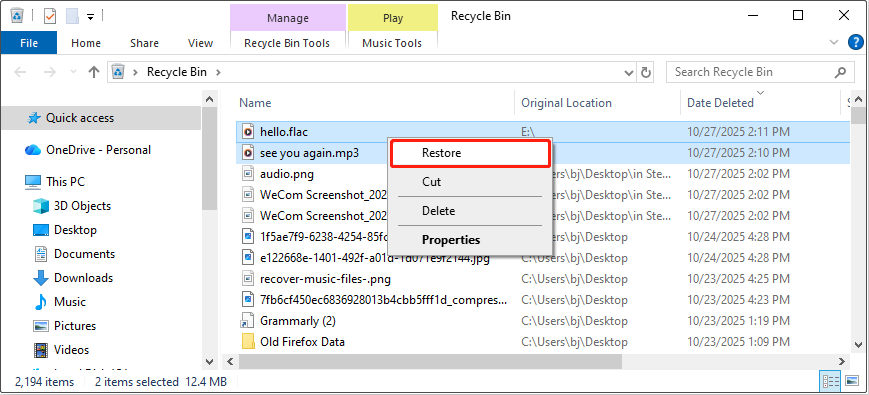
There is a Recycle Bin function on Windows that can temporarily store your deleted files. So, when music files are lost, first check whether they are in the Recycle Bin.
Step 1: Open the Recycle Bin and scroll down the list to find the deleted music files.
Step 2: Select them, right-click the area, and choose Restore.
The music files will be restored to the original location.
Way 2: Utilize MiniTool Power Data Recovery
If you don’t find the file you want in the Recycle Bin, this data recovery tool, MiniTool Power Data Recovery, can help you. Here are some of its features:
- Supports multiple audio formats. This tool can recover popular music file formats like MP3, WAV, FLAC, AAC, and OGG.
- Compatible with various file systems and devices. It supports file systems like NTFS, FAT32, and exFAT. It can recover data from hard drives, SSDs, USB flash drives, SD cards, etc.
- Suitable for non-technical users. The intuitive interface and clear recovery process make music file recovery easy, even for those without a technical background.
- Provides a preview function. It allows you to preview your audio files to help you determine if they are correct.
- Includes free recovery capacity. This free file recovery software gives you a 1 GB free recovery quota. It may be sufficient for small recovery tasks.
Step 1: Download MiniTool Power Data Recovery
Click the green button below to download and install MiniTool Power Data Recovery.
MiniTool Power Data Recovery FreeClick to Download100%Clean & Safe
Step 2: Launch the software and scan the location
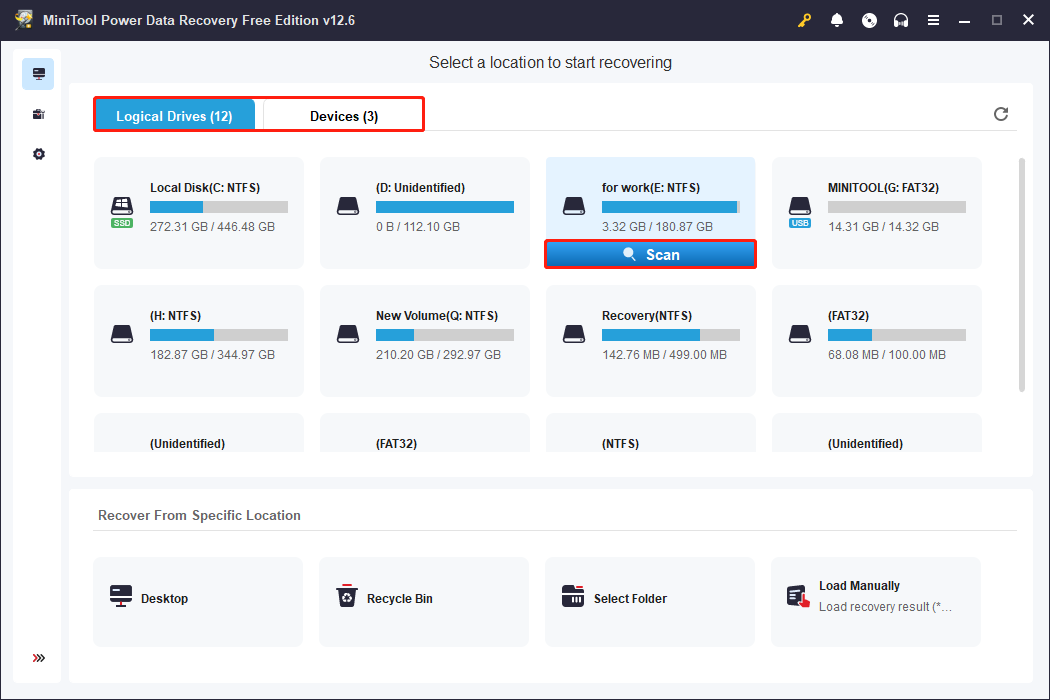
Open MiniTool Power Data Recovery. Then, find the target scanning location according to the following features.
- Logical Drives lists all partitions, including the existing, lost partitions, or unallocated spaces. Even partitions that cannot be accessed normally are displayed here.
- Devices allows you to scan the entire physical storage device, such as a hard disk, USB flash drive, SD card, etc., rather than just a certain partition.
- Recover From Specific Location is designed to recover data from specific folders or directories, such as the Desktop, Recycle Bin, or the Music folder. It saves time compared to scanning an entire partition or device.
After finding the target drive, move your cursor to it and click Scan.
Step 3: Wait for the scan to complete and find the target files
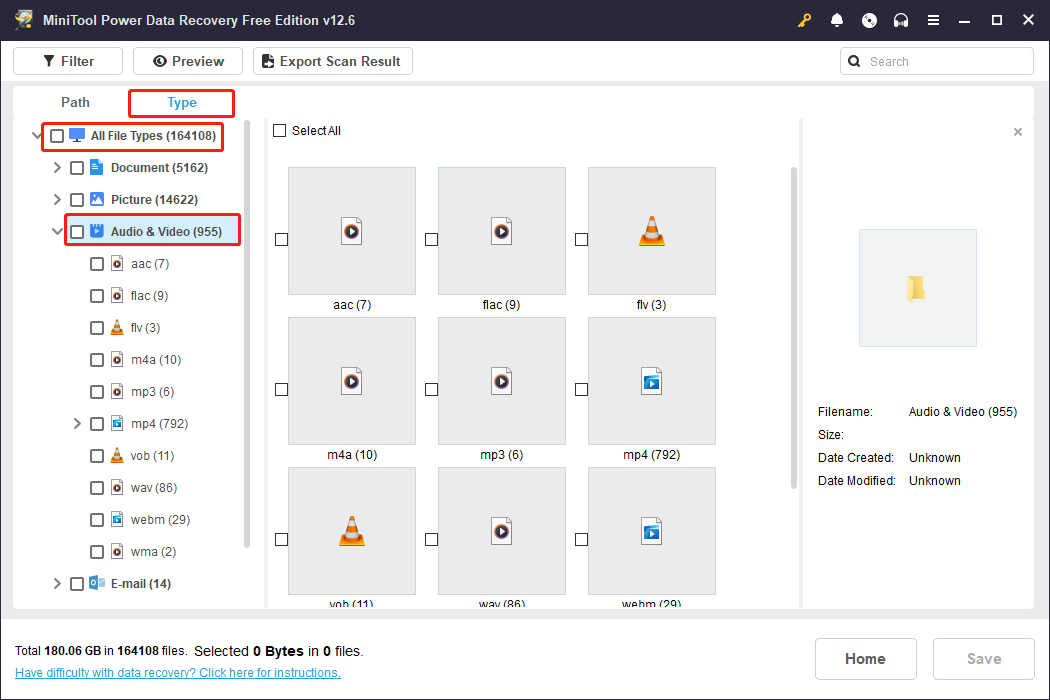
After the scan is complete, the results are displayed by folder structure under Path or by file type (such as images, documents, and videos) under Type for easy browsing.
Switch to the Type tab, and then expand All File Types > Audio & Video. All the audio formats will be here.
Step 4: Preview the music files before saving them
Before recovery, double-click a file to preview it (supporting formats like images, documents, and audio files) to confirm that the file is correct and complete.
This greatly improves recovery accuracy and prevents the accidental recovery of unnecessary files.
Step 5: Tick the music files and save them to a new location
Finally, tick all the wanted music files and click Save. In the new prompt window, choose a new location and click OK. The recovery will start.

When the Recovery Completed window appears, navigate to the destination and verify your files.
How to Restore Music Files on Mac
This section explains how Mac users can recover lost or deleted music files.
Way 1: Put Back from the Trash
Like Windows, Mac also has a place to store deleted files called Trash. Here is how to put back your music files from it.
Step 1: Launch the Trash and find the target music files.
Step 2: Select and right-click them, and choose Put Back.
Once done, go to the original destination to check them.
Way 2: Use Stellar Data Recovery for Mac
Cannot find the target files in the Trash? Try Stellar Data Recovery for Mac. It supports music file recovery from Mac internal hard drives, external hard drives, solid-state drives (SSDs), USB drives, SD cards, and other devices.
What’s more, it can recover a variety of music file formats, including MP3, AAC, WAV, and FLAC.
Before you pay, you can preview the recoverable music files, ensuring you only pay for data you can actually recover.
Step 1: Download and install Stellar Data Recovery for Mac.
Data Recovery for MacClick to Download100%Clean & Safe
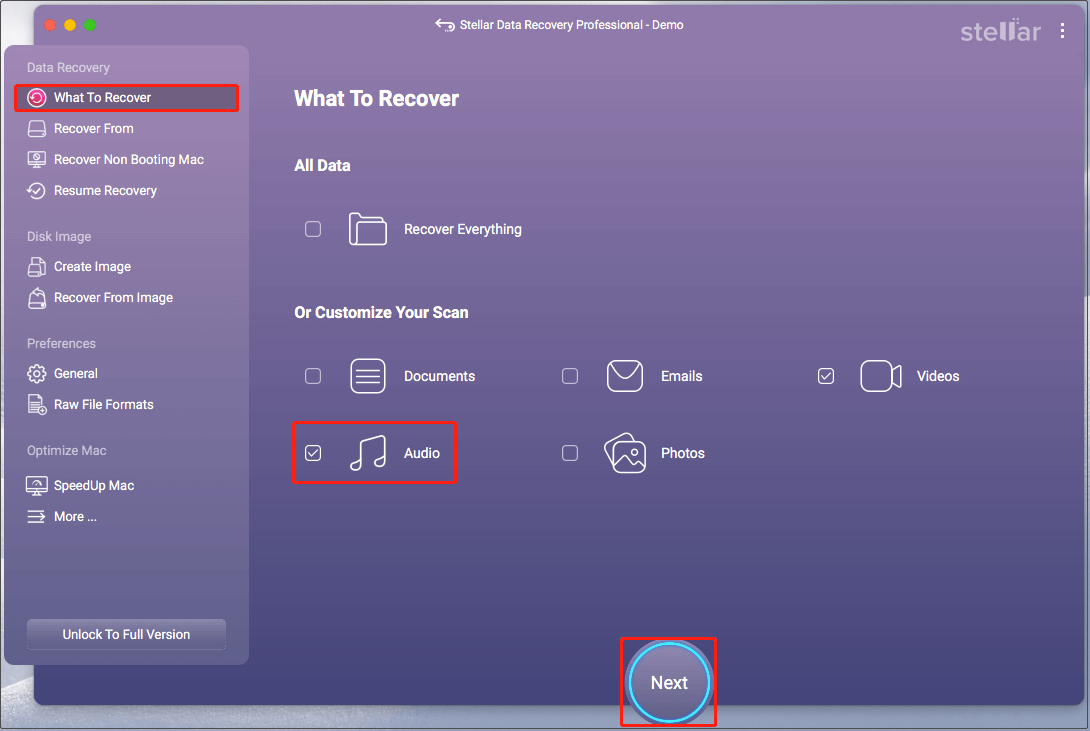
Step 2: On the What To Recover screen, select the Audio option and click Next.
Step 3: On the Recover From screen, select the drive where the audio files are located and click Scan.

Step 4: After the scan is complete, expand the list to locate and preview the target audio files. After confirming all files, select them and click Recover.
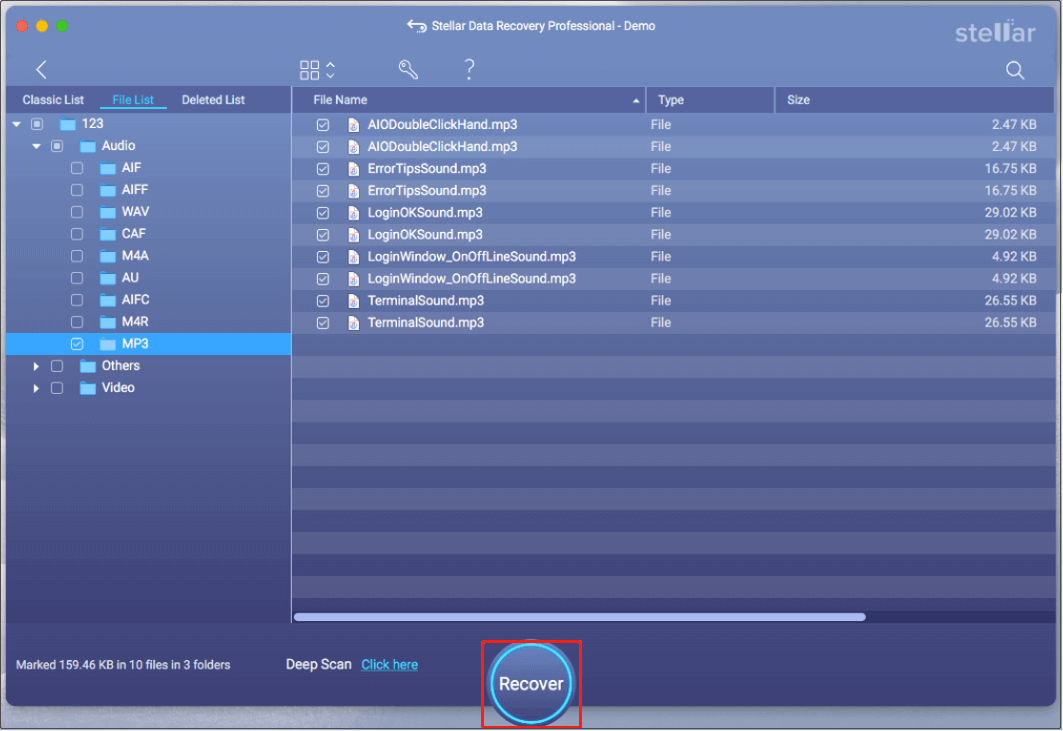
Since this trial edition only provides scanning and preview features, to successfully recover audio files, click Get It Now and follow the onscreen instructions to obtain the premium edition.
Step 5: After activation is complete, select a new location for the recovered audios in the new prompt.
After the recovery finishes, check your recovered files.
How to Recover Deleted Music Files from Android
This part teaches you how to recover deleted music files from Android.
Way 1: Make Use of Recently Deleted
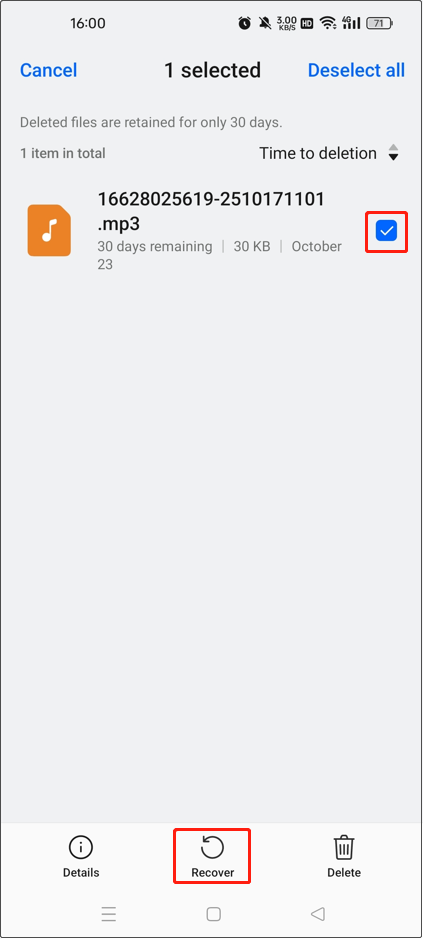
Generally, files deleted on Android phones will be saved in Recently Deleted. Therefore, you can visit this folder first.
Step 1: Go to My Files > Files > Recently Deleted.
Step 2: Press and hold the file you want to restore and tap Recover. Then hit Recover in the pop-up window.
Way 2: Try MiniTool Mobile Recovery for Android
MiniTool Mobile Recovery for Android is a data recovery tool designed specifically for Android users. This tool can help you quickly recover music files after accidental deletion, system crash, virus attack, or formatting. And it supports a variety of audio formats.
MiniTool Android Recovery on WindowsClick to Download100%Clean & Safe
Step 1: Root your Android device to remove some restrictions.
Step 2: Connect your phone to your computer and launch MiniTool Mobile Recovery for Android.
Step 3: Click Recover from Phone, then tap OK on your phone to allow USB debugging.
Step 4: In the Device Ready to Scan section, select Audio and click Next.

Step 5: After the scan is complete, expand the list to find and select the music file, then click Recover.
How to Recover Deleted Music Files from iPhone
This section is dedicated to explaining how to recover lost music files for iPhone users.
Way 1: Check the Recently Deleted Folder
Music files deleted on iPhone are usually moved to Recently Deleted. Here is how you can recover them from this folder.
Step 1: Open the Files app on your iPhone.
Step 2: Go to the Browse tab and click Recently Deleted.
Step 3: Press and hold the wanted file and choose Recover.

The file will be restored to the original place.
If the deleted music is not available in the Recently Deleted folder, try redownloading it from the iTunes Store.
Way 2: Redownload Music from the iTunes Store
If you previously purchased music files from the iTunes Store, you can now download them again to your iPhone at no extra cost. Just make sure you are signed in with the same Apple ID used for the original purchase.
Here is how to redownload them on your iPhone:
Step 1. Open the iTunes Store app.
Step 2. Tap the More (the three-dot icon) button.
Step 3. Tap Purchased.
Step 4. Tap Music. Now you can:
- Download all songs: Tap All Songs, and then tap Download All.
- Download a song or album: Tap an artist, then tap the Download button next to the desired song or album.
If you do not see or cannot download music that you purchased, the music may be hidden. In this case, you can unhide it by using the Apple Music app. Check detailed instructions from this official guide: How to Redownload Music From the iTunes Store on Your iPhone or iPad.
Way 3: Retrieve with MiniTool Mobile Recovery for iOS
If the music was not purchased from the iTunes Store or is no longer available for redownload, you need to seek help from data recovery software.
MiniTool Mobile Recovery for iOS is a data recovery tool designed specifically for iPhone and iPad. It supports recovering data from the device itself, iTunes backups, and iCloud backups (for previous versions of iOS 9).
This tool is suitable for recovering music files from older iPhone devices, as it may not be compatible with iOS versions later than 11.
MiniTool iOS Recovery on WindowsClick to Download100%Clean & Safe
The Recover from iOS Device module allows you to scan and recover data directly from your iPhone’s internal storage without any backup.
If you’ve backed up your iPhone with iTunes, use the Recover from iTunes Backup File module to recover your music files.
Final Words
In a word, when you need to recover music files, restore them from the backups first. If there is no backup, choose the right tool according to your device.
On Windows, use the Recycle Bin and MiniTool Power Data Recovery; on Mac, employ the Trash and Stellar Data Recovery for Mac; on Android, try Recently Deleted and MiniTool Mobile Recovery for Android; on iPhone, utilize Recently Deleted and MiniTool Mobile Recovery for iOS.
For any inquiries regarding MiniTool products, please contact us at [email protected]. We’re happy to help!
User Comments :