
This MiniTool guide focuses on the USB flash drive not recognized issue. Proven solutions include updating device drivers, assigning a drive letter, and cleaning the drive. It also explains how to recover data from USB flash drive not recognized by using data recovery software.
USB flash drives are commonly used storage devices. However, sometimes when a USB drive is inserted, Windows fails to detect or communicate with it.
Quick Fixes for USB Drive Not Recognized:
- Check the USB drive, port, and power supply
- Try another USB port or computer
- Update or reinstall USB drivers
- Assign a drive letter in Disk Management
- Run the Hardware and Devices troubleshooter
- Reinstall USB controller drivers
- Disable USB selective suspend
- Clean the USB drive
These fixes apply if you experience the following USB detection symptoms:
- The USB drive is not showing up in File Explorer
- The USB drive does not appear in Disk Management
- An error message such as “USB device not recognized” appears
- The drive shows as “Unknown USB Device” in Device Manager
Why Is My USB Flash Drive Not Recognized
This issue is usually caused by hardware, driver, or system-level problems, such as:
- Hardware failure: damaged chip, connector, or circuit board
- Driver issues: missing, corrupted, or incompatible drivers
- USB port failure or power issues: unstable physical connection or insufficient power supply
- Partition table corruption: damaged partition table
- Incorrect system settings: power management conflicts
- Device conflicts: multiple USB devices causing resource issues
Before You Do: Recover Data from an Inaccessible USB Drive
If your USB drive contains important data, recover it before attempting fixes to prevent data loss.
Data recovery software like MiniTool Power Data Recovery can help restore files from corrupted USB drives or lost partitions. It allows you to scan and recover all kinds of file types such as documents, photos, videos, and audio files.
MiniTool Power Data Recovery Free supports recovering 1 GB of files at no cost.
Step 1: Download the software and scan your USB drive
Click the following green button to download and install it on your computer.
MiniTool Power Data Recovery FreeClick to Download100%Clean & Safe
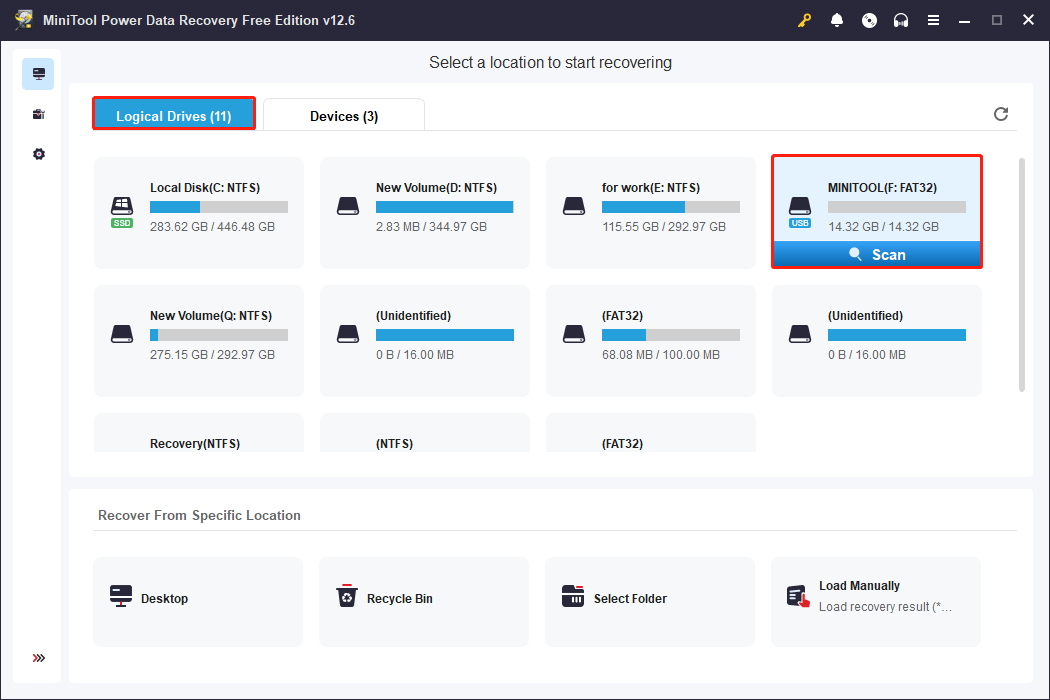
Once finished, launch the software. In the main interface, you can see all partitions under the Logical Drives tab. Select your USB drive or lost partition and click Scan.
Step 2: Find the target files using Type, Filter, and Search
This scanning process will take some time. For more complete recovery results, do not interrupt it. After it ends, you can start browsing the scan results under the Path tab.
If you want to find files according to the file structure, this feature is best for you. If not, try the following ones.
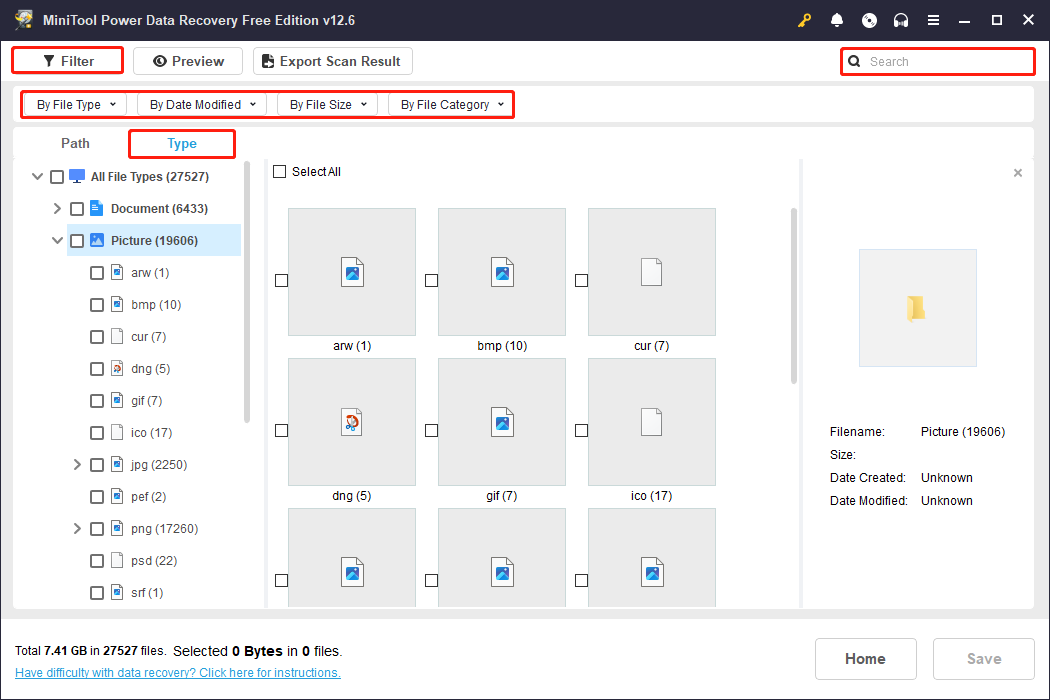
MiniTool Power Data Recovery provides three practical features: Type, Filter, and Search. They can help you quickly locate the files you want to recover in massive scan results.
- The Type feature classifies the scanned files by type, such as documents, pictures, audio, videos, compressed files, etc. You can click Type and expand All File Types to quickly browse a certain type of file without having to search one by one in the entire file tree.
- The Filter function allows you to filter by file type, modification date, file size, and file directory. It allows you to set up four corresponding filter conditions at once to quickly narrow down the scope.
- The Search feature supports directly finding specific files by entering the file name or keywords. If you remember the full or partial file name, just enter it in the search box and press Enter; MiniTool will locate the relevant files.
Step 3: Preview the files before recovery
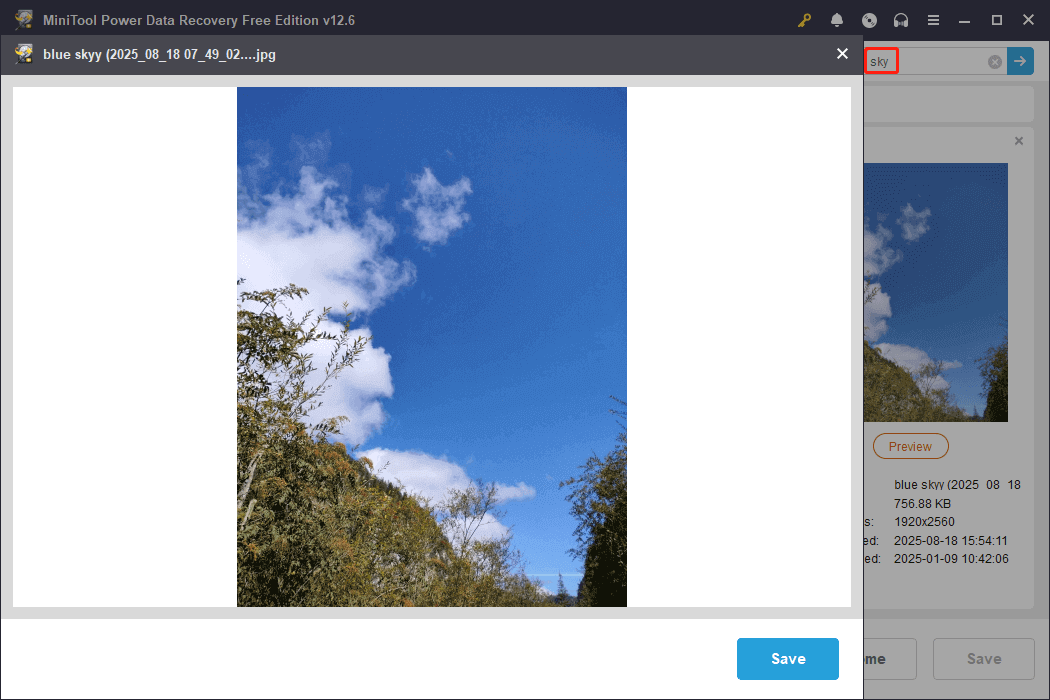
After locating the file, it is best to enable the Preview feature. This allows you to verify the file’s contents are complete and confirm that it’s the file you’re recovering.
This feature supports common file formats, including images, documents, and audio files, making you confirm file availability before recovery and avoid wasting recovery capacity or time.
Simply double-click the target files one by one, and the preview window will pop up, allowing you to view the file easily.
Step 4: Tick all the files and save them to a safe destination
Now, it’s time to save files. Tick all the files you need and click the Save button. In the destination window, choose a path to store your recovered files.
After selecting, hit OK to start the recovery process. When the files are retrieved completely, a window will pop up. You can see the size of the recovered files and the remaining free recovery capacity.
Once this free recovery capacity is used up, you need to upgrade to a full edition to continue recovering files.
How to Fix the USB Flash Drive Not Recognized Issue
After recovering important files, you can proceed with USB troubleshooting. The following fixes help identify and resolve both hardware and system-related issues.
Step 1: Hardware Troubleshooting on an Unrecognized USB
Fix 1: Check the USB Drive and Port
Physical damage or a poor connection may cause the “USB not showing up” issue. Therefore, you can check the USB flash drive and port first. This operation will quickly determine whether the problem lies with the hardware or system settings, avoiding unnecessary software repairs.
Fix 2: Try Another USB Port and Computer
If your USB drive isn’t physically damaged, you can try using a different USB port or a different computer.
This can help determine if the problem lies with the USB drive itself or with the port, drivers, or system settings on your current computer.
Fix 3: Check the USB Drive’s Power
Some USB flash drives and external hard drives require a stable power source to function properly. If the port isn’t receiving enough power, the device may not be recognized by the system. This makes checking the power source crucial, especially when using a USB hub or an older computer.
Step 2: Software Troubleshooting on an Unrecognized USB
Fix 1: Update or Reinstall USB Drivers
Applicable situation: When the USB drive appears in Device Manager but is not showing up in File Explorer
Updating or reinstalling USB drivers is a critical step in resolving the issue. If the drivers are corrupted, outdated, or incompatible, the system will not be able to correctly recognize and load the USB device.
Update USB drivers:
Step 1: Press Win + X keys and choose Device Manager.
Step 2: Expand Disk drives, right-click your card, and choose Update driver.
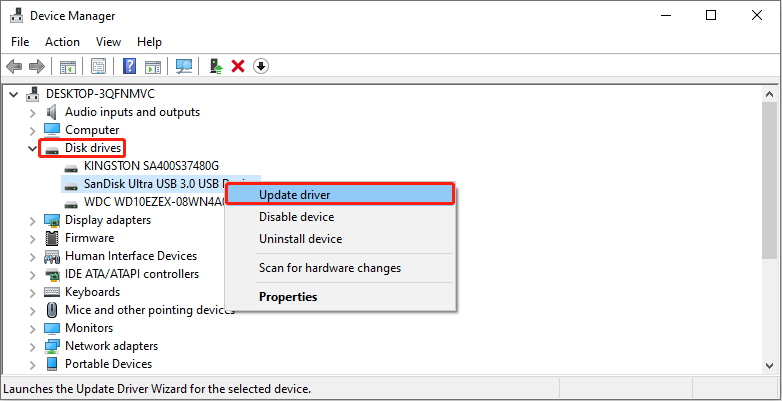
Step 3: In the pop-up window, select Search automatically for drivers.
If an available update is detected, it will be installed automatically. When you see the “The best drivers are already installed” message, you can reinstall the driver.
Reinstall USB driver:
Step 1: Open Device Manager and expand Disk drives.
Step 2: Right-click your card and select Uninstall device.
After reinstalling it, restart your computer. During this process, Windows will install the new driver for you automatically.
Fix 2: Create New Volumes
Applicable situation: When the partitions on the USB drive are lost
When the USB drive shows Unallocated space in Disk Management, it means the drive has no valid partition. Creating a new volume allows Windows to recognize and use it.
Step 1: Press Win + X and choose Disk Management.
Step 2: Right-click your drive and choose New Simple Volume.
Step 3: Click Next twice until you enter the Assign Drive Letter or Path page.
Step 4: Choose an unused letter from the Assign the following drive letter menu and click Next.
Step 5: On the next page, set the file system and volume label, and click Next.
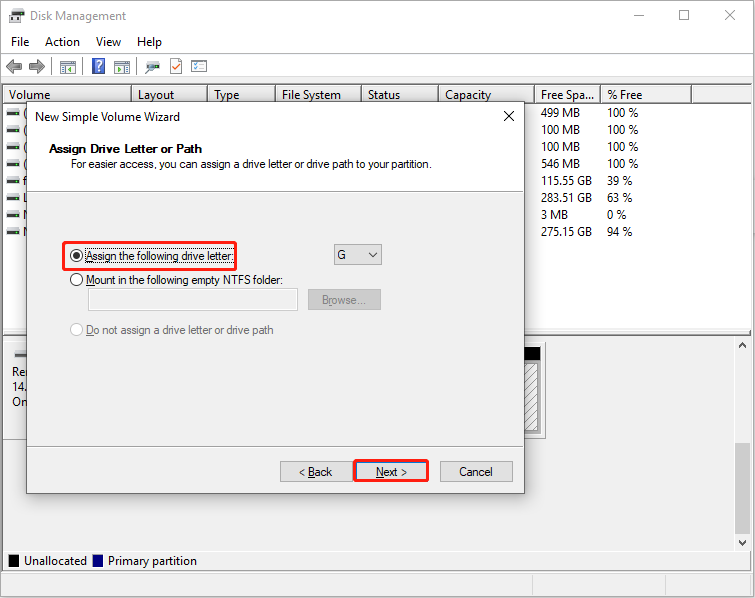
Step 6: Finally, click Finish to close the wizard.
Fix 3: Assign a Drive Letter
Applicable situation: When the USB drive does not have a drive letter
A missing drive letter can prevent the system from displaying the USB drive, even though it is actually detected. In this case, you need to add a drive letter.
Step 1: In Disk Management, right-click your drive and choose Change Drive Letter and Paths.
Step 2: Click Add. Select a letter from the Assign the following drive letter list, and then click OK > Yes.
Fix 4: Run Hardware and Devices Troubleshooter
Applicable situation: When the USB device is not recognized and no obvious cause is identified
When the problem of USB device not recognized Windows 10 appears, you can try running the Hardware and Devices troubleshooter. It can detect and fix common issues such as driver errors, USB class filter anomalies, device conflicts, or incorrect system settings.
Step 1: Open Command Prompt as administrator
Type cmd in the Windows search bar, right-click Command Prompt, and choose Run as administrator.
Step 2: Run the command
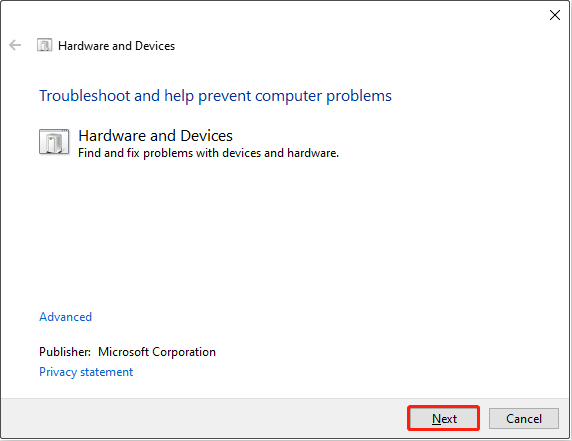
Type msdt.exe -id DeviceDiagnostic in the prompt window and press Enter. The Hardware and Devices window will show.
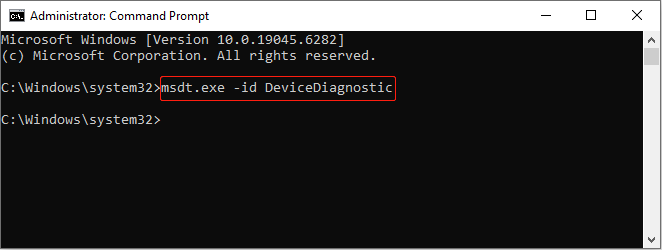
Step 3: Start the troubleshooter
Click Next,and the system will automatically scan and attempt to repair hardware problems, including USB devices.
Fix 5: Reinstall USB Controllers
Applicable situation: When multiple USB devices connected to the same USB port are not recognized
If the USB controller driver is damaged, misconfigured, or incompatible with the system, it may cause recognition failure. In this case, you can reinstall the USB controller, which can refresh the hardware connection and restore device recognition.
Step 1: Open Device Manager and expand Universal Serial Bus controllers.
Step 2: Right-click the USB controller and select Uninstall device.
Step 3: Carefully uninstall other controllers if needed, then restart to reinstall automatically.
Fix 6: Disable Selective Suspend
Applicable situation: When the USB drive is not recognized after the system wakes from sleep
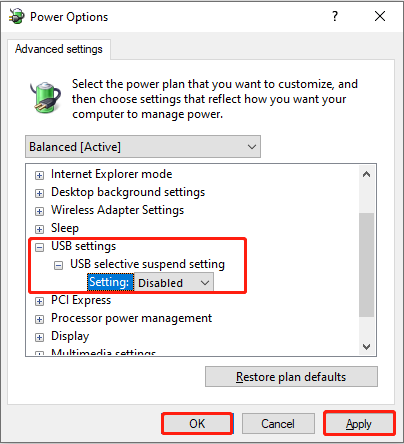
If you enable Selective Suspend, the system automatically shuts down USB ports when idle to save power. This power-saving mechanism can sometimes cause unstable device connections or prevent devices from waking up. Disable it to keep USB ports powered and stable.
Step 1: Open the Control Panel and choose Power Options.
Step 2: Click Change plan settings > Change advanced power settings.
Step 3: Expand the USB settings > USB selective suspend setting.
Step 4: Change the state to Disabled and click Apply > OK.
Fix 7. Clean the USB Drive
Applicable situation: When the USB drive appears in Disk Management but cannot be partitioned
Cleaning the USB drive removes corrupted partition information and allows you to rebuild the file system.
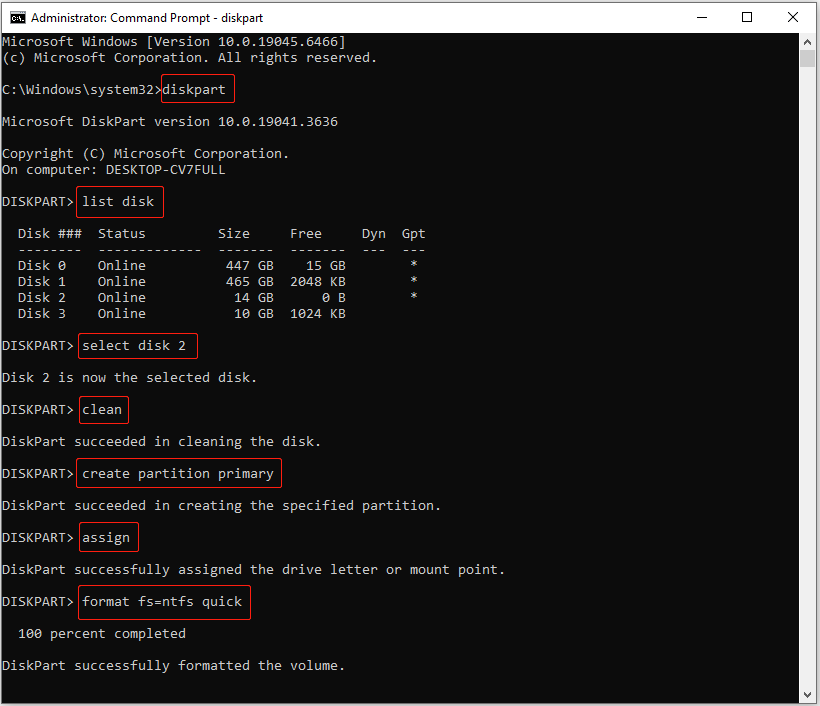
Step 1. Type cmd in the Windows search box. Right-click Command Prompt and choose Run as administrator.
Step 2. Type the following commands and press Enter after each:
- diskpart
- list disk
- select disk # (replace # with the actual number of your USB drive)
- clean
- create partition primary
- assign
- format fs=ntfs quick (you can replace ntfs with exfat or fat32)
Final Words
Solving the problem of “USB flash drive not recognized” is not complicated. Just follow the right steps.
First, use MiniTool Power Data Recovery to recover data from an unrecognized USB drive. Then, try the above methods to fix the issue, such as changing the port, updating the driver, assigning the drive letter, cleaning it, etc.
If you have any questions about MiniTool products, please send them to [email protected].
About The Author

Position: Columnist
Shirley holds a bachelor’s degree in English and has been an editor at the MiniTool Team for many years. She specializes in IT-related content, with a focus on data recovery, file backup, disk management, and other technical topics. She is committed to delivering clear, accurate, and practical solutions to help users resolve common computer issues.
User Comments :