
Quick Answer: How to Recover Deleted Voice Memos
- Deleted within 30 days: Restore it from the Recently Deleted folder in the Voice Memos app.
- Have an iTunes backup: Restore the backup or use a third-party tool to extract only the voice memos.
- Have an iCloud backup: Restore the iPhone from an available iCloud backup.
- Permanently deleted without backup: Try professional iPhone data recovery software like PhoneRescue for iOS.
Can You Recover Deleted Voice Memos
Yes, deleted voice memos can often be recovered, but the success rate depends on how the recording was deleted and whether new data has overwritten the storage space where the memo was saved.
When you delete a voice memo from an iPhone, the file is not immediately erased from the device. Instead, the system marks the storage space as available for new data. Until that space is overwritten, recovery may still be possible.
To improve the recovery rate, you should stop recording new voice memos and check available recovery options as soon as possible.
How to Recover Deleted Voice Memos on iPhone
Method 1. Recover Voice Memos from Recently Deleted Folder
The easiest method to recover deleted voice memos is by checking the Recently Deleted folder inside the Voice Memos app.
When you delete a recording on your iPhone, it is moved to the Recently Deleted folder, where they remain available for 30 days. After this period expires, the voice memo will be permanently removed from the app.
Follow these steps to recover your deleted voice memos:
Step 1. In Voice Memos, tap or click Recently Deleted.
Step 2. Tap or click the memo that you want to recover.
Step 3. Tap or click Recover, then tap or click Recover Recording.
If the recording is not available in Recently Deleted, the recording was permanently deleted.
Method 2. Retrieve Voice Memos from iTunes Backup
If you regularly back up your iPhone using iTunes and the deleted voice memos existed when the backup was created, you can recover them from a previous backup.
There are two approaches to recover voice memos from an iTunes backup.
Option 1. Restore the Entire iPhone Backup
Apple provides a built-in method to restore an iTunes backup. However, this method has an important limitation: it only supports a full iPhone backup restoration.
This means you cannot choose to restore only your voice memos. Instead, iTunes restores the entire backup and replaces the current data on your iPhone with the data stored in the backup.
Any newer photos, messages, contacts, apps, or other files created after the backup date may be overwritten or lost.
How to restore iPhone from iTunes backup:
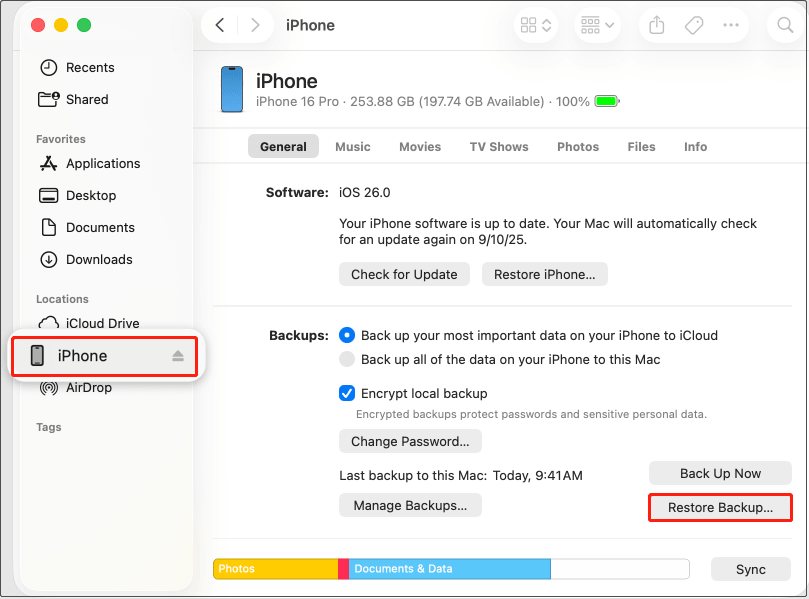
Step 1. Connect your iPhone to the computer where the backup was created.
Step 2. Open iTunes (Windows or older macOS versions) or Finder (newer macOS versions).
Step 3. Select your iPhone and click Restore Backup.
Step 4. Select the backup that contains the deleted voice memo and click Restore.
Option 2. Recover Only Voice Memos from iTunes Backup
If you only want to recover deleted Voice Memos without affecting other existing data on your iPhone, restoring the entire iTunes backup may not be the ideal solution.
If you do not want to restore the entire iPhone, you can use third-party iOS data recovery software to extract only voice memos from an iTunes backup.
Tools such as PhoneRescue for iOS allow you to scan an iPhone backup, preview available files, and select only specific data to recover.
Step 1. Select a data recovery module
Download, install, and launch PhoneRescue for iOS based on your system.
Phone Rescue for iOS (Windows)Click to Download100%Clean & Safe
Phone Rescue for iOS (Mac)Click to Download100%Clean & Safe
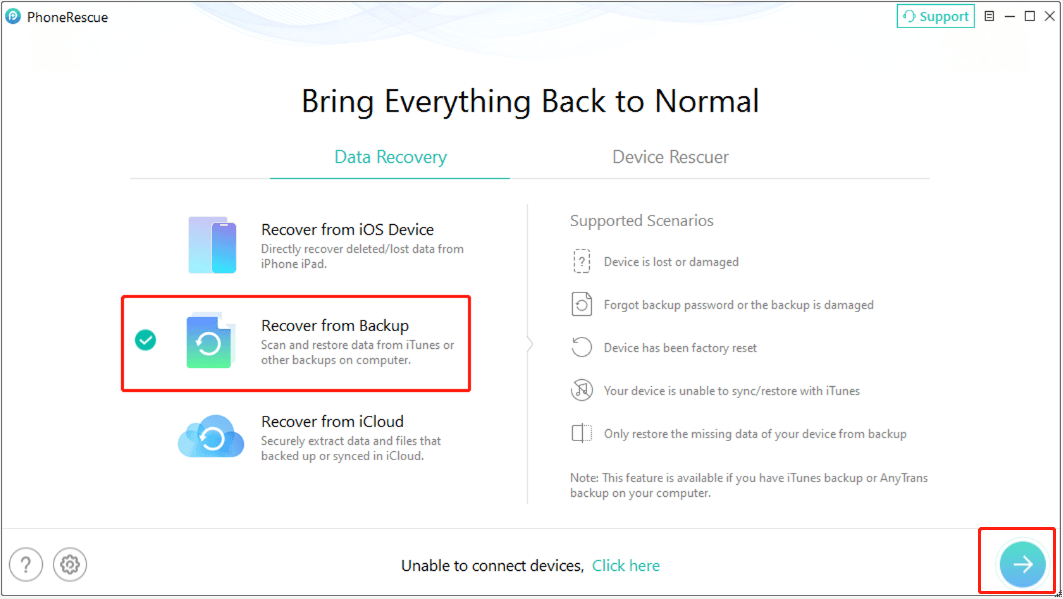
On the main interface, choose the Recover from Backup mode and click the Arrow button.
Step 2. Select an iTunes backup to scan
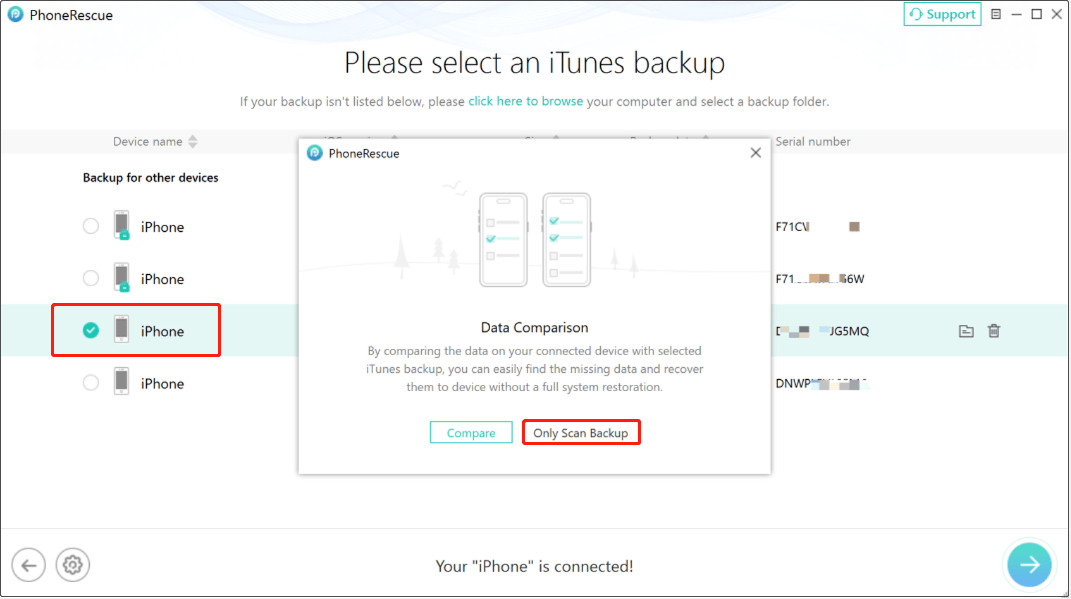
PhoneRescue will detect and display all iTunes backups on the computer. Choose the one you need based on the date it was created and click the Arrow button.
In the pop-up window, click Only Scan Backup.
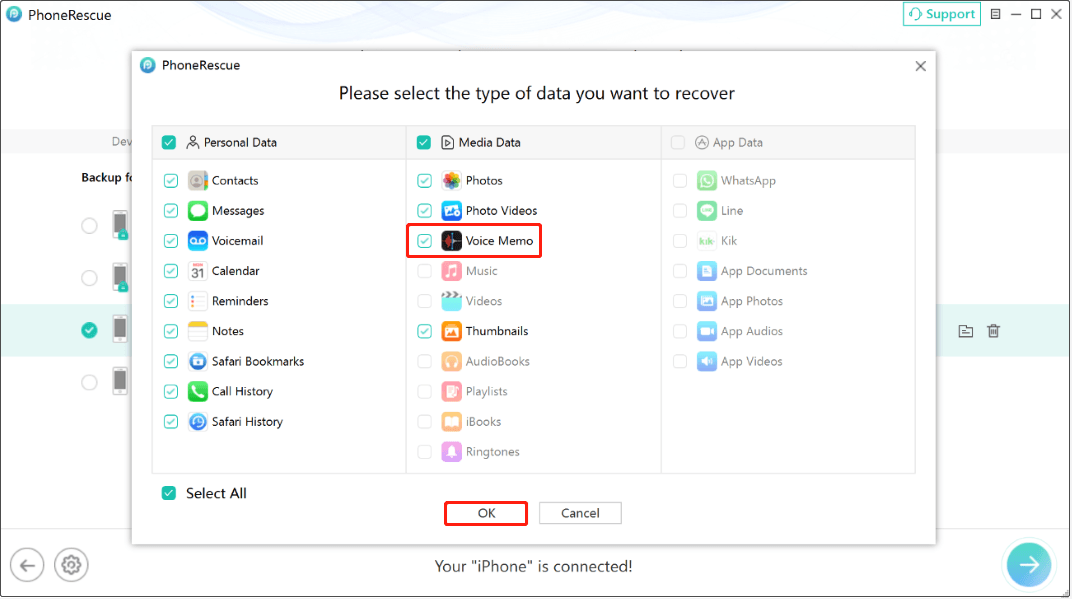
Step 3. Select the type of data you want to recover
Select the Voice Memo option only in the Media Data section and click OK. Then the software will start scanning data from the iTunes backup.
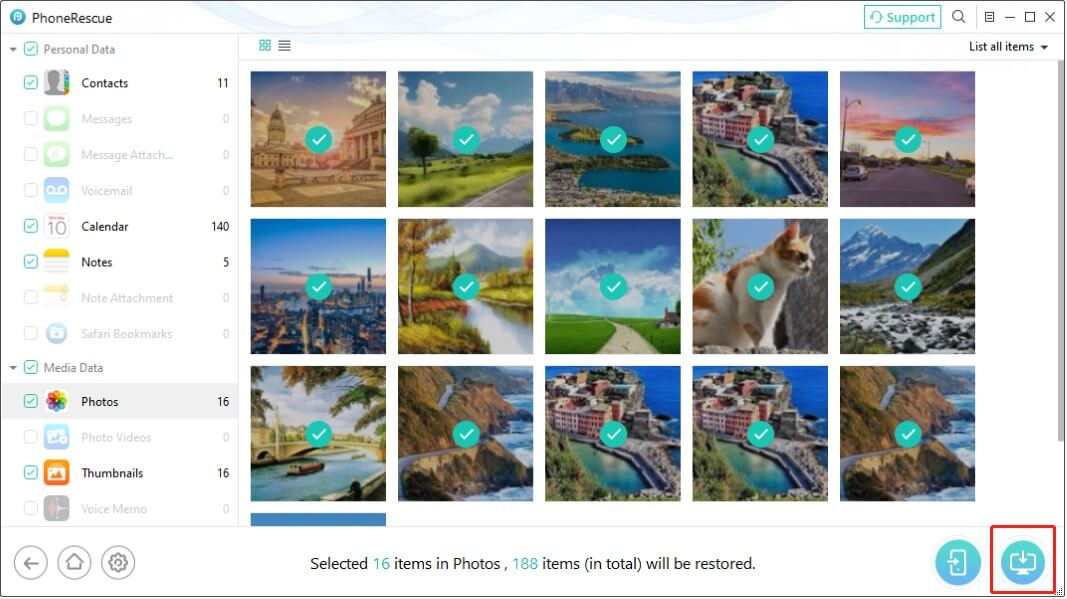
Step 4. Save your voice memos
Select the voice memos you want to recover and click Restore to computer to recover them.
Method 3. Restore Voice Memos from iCloud Backup
If you have enabled iCloud backup on your iPhone, you can recover voice memos from an iCloud backup created before the recording was deleted.
Option 1. Restore the Entire iPhone from iCloud Backup
Step 1. Turn on your computer and go to Settings > General > Transfer or Reset iPhone > Erase All Content and Settings. Follow the on-screen instructions to erase all the content.
Step 2. On the Transfer Your Apps & Data screen, tap From iCloud Backup.
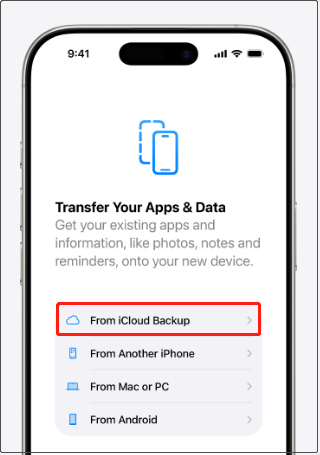
Image source: support.apple.com
Step 3. Sign in to your Apple account. Then select the target backup and restore your iPhone.
Option 2. Restore Only Voice Memos from iCloud Backup
If you only want to extract deleted voice memos and do not want to erase your iPhone, you can use PhoneRescue for iOS.
Step 1. Select the recovery mode
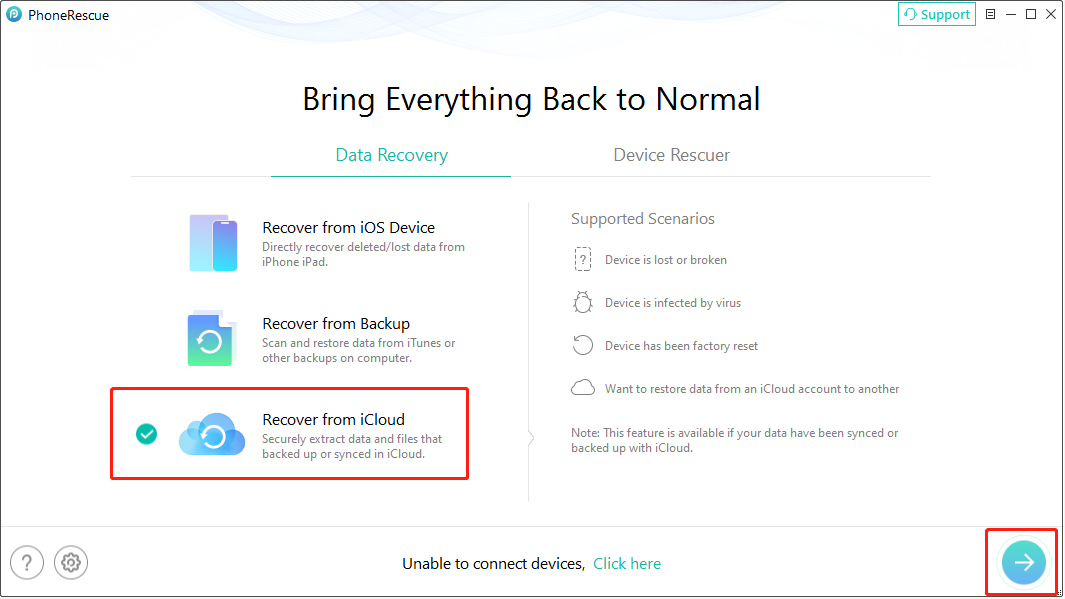
On the main interface of the tool, select Recover from iCloud and click the Arrow button.
Step 2. Download iCloud backup
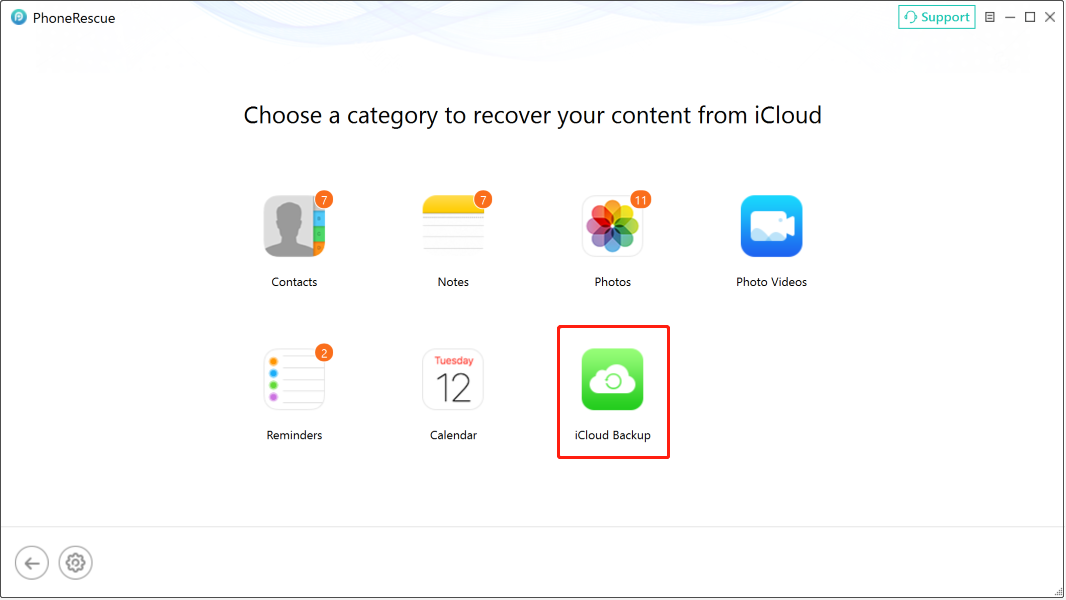
Sign in to your iCloud account with the correct Apple ID and password. Next, select the iCloud Backup category to continue.
Select the iCloud backup that contains your voice memos and download it. After downloading, click the Arrow button and select Only Scan Backup.
Step 3. Scan and recover files
Select only the Voice Memo option and click OK to start the scanning process.
Once the scanning is completed, select the files you want to recover and click Restore to computer.
Method 4. Recover Permanently Deleted Voice Memos Without Backup
If the voice memo has been permanently deleted and you do not have an iTunes or iCloud backup, try recovering it directly from your iPhone.
PhoneRescue for iOS can scan your iPhone to look for recoverable files that have not yet been overwritten by new data.
Supported iPhone series: iPhone 3G to iPhone 17 series
Phone Rescue for iOS (Windows)Click to Download100%Clean & Safe
Phone Rescue for iOS (Mac)Click to Download100%Clean & Safe
Step 1. Choose the recovery mode
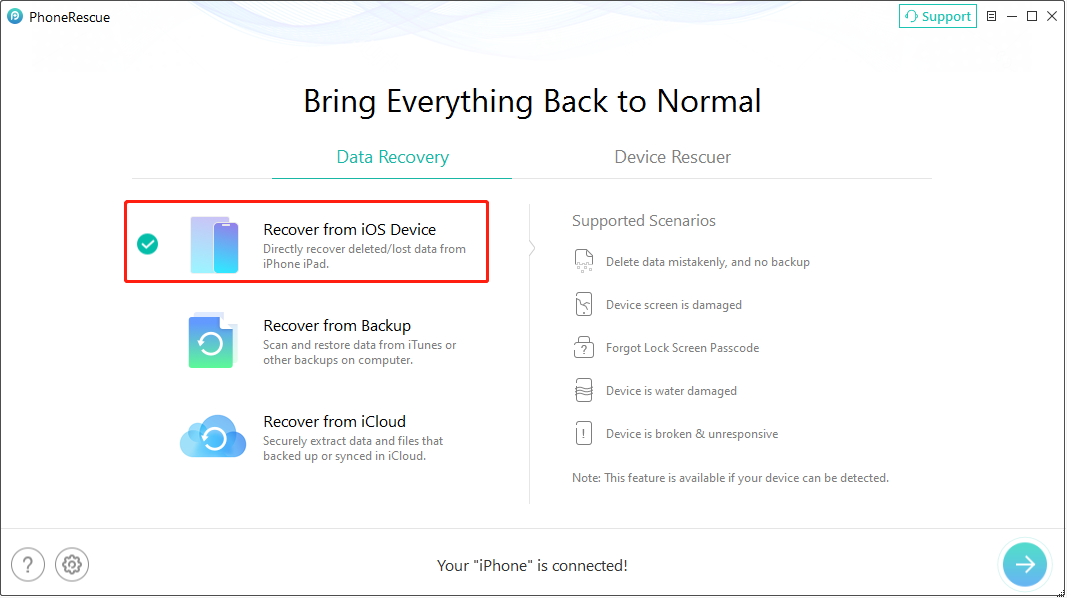
Connect the iPhone to your computer with a USB cable. On the main interface of the recovery software, select the Recover from iOS Device module.
Step 2. Select the data to scan
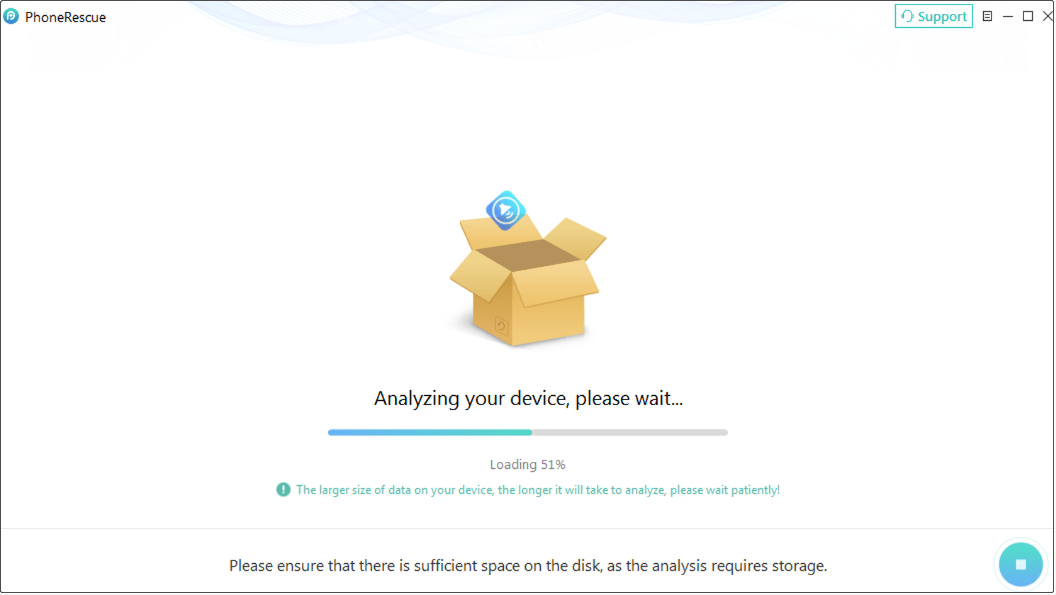
On the “Please select the type of data you want to recover” window, select the voice memos. The software will start analyzing your device and scan for files.
Step 3. Save files
Once the scan is completed, find and select the files you want to recover. Then click Restore to computer to save them to your computer.
Bottom Line
After reading this post, you must know how to recover deleted voice memos on iPhone. The easiest recovery method is checking the Recently Deleted folder in the Voice Memos app.
If the voice memo is no longer there, try using PhoneRescue for iOS to recover your files from iTunes backup, iCloud backup, or your iPhone.
About The Author

Position: Columnist
Shirley holds a bachelor’s degree in English and has been an editor at the MiniTool Team for many years. She specializes in IT-related content, with a focus on data recovery, file backup, disk management, and other technical topics. She is committed to delivering clear, accurate, and practical solutions to help users resolve common computer issues.
User Comments :