
What causes the error code 0x0000001e? How to fix the error code 0x0000001? This post from MiniTool will show you how to fix it. In addition, you can visit MiniTool to find more Blue Screen of Death errors and solutions.
What Causes the Error 0x0000001e?
When you install the software or update the operating system, you may encounter the error 0x0000001e. This stop 0x0000001e code often relates to the kmode_exception_not_handled error, as shown in the following picture:
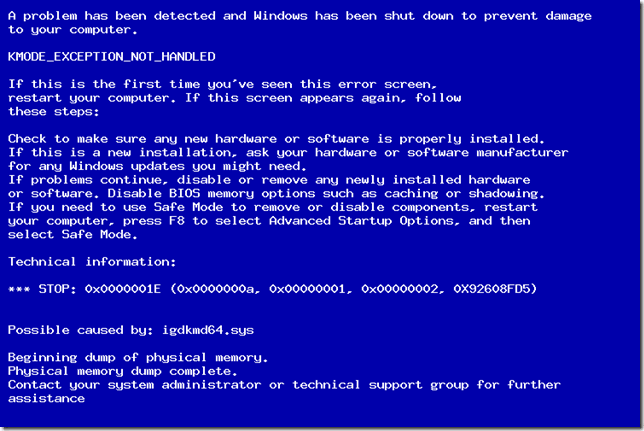
However, do you know what may cause the BSOD 0x0000001e error? In general, this 0x0000001e error may be caused by various reasons. This kmode_exception_not_handled error may be caused by the faulty RAM module or the corrupted or outdated device drivers.
No matter what the reason for the BSOD 0x0000001e Windows 10 is, the most important thing is to fix the stop 0x0000001e error.
Hence, in the following section, we will show you how to fix the error kmode_exception_not_handled error. Just keep on your reading.
Before we proceed with the solutions, the first thing you need do is to restart your computer and make it back to a normal Windows system.
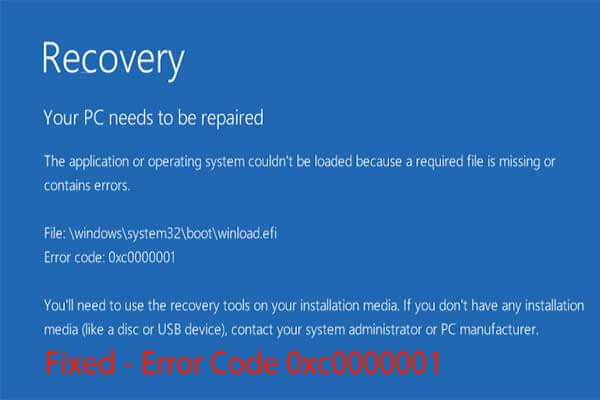
6 Solutions to BSOD 0x0000001e Windows 10
In this section, we will list several ways to fix the stop 0x0000001e error.
Solution 1. Check Your RAM
In the first, to solve the error 0x0000001e, you can try to check the RAM since the poor contact, defective or mismatched RAM may lead to this Blue Screen of Death.
So, we will show how to check the RAM. Now, here is the detailed tutorial.
Check the Installation and Remove Dust
Step 1: Plug the RAM in and out to make sure the RAM is connected properly and steadily.
Step 2: Clean the RAM and the RAM slot.
After that, reboot your computer and check whether the error 0x0000001e is solved.
Test RAM
If the above solution does not fix the 0x0000001e, you can try testing the RAM.
Now, here is the tutorial.
Step 1: Press Windows key and R key together to open Run dialog, then type mdsched.exe in the box and click OK to continue.
Step 2: In the pop-up window, check Restart now and check for problems (recommended) to continue.
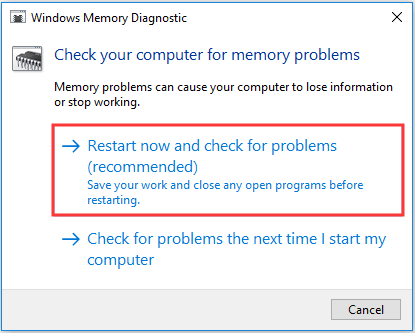
When all processes are finished, reboot your computer and check whether the BSOD 0x0000001e is solved.
Solution 2. Roll Back the Driver
Sometimes, the stop 0x0000001e error may be caused in that the latest device drivers don’t work properly on your system. And in this way, you can try rolling back the driver.
Now, here is the tutorial.
Step 1: Press Windows key and R key together to open Run dialog, then type devmgmt.msc in the box and click OK to continue.
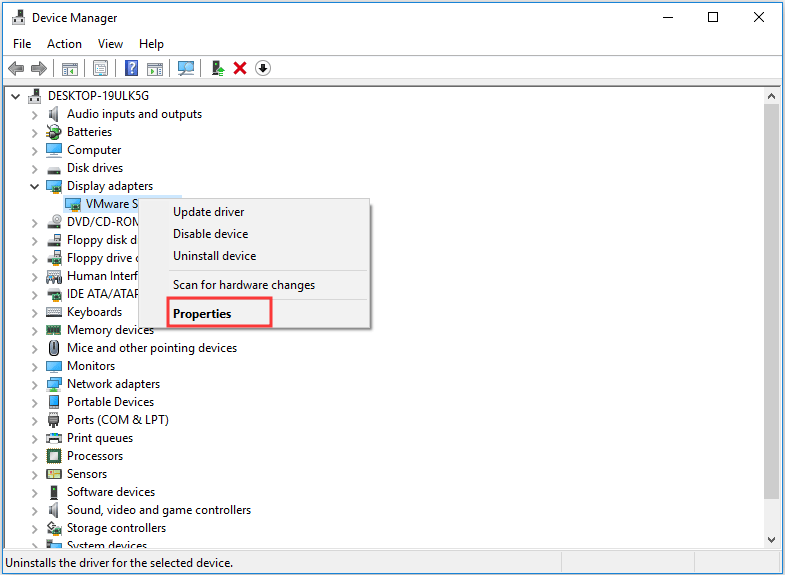
Step 2: In the Device Manager window, expand the Display adapters and right-click on your display drivers, then choose Properties to continue.
Step 3: In the pop-up window, go to the Drivers tab and choose Roll Back Driver to continue.
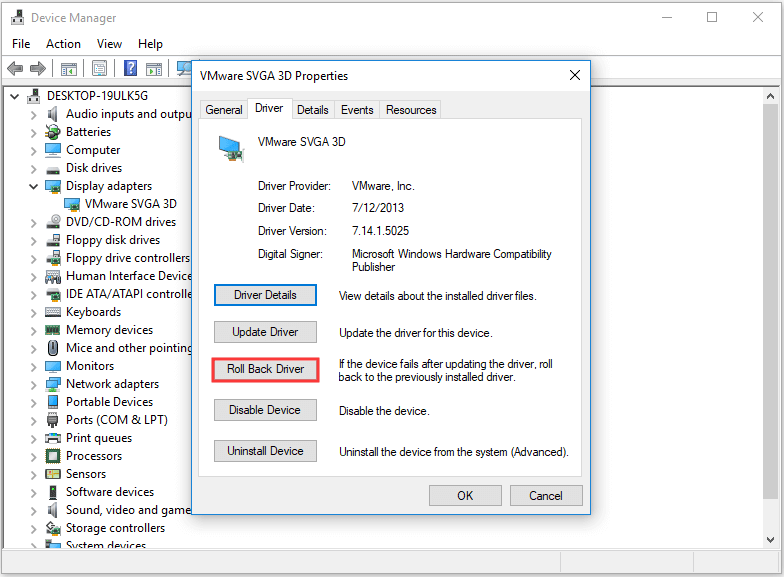
When it is finished, reboot your computer and check whether the BSOD 0x0000001e error is solved.
Solution 3. Uninstall the Recently Installed Software
If you encounter the kmode_exception_not_handled error after you installed a piece of software, you can try uninstalling the recently installed software and check whether the error 0x0000001e can be removed.
Now, here is the tutorial.
Step 1: Type Control Panel in the search box of Windows and choose the best-matched one. Then launch it to enter its main interface.
Step 2: In the pop-up window, choose Uninstall a program under Programs section to continue.
Step 3: Right-click the recently installed software and choose Uninstall from the context menu to continue.
After uninstalling the software, reboot your computer and check whether the error 0x0000001e is solved.
Solution 4. Check Virus
If your computer is attacked by the virus, you may also encounter the error 0x0000001e Windows 10. Hence, in order to solve this error, you can try checking whether there is a virus on your computer and remove them.
To remove the virus, you can use the Windows Defender or the third-party antivirus software.
Now, here is the tutorial.
Step 1: Press Windows key and I key together to open Settings, then choose Update & Security to continue.
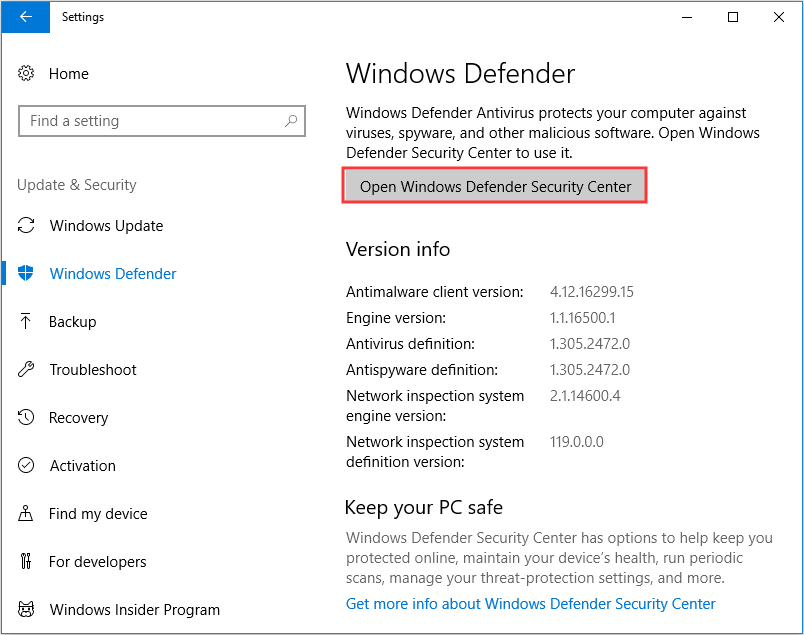
Step 2: In the pop-up window, choose Windows Defender to continue. Then click Open Windows Defender Security Center.
Step 3: In the pop-up window, choose Virus & threat protection.
Step 4: Then choose Quick scan to continue.
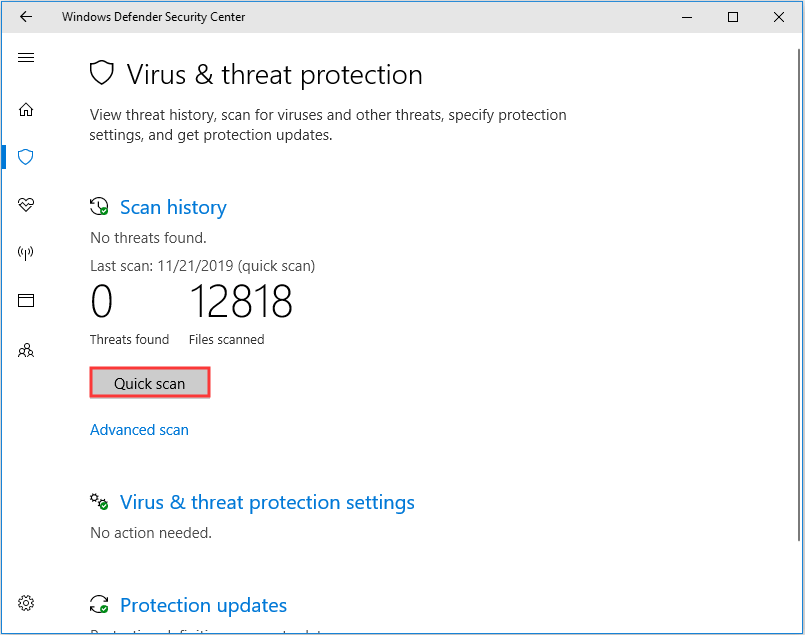
If there is a virus on your computer, Windows Defender will handle it. After that, you can reboot your computer and check whether the error 0x0000001e is solved.
Solution 5: Uninstall the Third-Party Software
If the above solutions are not effective, you can try uninstalling the third-party antivirus software. In general, the stop 0x0000001e may be caused by the third-party antivirus software.
In order to solve the BSOD 0x0000001e error, you can go to the Control Panel and select the antivirus software to uninstall it.
When it is finished, reboot your computer and check whether the kmode_exception_not_handled error is solved.
Solution 6: Run System File Checker and DISM Tool
As we mentioned in the above part, the error 0x0000001e may be caused by the corrupted system files. So in order to fix this BSOD error, you can try to scan and repair the corrupted system files.
Now, here is the tutorial.
Step 1: Type Command Prompt in the search box of Windows and choose the best-matched one. Then right-click it to choose the Run as administrator to continue.
Step 2: In the pop-up window, type the command sfc /scannow and hit Enter to continue.
Step 3: When the scanning process is finished, you can input the DISM /Online /Cleanup-Image /RestoreHealth and hit Enter to continue.
When all steps are finished, you can reboot your computer and check whether the BSOD 0x0000001e is solved.
If none of the work is effective, you may need to reinstall the operating system to solve this problem. However, before reinstalling, you had better make a backup your files in advance so as to avoid data loss.
Final Words
To sum up, this post shows what causes the error 0x0000001e and also shows 6 solutions to fix this kmode_exception_not_handled error. If you encounter the same Blue Screen of Death error, try these solutions to help out.
User Comments :