
When starting Windows, you may get an error code 0xc0000001 on the screen. This post explains possible reasons and offers 8 effective solutions to fix it in Windows 11/10.
Quick Answer
Error code 0xc0000001 is a Windows boot error caused by corrupted system files, damaged BCD, and hardware issues. To fix it, run Startup Repair, uninstall problematic software or a recent Windows update, run SFC, CHKDSK, or Bootrec, copy SAM files, or reset your PC as a last resort.
What Causes Error Code 0xc0000001 Windows 11/10
0xc0000001 is a Windows boot error that prevents the system from starting normally. It maps directly to STATUS_UNSUCCESSFUL, indicating the requested operation is unsuccessful.
Common causes include:
- Corrupted system files
- Damaged Boot Configuration Data (BCD)
- Software conflicts
- Damaged SAM files
- Failing RAM modules
How to Keep Data Safe When Encountering Error Code 0xc0000001?
Since the error prevents Windows from loading, back up important files before fixing it to avoid unexpected data loss. MiniTool ShadowMaker professional backup software, can help you.
It enables you to easily back up files, folders, systems, partitions, and disks. Even when Windows fails to boot, MiniTool ShadowMaker is a practical choice because it supports creating WinPE bootable media for disaster recovery.
MiniTool ShadowMaker TrialClick to Download100%Clean & Safe
Then, we will show you how to create a bootable media and back up crucial files with MiniTool ShadowMaker. Note that the bootable media should be created on a normal computer.
Step 1. Launch MiniTool ShadowMaker and use a license key to activate it.
Step 2. Go to Tools > Media Builder and follow the on-screen instructions to create a bootable USB drive.
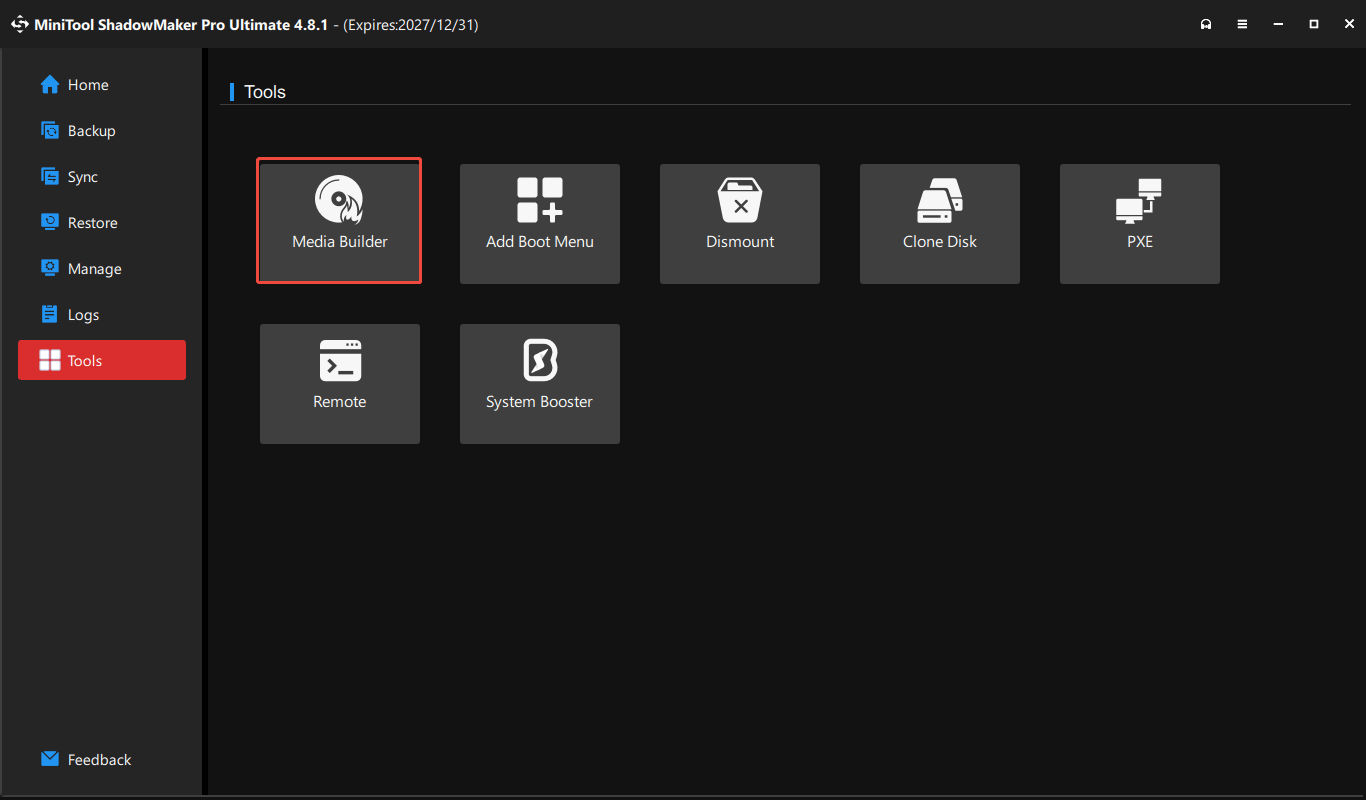
Step 2. Boot the problematic computer.
- Connect the bootable media to the abnormal computer.
- Press a particular key to enter the BIOS page.
- In the BIOS page, you need to set USB drive as the first boot device and save the change.
Step 3. Back up your data.
1. After entering MiniTool Recovery Environment, go to Backup page and click SOURCE.
2. Choose Folders and Files to continue. Then select the files you want to back up from the unbootable computer. And click OK to continue.
3. Click DESTINATION to choose a backup destination. It’s recommended to choose the USB drive as the destination.
4. Click on OK and select Back Up Now to start the backup task immediately, or delay the task by hitting Back up Later.
How to Fix the Error Code 0xc0000001?
After keeping data safe, it is time to solve Windows 10 error code 0xc0000001. So, in the following section, we will show you how to solve this Windows boot manager error 0xc0000001.
Fix 1: Perform Windows Startup Repair
If your system is not booting due to error code 0xc0000001, you can run Startup Repair in Windows Recovery Environment (WinRE) to fix this issue. In brief, it’s an in-built Windows tool that can help you repair a variety of startup problems.
To perform Windows Startup Repair, you will first need to boot into the Advanced Startup menu. Here’s how you can do that:
Step 1. Boot the computer from the installation media.
Step 2. Click on Repair your computer to enter Windows Recovery Environment and click Troubleshoot.
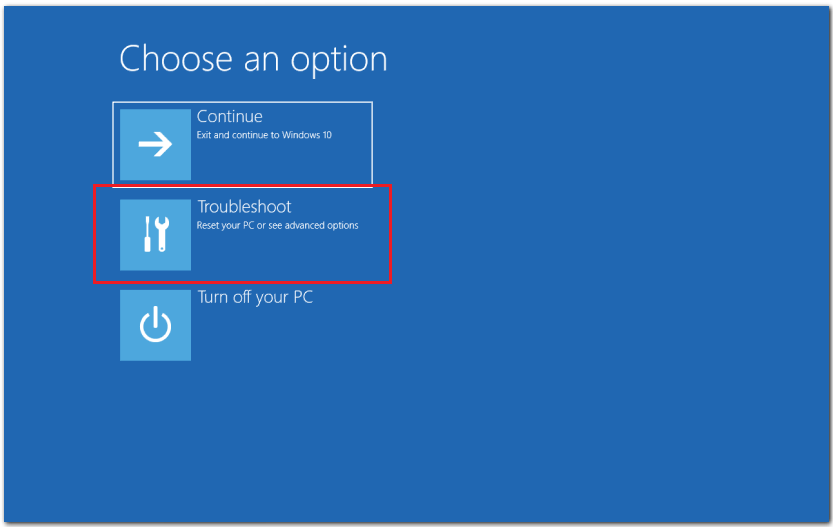
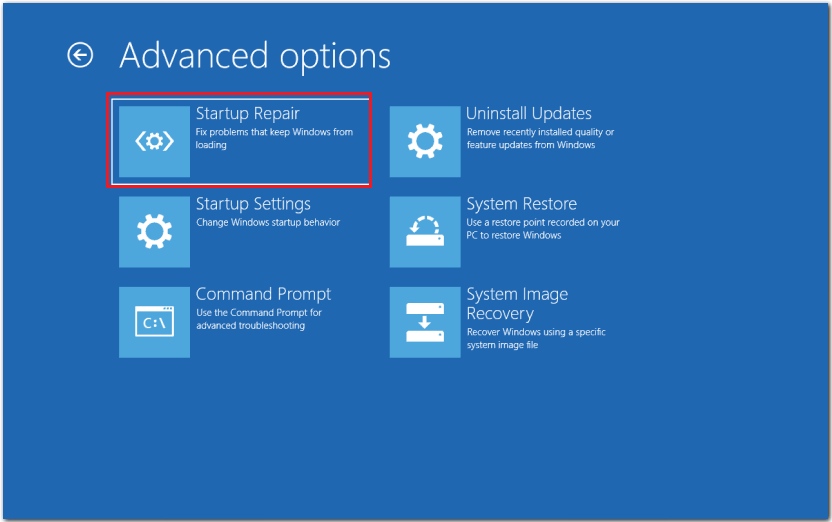
Step 3. Click on Advanced options > Startup Repair.
Step 4. Select the system account, enter your password, and click the Continue option.
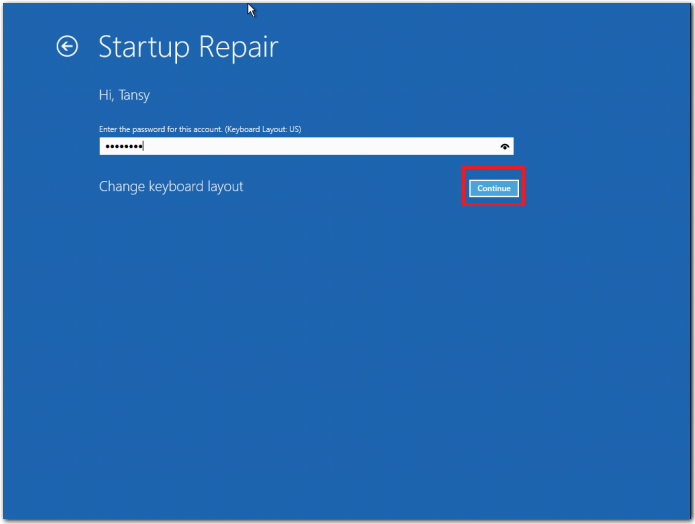
Step 5. Follow the instructions given on the screen for completing the Startup Repair process.
Step 6. Once the repair is completed, reboot your system and check if Windows error 0xc0000001 is gone.
Fix 2: Uninstall Problematic Software in Safe Mode
Sometimes this error may occur due to a malicious third-party program. Here, we will introduce the second method to sort out the issue by uninstalling the problematic program in Safe Mode.
Step 1. Boot your computer in safe mode.
- Boot the computer from the installation media.
- Enter Windows Recovery Environment and click Troubleshoot.
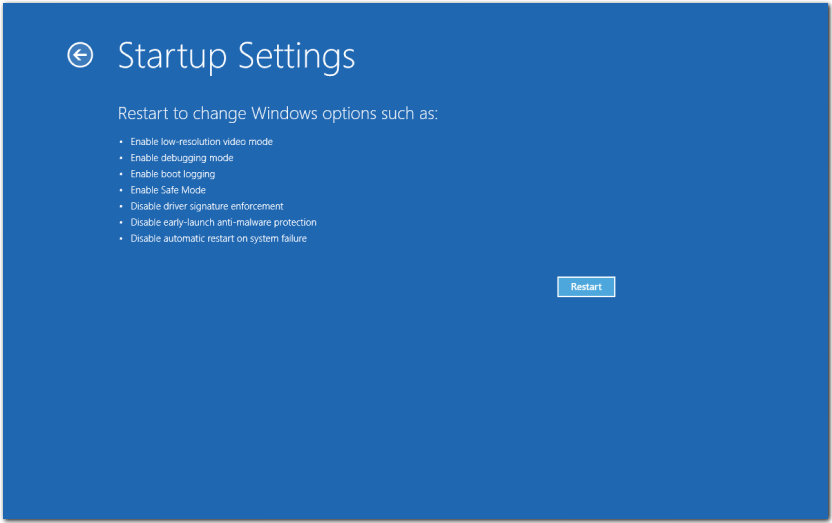
- Select Advanced options > Startup settings.
- Click Restart and Press F4 to enable Safe Mode.
Step 2. Uninstall problematic software.
- Press Win + I to open Settings.
- Open Apps and locate the problematic applications/software and click Uninstall.
- Once done, restart your computer to check whether the error code 0xc0000001 disappears.
Fix 3: Uninstall Recent Updates
If the 0xc0000001 startup error appeared after a Windows update, try uninstalling the recent update to resolve the issue.
Step 1. In WinRE, go to Troubleshoot > Advanced options.
Step 2. Click Uninstall Updates.
Step 3: Finish the uninstallation by following the on-screen instructions.
Fix 4: Run CHKDSK
Disk errors, like bad sectors might be the culprits of Windows error code 0xc0000001. There’s no guarantee that running CHKDSK will settle the problem, but it’s worth a try.
Step 1. Use the installation disk to start your computer.
- Click Repair Your Computer to continue.
- Then select Troubleshoot > Advanced Options > Command Prompt.
Step 2. Type the command chkdsk c: /f and hit Enter. Replace c with your Windows drive letter.
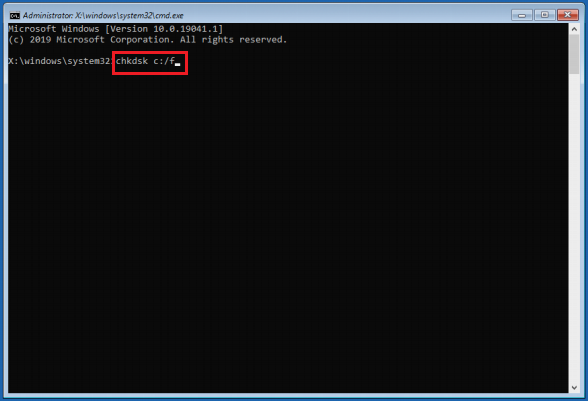
Step 3. Wait for the process to be completed and reboot your computer.
Fix 5: Run System File Checker
If your operating system has corrupted system files, it can also result in the error code 0xc0000001. So, in order to resolve this Windows error, you can run System File Checker to check and repair the corrupted system files.
Step 1. Boot the computer from the installation media.
- Click Repair Your Computer to continue.
- Then select Troubleshoot > Advanced Options > Command Prompt.
Step 2. Input the sfc /scannow /offbootdir=C:\ /offwindir=C:\Windows command and hit Enter to continue.
Step 3. Restart your computer after the scan completes.
Fix 6: Run Bootrec Command
If the command above didn’t do the job for you, try the command below.
Step 1. Enter Command Prompt by the methods mentioned above.
Step 2. Type bootrec /rebuildbcd and hit Enter to run the command and repair the Boot Configuration Data.
Step 3. You can also try the bootrec /fixmbr and bootrec /fixboot commands one by one if the initial command doesn’t work.
The above commands are basically aimed at fixing or rebuilding the Boot Configuration Data (BCD) of your Windows. Since the error code 0xc0000001 is a booting error, it therefore makes sense to give this method a shot. When all the commands complete, reboot your PC and see if you still face the error code 0xc0000001 on your Windows PC.
Fix 7: Copy SAM Files
As mentioned in the previous section, error code 0xc0000001 can be caused by damaged SAM files. To solve this problem, you can copy the SAM files from the repair folder. The followings will show you the detailed instructions.
Step 1. Boot the computer from the installation media.
Step 2. Copy the SAM Files.
1. After entering WinRE, click Troubleshoot > Advanced Options > Command Prompt to continue.
2. Input the command copy C:\Windows\Repair\Sam C:\Windows\System32\Config and hit Enter.
3. If asked whether you want to overwrite the original file, hit “Y” (Yes) to continue.
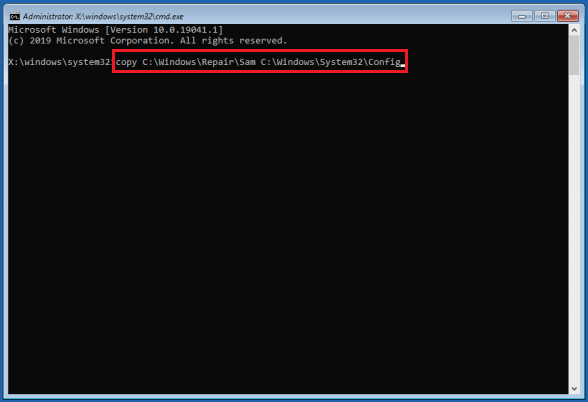
Step 3. Reboot your computer to check if Windows error 0xc0000001 persists.
Fix 8: Reset Your PC
If none of the above methods work, you may need to reset your PC. Resetting PC allows you to keep your files or remove everything, just make a choice based on your needs.
In the following section, we will show you how to reset your computer to solve the Windows error code 0xc0000001.
Step 1. Boot your computer from the installation media.
Step 2. Enter Windows Recovery Environment.
Step 3. Reset your PC.
1. After booting your computer, click Troubleshoot > Reset This PC to continue.
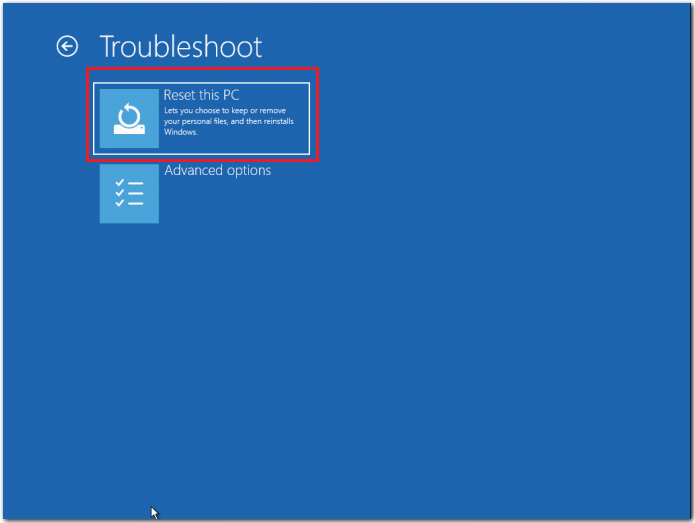
2. Choose to keep your file or remove everything on your computer. Then follow the instructions on the screen to complete the rest process.
3. When the process is finished, reboot your computer.
Bottom Line
Windows 11/10 error 0xc0000001 can be easily resolved. Start with Startup Repair, then run CHKDSK, SFC, or Bootrec. If the previous methods fail to work, PC resetting can be a last resort.
For any problems while using MiniTool ShadowMaker, contact us via [email protected] and we will reply to you as soon as possible.
Error Code 0xc0000001 FAQ
Yes. A Windows update can be interrupted, fail to complete, or conflict with the system, triggering 0xc0000001 after restart.
About The Author

Position: Columnist
Vera has been working at the MiniTool Team for over 10 years as a technical editor and content writer. She mainly focuses on disk and partition management, data recovery, Windows backup and restore, and PC troubleshooting. Through in-depth software testing and hands-on experience, she has helped users solve a wide range of computer problems and better protect their data on Windows devices.
User Comments :