
Do you receive error code 0x8004100e or WBEM_E_INVALID_NAMESPACE on your Windows device over and over again? If yes, this post on MiniTool Website will show you how to 4 effective workarounds to get rid of it. Now, let’s jump into it!
What Is 0x8004100e BitLocker MBAM Error?
BitLocker Drive Encryption refers to a Windows encryption and system security feature that allows you to encrypt any entities in the driver where the operating system is installed. Microsoft BitLocker Administration and Monitoring (MBAM) provides you with an administrative interface that you can utilize to manage BitLocker Drive Encryption.
When an MBAM agent attempts to connect to the MBAM server and fails to send encryption information, you might receive 0x8004100e BitLocker MBAM error. Also, this error occurs when trying to run C:\Program Files\Microsoft\MDOP MBAM\MBAMClientUI.exe.
Why do you receive 0x8004100e BitLocker MBAM error? The main causes might be:
- Unregistered BitLocker WMI class or a missing registration
- Unreadable registry keys
- Cluttered and corrupted registry files
- Faulty entries of un-existent programs
- Interference of third-party programs
After figuring out why this error occurs, you can scroll down to look for more viable solutions now!
Although BitLocker Drive Encryption can protect your data from unauthorized access or even theft, this process will go wrong sometimes. To secure your data, it’s better to back up your crucial files as a precaution. Once data loss occurs, you can restore your files with the help of the backup image files. Click on the button to try the PC backup software MiniTool ShadowMaker for free now.
MiniTool ShadowMaker TrialClick to Download100%Clean & Safe
How to Remove 0x8004100e BitLocker MBAM Error on Windows 10/11?
Fix 1: Re-register the BitLocker WMI Class
Unregistered BitLocker WMI class (win32_encryptablevolume) can prevent the services from relying on it and cause error code 0x8004100e. Therefore, it is a good option to re-register the WMI class.
Step 1. Press Win + S to evoke the search bar.
Step 2. Type cmd in the search bar to locate Command Prompt and right-click on it to choose Run as administrator. If prompted by UAC, hit Yes.
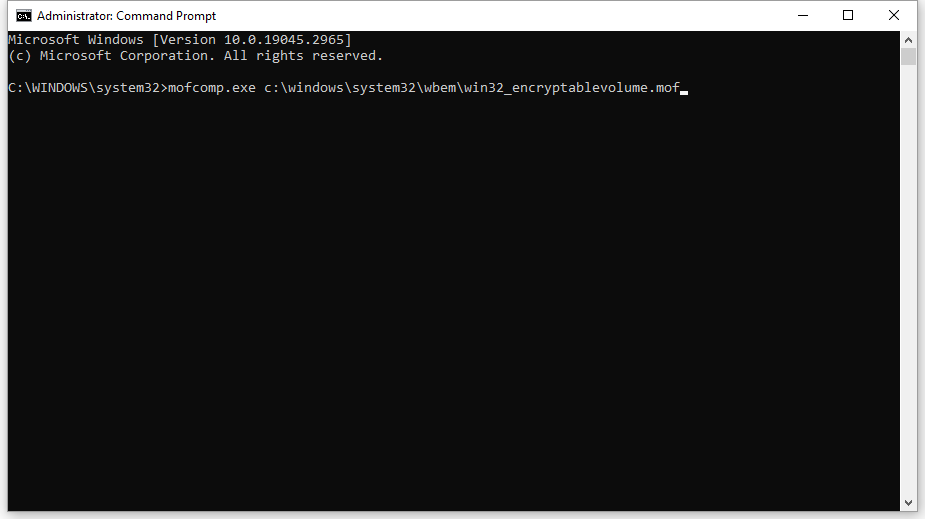
Step 3. Type the following command and hit Enter to refresh the process and complies the files.
mofcomp.exe c:\windows\system32\wbem\win32_encryptablevolume.mof
Fix 2: Perform a Clean Boot
Some third-party programs can interfere with the normal function of your computer and lead to many temporary errors like 0x8004100e. In this case, you can perform a clean boot to exclude the interference of third-party programs.
Step 1. Press Win + R to open the Run box.
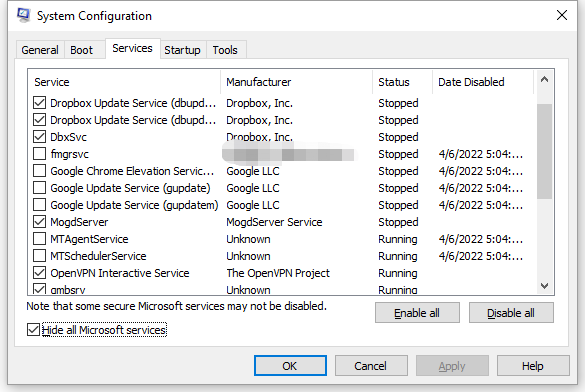
Step 2. Type msconfig and hit Enter to open System Configuration.
Step 3. Under the Services tab, check Hide all Microsoft services and press Disable all.
Step 4. Under the Startup tab, hit Open Task Manager.
Step 5. Right-click on each startup program and hit Disable.
Step 6. Click on Apply & OK to save the changes.
Step 7. Reboot your computer to check if 0x8004100e BitLocker MBAM error disappears.
Fix 3: Disable Third-Party Antivirus Software Temporarily
Although antivirus software can prevent your device from the attack of viruses and malware, it will change some functions on your computer. Some third-party antivirus software might be so over-protective that it even blocks some normal processes and files, resulting in 0x8004100e BitLocker MBAM error. If this is the case, you can disable it for a while and inspect if 0x8004100e BitLocker MBAM error is gone.
Fix 4: Clean up Registry Files
The last option is to clean up the leftovers of apps and drivers that triggered 0x8004100e BitLocker MBAM error. To run the Disk Cleanup tool, follow these steps:
Step 1. Type disk cleanup in the search bar and hit Enter.
Step 2. Click on the reverted triangle to select the drive you want to clean up from the drop-down menu and hit OK.
Step 3. Under Files to delete, tick the files you want to cleanup, hit OK, and wait for the process to complete.
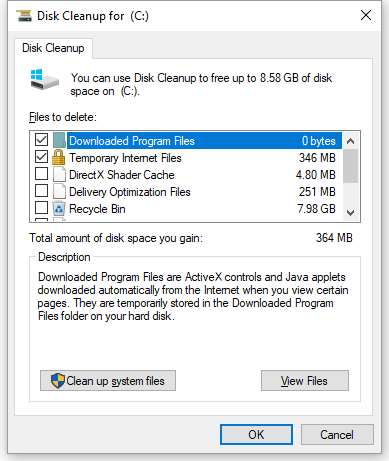
Step 4. After the process is done, launch the Disk Cleanup tool again and hit Clean up system files.
Step 5. Navigate through the Disk Cleanup and More options to locate extra files to clean up including leftovers by non-existent programs.
Step 5. After selecting the files to delete, hit OK.
![[SOLVED] How to Recover BitLocker Drive Encryption Easily](https://images.minitool.com/minitool.com/images/uploads/2018/09/bitlocker-drive-encryption-recovery-thumbnail.png)
User Comments :