
A system recovery image can help to quickly restore the entire system when Windows crashes. However, there might be something wrong with the process of creating a system image. If you are plagued by VSS error 0x8004230c, scroll down this post on MiniTool Website to find more solutions to fix it.
Volume Shadow Copy Error 0x8004230c
When you create a custom system image to refresh your system, you might be bothered by all kinds of errors that can prevent you from creating the image. Volume Shadow Copy error 0x8004230c is one of the errors you might run into during the process. The complete error message is:
The recovery image cannot be written.
Error Code – 0x8004230c
In the following parts, we will show you how to get rid of this error in detail. Without wasting more time, let’s dive into it.

How to Fix Volume Shadow Copy Error 0x8004230c on Windows 10/11?
Fix 1: Enable VSS Service Manually
You must make sure the Volume Shadow Service is running when you create a system image. Sometimes, this service might stop due to system file corruption or third-party software, you need to enable this service manually.
Step 1. Press Win + R to open the Run dialog box.
Step 2. Type services.msc and hit Enter to launch Services.
Step 3. Scroll down to find the Volume Shadow Copy service and right-click on it to choose Properties from the drop-down menu.
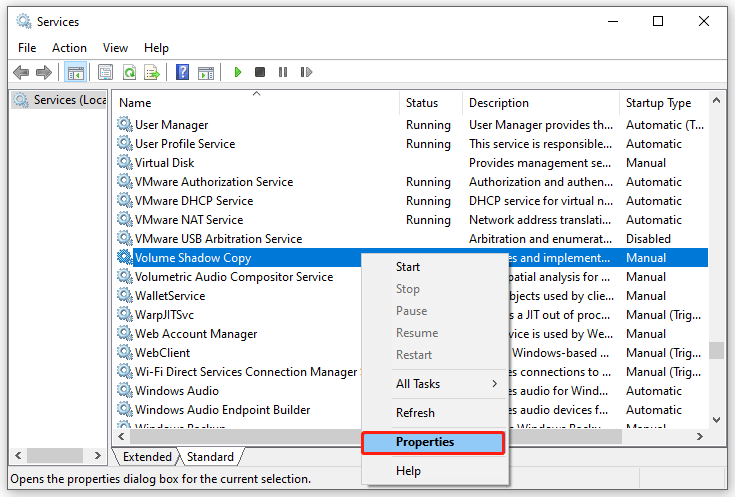
Step 4. Switch the Startup type to Automatic > hit Start > press Apply & OK to save the changes.
Fix 2: Check the VSS Writer
Chances are that the status of the VSS writers is unstable, resulting in VSS error 0x8004230c. Follow these steps to check if they are stable.
Step 1. Type cmd in the search bar to locate Command Prompt and right-click on it to choose Run as administrator.
Step 2. Type vssadmin list writers to list all the writers. Check if the writers are stable. If not, stop the VSS writer.
Fix 3: Avoid Other High Disk Activities
The creation of custom image must be scheduled for a time there are fewer high disk activities. Therefore, you can disable unnecessary background programs and delete Temporary Internet files to spare more storage space for your recovery image.
Disable Unnecessary Programs
Step 1. Right-click on the taskbar and choose Task Manager.
Step 2. In the Processes tab, right-click on the resource-hogging process and choose Disable one after another.
Delete Temporary Internet Files
Step 1. Open Control Panel and go to Network and Internet > Internet Options.
Step 2. In the General tab, hit Delete under Browsing history. You can also tick Delete browsing history on exit to delete temporary internet files each time you close your browser.
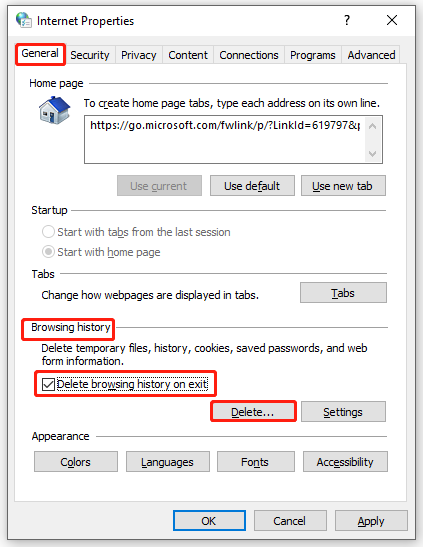
Step 3. Click on Appy & OK and then restart your computer.
A More Handy Way to Create a System Recovery Image
If none of the solutions above help you out or you are sick of spending a long time troubleshooting, you can try another easy way to create a system recovery image – backing up your system with MiniTool ShadowMaker. This free backup software is known for providing a one-click system backup solution. Here’s how to do it:
Step 1. Run this tool > hit Keep Trial > go to the Backup page.
MiniTool ShadowMaker TrialClick to Download100%Clean & Safe
Step 2. As you can see, this tool is set to back up system by default, so you only need to choose a storage path for the system image file in DESTINATION.
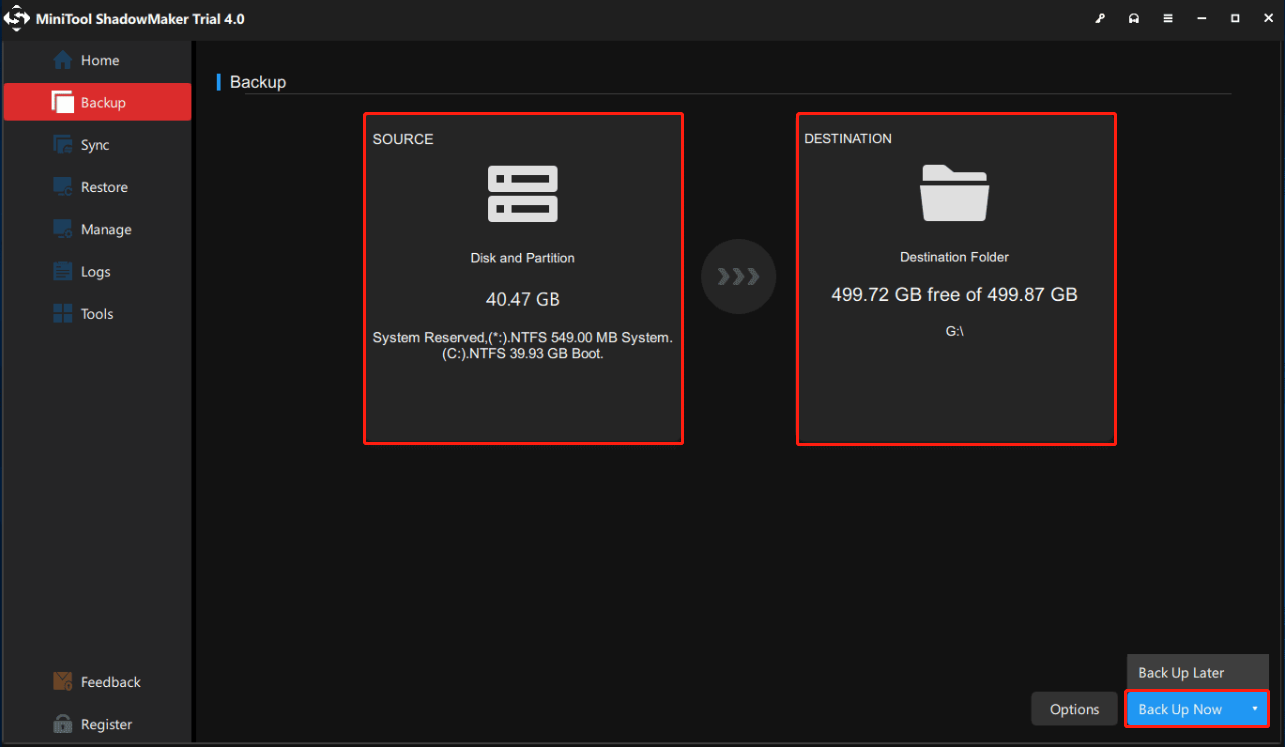
Step 3. Click on Back Up Now to start the process in no time.
User Comments :