
OneDrive Error Code 0x8004de88
The error code 0x8004de88 is associated with Microsoft OneDrive. You are likely to encounter this error and receive one of the following error messages:
- There was a problem connecting to OneDrive. Check your Internet connection, then try again.
- OneDrive can’t sign in. Login was either interrupted or unsuccessful. Please try again.
- We can’t sign into your account, please try again later.
This issue crops up due to various reasons. corrupted temporary files and internet connectivity issues might be the main factors. The following paragraphs will introduce 5 ways to help you remove OneDrive Sign-in error code 0x8004de88.
Also see: How to Save Data Directly to Your OneDrive in Windows 10
Suggestion: Sync Your Files via MiniTool ShadowMaker
To sync your files safely, MiniTool ShadowMaker is also a good choice. This PC backup software enables you to sync your files to two or more locations, such as an external hard drive, internal hard drive, removable USB flash drive, network, and NAS. It will not create an image but save the same copy of the file to another location. Now, follow these steps to sync your files with MiniTool ShadowMaker.
Step 1. Launch MiniTool ShadowMaker and you can enjoy most functions for free.
MiniTool ShadowMaker TrialClick to Download100%Clean & Safe
Step 2. In the Sync page, click on SOURCE and you can select the files or folders you want to sync and hit DESTINATION to choose a storage path for the sync task.
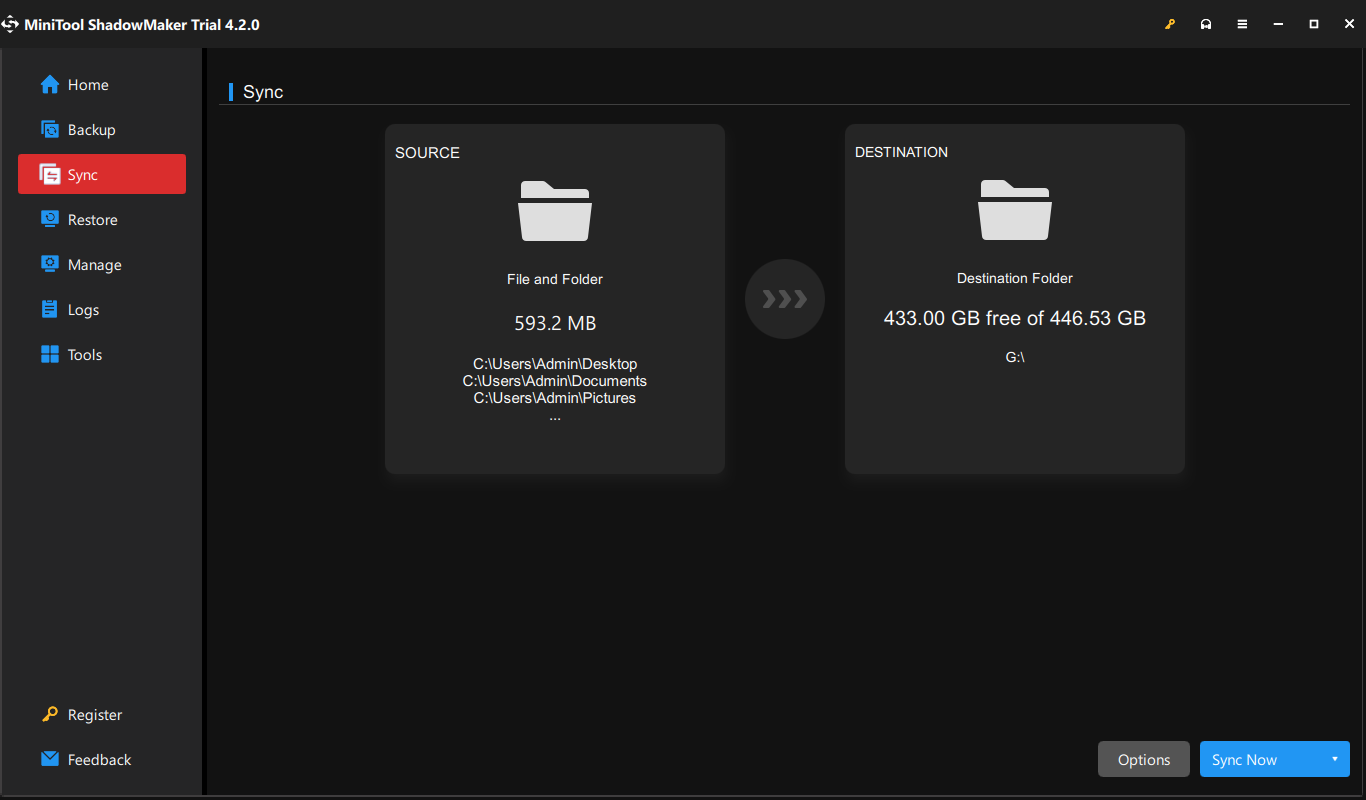
Step 3. Click on Sync Now to start the service at once.
How to Fix OneDrive Error Code 0x8004de88 on Windows 10/11?
Fix 1: Check TLS Protocols
TLS 1.0 and above is a security protocol that helps establish the encryption channels over the computer network. Once these protocols are disabled, your OneDrive might not function properly. Therefore, you had better enable them:
Step 1. Press Win + R to open the Run box.
Step 2. Type inetcpl.cpl and hit Enter to launch Internet Properties.
Step 3. Under the Advanced tab, tick TLS 1.0, TLS 1.1, and TLS 1.2.
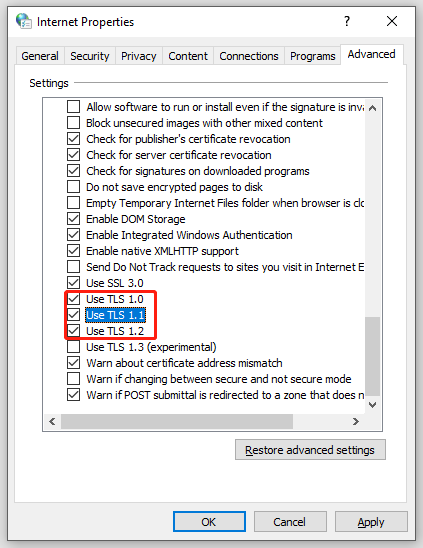
Step 4. Click on Apply & OK to save the changes.
Fix 2: Disable Proxy Settings
Although antivirus software can protect your system from malicious attacks, it might also prevent OneDrive from connecting to the cloud. In this case, removing any proxy server from your computer might do the trick. To do so:
Step 1. Type inetcpl.cpl in the Run box and hit Enter.
Step 2. Under the Connections tab, click on LAN settings.
Step 3. Tick Automatically detect settings and untick Use automatic configuration script.
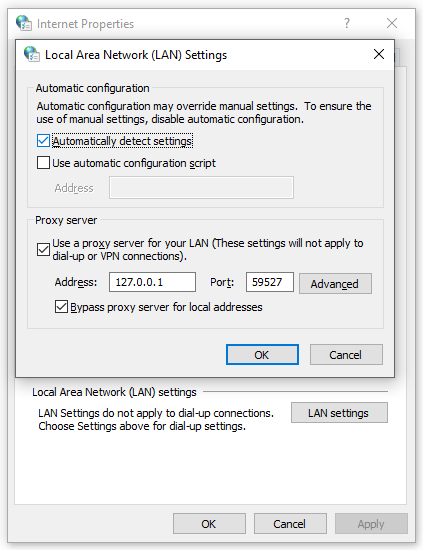
Step 4. Save the changes.

Fix 3: Reset Windows Socket
If your internet connection is strong and stable but some of the applications can not access the network, resetting Windows Socket is a good choice. To do so:
Step 1. Type cmd in the search bar to locate Command Prompt and right-click on it to select Run as administrator.
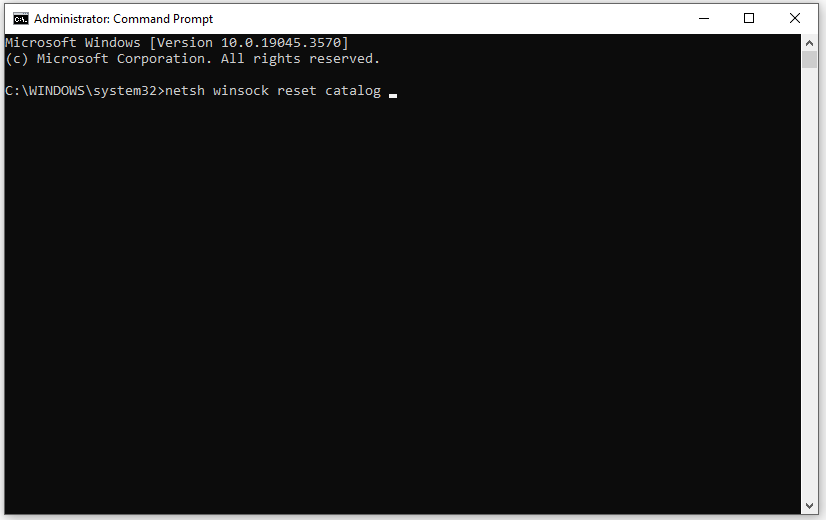
Step 2. In the command window, type netsh winsock reset catalog and hit Enter.
Step 3. After completion, quit Command Prompt.
Fix 4: Reset OneDrive
Resetting OneDrive can also help to solve most app issues like OneDrive error code 0x8004de88. Follow these steps:
Step 1. Press Win + R to open the Run box.
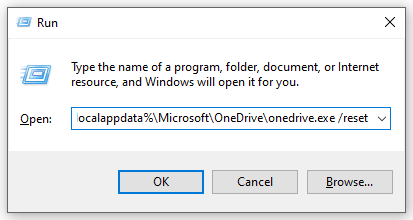
Step 2. Type the following content and hit Enter to reset OneDrive.
%localappdata%\Microsoft\OneDrive\onedrive.exe /reset
Step 3. After the resetting process is done, type the following string in the Run dialog and hit Enter to quickly launch OneDrive.
%localappdata%\Microsoft\OneDrive\onedrive.exe
Final Words
Now, you can log into your OneDrive account without error code 0x8004de88. Meanwhile, you had better choose to sync your files with MiniTool ShadowMaker to safeguard your data. Hope your data can always be safe and sound.
User Comments :