
Your Windows may go malfunction when you perform a Windows Update and that’s when you meet an error code. Since many people find the Windows update error code 0x800703ed, this article on MiniTool Website will list some useful methods for you.
Windows Update Error 0x800703ed
The Windows update error code can happen for many reasons and you need to figure out the possible reasons. There are some hidden reasons that can trigger the error 0x800703ed:
- System file corruptions
- Outdated GPU and network drivers
- Third-party software conflicts
- Corrupted or damaged Windows Update components
Windows update errors are easy to happen and some inflicted users reported that their data gets lost. So, if you have fixed 0x800703ed by the following methods, you can perform a regular backup with MiniTool ShadowMaker.
MiniTool ShadowMaker is a free backup software and you can use it to back up systems, files & folders, and partitions & disks. There are different options to perform a scheduled backup.
Go to download and install the program to get a 30-day free trial version.
MiniTool ShadowMaker TrialClick to Download100%Clean & Safe
Then, you can go to the next part for further troubleshooting.
Fix Windows Update Error 0x800703ed
Fix 1: Use SFC and DISM Scans
SFC and DISM scans can be used to check for and repair corrupted system files. you can resort to these tools to repair corruptions and get rid of the Windows update error 0x800703ed.
Step 1: Input Command Prompt in Search and choose Run as administrator.
Step 2: When Command Prompt starts, type sfc /scannow and press Enter to execute it.
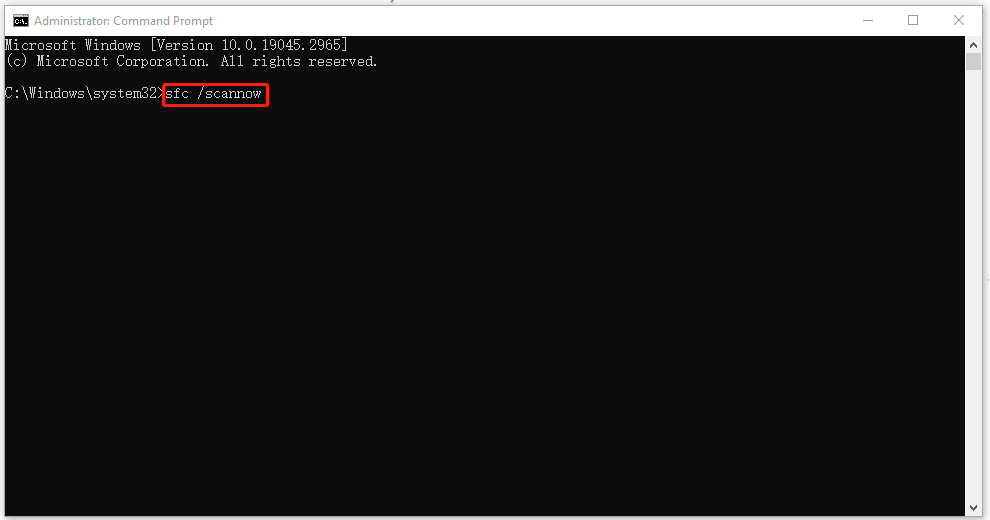
This scan will take some time and when that finishes, you can check if the error is still there and then try another command if the error persists.
DISM /Online /Cleanup-Image /RestoreHealth
Wait until the scan finishes. Then you can restart your computer to re-check the issue again.
![CHKDSK vs ScanDisk vs SFC vs DISM Windows 10 [Differences]](https://images.minitool.com/minitool.com/images/uploads/2020/03/chkdsk-vs-scandisk-vs-sfc-vs-dism-thumbnail.jpg)
Fix 2: Update Drivers
You need to make sure your drivers are up to date to avoid compatibility issues. Outdated drivers can hinder the well-functioning of Windows Update components.
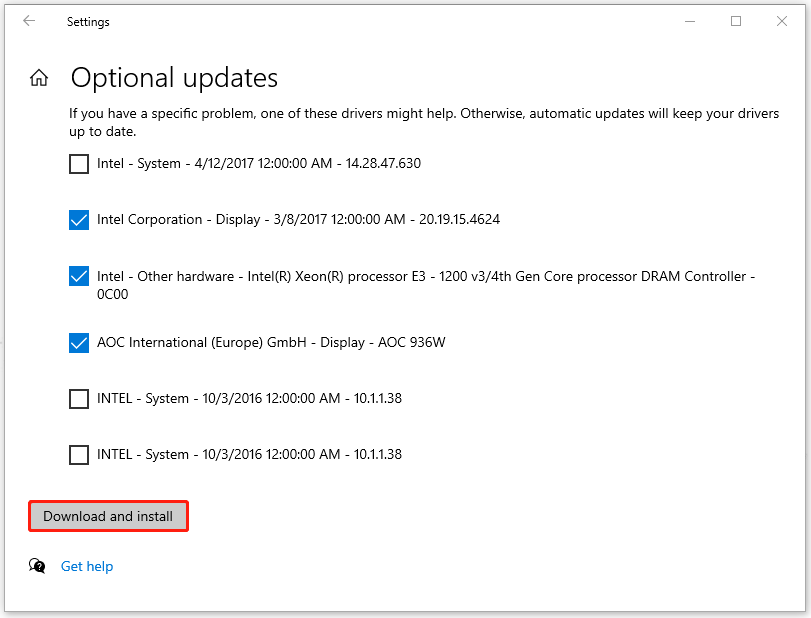
Step 1: Go to Start > Settings > Update & Security > Windows Update.
Step 2: Click View optional updates from the right panel and expand Driver updates.
Step 3: Check the available driver updates and click Download and install.
Fix 3: Run into a Safe Mode
To avoid third-party software conflicts, you can run your system into Safe Mode. Here is the way.
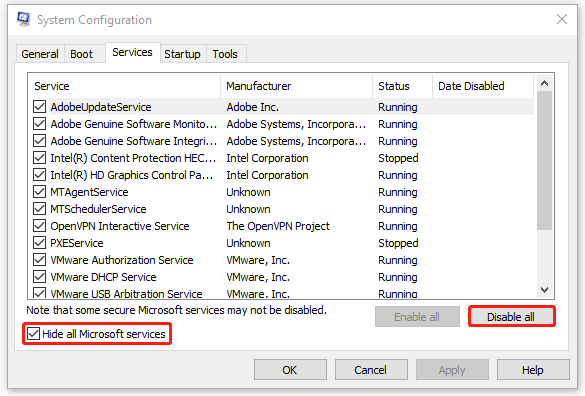
Step 1: Open Run by pressing Win + R and input msconfig to enter.
Step 2: In the Services tab, check the option next to Hide all Microsoft services and then choose Disable all.
Step 3: Go to the Startup tab and click Open Task Manager to disable those enabled programs one by one.
After that, you can restart the system and try Windows Update again.
Fix 4: Update BIOS
The last method is to update BIOS. Notice that you don’t need to update BIOS regularly unless you meet some specific troubles and the attested BIOS version with security patches may help fix the 0x800703ed error.
- Check Your Computer’s Model Name
- Find the Latest BIOS Update from Manufacturer’s Website
- Download and Unzip the BIOS File
- Copy the BIOS File to a USB Flash Drive
- Restart Your Computer to Boot into BIOS Screen
- Back up Your Computer’s Current BIOS File
- Update BIOS in Windows 10
For detailed steps for the above requirements, you can go check this post: How to Update BIOS Windows 10 | How to Check BIOS Version.
Bottom Line:
If you run into the Windows update error 0x800703ed, you can try the above methods to fix it. Hope his article is useful for you.
User Comments :