
In the most cases, the error 0X80073BC3 refers to the issue happened on the Windows update process. That can stop the normal update-related service, hassling people a lot. So, how to get rid of the Windows update error 0X80073BC3? This post on MiniTool Website will be helpful.
Windows Update Error 0X80073BC3
Why does the Windows update error 0X80073BC3 happen on your Windows? In most cases, some redundant system partitions can confuse the update process and you can find the notification tell you that the requested system device cannot be found.
Apart from that, it stems from various underlying causes, such as system file corruptions, insufficient hard drive space, software compatibility issues, etc.
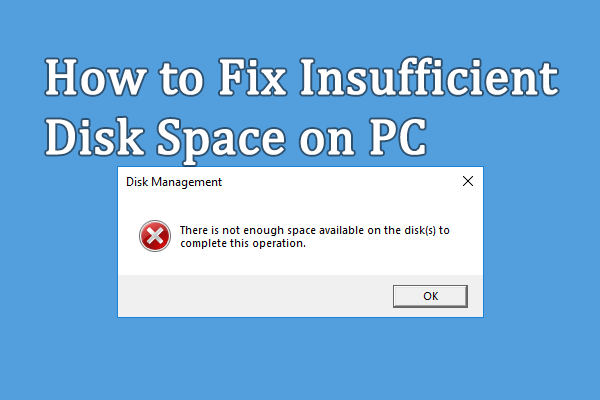
Now, you can refer to the following methods to fix 0X80073BC3.
Fix: Windows Update Error 0X80073BC3
Fix 1: Run the Windows Update Troubleshooter
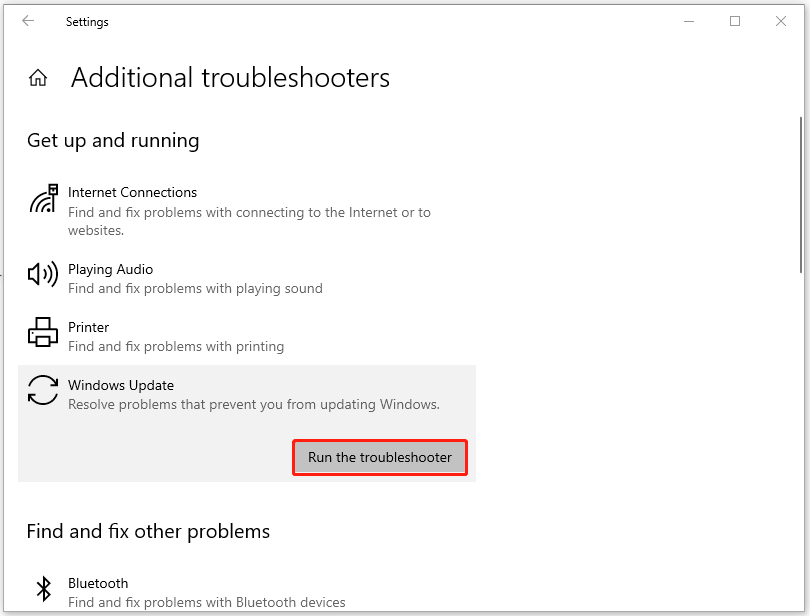
First of all, the Windows update error 0X80073BC3 can be triggered by the glitches and bugs in your Windows Update components. To fix that, you can run the Windows Update troubleshooter by following the next steps.
Step 1: Go to Start > Settings > Update & Security > Troubleshoot.
Step 2: Click Additional troubleshooters from the right panel and choose Windows Update under Get up and running and then Run the troubleshooter.
![[Full Guide] How to Fix Windows Update Troubleshooter Not Working](https://images.minitool.com/minitool.com/images/uploads/2023/03/windows-update-troubleshooter-not-working-thumbnail.png)
Fix 2: Perform Disk Cleanup
In case you don’t have sufficient storage space for your Windows update, you can perform a disk cleanup by removing unnecessary files.
Tip: Before that, you’d better back up your data with MiniTool ShadowMaker in advance in case of any mistaken deletion.
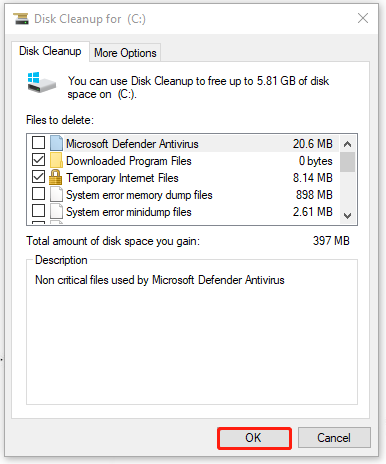
Step 1: Type Disk Cleanup in Search and open it.
Step 2: Pick the drive where your system is installed and click OK.
Step 3: Choose Clean up system files and choose the drive.
Step 4: Then you can select those unnecessary files and folders with the largest portions of the data used and click OK.
Fix 3: Run SFC and DISM
Since the system file corruption is one of the reasons that cause the Windows update error code 0X80073BC3, you can run SFC and DISM scans to repair that.
Step 1: Input Command Prompt in Search and run it as an administrator.
Step 2: Then input sfc /scannow in the window and press Enter to execute the command.
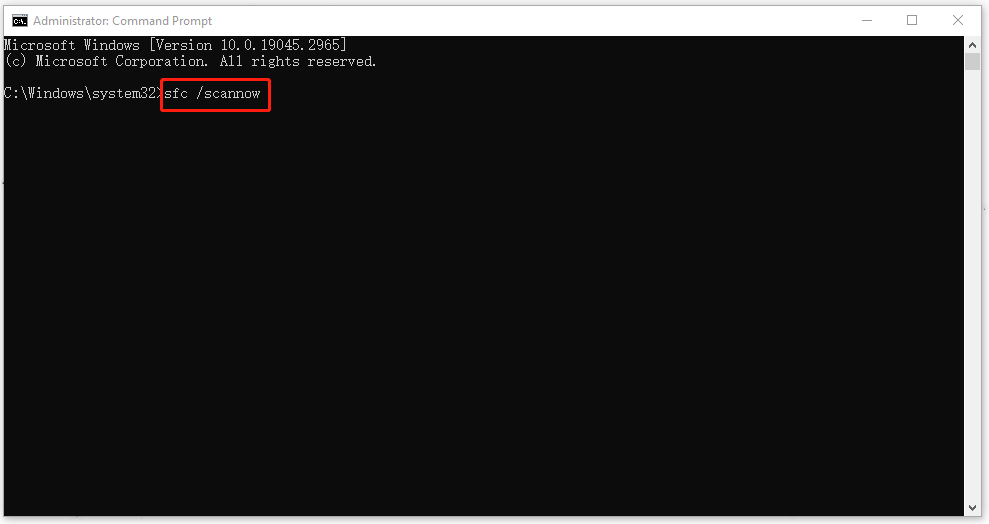
Then you can close the window and restart the computer to check if the error persists; if yes, please open Command Prompt with admin right to execute this command – dism /online /cleanup-image /restorehealth.
Fix 4: Delete the Second System Drive
If you have two system-partition included drives, you can choose to delete the useless system partition. Here is the way.
Step 1: Right-click on the Start icon and choose Disk Management.
Step 2: Locate the redundant system partition and right-click on it to choose Delete Volume….
Then, you can try to update Windows to check if the error 0X80073BC3 has been removed.
Recommendation: Back Up Your Data Regularly
We highly recommend that you should back up your data regularly after you have successfully get rid of the error 0X80073BC3. The Windows Update failure can make data loss sometimes according to what inflicted users reported.
You can use MiniTool ShadowMaker, this free backup software, to back up your systems, files & folders, and partitions & disks. And if you want to perform that as scheduled, you can click options > Schedule Settings to configure the backup time.
MiniTool ShadowMaker has an intuitive interface with an easy and quick backup process. It is worth trying! You can click the button to get a 30-day free trial version.
MiniTool ShadowMaker TrialClick to Download100%Clean & Safe
Bottom Line:
When you encountered the error 0X80073BC3 in updating Windows, you can follow the methods in this article for troubleshooting. Hope this article is useful for you.
User Comments :