
What is the Windows update error code 0x80243FFF? How to get rid of the error code 0x80243FFF? If you run into this Windows update error, you can read this article and MiniTool will present some effective methods to help fix it and teach you how to protect your data.
Why Does the 0x80243FFF Error Happen?
The Windows update error 0x80243FFF can be triggered by multiple reasons, such as software conflicts, corrupted system files, disabled, Windows services, etc.
Fortunately, those issues can be fixed by some easy tips. Before you start the next moves, you can restart your computer first and try the Windows update again to check if the error can be fixed.
Or if you have installed some third-party antivirus software recently, you can try to disable or uninstall the program to see if it is the culprit. Besides, please make sure you have a stable Internet connection, which is quite important to keep the process running normally.
Since many users reported that they loss their important data when they encountered the update failure, we highly recommend that you should back up your data before you start the update. MiniTool ShadowMaker is free backup software committed to data backup and sync, as well as disk clone.
You can try this program to back up your data regularly and perform different types of backup. A 30-day free trial version is available for you.
MiniTool ShadowMaker TrialClick to Download100%Clean & Safe
How to Get Rid of the Error 0x80243FFF?
Method 1: Run the Windows Update Troubleshooter
If the above tips can’t fix 0x80243FFF, you can use Windows Update troubleshooter to fix bugs that prevent you from updating Windows.
Step 1: Go to Start > Settings > Update & Security > Troubleshoot and click Additional troubleshooters from the right panel.
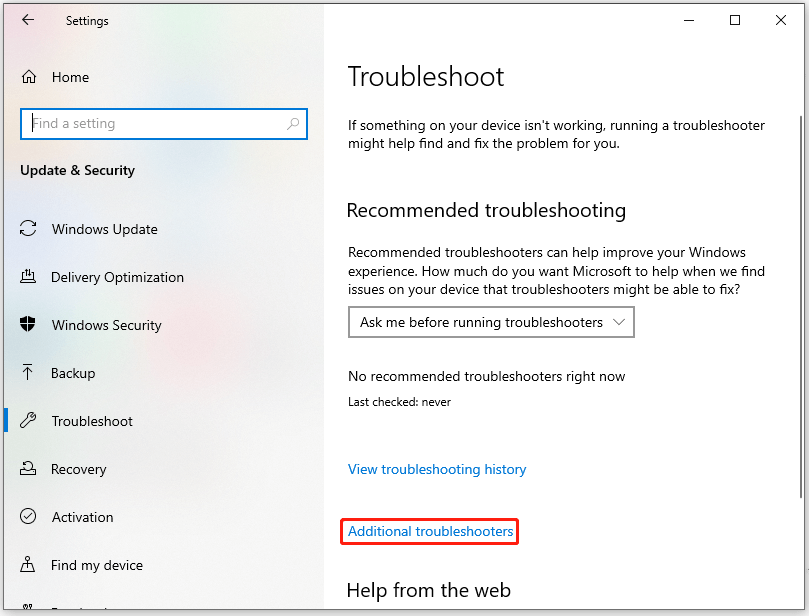
Step 2: Click Windows Update and then select Run the troubleshooter.
Then you will need to wait for a moment until the detection finishes and follow the instruction to fix the found bugs.
Method 2: Use SFC and DISM Scans
If you double that the error code 0x80243FFF is caused by corrupted or damaged system files, you can repair that by using SFC and DISM scans.
Step 1: Press the Win + S keys open Search and input Command Prompt to run it as an administrator.
Step 2: When the window opens up, please type sfc /scannow and press Enter to scam and check for the corrupted files.
Step 3: When the verification ends, you can execute another command to repair the damaged system files.
DISM /online /cleanup-image /restorehealth
Then close the window and restart your computer.
Method 3: Perform a Clean Boot
To avoid software conflicts, you can perform a clean boot that only starts Windows with a minimal set of drivers and startup programs.
Step 1: Open Run by pressing Win + R and input msconfig to enter.
Step 2: In the Services tab, check the box next to Hide all Microsoft services and then click Disable all.
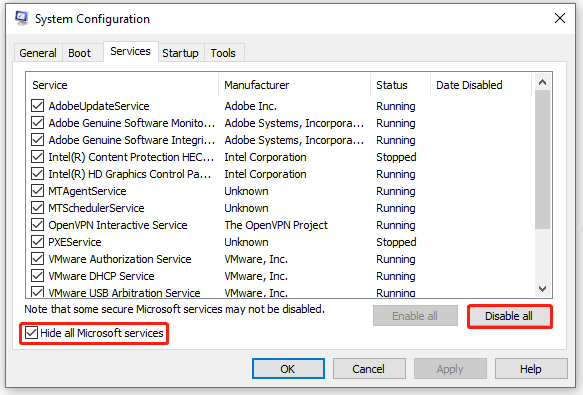
Step 3: In the Startup tab, click the Open Task Manager link and in the next window, right-click on each apps that labeled Enabled to click Disable.
When you finish that, go back to the System Configuration window and click Apply and OK to save the changes.
Then you can restart your computer and try to update Windows again to see if that error occurs.
Method 4: Restart Some Related Services
To perform a Windows update, you need to make sure all related services have been enabled. Or you can choose to restart those services to ensure they run well.
Step 1: type services.msc in Run to enter the Services window.
Step 2: Locate and double-click on Background Intelligent Transfer Service and set its Startup type to Automatic and click the Start button.
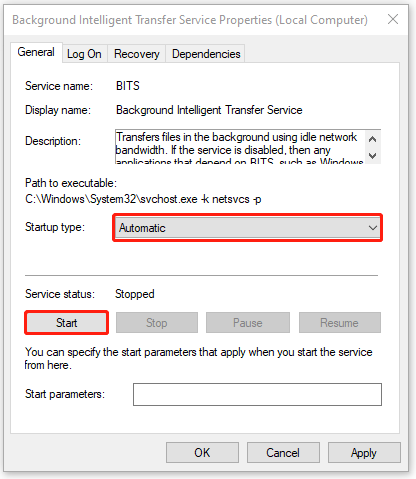
Then choose Apply and OK to save it. Repeat the same above steps to check the startup types and service status of those services:
- Windows Update
- Cryptographic Services
- Windows Installer
Then please restart the PC to check if the 0x80243FFF error has been fixed.
Wrapping It Up
This article has introduced a series of effective methods to resolve the error 0x80243FFF. If you still have other questions, you can leave your messages below and we will try our best to answer that.
User Comments :