
When downloading programs in Microsoft Store, you may meet the 0x80D03805 Microsoft Store error preventing you from downloading the program. Check how to fix Microsoft Store 0x80D03805 error with the methods introduced in this post. FYI, MiniTool software produces professional data recovery software, hard drive partition manager, system backup and restore programs for users.
If you meet the error code 0x80073D05 when trying to download a program in Microsoft Store, you can check what may cause this error and how to fix this error with the methods below. You can try to:
- Reset Microsoft Store cache
- Run Windows Store Apps troubleshooter
- Reset Microsoft Store from Settings
- Clean system temporary files
How to Fix Microsoft Store 0x80D03805 Error – 4 Tricks
Trick 1. Reset Microsoft Store Cache
If the Microsoft Store caches are corrupted, it may cause 0x80D03805 error when downloading apps in Microsoft Store. You can try to reset Microsoft Store cache to see if it can fix this error. Check the operation below.
One way to reset Microsoft Store cache is from Start menu. You can click Start, type wsreset, right-click wsreset.exe, and select Run as administrator. It will reset Microsoft Store cache for you.
Alternatively, you can also open elevated Command Prompt in Windows 10, type wsreset.exe in Command Prompt window, and hit Enter to carry out the Microsoft Store cache reset operation.
When trying to reset Microsoft Store cache, it may say the Microsoft Store cache is corrupted. You can check how to fix Windows Store cache may be damaged.
Check if the Microsoft Store 0x80D03805 error has been solved, if not, continue to try other ways.
Trick 2. Run Windows Store Apps Troubleshooter
Windows offers a built-in Troubleshooter tool allowing users to troubleshoot hardware and other computer components issues. You can run Windows Store Apps troubleshooter which can check and fix common issues with the Microsoft Store. Check how to do it below.
- You can click Start to open Windows Settings. Next click Update & Security -> Troubleshoot.
- In the right window, scroll down to find Windows Store Apps option. Click it and click Run the troubleshooter button.
Trick 3. Reset Microsoft Store from Settings
You can try to reset Microsoft Store from Windows Settings to see if it can help fix Microsoft Store 0x80D03805 error Windows 10.
- Open Windows Settings by pressing Windows + I keys at the same time.
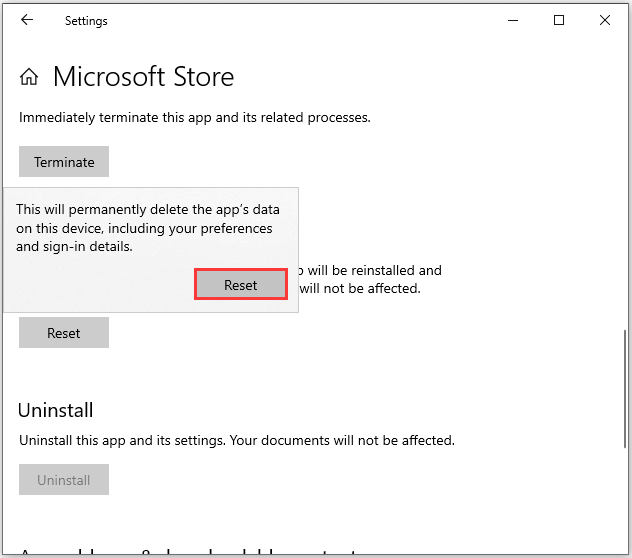
- Click Apps -> Apps and features. Find Microsoft Store in the right panel and choose Advanced options.
- Find Reset option and click Reset button. Resetting Microsoft Store will permanently delete the app’s data on your Windows 10 computer.
Trick 4. Clean System Temporary Files
Some temporary files in the system may also affect the Microsoft Store operations. You can use the Disk Cleanup tool to clean system temporary files. Check the operation below.
- Click Start, type disk cleanup, and select Disk Cleanup app to open this tool.
- Next you can select the drive you want to clean up by clicking the drop-down icon, and click OK. The system temporary files are saved on Drive C, so you can choose C drive.
- In the Files to delete section, you can then select the files you want to delete from your system. You can tick Temporary Internet files, Temporary files, etc. based on your need. Click OK.
After you clean your computer, you can download the app in Microsoft Store again to see if the 0x80D03805 error still exists.
Bottom Line
Hope one of the 4 tricks in this post can help you fix Windows Store 0x80073D05 error in Windows 10.
If you need to recover deleted/lost files from Windows 10 computer, external hard drive, USB flash drive or other storage devices, you can use MiniTool Power Data Recovery to easily do it.

User Comments :