
OneDrive is a leading cloud storage solution, widely favored for its seamless integration with Microsoft Office apps like Word, PowerPoint, and Excel. The business-oriented version, OneDrive for Business, included in Microsoft 365 subscriptions, provides at least 1TB of storage and enhances remote collaboration for teams.
Additionally, OneDrive integrates with File Explorer (Windows) and Finder (Mac), allowing users to manage files directly from their system. Once set up, it enables:
- Easy access and organization of thousands of files across devices.
- Automatic backup of local files to the cloud.
- Offline syncing for OneDrive files stored on your computer.
Then, let’s see how to add OneDrive to File Explorer:
Add OneDrive to File Explorer
Step 1. Type OneDrive in the Search box and open it.
Step 2. The OneDrive folder will be displayed in the left sidebar of your Windows 10/11 computer. Click OK on the pop-up OneDrive isn’t signed in screen.
Step 3. Enter your password and click Sign in to set up OneDrive. Then, you can see the OneDrive folder in File Explorer.
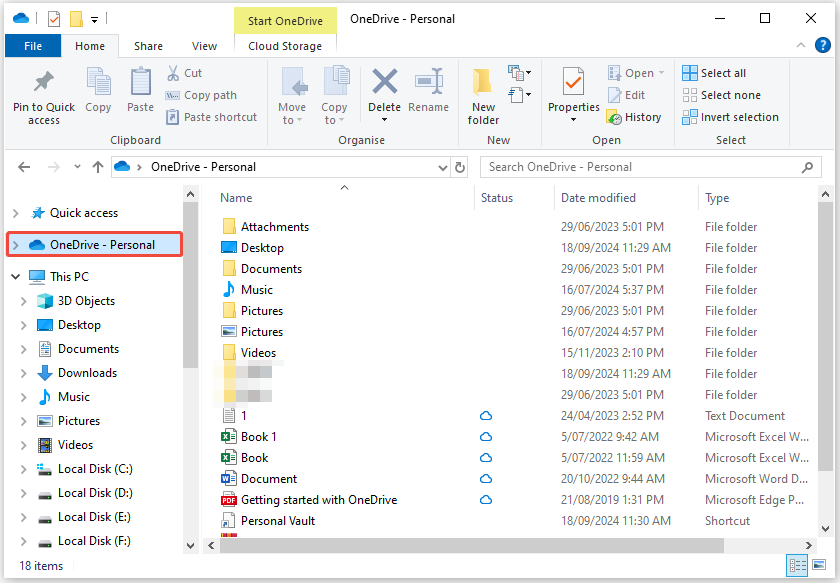
If you want to add multiple OneDrive to File Explorer, like using OneDrive personal and business on the same computer, you can follow the steps below:
Step 1. Click the OneDrive icon, and click Help & Settings. Then, select Settings.
Step 2. Choose the Account tab and click Add an account. Then sign in with another credential. Then, you can see two OneDrive folders on File Explorer.
Back up/Sync Files Locally
While OneDrive is a powerful tool, it does have some drawbacks. One potential problem is that it relies on an Internet connection. If you’re in a location with poor or no network, you can only access synced files. Additionally, OneDrive only offers 5GB of free storage space. If you have a lot of data, you may need to pay for additional storage space.
Thus, in addition to backing up or syncing files to OneDrive, you can choose another free backup software to store your files locally. It’s called MiniTool ShadowMaker which allows you to sync files, back up files, back up systems, and clone SSD to larger SSD without the Internet.
Now, download MiniTool ShadowMaker Trial Edition and install it on your computer.
MiniTool ShadowMaker TrialClick to Download100%Clean & Safe
Step 1. Launch MiniTool ShadowMaker and click Keep Trial.
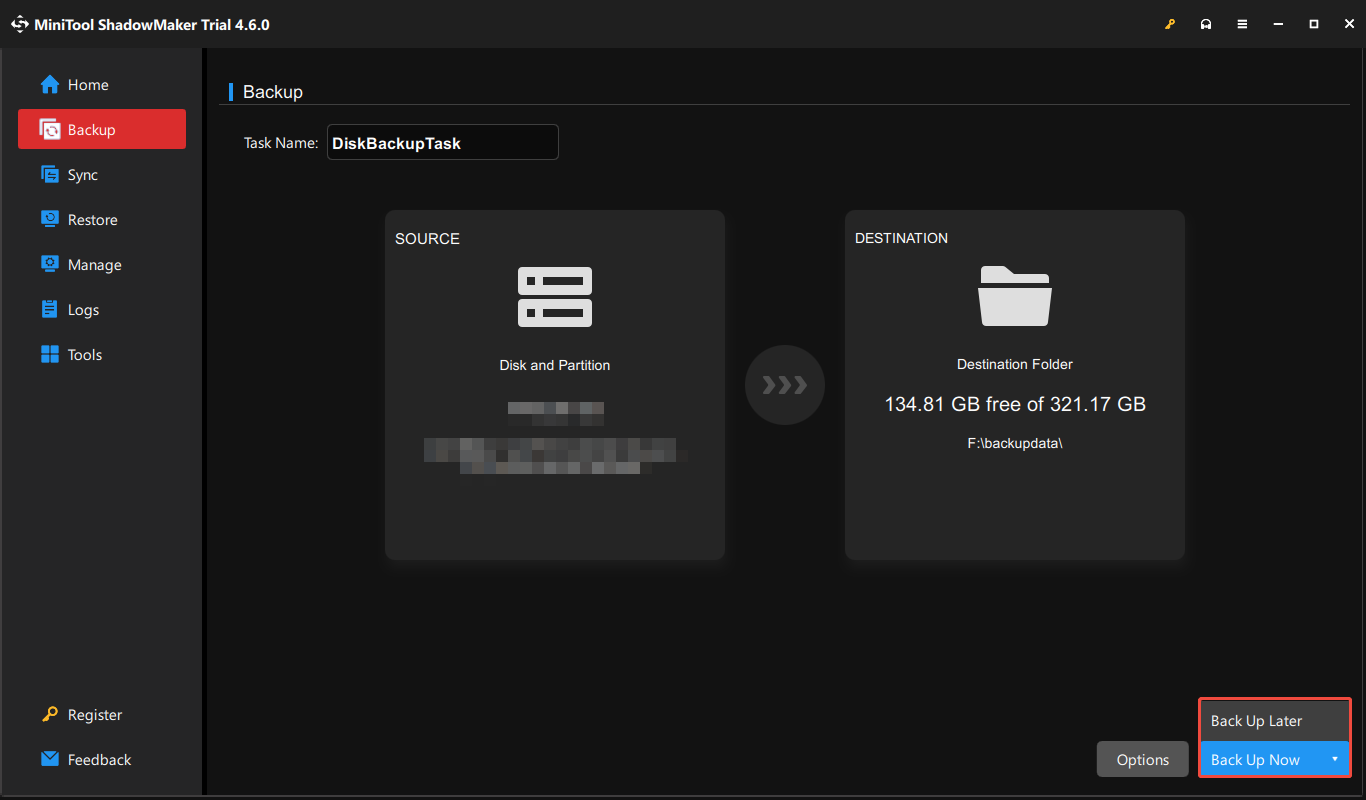
Step 2. Navigate to the Backup page. Click SOURCE and choose Folders and Files. Then, check all the items that you want to back up and click OK.
Step 3. Here, you can choose one destination like the external hard drive, SD card, USB drive, or NAS to store your files and click OK.
Step 4. When going back to the main interface, click the Back Up Now button to execute the backup. You can also click Back Up Later to delay the backup task.
Final Words
How to add OneDrive to File Explorer on Windows 11/10? You have got the answer. If needed, you can also remove OneDrive from File Explorer. Besides, it’s recommended to use MiniTool software to back up files locally.
User Comments :