
Generally, you can find the power button on the sign-in screen, which allows you to shut down the computer without logging in. But some of you may ask how to remove the power button from the login screen. This MiniTool post shows you detailed information on how to make it.
If you are looking for free data recovery software, MiniTool Power Data Recovery is a good choice. This software can recover types of files, including deleted photos, lost documents, missing videos, and so on. Besides, you can use it to rescue files from inaccessible partitions, formatted USB drives, crash operating systems, etc. It is worth trying if you need to make a data recovery.
MiniTool Power Data Recovery FreeClick to Download100%Clean & Safe
How to Remove/Add the Power Button on the Login Screen
Remove the Power Button with Local Security Policy
Local Security Policy, as its name showing, contains information about the security of a computer. You can control and configure security settings by using it. But Local Security Policy is not available in Windows Home. You can find it in Windows 10/11 Pro, Enterprise, and higher editions.
Step 1: Press Win + S and type Local Security Policy into the search box.
Step 2: Click Open on the right pane.
Step 3: Navigate to Local Policies > Security Options.
Step 4: Find Shutdown: Allow system to be shutdown without having to log on and double-click on it.
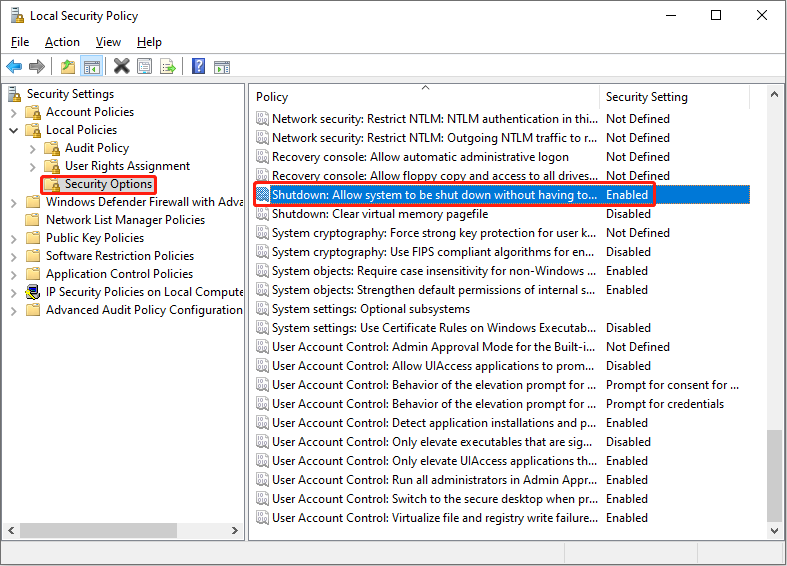
Step 5: In the following window, choose Disable and then click OK to save the change.
If you find there is no power button on the sign-in screen, you can follow steps 1-4 and select Enable in Step 5. After saving the change, you can go to the sign-in screen to see if the power button appears.
Hide the Power Button with Registry Editor
Windows Registry is a collection of databases that includes information about downloaded programs, firmware, the operating system, etc. It is responsible for computer stability, reliability, and health performance. Before you make changes to it, you are highly advised to back up the registry key.
Step 1: Press Win + R to open the Run window.
Step 2: Type regedit into the box and hit Enter to open Registry Editor.
Step 3: Shift to HKEY_LOCAL_MACHINE > SOFTWARE > Microsoft > Windows > CurrentVersion > Policies > System.
Step 4: Find and double-click on the shutdownwithoutlogon subkey.
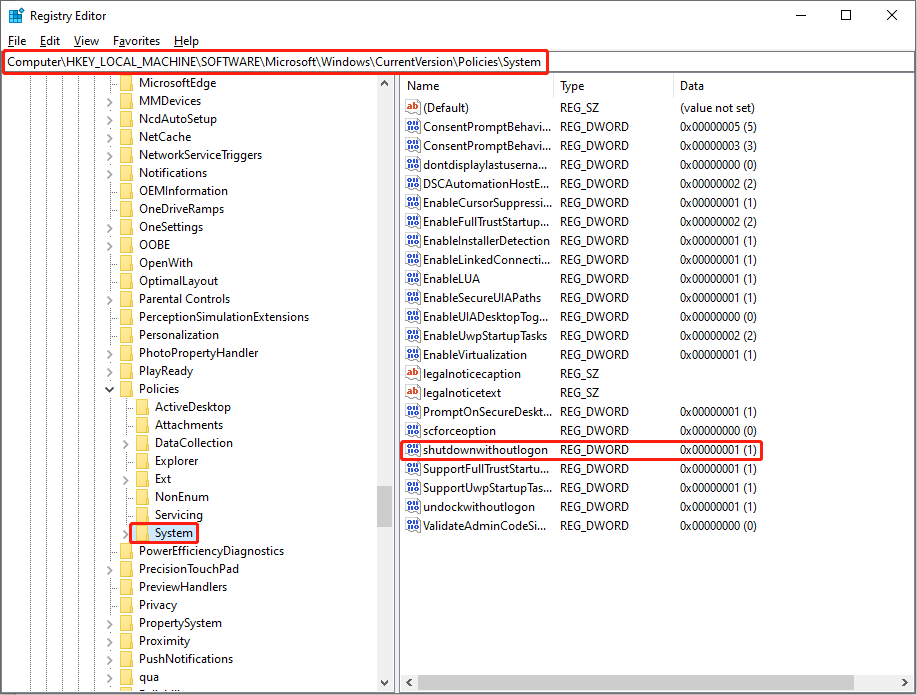
Step 5: Change the Value data to 0 if you want to remove the power button on the login screen.
Step 6: Click OK to confirm the change.
If you can’t find the shutdownwithoutlogon subkey, you can right-click on the blank space and choose new > DWORD (32-bit) Value. Then rename it as shutdownwithoutlogon. You can change the Value data into 1 to add a power button on the login screen.
How to Hide the Power Button from the Start Menu
Some of you may want to hide the power button from the Start menu. This is also possible via Local Group Policy.
Step 1: Press Win+ R and type gpedit.msc into the box.
Step 2: Hit Enter to open Local Group Policy Editor.
Step 3: Turn to User Configuration > Administrative Templates > Start Menu and Taskbar.
Step 4: Find and double-click on Remove and prevent access to the Shut Down, Restart, Sleep, and Hibernate commands policy on the right pane.
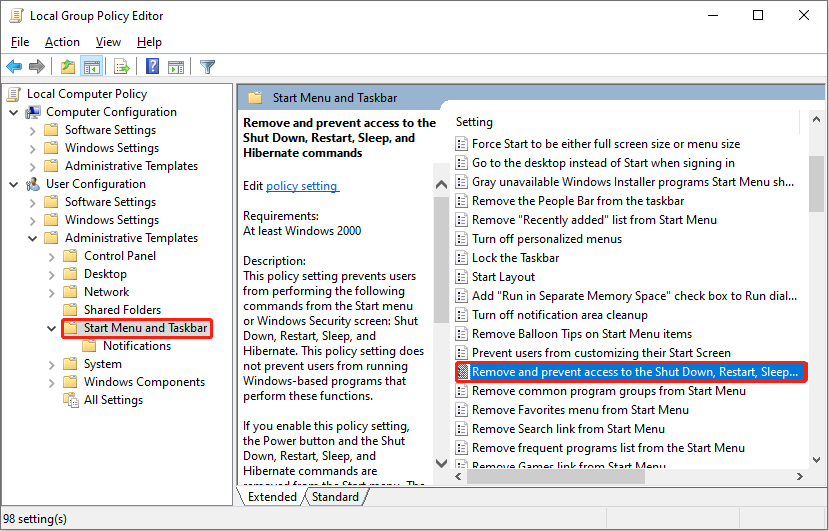
Step 5: Choose Enable and click the Apply button.
Step 6: Click OK to close the window.
Bottom Line
It is OK to change the computer settings to fit your personalization. No matter whether you want to remove or add the power button on the login screen, you can find practical methods in this post.
Files might be deleted or lost due to various reasons. When you find files are disappeared and can’t restore them from Recycle Bin, a professional data recovery tool is required, like MiniTool Power Data Recovery.
MiniTool Power Data Recovery FreeClick to Download100%Clean & Safe
Hope both this post and MiniTool Power Data Recovery can help you solve the problem in time.
User Comments :