
Will you try the AI LIMIT game? If you do, learning the AI LIMIT save file location and file protection methods is essential for you. This MiniTool has explained this information in detail. If you are eager to know, keep reading with us!
AI LIMIT is an action role-playing game blending with sci-fi factors. This game is going to be released on March 27, 2025. For those who prefer to try this game, it is important to know some basic information, such as AI LIMIT save file location. The following content gives you a detailed guide to finding game files and also some additional tips to protect your game data.

Where Is AI LIMIT Save File Location
AI LIMIT is about to be launched on Windows and PS5. Both the game save folder and configuration folder are important to ensure the performance of the game. Thus, where is the save file location of AI LIMIT? Follow the next steps to find the files on Windows.
Step 1. Press Win + E to open File Explorer on your Windows.
Step 2. Choose the C drive from the left sidebar and head to Users > username > AppData > LocalLow > SenseGames > AILIMIT > Archive.
After locating the target folder, you can find saved game files. One more tip is that the AppData folder is hidden by default. You need to show the hidden files in File Explorer before finding it.
Here is another way for you to get quick access to the target game folder. Detailed steps are as follows:
Step 1. Press Win + R to launch the Run window.
Step 2. Type %username%\AppData\LocalLow\SenseGames\AILIMIT\Archive into the dialog and press Enter to quickly locate the target folder.
You should replace username with the actual user account.

How to Protect AI LIMIT Save Files
After knowing the specific save file location of AI LIMIT, it is important for you to know how to protect them from being lost because of diverse cases, such as game crashing, device failure, mistaken deletion, etc. Here are some practical suggestions for you.
Tip 1. Back Up Game Files in Period
Before the file was lost, you could back up the game files periodically, which is the most effective way to safeguard any digital data. MiniTool ShadowMaker can be your ideal option. This backup software can not only back up files, folders, partitions, and disks but also provide several backup features.
For instance, running the automatic file backup feature to let files back up automatically on a set regular basis, like on a daily, weekly, monthly, or event basis. Additionally, you can select a suitable file backup type to avoid duplicate or redundant files.
You can get this software by clicking the download button below to use its powerful backup features for free within 30 days.
MiniTool ShadowMaker TrialClick to Download100%Clean & Safe
Tip 2. Recover Missing Game Files in Time
However, if you don’t have earlier backup files, but experience game file loss, try to recover them with MiniTool Power Data Recovery. This free file recovery software can restore files from the internal drive, external drive, SD card, USB drive, and other data storage devices.
As long as the game files are saved locally and are not overwritten by new files, you can try this software to recover missing AI LIMIT files. Get this free file recovery software and try to recover with the following guide.
MiniTool Power Data Recovery FreeClick to Download100%Clean & Safe

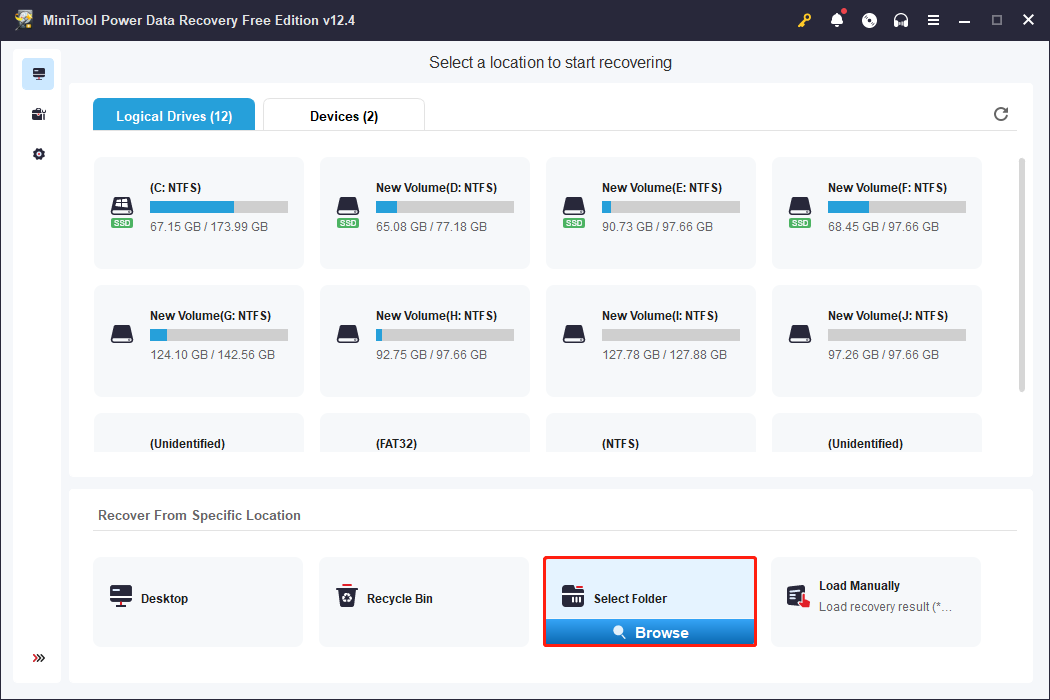
Step 1. Launch the software. On the main interface, you can choose Select Folder at the bottom section and navigate to the AI LIMIT save file location as explained above. Find the target folder and click Select Folder again to confirm.
Step 2. Wait for the scan process to complete. On the result page, you can locate the wanted files by using the Filter, Type, Path, and Search features, which help to filter out unwanted files.
Step 3. Tick the wanted files and click Save. Please save files to a destination that is different from the original one. Saving files to the original file path might cause data to overwrite.
As you are running the free edition of this software, you can only use it to recover 1GB of files. To restore more files, get a premium edition, please.
Final Words
After reading this post, you should know where to find the AI LIMIT save file location on Windows and how to protect the game files. Hope there is useful information to you.
User Comments :