
An Administrator Has Restricted Sign in Windows 11/10
Most of the time, you can unlock your device after typing your password and PIN. However, you might fail to log into the system along with the following error message when your computer is not connected to the internet or you have locked your device with the Find my device feature.
An administrator has restricted sign in. To sign in, make sure your device is connected to the internet, and have your administrator sign in first.
Although this feature allows you to track your device using the Microsoft account when it is lost, some of you might be unable to log in to Windows because of accidental misuse of this feature. When you are suffering from this issue at the moment, consider changing your password on another device. If that doesn’t work for an administrator has restricted sign in, you can refer to the solutions listed below to see if it will make a difference.
How to Fix An Administrator Has Restricted Sign in Windows 10/11?
Preparation: Enter Windows Recovery Environment
Since your computer cannot boot in the normal mode, it’s a good option to boot into Windows Recovery Environment (WinRE) to diagnose and troubleshoot issues for the operating system. Here’s how to do it:
Step 1. Power off your computer and turn it on again.
Step 2. When you see the Windows logo appear on the screen, press the Power button again
Step 3. Repeat this reboot process for 2 or more times until prompted by the Automatic Repair screen.
Step 4. Click on Advanced options to enter Windows Recovery Environment.

Fix 1: Perform Windows Startup Repair
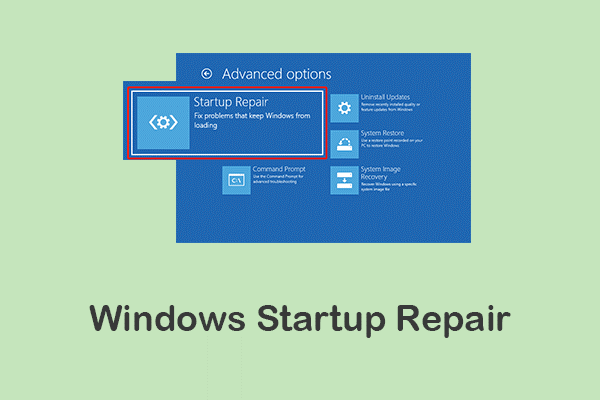
When you have trouble booting your computer, Startup Repair comes in handy to help you quickly diagnose and repair common startup problems. Follow these steps:
Step 1. In Windows Recovery Mode, head to Troubleshoot > Advanced options > Automatic/Startup Repair.
Step 2. Select an account and enter your password. Then Windows will start to diagnose issues in your system and try to repair them automatically.
Fix 2: Activate Super Administrator Account
Another solution is to activate the Super Administrator account. This account gives you unrestricted access to the operating system, so you can unlock your device with ease. Here’s how to do it:
Step 1. After entering WinRE, go to Troubleshoot > Advanced options > Command Prompt.
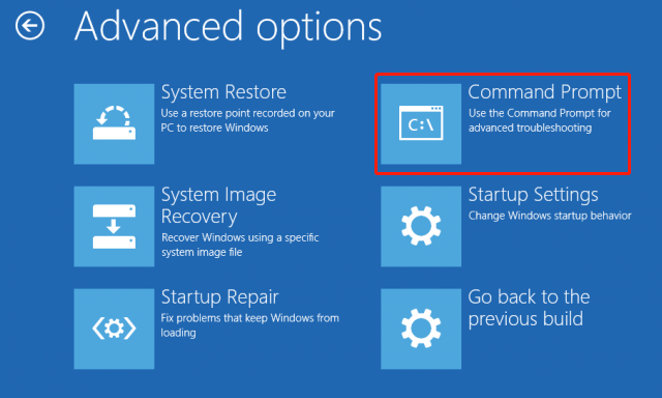
Step 2. In the command window, type the command below and hit Enter:
net user administrator /active:yes
Step 3. Once done, reboot your computer to inspect if an administrator has restricted sign in disappears.
Fix 3: Reset This PC
If an administrator has restricted sign in is still there, the last workaround is to reset your computer to the factory settings. During this process, you are likely to lose your valuable data, so you had better back up crucial files in Safe Mode before resetting your PC. After that, follow these instructions:
Step 1. In the Choose an option screen, select Troubleshoot.
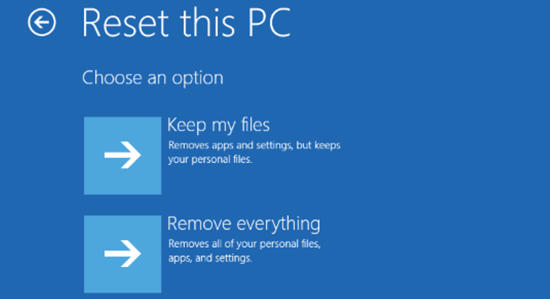
Step 2. Click on Reset this PC.
Step 3. Next, there will be 2 options for you: Keep my files or Remove everything. Choose one option according to your need.
Step 4. Select a way to install your Windows and then follow the on-screen guidelines to complete the process.
Final Words
That’s all you can do when receiving this device has sign in restrictions error on Windows 10/11. After unlocking your computer, it’s highly advised to create a scheduled backup with PC backup software – MiniTool ShadowMaker as a precaution. Once your files are missing, it’s easy to restore them with the backup.
User Comments :