
Are you experiencing the assembly RSy3_AudioAppStreamsWrapper.dll error when starting the Razer Synapse app or other audio software? How can you get rid of this error and restore the normal functioning of your program? Follow this MiniTool guide.
Assembly RSy3_AudioAppStreamsWrapper.dll Error – What It Is
The full name of the RSy3_AudioAppStreamsWrapper.dll error is “Could not load file or assembly RSy3_AudioAppStreamsWrapper.dll or one of its dependencies”, which is usually related to the Razer Synapse software. It may occur when you start Razer Synapse, plug or unplug a Razer audio device, adjust audio settings in Razer Synapse, and so on.
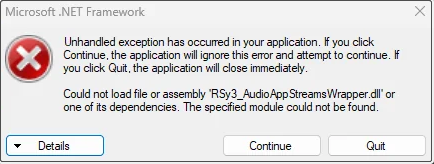
Why does this error occur? It can be triggered due to software conflicts, Internet interference, .dll file missing or corruption, insufficient system resources, incompatibility issues, software corruption, and so on. If you are bothered by this error, follow the instructions below to fix it.
How to Fix RSy3_AudioAppStreamsWrapper.dll Error Windows 11/10
Basic Troubleshooting Steps
Before diving into advanced troubleshooting methods, you can start with some basic steps to resolve the RSy3_AudioAppStreamsWrapper.dll error. These initial solutions include:
- Restart your computer to stop unnecessary tasks.
- Update Windows to the latest version to rule out known issues.
- Make sure your audio driver is up-to-date to exclude driver problems.
Way 1. Reset Winsock Catalog
Winsock (Windows Socket) is a service in the Windows operating system for handling network communications. When the RSy3_AudioAppStreamsWrapper.dll error is caused by Internet conflicts or interference, resetting Winsock can resolve it.
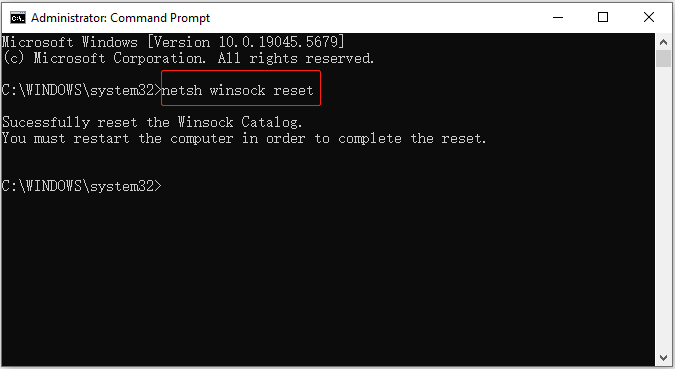
In the Windows search box, type cmd. Then, click Run as administrator under Command Prompt.
Next, type netsh winsock reset and press Enter to reset Winsock. Finally, you need to restart your computer to apply this action. To avoid data loss, save all open work before restarting the computer.
Way 2. Turn off .NET Framework Features
Sometimes, the .NET Framework can conflict with Razer Synapse or its components, leading to the RSy3_AudioAppStreamsWrapper.dll error. Additionally, the .NET Framework version may be corrupted, missing, or misconfigured, which can also trigger this issue.
In such cases, you can disable .NET Framework features and then reinstall Visual Studio to automatically configure and enable the necessary .NET environment. This process helps repair any missing or damaged .NET components, thus resolving the error. Follow the steps below to complete this task.
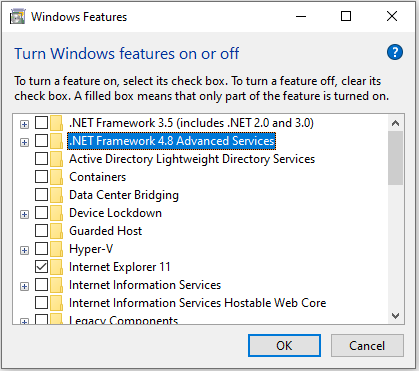
Step 1. In the Windows search box, type Turn Windows features on or off and open it.
Step 2. In the Windows Features window, uncheck any .NET Framework-related options and click OK.
Step 3. Visit the Visual Studio Community download page and scroll down to download Visual Studio Community 2022.
Step 4. Run the downloaded Visual Setup file and click Continue.
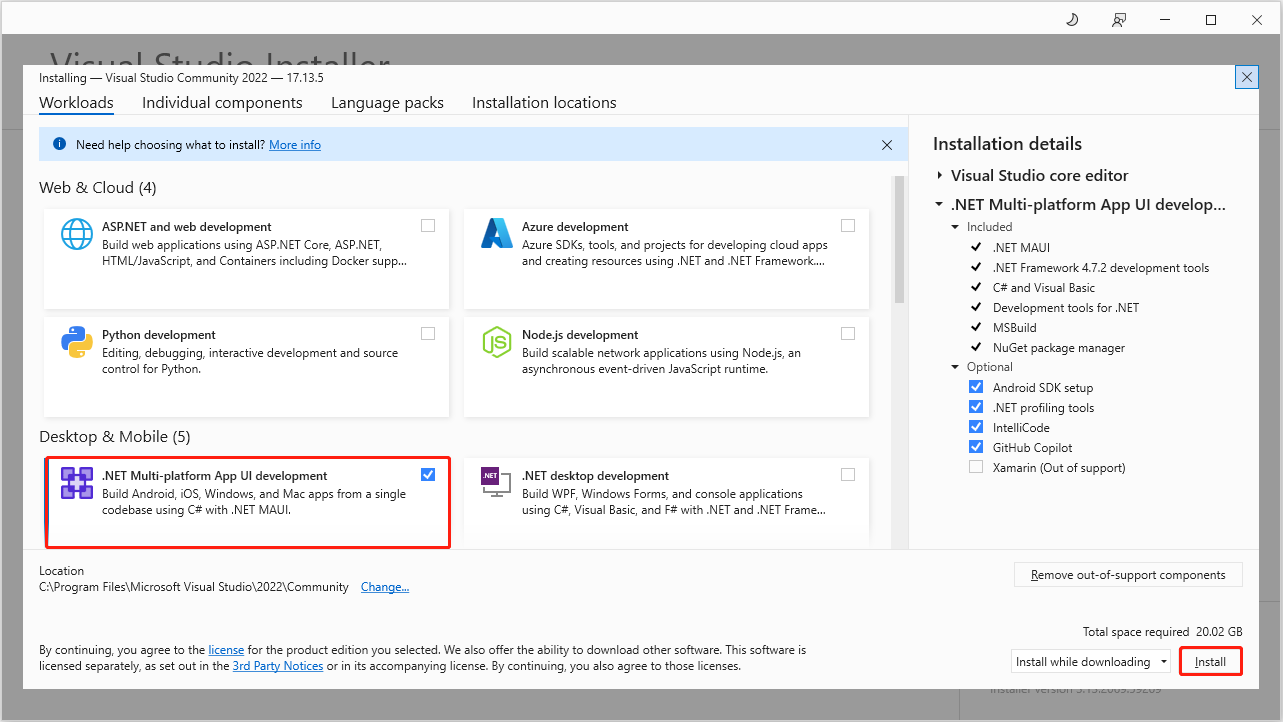
Step 5. When you see the following window, tick the option of .NET Multi-platform App UI development and click Install. Then wait for the process to complete.
Step 6. Restart your computer and go to the Windows Features window to re-enable .NET Framework features.
Way 3. Repair Microsoft Visual C++ Versions
Repairing Microsoft Visual C++ versions can also help resolve the RSy3_AudioAppStreamsWrapper.dll error. Here are the steps.
- Press the Windows + I key combination to open Settings.
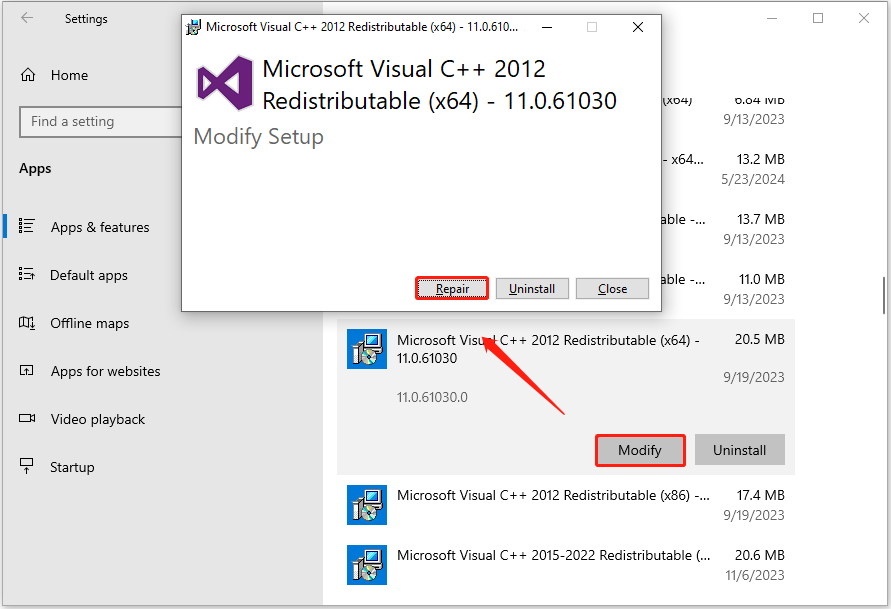
- Select Apps. In the app list, locate and click any version of Microsoft Visual C++. If the Modify button is clickable, select it, then click Repair in the new window that appears. Ignore the versions where the Modify button is unavailable.
Way 4. Repair or Reinstall Related Apps
If the RSy3_AudioAppStreamsWrapper.dll error persists after addressing potential .NET Framework or Visual C++ issues, the next step is to repair or reinstall the related applications. For example, you can go to Settings > Apps, and click Razer Synapse > Advanced options to repair Razer Synapse. If it fails to work, uninstall and reinstall it.
Read More:
If you need to recover files from HDDs, SSDs, USB flash drives, SD cards, and other file storage media on Windows, you can use MiniTool Power Data Recovery. As the best free data recovery software, it is capable of restoring all kinds of files easily and safely. Download its free edition and you can enjoy 1 GB of free recovery capacity.
MiniTool Power Data Recovery FreeClick to Download100%Clean & Safe
Bottom Line
To sum up, when you encounter the assembly RSy3_AudioAppStreamsWrapper.dll error Windows 11/10, you can reset Winsock, turn off the .NET Framework, repair Microsoft Visual C++, or reinstall the related apps. They can most likely solve the problem.
About The Author

Position: Columnist
Shirley holds a bachelor’s degree in English and has been an editor at the MiniTool Team for many years. She specializes in IT-related content, with a focus on data recovery, file backup, disk management, and other technical topics. She is committed to delivering clear, accurate, and practical solutions to help users resolve common computer issues.
User Comments :