
Blue screen error commonly happens on Windows users. It is quite hard to resolve the completely get rid of the error code. Bindflt.sys crash error is something users complain about recently. If you are also struggling with the issue, you can read this article on MiniTool Website to get the solutions.
What Is Bindflt.sys?
Bindflt.sys is an important Windows driver used to communicate your computer with hardware or connected devices, directly accessing to the internals of the operating system.
What Causes Bindflt.sys Crash?
Recently, some people reported that their Bindflt.sys get crashed and receive an error message with a blue screen. So, why does that happen? There are some possible reasons you can consider.
- Virus and malware infiltration
- System file corruption
- Driver conflicts
- Software conflicts
The Bindflt.sys crash error can easily get your system crash and unable to respond to any commands you issue, even making data loss. If you want to recover your system from the blue screen, you can try to restart the system; if that can’t work, you can get into Safe Mode to troubleshoot possible issues.
We highly advised that you should use MiniTool ShadowMaker – free backup software – to back up your important data. This software has many useful features and functions, such as backup schedules and schemes, as well as password protection.
Besides, apart from the backup function, you can also sync data and clone disks via the tool. You can download and install the tool from the following button.
MiniTool ShadowMaker TrialClick to Download100%Clean & Safe
Then, to fix the Bindflt.sys BSOD error, you can refer to the next part.
How to Fix the Bindflt.sys BSOD Error?
Fix 1: Perform a SFC Scan
To fix corrupted or missing system files, you can run the Windows built-in tool – System File Checker. It can help scan and repair your damaged system files.
Step 1: Input cmd in Search and run Command Prompt as an administrator.
Step 2: Type sfc /scannow and press Enter to execute the command.
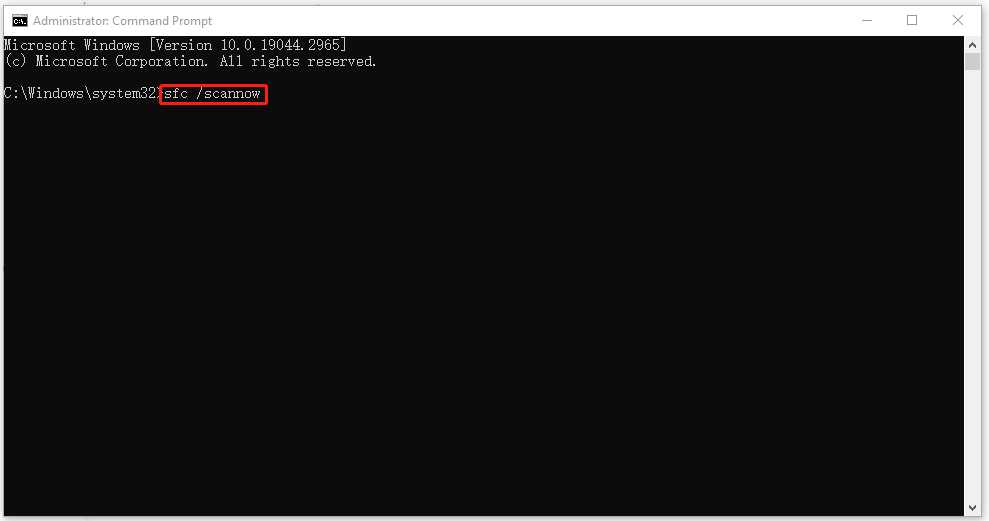
When the verification finishes, you can close the window and restart the system to check if the error still exits.

Fix 2: Scan Drive
Since Bindflt.sys is a Windows driver, you can scan for the drive to see if the drive work well.
Step 1: Open File Explorer and go to This PC.
Step 2: Right-click on the C: drive to choose Properties.
Step 3: In the Tools tab, click Check under Error checking.
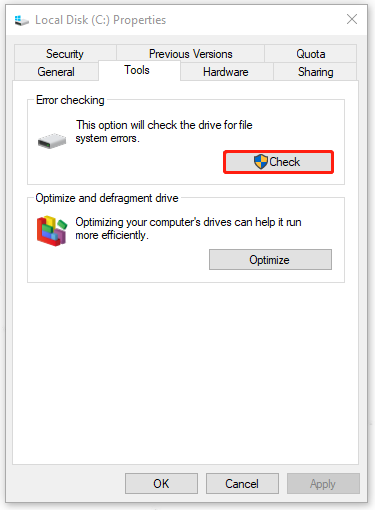
Step 4: Click Scan drive and follow the instruction to finish the next works.
Fix 3: Modify the Windows Registry
Another method to fix the Bindflt.sys blue screen is to modify the Start value for Bindflt.
Step 1: Open Run by pressing Win + R and input regedit to enter Registry Editor.
Step 2: Copy and paste this path – Computer\HKLM\SYSTEM\CurrentControlSet\Services\bindflt in its path bar and press Enter to locate it.
Step 3: From the right panel, locate and double-click on Start to change the Value data to 3. Click OK to save it.
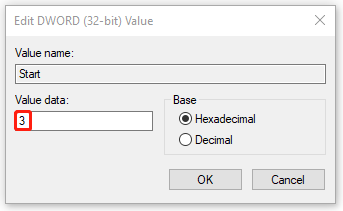
After that, restart your system to check the error.
Fix 4: Scan for Malware
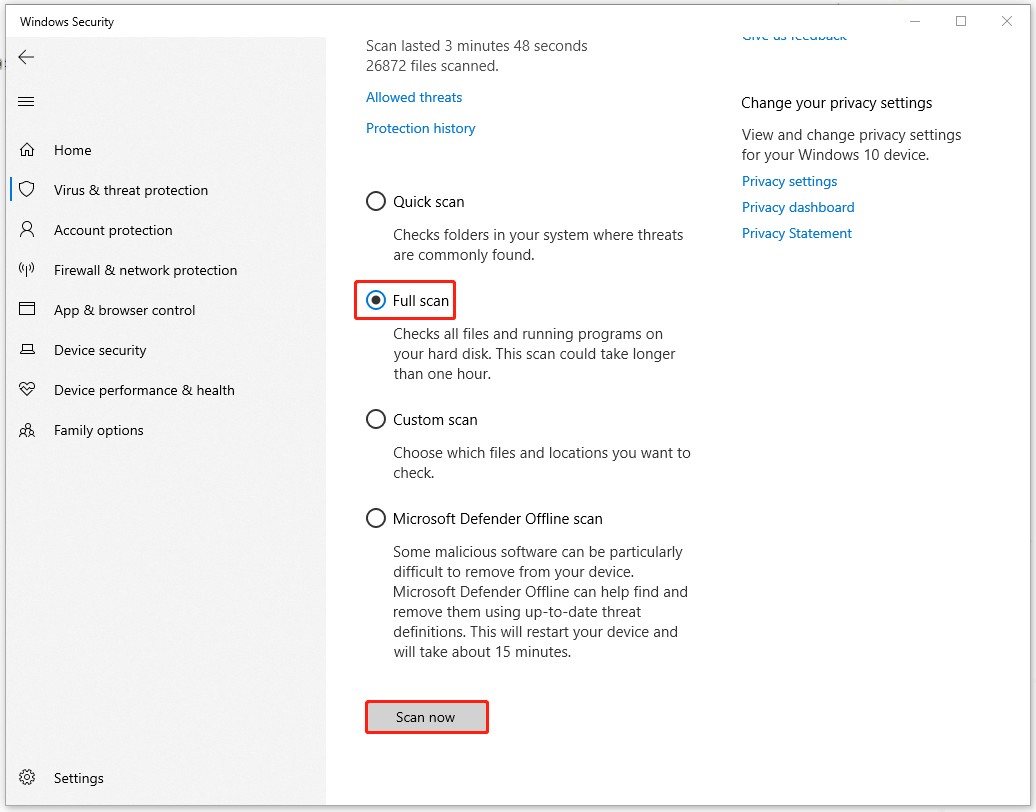
It is possible that malware and virus infiltration makes the Bindflt.sys BSOD error. You can perform a full scan for virus and malware.
Step 1: Go to Start > Settings > Update & Security > Windows Security > Virus & threat protection.
Step 2: Click Scan options and check Full scan to click Scan now.
Fix 5: Disable Windows Features
Some people fix the Bindflt.sys error by disabling Windows features. You need to do that from Turn Windows features on or off.
Step 1: Open Control Panel and click Programs.
Step 2: Click Turn Windows features on or off under Programs and Features.
Step 3: Make sure the box next to Windows Sandbox is unchecked and click OK.
Step 4: Go back to Turn Windows features on or off and make sure the checkmark next to Hyper-V has been removed. Click OK to save the changes.
Then restart your system to check if the Bindflt.sys crash issue has been fixed.
Bottom Line:
This article has introduced a full range of effective methods to get rid of the Bindflt.sys error. Hope this article is useful for you.
User Comments :