
The blue screen of death is a stop error that will display a blue screen on your computer and restart the PC. You can find an error code and a brief explanation on the screen. The blue screen error 0xc0000420 is triggered by corrupt or incompatible software. The following content will show you solutions to this error.
Fix 1. Force Shutdown and Restart the Computer
If you encounter the BSOD 0xc0000420 error when booting up the computer, you can force shutdown the computer and restart it to see whether this operation helps to eliminate the problem.
You can press and hold the Power button for several seconds until your computer shuts down. Then, wait for a while and press the Power button to restart the computer. Some users use this method to resolve the BSOD 0xc0000420 error simply.
But it is possible that this problem doesn’t work for you. Please move on to the next method.
Fix 2. Run the SFC & DISM Commands
Additionally, the BSOD 0xc0000420 may be triggered by corrupted or missing system files. Windows contains system file repair utilities. You can run System File Checker and DISM command lines after your computer restarts.
Step 1: Press Win + R to open the Run window.
Step 2: Type cmd and press Shift + Ctrl + Enter to run Command Prompt as administrator.
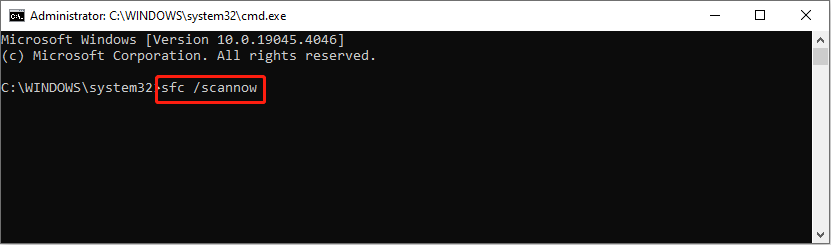
Step 3: Type sfc /scannow and hit Enter.
Step 4: When the process is finished, type DISM /Online /Cleanup-Image /Restorehealth and hit Enter to execute this command.
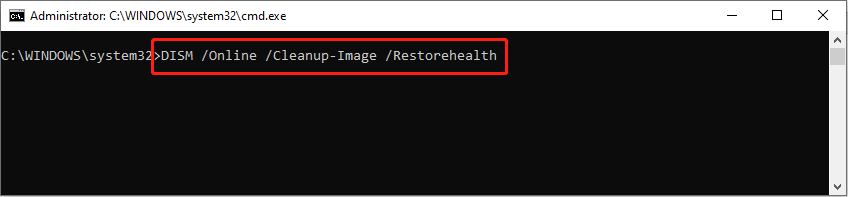
Your computer will detect and repair the corrupted or missing system files and images automatically. If the problematic system files are the cause of the blue screen error 0xc0000420, this solution makes sense.
Fix 3. Perform Clean Boot
The last method is performing a clean boot. A clean boot will only boot up your computer with a minimal set of drivers and required startup programs; thus, you can distinguish whether the error is caused by a background program. Here are the steps to clean boot your computer.
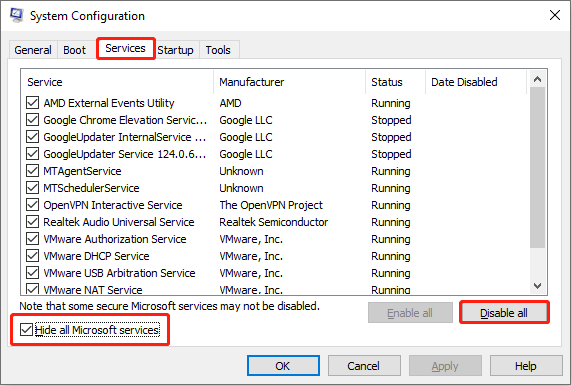
Step 1: Type System Configuration into the Windows search bar and hit Enter.
Step 2: Switching to the Services tab, you need to check Hide all Microsoft services and click Disable all.
Step 3: Click Open Task Manager under the Startup tab. You should end programs that may interfere with the computer running in the following window.
Step 4: After the above steps, close all the windows and restart your computer.
If your computer works normally after rebooting, it indicates that no conflict exists between software. Otherwise, you can enable the disabled services and programs one by one to find the cause.
Bonus Tip: Recover Lost Data Caused by BSOD Error 0xc0000420
Computer crashes happen for several reasons and easily cause data loss. You are highly advised to check if your important data are lost after repairing the computer issue, especially after a blue screen of death.
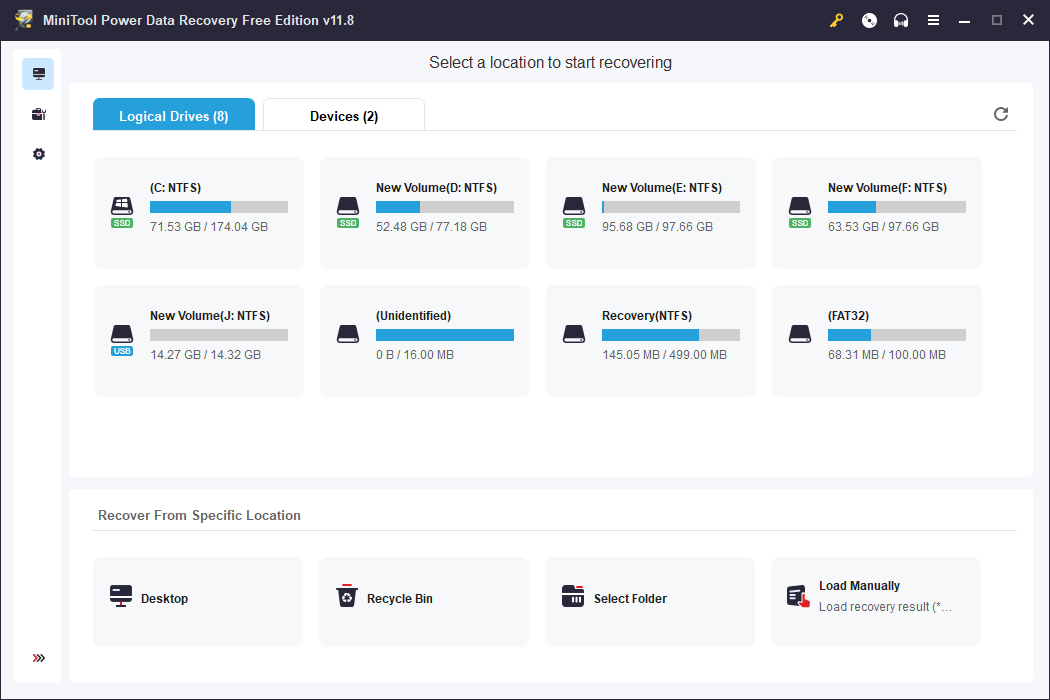
When discovering data lost on the computer, you should recover it as soon as possible. Generally, these lost files will not be kept in the Recycle Bin and you should ask for help from professional file recovery software like MiniTool Power Data Recovery.
Additionally, this software is capable of restoring files from an unbootable computer. Even if your computer fails to start up, you can extract files from it safely. You can get MiniTool Power Data Recovery Free to scan and recover no more than 1GB of files without any charge.
MiniTool Power Data Recovery FreeClick to Download100%Clean & Safe

Final Words
You should know how to fix the 0xc0000420 BSOD error after reading this post. The blue screen error 0xc0000420 usually implicates an unknown software exception that crashes your computer when running one program.
Hope you can find useful solutions from this post.
User Comments :