
We analyzed several posts and we have learned how to fix the error Bluetooth connected but no sound. This post from MiniTool will show you the solutions to the error Bluetooth connected but no sound Windows 10. In addition, this post shows more Windows 10 problems and tips.
Some users complain that they come across the error Bluetooth connected but no sound and they don’t know how to fix this error. They seem to have successfully connected their wireless speakers but no audio is coming out.
So, in the following section, we will show you how to solve the error Bluetooth headphones connected but no sound.
6 Ways to Fix Bluetooth Connected But No Sound Windows 10
In this section, we will show you how to solve the error Bluetooth connected but no sound Windows 10.
Way 1. Check Whether Your Computer Supports Bluetooth
In order to fix the error Bluetooth connected but no sound, you need to check whether your computer itself does support the Bluetooth connection. If the computer does not support Bluetooth, you will encounter this error.
If your computer supports the Bluetooth connection, you can go on the following solutions.
Way 2. Check the Bluetooth Support Service
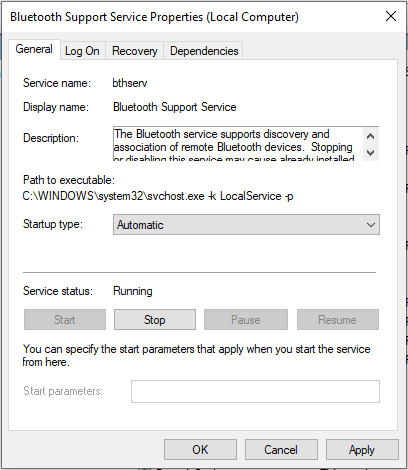
If your Bluetooth speaker pairs, it is possible that the necessary service is disabled. So, in order to fix this Bluetooth headphone connected but so sound error, you can check the Bluetooth support service.
Now, here is the tutorial.
- Press Windows key and R key together to open Run Then type services.msc in the box and click OK to continue.
- In the pop-up window, select the Bluetooth Support Service and double-click it to continue.
- In the pop-up window, change its Startup type to Automatic.
- Then change its Service status to started.
- Then click Apply and OK to confirm the changes.
When all steps are finished, reboot your computer and check the error Bluetooth connected but no sound is solved.
Way 3. Reset the Default Playback Device
In order to fix the error Bluetooth connected but no sound, you can choose to reset the default playback device.
Now, here is the tutorial.
- Right-click the Sound icon on the taskbar, and choose Sounds from the list to continue.
- In the pop-up window, go to the Playback tab.
- Then you will see a list of audio devices. Click the Bluetooth paired with your computer.
- Then set the Bluetooth as your default playback device by pressing the Set Default button.
- Click Apply and OK to save the changes.
When all steps are finished, reboot your computer and check whether the error Bluetooth connected but no sound is solved.
If this solution is not effective, try another one.
Way 4. Check the Audio Level of Bluetooth Device
In order to fix the error Bluetooth connected but no sound Windows 10, you can choose to check the Audio Level of Bluetooth.
Now, here is the tutorial.
- Right-click the Sound icon from the System Tray.
- Select the Sounds from the pop-up menu to continue.
- In the Sound window, go to the Playback tab.
- Right-click the Bluetooth speakers, then select Properties to continue.
- Then go to the Levels tab.
- Then go to the audio output bar, and drag it to the far right.
- After that, click Apply and OK to save the changes.
When all steps are finished, reboot your computer and check whether the error Bluetooth connected but no sound is solved.
Way 5. Run the Playing Audio Troubleshooter
If none of the above solutions is effective, you can choose to run the playing audio troubleshooter.
Now, here is the tutorial.
- Press Windows key and I key together to open Settings.
- In the pop-up window, choose Troubleshooter to continue.
- Then choose Playing Audio and click Run the troubleshooter to continue.
- Next, the troubleshooter will begin to scan the problems on your computer.
When all steps are finished, reboot your computer and check whether the error Bluetooth connected but no sound Windows 10 is solved.
Way 6. Update Bluetooth Driver
In order to fix the error Bluetooth headphones connected but no sound, you can choose to update Bluetooth drivers.
Now, here is the tutorial.
- Press Windows key and R key together to open the Run dialog.
- Then type msc in the box and click OK to continue.
- In the pop-up window, select the Bluetooth driver and right-click it.
- Then choose Update driver to continue.
- Next, choose Search automatically for updated driver software.
- Then follow the on-screen instruction to continue.
When all steps are finished, reboot your computer and check whether the error Bluetooth connected but no sound is solved.
Final Words
To sum up, this post has shown 6 ways to fix the error Bluetooth connected but no sound. If you come across the same issue, try these solutions. If you have any other better idea to fix the error Bluetooth connected but no sound Windows 10, you can share it in the comment zone.
User Comments :