
Clair Obscur Expedition 33 Stuck on Syncing Data Screen
Clair Obscur: Expedition 33 drew in hundreds of players right following its launch. This role-playing game was created by Sandfall Interactive and brought to the market by Kepler Interactive. However, no game is without its flaws. Many have run into the issue of the game, like Clair Obscur Expedition 33 stuck on Syncing Data screen, Clair Obscur Expedition 33 crashing, controller not working, etc.
If you are running into the trouble that the Clair Obscur Expedition 33 stuck at the Syncing Data loading screen, it may waste your time waiting for the loading screen to complete and wear out your patience. In this case, you may wonder: How can I run this game fast? Can I fix this vexing issue? Absolutely yes. By following the steps provided by this guide, you can resolve the problem and get back into the interesting game.

How to Fix Clair Obscur Expedition 33 Stuck on Syncing Data Screen on PC
Before we dive into the specific methods, you can learn some possible causes for the issue that Clair Obscur Expedition 33 freezes at Syncing Data as below:
- Corrupted Save Files
- Server or Connectivity Issues
- Outdated Game Versions
- Conflicts with Third-Party Tools
- …
MiniTool System Booster TrialClick to Download100%Clean & Safe

Method 1. End the Game Properly
To resolve the Clair Obscur Expedition 33 stuck at the Syncing Data loading screen issue, the first step to take is to end the game and other conflicting software to clear any hidden stuck processes. To do it:
- Press the Ctrl + Shift + Esc key combination to open the Task Manager.
- In the following window, go to the Details tab.
- Scroll down to find Clair Obscur: Expedition 33 and Gaming Services if they are running, like gamingservices.exe, right-click each of them and select End task.
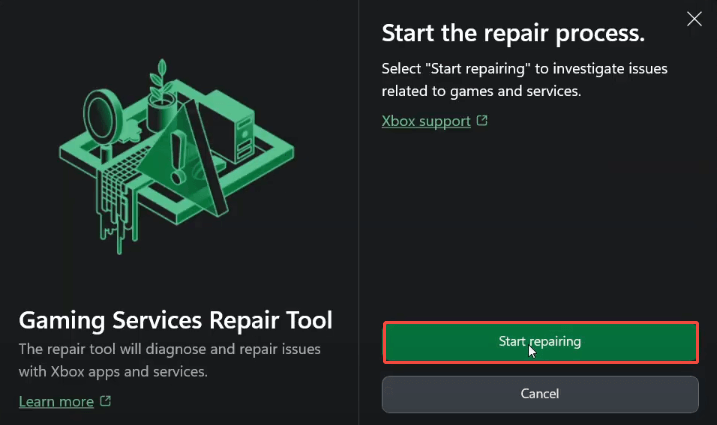
Method 2. Use Gaming Services Repair Tool (For Xbox Players)
Sometimes, a game gets stuck at a loading screen may be due to the game client. In this case, to fix the Clair Obscur Expedition 33 stuck at the Syncing Data loading screen, you can use the Gaming Services Repair Tool provided by Xbox.
- Open the Xbox app and click your Profile icon.
- Go to the Support option.
- Click the Gaming Services Repair Tool.
- In the pop-up interface, select Start repairing.
- Click Yes to confirm the action.
- Wait for the Xbox app to be repaired. After completing the operation, relaunch the game to see if the issue is gone.
Method 3. Verify the Game Files (For Steam Players)
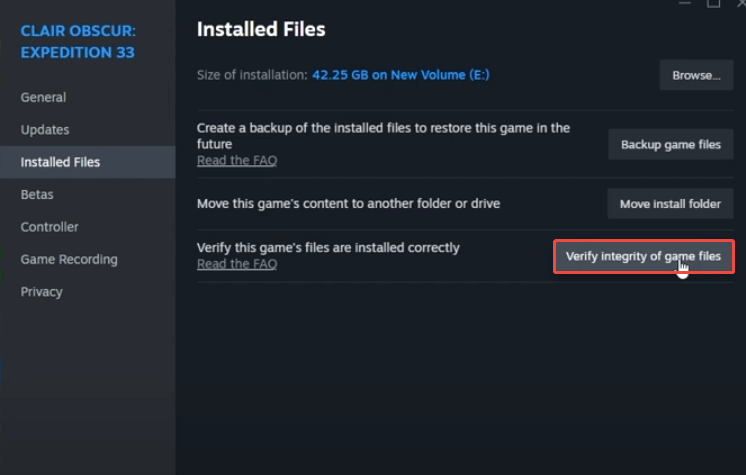
The issue that Clair Obscur Expedition 33 stuck at the Syncing Data loading screen might be triggered by corrupted files in the installation folder. Verifying the game files can help fix the problem.
- Go to your Steam Library and locate Clair Obscur: Expedition 33.
- Right-click it to choose Properties and select the Installed Files option in the left sidebar.
- Finally, click the Verify integrity of game files option.
Method 4. Clear Xbox App/Game Pass Cache
In addition to the corruption of the game file, corrupted files in the game client will also affect the operation of the game. Therefore, opt for clearing the Xbox app or Game Pass cache to clean up potentially corrupted files.
Step 1. Press Win + R together to open the Run dialog box, type %localappdata% and press Enter.
Step 2. Go into these folders and delete their contents:
Packages\Microsoft.XboxApp_*
PackagesMicrosoft.GamingApp_*
Packages\Microsoft.XboxIdentityProvider_*
Also, clear the files in the following folder: \Users\YourUserName\AppData\Local\Temp
Method 5. Force Game Sync Reset
Manually force the game to resync fresh from the cloud, or start clean if the saved game files are corrupted. Here are the instructions to do it:
- Navigate to the save game location. Usually, Game Pass games store saves here: \Users\YourUserNameAppDataLocal\Packages. Look for a folder like: Clair ObscurExpedition33. For Steam, its file location is: C:\Users\username\AppData\Local\Sandfall\Saved\SaveGames.
- Backup your save first by copying and pasting the whole folder somewhere safe or using a professional data backup tool, like MiniTool ShadowMaker.
- Delete local save data inside the game’s package folder, delete folders/files inside SystemAppData > wgs
Method 6. Reset Microsoft Gaming Services
Sometimes, Gaming Services itself causes Infinite syncing. Thus, to resolve the Clair Obscur Expedition 33 stuck on Syncing Data screen, consider resetting the Microsoft Gaming Services.
Step 1. Press Win + S to open the Windows Search box, type PowerShell, and then Press Enter. Right-click Windows PowerShell and select Run as administrator.
Step 2. Type the command and press Enter:
get-appxpackage Microsoft.GamingServices | remove-AppxPackage -allusers
Step 3. Wait for it to finish. Then copy and paste the following command and press Enter:
start ms-windows-store://pdp/?productid=9MWPM2CQNLHN
This will open the Gaming Services page in the Microsoft Store and reinstall it.
Optional Hardcore Steps
- Flush DNS and reset the network stack.
- Allow the game through the firewall.
- Run the game as Adm.
Bottom Line
This is all about how to fix the Clair Obscur Expedition 33 stuck on Syncing Data screen issue on Windows. Hope there is useful information for you. If you have any other practical methods, feel free to share them with us!
User Comments :