
Necessary to Clone Navigation SD Card
A navigation SD card is used in a car’s GPS navigation system and it stores much navigational data including points of interest, saved routes, and maps. And the navigation system can help the driver a lot by reading the saved data. In many brands of cars like Ford, Mazda, Toyota, Mercedes, and more, you can find a navigation SD card.
The navigation SD card is very important. If you lose it or the card gets corrupted, it is a nightmare. If you have cloned the SD card in advance, you won’t lose important data. Besides, you may choose to clone navigation SD card to a larger or faster one to gain a good experience.
So, how to clone a navigation SD card or clone a GPS SD card? Move to the next part to find a detailed guide.
Run MiniTool ShadowMaker to Clone Navigation SD Card
To make a navigation SD card copy/clone, you can run professional clone software. In the market, you can find many cloners and MiniTool ShadowMaker stands out due to its reliability, safety, and easy-to-use user interface.
In addition to offering many features for a PC backup including file, folder, disk, or partition backup, it is also cloning software that helps to clone HDD to SSD, clone a system disk to another disk, clone a USB drive, clone an SD card, and more.
To clone your navigation SD card, tap on the following download button to get the installer and then double-click on the file to start the installation.
MiniTool ShadowMaker TrialClick to Download100%Clean & Safe
After that, see how to clone a navigation SD card in Windows 11/10.
Step 1: Prepare an SD card reader to connect the SD card to your computer.
Step 2: Launch MiniTool ShadowMaker and click Keep Trial to enter its main interface.
Step 3: Tap on the Tools tab from the left pane and then click Clone Disk to continue.
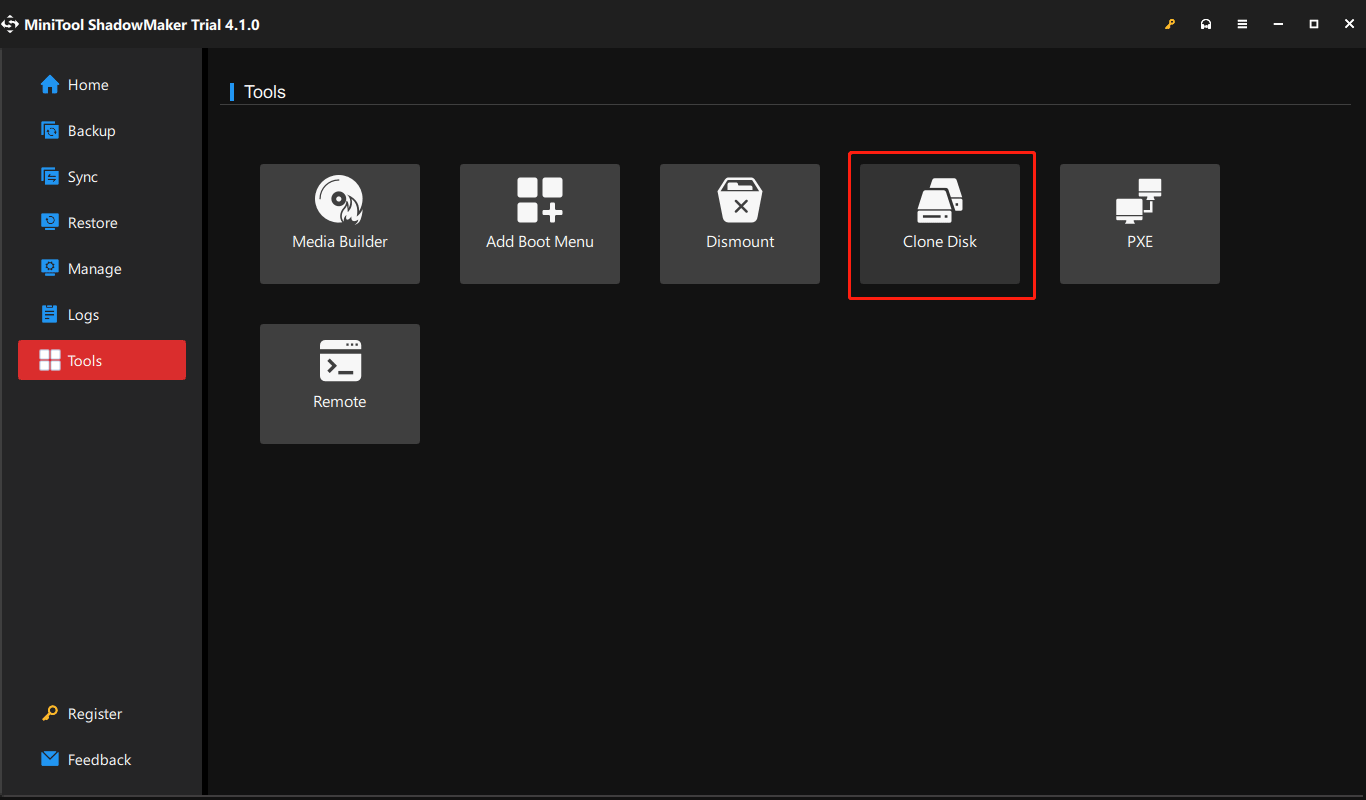
Step 4: Choose the SD card you have connected to the computer as the source disk. Then, select another SD card or a hard drive as the target disk. Then, click Start.
Step 5: The cloning process begins. Wait some time until the copy finishes. After that, all the information saved on the navigation SD card is transferred to the target disk or SD card.
Related post: Use Freeware to Clone SD Card to PC or Larger Card Easily Now!
Mazda Navigation SD Card Copy
If you need to clone the SD card used in Mazda’s navigation system, you can use another way in addition to running MiniTool ShadowMaker. Mazda offers an app called Mazda Toolbox for its users to back up and restore navigation SD cards. Note that this tool is only used for Mazda users to make a Mazda navigation SD Card copy via its backup feature.

Final Words
How to clone navigation SD card or how to clone GPS SD card? After reading this post, you find MiniTool ShadowMaker is an excellent SD card cloner. Get it and open it, then use its Clone Disk feature to clone the SD card to another drive for a backup or upgrade.
About The Author

Position: Columnist
Vera has been working at the MiniTool Team for over 10 years as a technical editor and content writer. She mainly focuses on disk and partition management, data recovery, Windows backup and restore, and PC troubleshooting. Through in-depth software testing and hands-on experience, she has helped users solve a wide range of computer problems and better protect their data on Windows devices.
User Comments :