
If your Windows computer reset itself unexpectedly and the personal files are not showing up, do not worry. This MiniTool guide offers a couple of straightforward solutions to help you recover your system and files.
My Computer Reset Itself and I Lost Everything
“I was playing games and noticed they were running slower than usual, so I restarted my PC. It took longer than usual for the PC to restart, and once I logged in, I had lost most of my files (pictures, documents, etc.). And my background had been reset to the default. Everything besides things like my Steam games and some apps were wiped.”answers.microsoft.com
It can be incredibly frustrating and shocking to open your computer only to find that your desktop or laptop wiped itself. If you are facing this situation, you may be wondering why it occurs and how to recover your lost files and restore your system to normal.
Typically, this problem may occur after a Windows update or improper shutdown. In the following section, I will show you easy steps to get your system and files back.
How to Fix if Your Computer Reset Itself
Solution 1. Restart Your Computer
Many system issues are just temporary glitches, and a simple restart can often resolve them. So, if you find that your computer reset itself, it may not have actually been wiped. You can restart your computer and check if everything is back to normal. If the issue persists, you may need to restart your device four times to see if the situation changes.
Solution 2. Check the User Profile
If all your personal files and installed apps have disappeared and your desktop has reverted to its default state, the system likely failed to load your user profile correctly. Windows logs you into a temporary account instead. When this happens, try the following steps:
Step 1. Open File Explorer and navigate to C:\Users. Check if there are two user folders that look like yours. Open those folders and check inside Pictures, Documents, Desktop, etc., and see if your files are there. If yes, do the following things.
Step 2. Right-click the Start button and choose Settings.
Step 3. Navigate to Accounts > Family & other users.
Step 4. In the right panel, click Add someone else to this PC. Follow the on-screen instructions to create a new administrator user account.
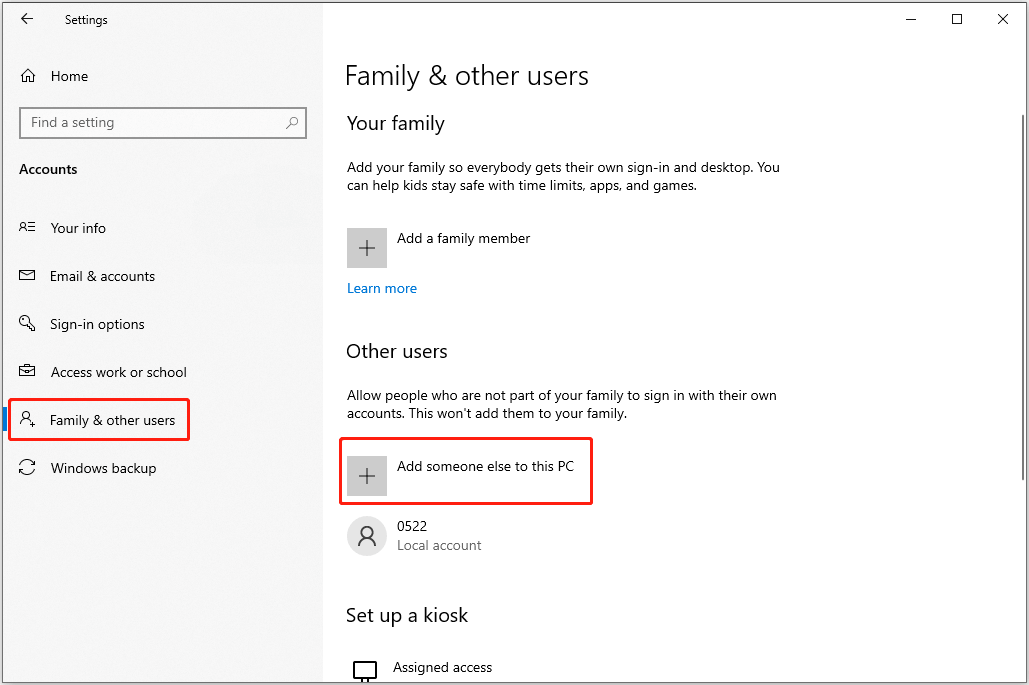
Step 5. Click the newly created account, hit Change account type, select Administrator, and click OK.
Step 6. Click Start > the profile icon, and then sign in to the new account.
Step 7. Go to C:\Users and copy all your data from the old profile to the new profile.
If you still have not found your files, look for a Windows.old folder on your C drive, and then copy and paste the files to the new profile.
Solution 3. Perform a System Restore
If you have created a system restore point, you can try to perform a system restore to revert your system to a previous health state.
The System Restore only reverts the system files, registry settings, and installed programs to the state they were in at the time the restore point was created. The personal files will not be affected.
First, open the Control Panel and make sure the items are listed by large or small icons. Then select Recovery > Open System Restore.
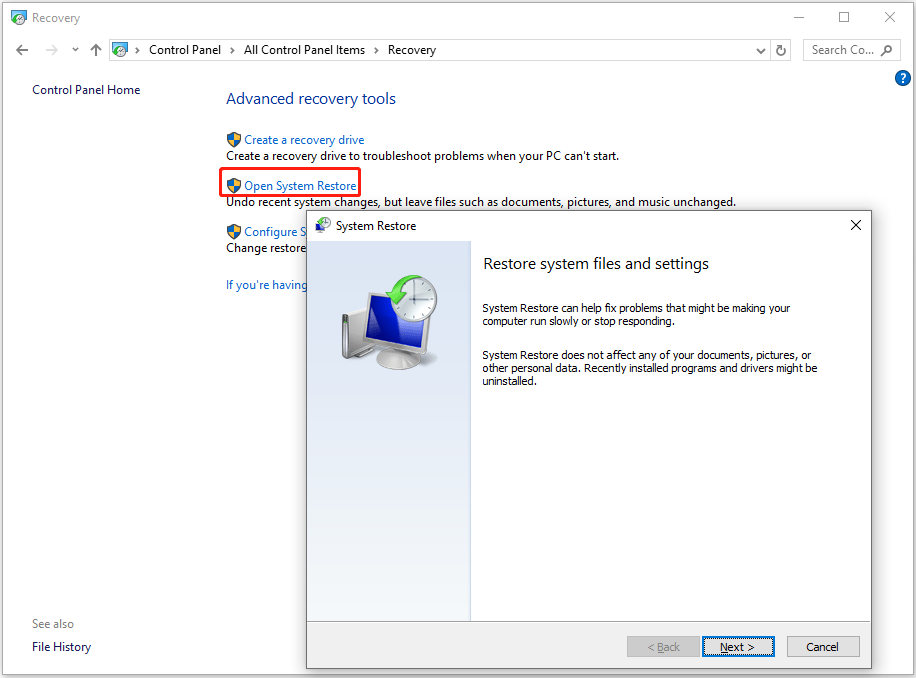
In the following windows, select the restore point that you want to use in the list of results and complete the restoration.

This is all about how to fix the problem of “computer reset itself”.
How to Recover Lost Files on Windows
If you have tried all the solutions but the files are still not showing up, they may have been deleted or lost permanently. In this case, you can use free data recovery software to scan your disk and check whether the required files can be found.
MiniTool Power Data Recovery is recommended here. As a green and secure Windows file restore tool, it supports recovering all kinds of files from HDDs, SSDs, and removable file storage media. Download its free edition and use it to recover 1 GB of files for free.
MiniTool Power Data Recovery FreeClick to Download100%Clean & Safe
Step 1. Launch this file restore tool to enter its main interface. Here, select the disk partition where the lost files should exist and click Scan.
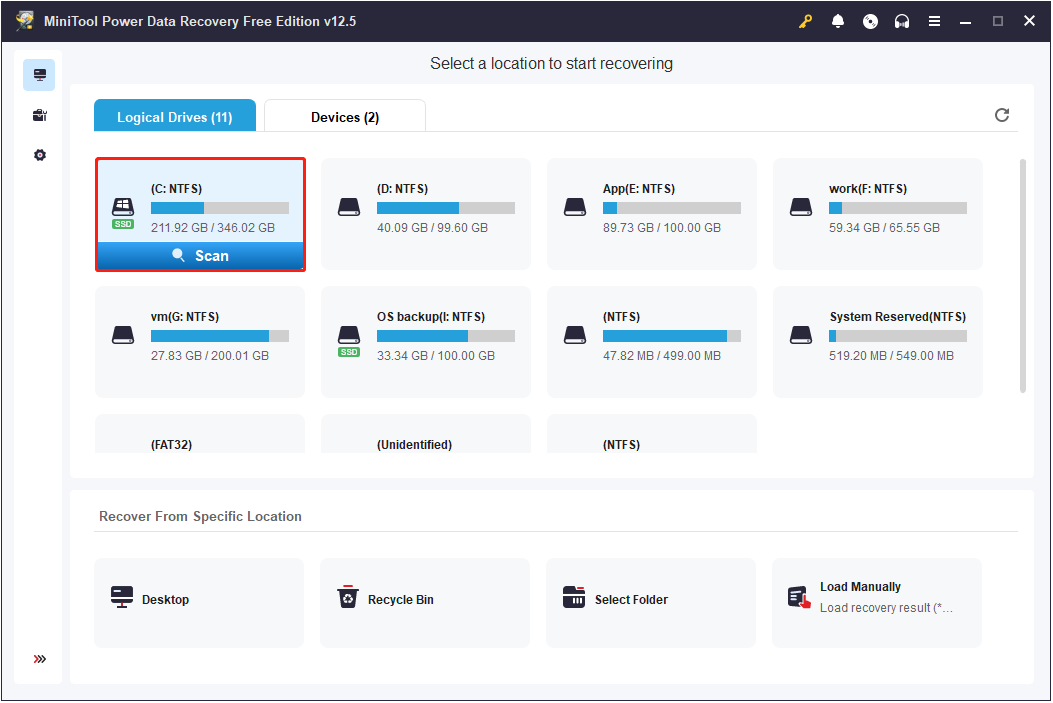
Step 2. Once the scan is done, find your files from Path or Type. Besides, you can use the Filter feature to filter the scan results by file type, file size, date modified, and file category. In addition, you can type a partial or complete file name in the search box in the top right corner and press Enter to search for a specific file.
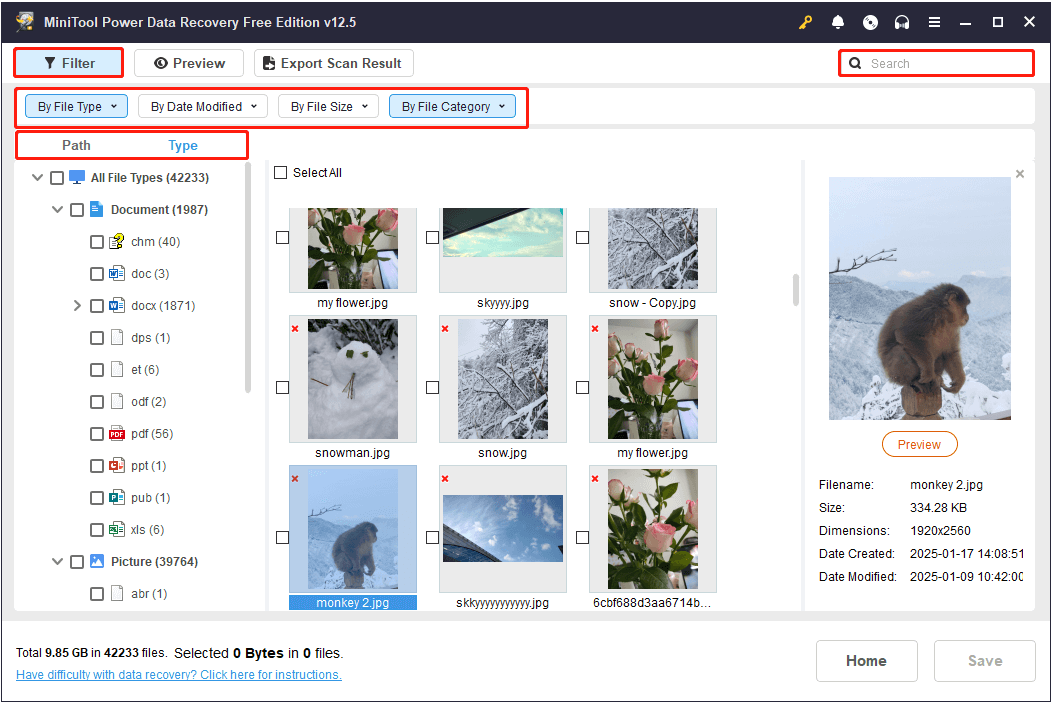
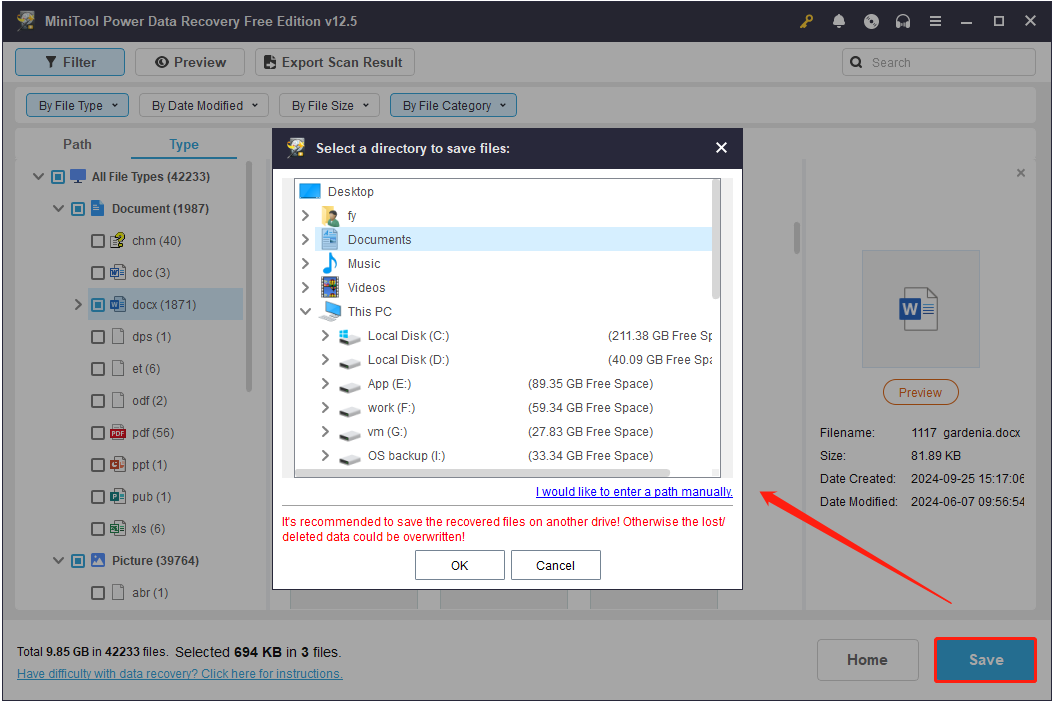
Step 3. Double-click on each target file to preview. Select all the files you want to recover and click the Save button. In the new window, choose a location to store the recovered files.
Bottom Line
When you encounter the “Windows 11/Windows 10 factory reset itself” problem, you can try restarting your device first. If it does not help, check if you are logged in to a temporary account. To revert the system to a previous state, run a system restore.
If the files are permanently deleted, run MiniTool Power Data Recovery to get your files back.
About The Author

Position: Columnist
Shirley holds a bachelor’s degree in English and has been an editor at the MiniTool Team for many years. She specializes in IT-related content, with a focus on data recovery, file backup, disk management, and other technical topics. She is committed to delivering clear, accurate, and practical solutions to help users resolve common computer issues.
User Comments :