
Outlook is a popular email client used by a large number of users on Windows since it can help them send, receive, and manage emails directly and conveniently. However, while users are using or configuring their Outlook, they come across the Microsoft Exchange connection unavailable error and don't know how to fix it.
In addition to manage emails, the Outlook can also help users do a lot of other things, for instance, make video calls and keep reminders. Therefore, Outlook has hundreds of millions of users throughout the world. If you need to manage files and system on your computer, you need to get help from MiniTool Solution.
Error: the Connection to Microsoft Exchange Is Unavailable on Outlook
However, just like any other programs, errors also occur on Outlook now and then. Recently, I noticed many people saying they receive the error message – the connection to Microsoft Exchange is unavailable – when they launch Outlook or try to configure it. This happens especially when users go to set up the Outlook on their computer for the first time.
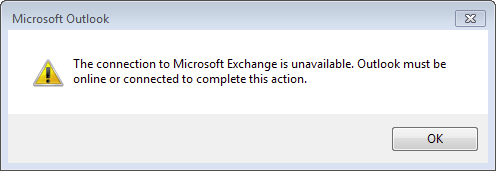
The exact error message is: The connection to Microsoft Exchange is unavailable. Outlook must be online or connected to complete this action.
Causes of connection to Microsoft Exchange is unavailable:
- The most possible reason for Outlook not connecting is that the User Shell Folders registry key doesn’t include all the data needed.
- Other possible reasons for causing the Microsoft Exchange connection problem are poor network connection and incorrect outlook configuration.
Please be relax when you find Outlook server unavailable; you’re not alone. I will tell you how to settle down Microsoft Exchange connection unavailable step by step in the following content.
How To Fix The Name Cannot Be Resolved Outlook Error?
How to Fix the Connection to Microsoft Exchange Is Unavailable Outlook 2013/2010/2007
Method 1: modify the registry.
- Find another computer on which Outlook runs properly.
- Press Start + I buttons on the keyboard.
- Type regedit into the textbox in Run dialog box.
- Click on the OK button in the window or hit Enter on the keyboard.
- Go to this path from the left pane: HKEY_CURRENT_USER\Software\Microsoft\Windows\CurrentVersion\Explorer\User Shell Folders.
- Right click on User Shell Folders and choose Export.
- Choose a proper place to save the file and give it a name (like Test).
- Click on the Save button in the Export Registry File window to confirm.
- Go to copy the export file and run it on the problematic PC to add it to the registry.

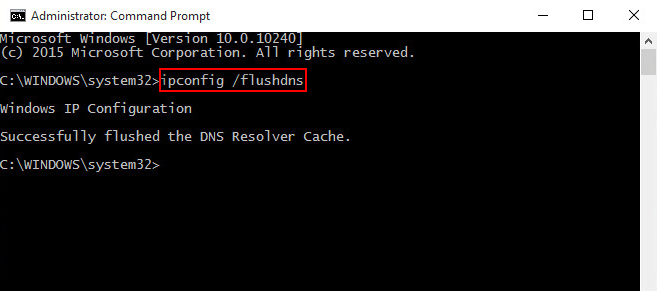
Method 2: flush the DNS.
- Open Windows search box and type cmd into it.
- Right click on Command Prompt & choose Run as administrator.
- Type ipconfig /flushdns and press Enter.
- Close the Command Prompt when the command is finished.
Method 3: change encryption settings of Outlook profile.
- Open Windows Control Panel.
- Browse the items and select Mail.
- Click Show Profiles to display all the Outlook profiles.
- Select the default profile and choose Properties.
- Click E-mail Accounts.
- Click Microsoft Exchange (send from this account by default) & choose Change.
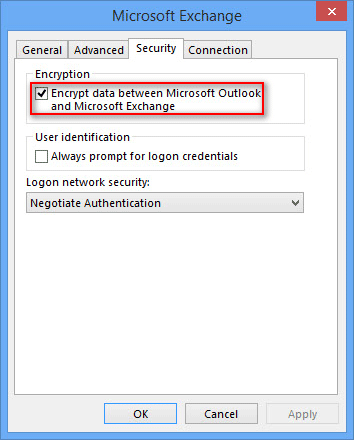
- Click More Settings & go to the Security tab.
- Look for the Encryption section.
- Check Encrypt data between Microsoft Office Outlook and Microsoft Exchange.
- Click on the Apply or OK button to save the changes.
- Click on the Next and Finish button in order to make the changes take effect.
If it fails, you can also try to delete the default Outlook profile & create a new one.
How to fix if any Outlook file is deleted?
If all above methods don’t fix the Outlook not connecting problem, you may try the following solutions:
- Restart Microsoft Exchange System Attendant service: open Run dialog box -> type msc -> hit Enter -> find Microsoft Exchange System Attendant -> right click on it and choose Stop -> right click on it and choose Start (just chose Start if it is not running).
- Disable the encryption requirement on all CAS servers.
- Disable all the third-party security programs on your computer.
- Set the WINS IP addresses properly.
User Comments :