
Outlook is an important component of Microsoft Office; it is used mainly as an Email and calendar application. Of course, there will be error while using it. This post focuses on helping users solve the name cannot be resolved error.
You’d better go to the home page to get wonderful tools for file recovery and drive management.
What is Outlook?
Though the Outlook is very famous, I still want to introduce it briefly. As an important part of the Microsoft Office suite, Outlook is mainly used as the email and calendar application. It is able to manage your personal information in good manner, so you can stay organized with your email, calendar, and contacts all in one place.
Outlook Error: the Name Cannot Be Resolved
Like any other programs, the Outlook may malfunction sometimes due to different reasons. Today my topic is the name cannot be resolved. First of all, I’d like to make a list of the popular Outlook error messages; then, I will show you how to fix the Outlook error properly.
Outlook Error Messages
Here are some common error messages of the name cannot be resolved, you may come across them in Microsoft Outlook suddenly.
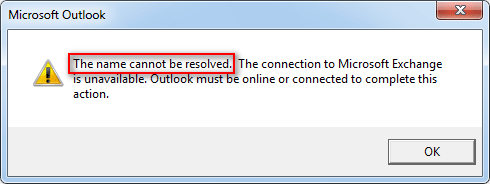
- The name cannot be resolved. The connection to Microsoft Exchange is unavailable. Outlook must be online or connected to complete this action.
- The name cannot be resolved. The name cannot be matched to a name in the address list.
- The name cannot be resolved. The action cannot be completed.
You are welcome to contact us for more error information you met.
Extended reading: here’s another hot problem of Outlook.
Drive That Contains Your Data File Is Out Of Disk Space Outlook.
How to Fix Outlook Name Cannot Be Resolved
The Outlook error could appear when users log into Outlook or add an additional mailbox to Outlook. Definitely, it will stop users from accessing their profile locally. So I think it’s necessary to provide some useful workarounds for them.
Solution one: try Mail Setup.
In order to retrieve the profile, you should run the Mail Setup wizard once again. And this is the easiest way to fix Outlook name error especially for Windows Server users.
- Click on the Start button located in the lower left corner of your computer screen.
- Scroll down the list to find the Windows System folder.
- Click to expand the folder and select Control Panel under it.
- Choose to view by Small icons/Large icons.
- Find the User Accounts link and click on it.
- Look for Mail and select it in order to launch Mail Setup.
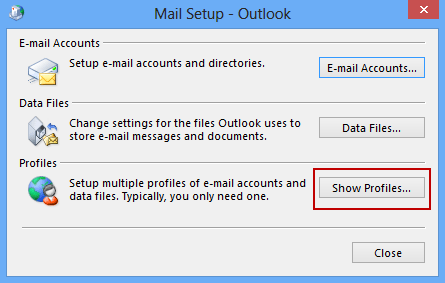
- Then, the Mail Setup Wizard will be opened. Please click on the Show Profiles button.
- Now, select the correct profile from the list.
- Check Always use this profile option.
- Click on the Add button and give a name to your profile.
- Add the credentials and click Next.
- Close the wizard and restart your PC.
Solution two: delete the Outlook profile.
Some people reported that the Outlook name cannot be resolved error is caused when the local configuration files are damaged. At this time, deleting the corrupted files and restarting Outlook is an easy fix since the user profile will be recreated from a scratch.
- Repeat step 1 to step 7.
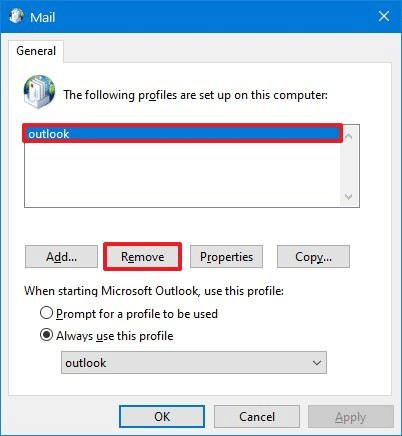
- Select the certain profile and click Remove.
- Click on the Yes button to confirm the deletion.
- Navigate to C:/Users/username/AppData/Local/Microsoft/Outlook in File Explorer.
- Delete all items here.
- Navigate to C:/Users/username/AppData/Roaming/Microsoft/Outlook and delete its contents.
- Restart the Outlook to sign in with credentials once again.
Please note:
- The AppData folder is hidden on some computers.
- Users may delete outlook files by mistake.

Solution three: change Microsoft Exchange settings.
- Navigate to log into Microsoft Exchange.
- Find the problematic User Profile and right click on it.
- Look for the Hide from Exchange address list option and click to uncheck it.
- Confirm the changes and restart Outlook.
That’s the answer for how do I fix Outlook not connecting issue.
User Comments :