
Do you receive current read-only state yes while trying to format or write on a SD card or USB drive? You’re not alone! In this post from MiniTool, we will guide you through how to make your storage device accessible and available for modification.
Current Read-Only State Yes USB Flash Drive/SD Card
Current read-only state yes is an issue that has been asked a few times in the Microsoft Community. Usually, you might receive this message on your SD card or USB flash drive. Once Diskpart shows current read-only state: yes, you might fail to add. Delete or modify any of the files on your storage device. Here, we list some common causes for this error:
- The physical switch is locked.
- The file system is corrupted.
- Your device is write-protected.
- The device is infected by malware or viruses.
Luckily, you can easily change current read-only state yes to no with the solutions below. Without further ado, let’s get started.
Solution 1: Check the Physical Switch
Some flash drives or memory cards might come with a lock switch that prevents the accidental modification or deletion of the files, picture, and other data on it. Therefore, you can take out your USB flash drive or SD card, and then slide the switch to the unlock area.
Solution 2: Clear Read-Only Attribute via Diskpart
Diskpart can be used to manage disks, partitions, and volumes in Windows operating systems. This utility also current read-only state yes allows you to address by removing the read-only attribute. To do so:
Step 1. Connect the problematic USB drive or SD card to your computer.
Step 2. Run Command Prompt as an administrator.
Step 3. In the command window, input list disk and hit Enter to show all the disks connected to your computer. Now, you can figure out which one is your read-only disk.
Step 4. Type select disk n and hit Enter. Here, remember to replace n with the target disk number.
Step 5. Type attribute disk clear readonly and tap on Enter to clear current read-only state.
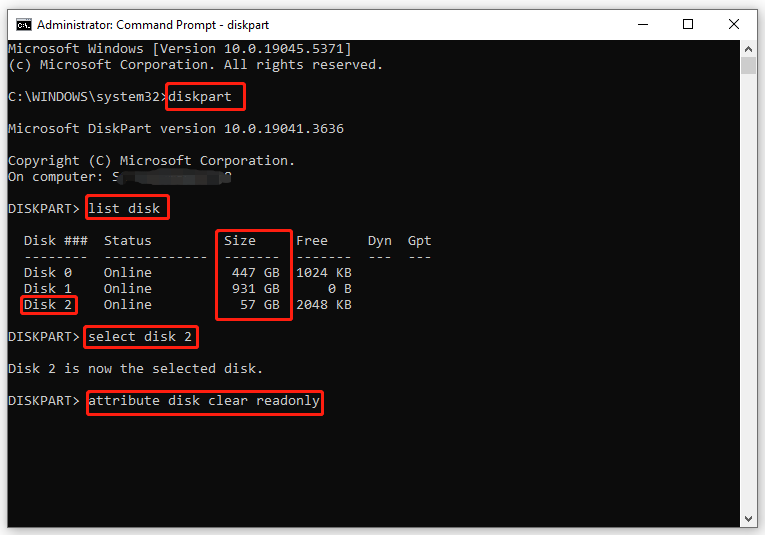
Step 6. Once done, type exit and hit Enter to close Command Prompt.
Solution 3: Format the Read-Only USB Drive or SD Card
If current read-only state yes occurs due to virus infection, file system error, or device corruption, the only way is to format this device. To do so, you can try a free partition manager called MiniTool Partition Wizard.
This program offers powerful and flexible options that enables you to format partitions, resize partitions, convert between file systems, etc. Here’s how to format your USB flash drive or SD card with it:
Step 1. Connect the problematic storage device on your computer.
Step 2. Launch MiniTool Partition Wizard to enter its main interface.
MiniTool Partition Wizard FreeClick to Download100%Clean & Safe
Step 3. In the right pane, select the disk that shows current read only state yes. Then, choose Format Partition from the left-hand pane.
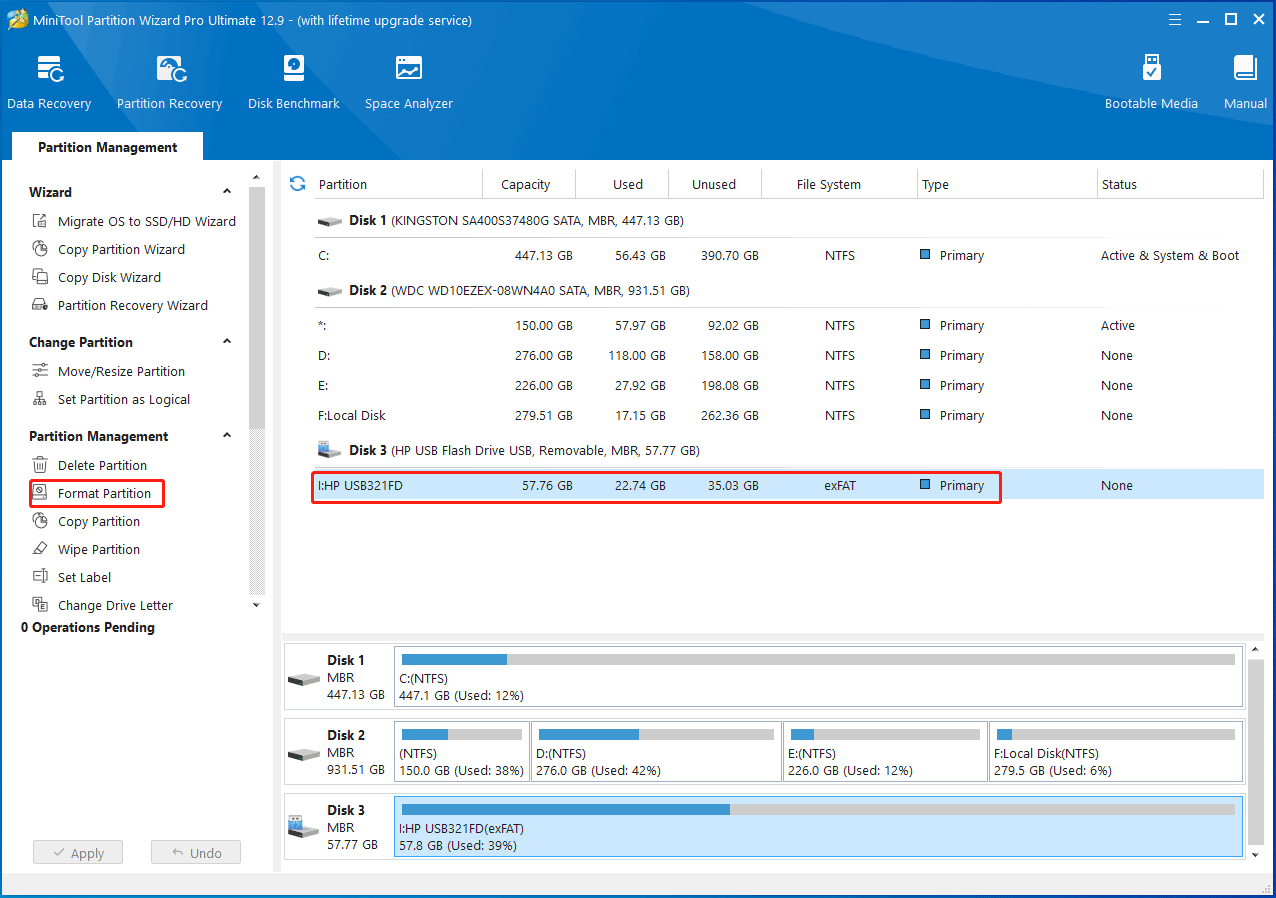
Step 4. Customize the partition label, file system, and cluster size and then hit OK to continue.
Step 5. Click on Apply in the lower left corner to make the change effective.
Solution 4: Modify Registry Keys
To solve current read-only state yes, another way is to remove write protection via Registry Editor. Here’s how to do it:
MiniTool ShadowMaker TrialClick to Download100%Clean & Safe
Step 1. Press Win + R to open the Run dialog.
Step 2. Type regedit.exe and hit Enter to launch Register Editor.
Step 3. In the navigation bar, copy and paste the following path and hit Enter to locate the StorageDevicePolicy key:
HKEY_LOCAL_MACHINE\SYSTEM\CurrentControlSet\Control\StorageDevicePolicies
Step 4. In the right pane, double-click on write Protection > set its value data to 0 > hit OK.
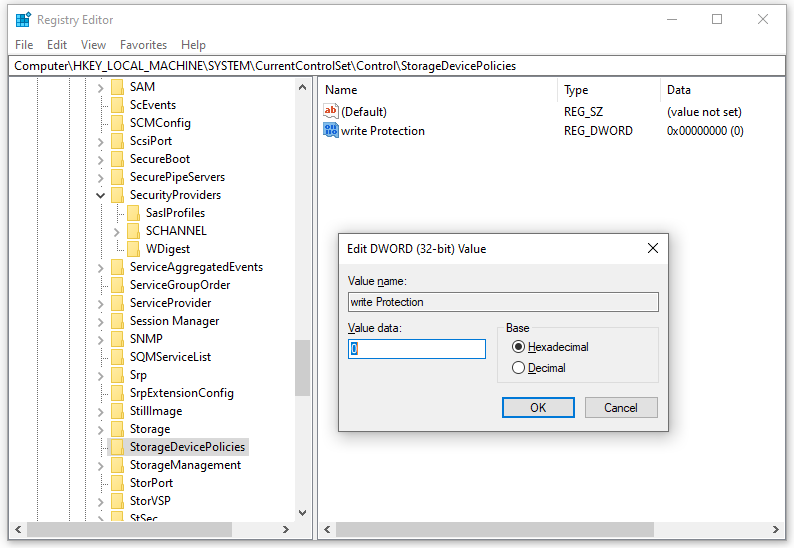
Step 5. After that, quit Registry Editor and check if current read-only state yes SD card or USB drive is still present.
Final Words
This guide covers all the possible causes and solutions for current read-only state yes on USB flash drive or SD card. After the solutions below, your storage device will be writable and editable again. Appreciate your time and support!
User Comments :