
Have you ever found the DesktopWindowXamlSource empty window appears on your taskbar? This empty window just keeps appearing on your taskbar and can’t go away. So, is there any way can remove this DesktopWindowXamlSource empty window? Yes, the methods are listed in his post on MiniTool.
What Is DesktopWindowXamlSource Empty Window?
We have noticed that some users complain about the DesktopWindowXamlSource taskbar icon error in the Microsoft forum. The user stress that the empty taskbar item named DesktopWindowXamlSource can force close the OneDrive down when he/she attempts to close the empty window.
It is annoying that you see an extra empty window keeps appearing on the taskbar, stopping you from executing further processes and retarding your working. Besides, this issue has been reported more than 300 times, which means it commonly happens recently.
So, what is DesktopWindowXamlSource? DesktopWindowXamlSource, known as Windows.UI.Xaml.Hosting, is the main class in the UWP XAML hosting API, enabling non-UWP desktop applications to host any control that derives from Windows.
Suggestion: Try MiniTool ShadowMaker
One user in the Microsoft forum reported that the empty window force closes his OneDrive and there is a couple hours’ worth of work that did not sync to OneDrive. Targeting this OneDrive error, we suggest you use MiniTool ShadowMaker to sync your data to local, with higher security level.
Besides, MiniTool ShadowMaker can be used to back up your data in case of any data loss when you are struggling with OneDrive DesktopWindowXamlSource empty taskbar window. Go to download and install this free software backup program.
MiniTool ShadowMaker TrialClick to Download100%Clean & Safe
After knowing the definition of DesktopWindowXamlSource, you can go to the next part for the specific methods to troubleshooting OneDrive DesktopWindowXamlSource empty taskbar window.
How to Remove DesktopWindowXamlSource Empty Window?
Solution 1: Run SFC and DISM Scans
System file corruption can be inferred as the culprit of the most Windows errors. You can run SFC and DISM scans to check if there are any corrupted or damaged system files.
Step 1: Type Command Prompt in Search and run it as an administrator.
Step 2: Then input the following command and press Enter to execute it.
sfc /scannow
step 3: After the command finish its process, input this command to execute it.
DISM /Online /Cleanup-Image /RestoreHealth
When you finish, you can reboot your system and run OneDrive to check if the DesktopWindowXamlSource empty window appears again.
Solution 2: Update or Reinstall OneDrive
It is possible that some OneDrive-related issues lead to the DesktopWindowXamlSource taskbar icon error. You can choose to update or reinstall OneDrive to check if the error can be fixed.
Update OneDrive
Step 1: Open Run by pressing Windows + R and copy and paste the following command to press Enter to reset OneDrive.
%localappdata%\Microsoft\OneDrive\onedrive.exe /reset
Step 2: When that finishes, copy and paste to enter the next command.
%localappdata%\Microsoft\OneDrive\update
After that, now you can restart your system and check if the error persists.
Reinstall OneDrive
Step 1: Open Run and input appwiz.cpl to enter Programs and Features.
Step 2: Locate and right-click on Microsoft OneDrive to choose Uninstall.
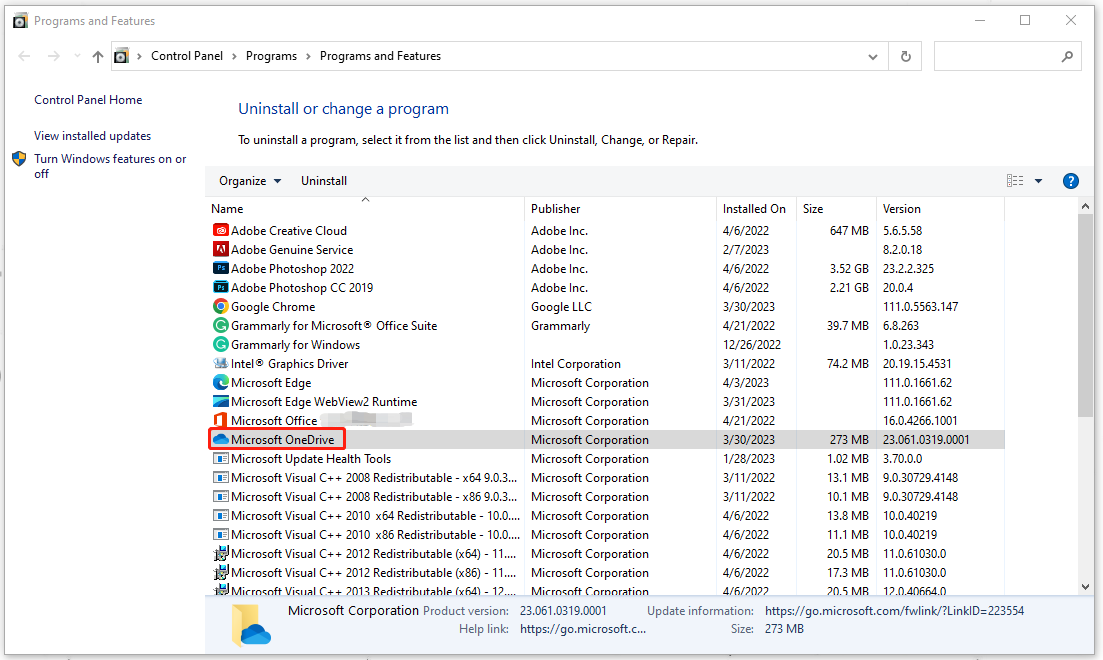
Step 3: After the uninstallation, you can go to re-download and install OneDrive.
Related article: OneDrive Download for Windows 10/11 PC, Mac, Android, iOS
Solution 3: Update Windows or Uninstall the Recent Windows Update
Since it is hard to pinpoint the specific reason that triggers the OneDrive DesktopWindowXamlSource empty taskbar window, we find some users get this error after the Windows update but some of them fix DesktopWindowXamlSource empty window via Windows update.
So, if you have installed a Windows update recently, the error can be triggered by the corrupted Windows update installation and please uninstall it; if you haven’t, the outdated Windows can be the reason and please update it.
Uninstall the Recent Windows Update
Step 1: Go to Start > Settings > Update & Security > Windows Update > View update history > Uninstall updates.
Step 2: Locate and right-click the Windows update to choose Uninstall.
Update Windows
Step 1: Go to Settings > Update & Security > Windows Update.
Step 2: Choose Check for updates and the system will automatically download and install the available version for you.
If all the above methods can’t work for you, you can use system restore to recover your system where you have created a system restore point before. For detailed steps, you can read this article: What Is System Restore Point and How to Create It? Look Here.
Bottom Line:
DesktopWindowXamlSource empty window hassles many OneDrive users and this troublesome issue can occur from time to time even though you have done something for that. So, you can directly back up your system in case you are trapped into it the next time.
User Comments :