
How to enable Direct3D Acceleration in Windows 10/11? What should you do if coming across the Direct3D unavailable issue? If you are in the same boat, please follow the instructions in this post on MiniTool Website to get help.
Direct3D Acceleration Not Available Windows 10/11
Direct3D is one o the most commonly used graphics accelerators when gaming on PC and it is also a component of Microsoft’s DirectX graphics software.
When the hardware of your computer doesn’t conform with the minimum requirements to load the particular 3D graphics or you don’t install/enable DirectDraw Acceleration on your PC, you will encounter Direct3D Acceleration not available. How to fix this tricky issue? The following content will show you solutions to that step by step.
How to Fix Direct3D Acceleration Not Available Windows 10/11?
Fix 1: Update Graphics Driver
A missing, outdated or incompatible version of graphics driver might be the culprit of the Direct3D Acceleration not available problem. Therefore, updating your graphics driver at once may be a workable fix.
Step 1. Type device manager in the search bar to launch Device Manager.
Step 2. Press Display adapter and you’ll see your graphics driver.
Step 3. Do a right-click on it and choose Update driver.
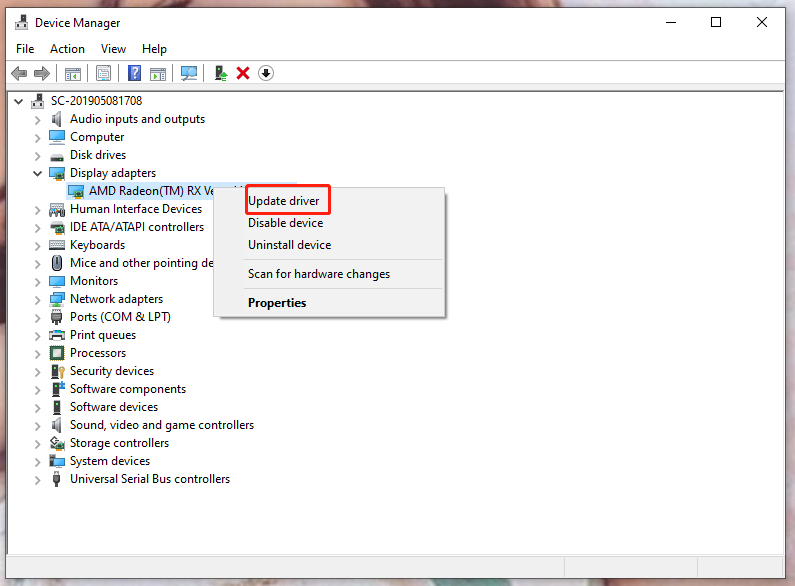
Step 4. Click on the blue font Search automatically for drivers and follow the on-screen instructions to update & install the latest version of graphics driver.
Fix 2: Update Your DirectX
The DirectX update is usually done through the Windows update. If you don’t want to spend lots of time on Windows updates, you can try the following steps to update your DirectX.
Step 1. Press Win + R at the same time to invoke the Run box.
Step 2. Type dxdiag and hit Enter to open DirectX Diagnostic Tool.
Step 3. In the Display tab, check if your Direct3D Acceleration is enabled. If not, choose to enable it.
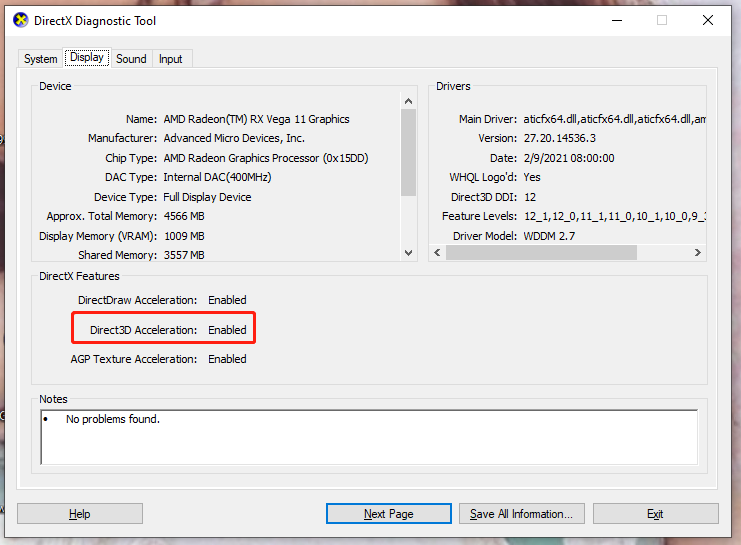
Step 4. Check your DirectX Version in the System tab to see if it meets the requirement (DirectX 9.0 and later).
Step 5. Reboot your device to inspect if Direct3D Acceleration not available problem is addressed.
Fix 3: Reinstall Visual C++ Redistributables
Reinstalling Visual C++ Redistributables is also worth trying.
Step 1. Press Win + R to open the Run dialog.
Step 2. Type appwiz.cpl and don’t forget to hit Enter.
Step 3. You will see a list of installed Microsoft Visual C++ Redistributable packages. Do a right-click on the one you want to reinstall and click Uninstall.
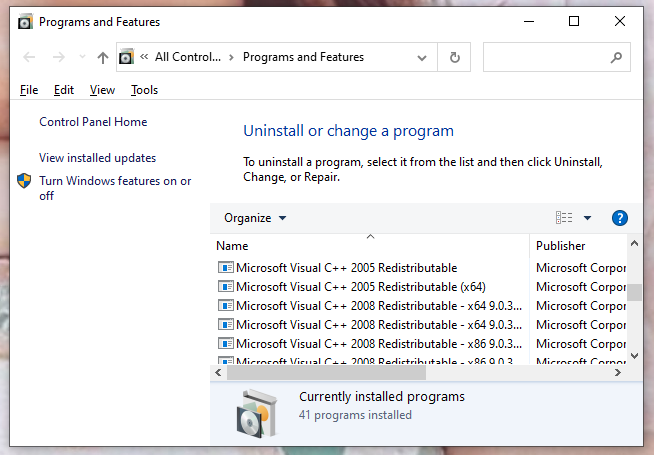
Step 4. When the uninstallation process is done, go to the Microsoft Website to download the corresponding packages.
Step 5. Double-click on the downloaded file to start the installation process.
Step 6. Restart your PC to see if the Direct3D Acceleration not available problem is gone.
Other related articles:
How to Fix DirectDraw Error Dderr_Unsupported in Legacy Games
How to Disable Hardware Acceleration on Windows 10
How to Enable Hardware-Accelerated GPU Scheduling Windows 10/11?
User Comments :