
Drive Beyond Horizons is a game that allows you to customize your car and explore unknown ventures. Though it is not the recently released game, Drive Beyond Horizons still maintains a high popularity. For every driver, knowing the Drive Beyond Horizons save file location is a crucial task.
Where Are Drive Beyond Horizons Saved Files
On Windows, you can quickly locate the files with the following steps.
Step 1. Press Win + E to open File Explorer.
Step 2. Choose the C drive in the right pane and then find the save game files with the following file path:
Users/username/AppData/Local/DriveBeyondHorizons/Saved/SaveGames
When heading to the target folder layer by layer, you should ensure the Show hidden files option is enabled in order to locate the AppData folder. Optionally, you can replace username with your account name and copy and paste the above file path to the address bar in File Explorer. Then hit Enter to pinpoint the folder swiftly.
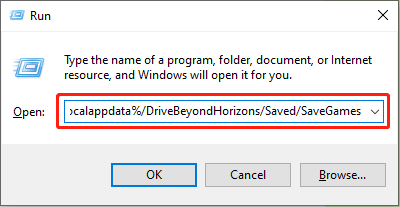
Another quick tip to load the Drive Beyond Horizons saved folder is to utilize the Run utility.
Step 1. Press Win + R to open the Run window.
Step 2. Copy and paste the following content into the dialog and hit Enter to open the target folder directly.
%localappdata%/DriveBeyondHorizons/Saved/SaveGames

How to Back Up Game Files of Drive Beyond Horizons
After getting the specific Drive Beyond Horizons save file location, you should carry out a suitable file backup approach based on your requirements. Let’s go on to discover backup options.
Option 1. Manually Copy and Paste the Folder
This is the most common backup method. Just locate the target folder and copy it to another place to save as a backup. However, as this method requires manual operations, you should always remember to refresh your backups in time.
Option 2. Add the Game Folder to Cloud Storage
There are numerous cloud storage services nowadays, such as OneDrive, Google Drive, Dropbox, etc. You can choose your preferred one and utilize its file synchronization feature.
You can open the cloud storage and add the target folder to the cloud storage. Then, enable the file synchronization option to back up the folder automatically. Using this method, you should pay attention to the connected internet as well as the storage capacity of the cloud storage.
An unstable internet connection or insufficient storage can result in the file backup failure. To avoid such a result, be careful when performing the backup task with cloud storage.
Option 3. Automatic Backup of the Folder via MiniTool ShadowMaker
Manipulating versatile file backup tools can enhance file backup efficiency. MiniTool ShadowMaker is recommended as it enables you to set the automatic file backup intervals according to your needs. Additionally, you can choose different file backup types to avoid making redundant backups.
After setting those configurations, you have no worries about missing file backups or file backup failures. Click the download button to get this tool and try its robust file backup features for free within 30 days.
MiniTool ShadowMaker TrialClick to Download100%Clean & Safe
Further reading:
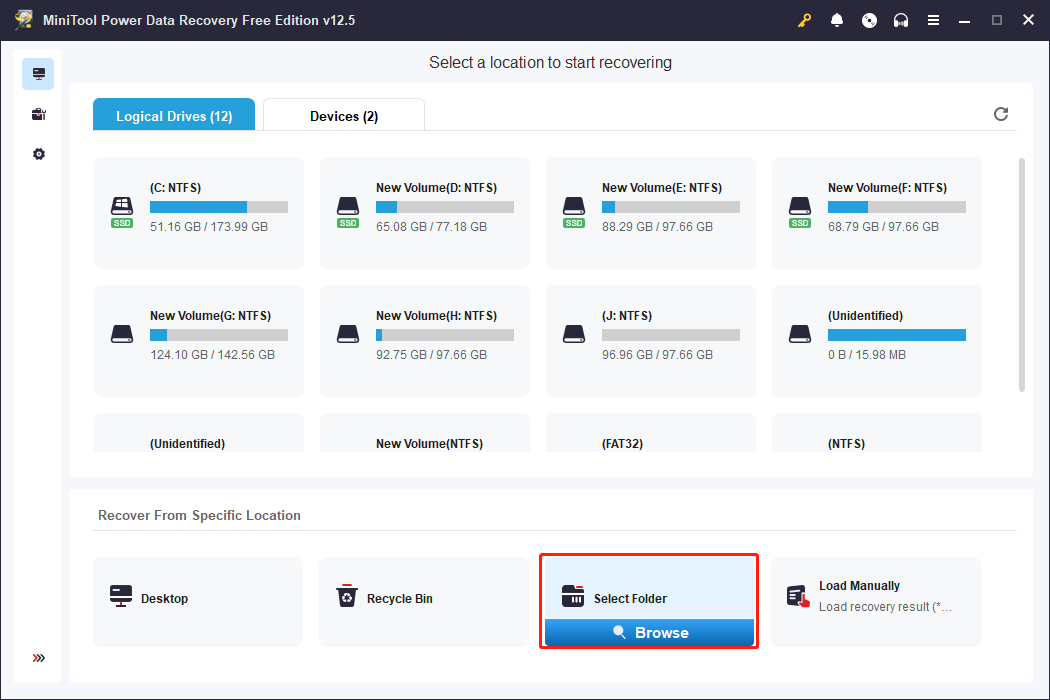
It’s OK if you encounter a local saved game file missing without any file backups. MiniTool Power Data Recovery is designed to recover diverse types of files that are lost in different situations. As long as your files are not overwritten, you can try this tool to recover the lost files. The free edition of this software enables you to recover 1GB of files without any cost. Thus, click the download button below and start the file recovery process if necessary!
MiniTool Power Data Recovery FreeClick to Download100%Clean & Safe
Final Words
While enjoying the game, it is essential to keep your game data secure as well. This post shows you how to find the Drive Beyond Horizons save file location and back up crucial files with different methods. Hope here is useful information to you!
User Comments :