
If you encounter the Blue Screen of Death caused by dxgmms1.sys, then do you know why this error appears and how to fix it? If you don’t know, then this post from MiniTool is what you need. There are 5 methods offered for you.
If you are using a Windows computer, then it is common to meet BSOD. Sometimes the cause of BSOD could be netwtw06.sys failure or dxgmms1.sys. And this post focuses on how to fix dxgmms1.sys BSOD in Windows 10.
Causes of Dxgmms1.sys BSOD
- Outdated GPU driver.
- The error is caused by update KB3163018.
- Integrated GPU is crashing the system.
- Outdated BIOS version.
- Corrupted system file.
How to Fix Dxgmms1.sys BSOD?
There are several methods you can take to fix dxgmms1.sys BSOD, which have been listed below.
Method 1: Update Graphics Card Driver
As we have mentioned above, an outdated graphics card driver may cause dxgmms1.sys BSOD error, so you can try to update the graphics card driver to fix the issue. Here is what you need to do:
Step 1: Right-click the Start button and then choose Device Manager.
Step 2: Expand Display adapters and then right-click on the GPU that you are using to choose Update driver.
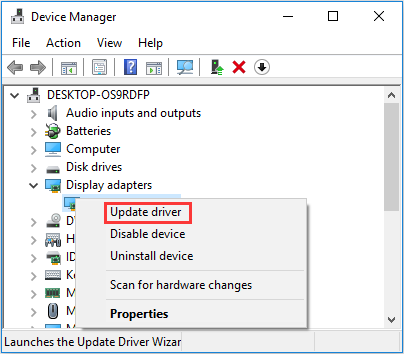
Step 3: Choose Search automatically for updated driver software, and then follow the on-screen prompts to update the driver.
Step 4: After you have successfully updated your GPU driver, reboot your computer and then check if the dxgmms1.sys Windows 10 BSOD error is gone.
Method 2: Update Your Windows
The dxgmms1.sys error may be caused by update KB3163018, and Microsoft has released new updates that can solve the problem, so you can update your Windows. Here is the tutorial:
Step 1: Press the Win + I keys at the same time to open Settings and then select Update & Security.
Step 2: Click Windows Update and then choose Check for updates on the right panel.
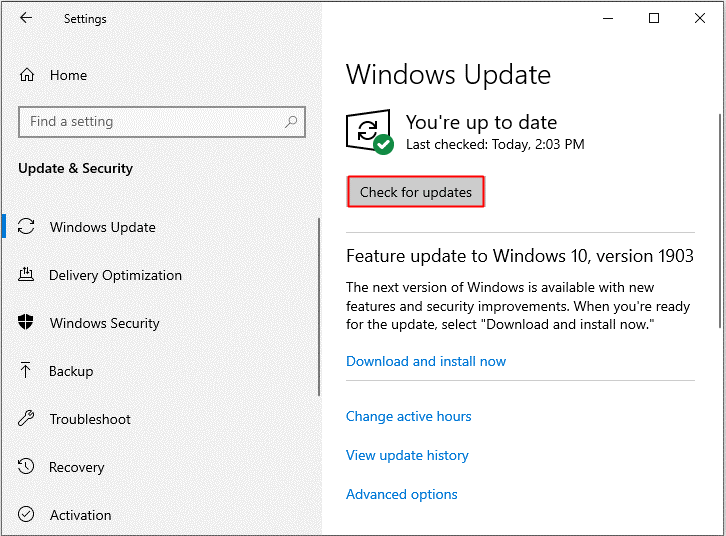
Step 3: Follow the instructions showing on the screen to install the updates and then restart your computer to check if the error is fixed.
Method 3: Disable the Integrated GPU
It turns out that if you use a laptop with both a gaming GPU and an integrated solution, the random BSOD may be caused by the integrated graphics. So you can disable the integrated GPU to fix the error, but you should know that this only works if the laptop uses an Intel HD 4000 integrated or older.
Here is the way to disable the integrated GPU:
Step 1: Open Device Manager and then expand Display adapters.
Step 2: Right-click your integrated GPU and choose Disable device.
Step 3: Restart your system and then check if the dxgmms1.sys BSOD error is gone.
Method 4: Update BIOS Version
Outdated BIOS can also cause the dxgmms1.sys BSOD error to appear, so you need to update your BIOS to fix the error. But you need to be careful when performing the method because any faulty operation will cause severe damage to your motherboard.
You can read this post to get detailed instructions – How to Update BIOS Windows 10 | How to Check BIOS Version.
Method 5: Perform a Clean Install
If you tried all the methods above, but the dxgmms1.sys error still exists, then you need to reset every Windows component. And the best method to reset all Windows components is to perform a clean install.
Read this post to get detailed instructions – Windows 10 Reset VS Clean Install VS Fresh Start, Details Are Here!
Bottom Line
If you are troubled with the dxgmms1.sys BSOD error in Windows 10, then you should try the methods mentioned in this post to deal with it. If you have any confusion about the methods, leave a comment below and we will reply to you as soon.
User Comments :