
When you are ready to take on the challenge that awaits as night falls, experiencing the Elden Ring: Nightreign white screen issue on PC can be quite frustrating. In this post on MiniTool, we will walk you through some possible and powerful solutions to resolve this vexing issue.
Struggling with some technical issues, like Elden Ring: Nightreign white screen, controller not working, crashing, or co-connection issues, is not hoping for. These problems impact a vast majority of players. Many PC gamers are experiencing difficulties when launching the game, as it fails to start after a short white screen is displayed.
Now, in this stepwise tutorial, we will talk about the methods to resolve the issue of Elden Ring: Nightreign white screen startup crash on PC.

How to Fix Elden Ring: Nightreign White Screen
Fix 1. Enable TPM
The Elden Ring: Nightreign white screen problem pertains to the Trusted Platform Module (TPM). The reason that Elden Ring Nightreign is crashing is because TPM is turned off on your computer.
- Restart your computer.
- Press and hold the F2 key (or FN F2 if there are no dedicated function keys) during startup to access the BIOS menu.
- Use the arrow keys to go to the Security tab.
- Look for an option for either TPM, Intel Platform Trust Technology (IPTT), or AMD CPU fTPM.
- Switch it to “Enabled.”
Fix 2. Update Windows
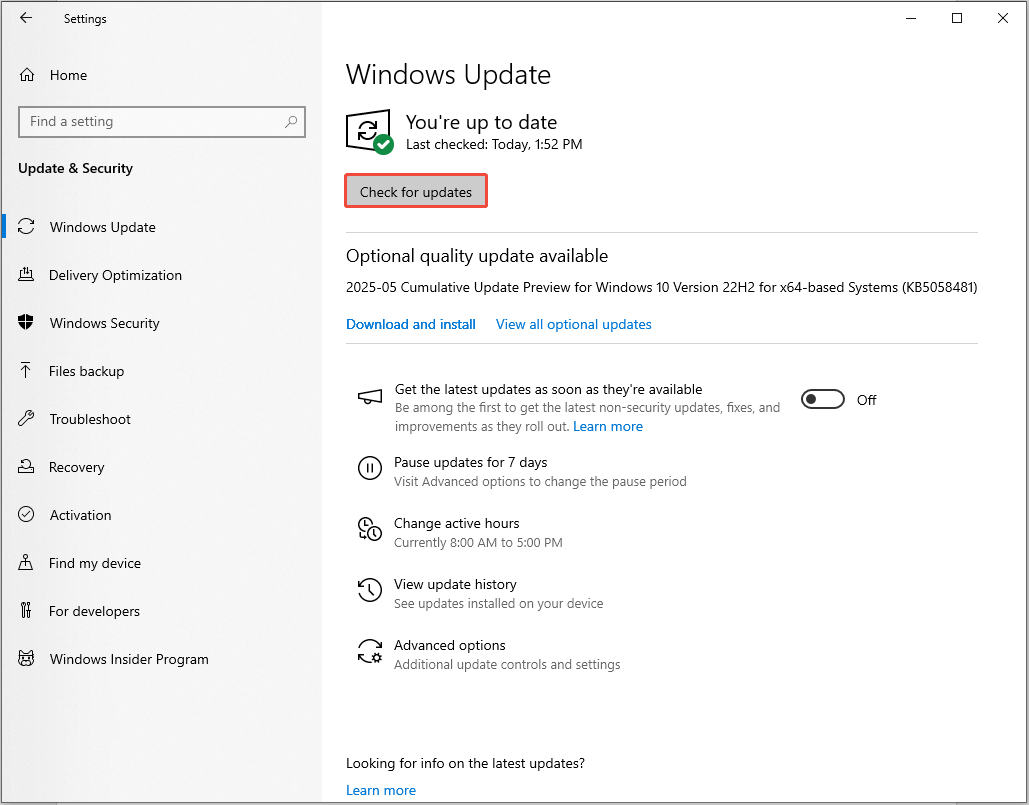
To fix the white screen crash on PC, you need to ensure your Windows is updated to the latest version.
- Press Win + I to open the Windows Settings. Then, go to the Update & Security section.
- In the Windows Update tab, click the Check for updates button.
- If there are any update options, download and install them all.
Fix 3. Uninstall & Reinstall EAC
Some players reported reinstalling EAC helped them fix the white screen in Elden Ring: Nightreign. Therefore, you can follow the instructions to do it:
- Open Steam and go to your Library.
- Right-click Elden Ring: Nightreign and select Manage > Browse local files.
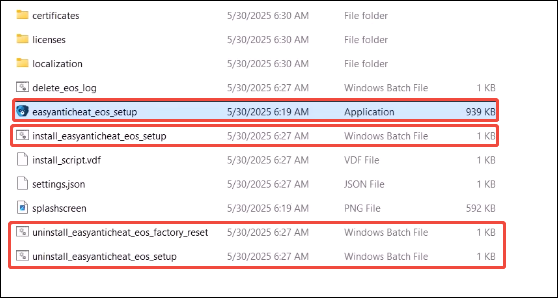
- In the pop-up File Explorer window, navigate to Game > easyanticheat.
- Locate and right-click the uninstall_easyanticheat_eos_setup file, and then select Run as administrator.
- In the UAC interface, click Yes. It is worth noting that if you receive any error message, you can just ignore it and press any key.
- Again, right-click the uninstall_easyanticheat_eos_factory_reset file and choose Run as administrator.
- Next, right-click the install_easyanticheat_eos_setup file and choose Run as administrator.
- After completing the installation, right-click the easyanticheat_eos_setup option and select Run as administrator. Click Yes to allow.
Fix 4. Download the D3D12.dll Files
One effective method for resolving the white screen error in Elden Ring: Nightreign is to move and download these DLL files into your gam directory. Here’s the way:
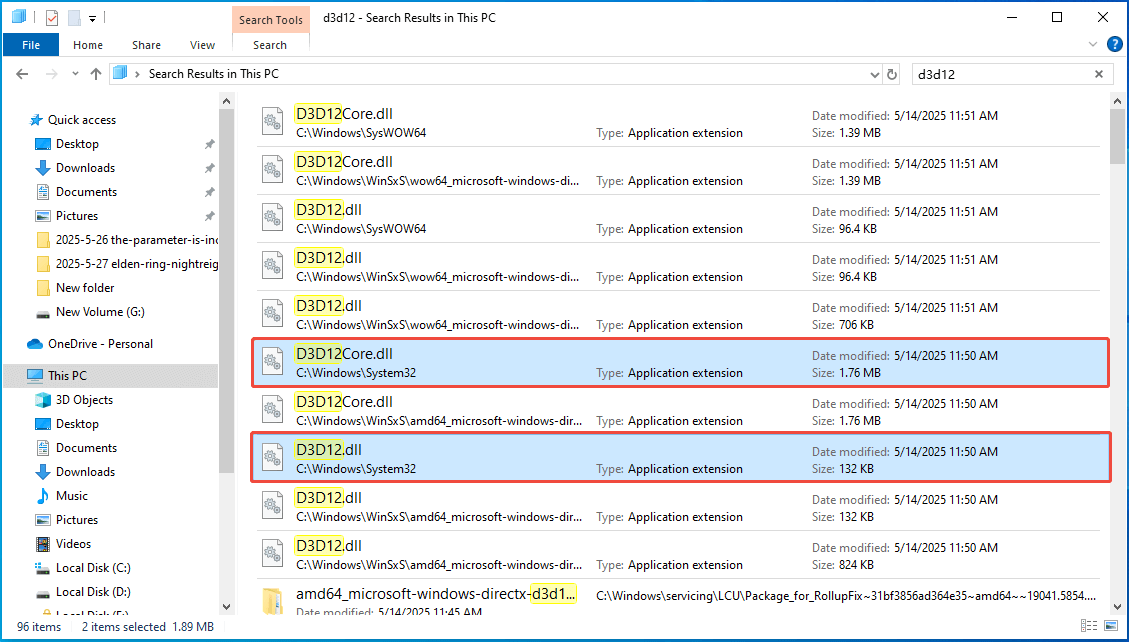
1. Press Win + E together to open the File Explorer. Type d3d12 in the search bar located in the top-right corner.
2. After showing all the results, find the D3D12Core.dll and D3D12.dll files (Located in C:\Windows\System32), press the Ctrl Key and right-click these two files, and then choose Copy.
3. Navigate to the game directory: C:\Program Files (x86)\Steam\Steamapps\common\ELDEN RING NIGHTREIGN\Game. Right-click the space and choose Paste.
4. Right-click the D3D12.dll file and select Rename. Then, name it “D3D12_original.dll”
5. Go to this website and download the 01_release_binaries_debug.zip file.
6. After downloading, open the zip folder. Select all the files in this folder, right-click them, and choose Copy.
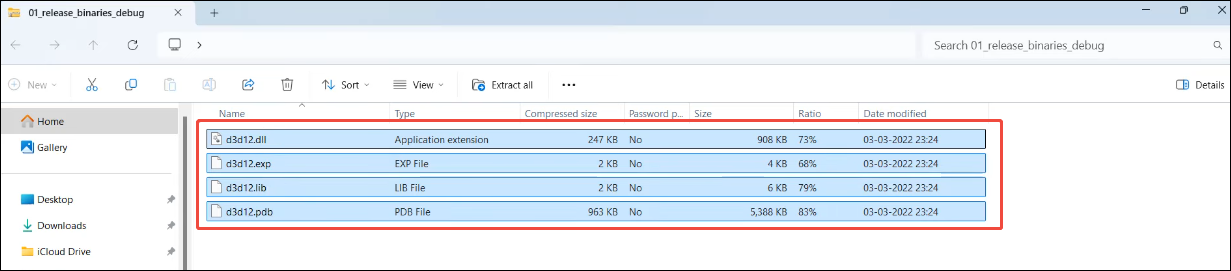
7. Go back to the game directory (C:\Program Files (x86)\Steam\Steamapps\common\ELDEN RING NIGHTREIGN\Game) and paste the DLL files in the game folder by pressing Ctrl + V.
Fix 5. Run the EXE Files
Sometimes, you can directly run the game exe file to avoid game crashes, such as the Elden Ring: Nightreign white screen startup crash. Follow these steps to run the Elden Ring: Nightreign EXE file:
- Open Steam.
- Right-click Elden Ring Nightreign in your Steam Library and select Manage > Browse Local Files.
- A new window will open containing game files. Open the Game folder.
- Locate and right-click the start_protected_game.exe file, and then choose Run as administrator. Double-click it to launch the game.
Fix 6. Install Visual C++ Files
If your PC lacks the necessary Visual C++ files, it may trigger the Elden Ring: Nightreign white screen issue. Therefore, consider downloading the files by following the breakdown below:
- Go to this Microsoft link in a browser.
- You can see Visual Studio files. Under this section, download the new x86 and x64 files.
- After downloading, run these files.
- In the pop-up repair option, click Repair. Next, click the Install button.
Optional Hardcore Steps
If the above solutions fail to resolve the white screen in Elden Ring: Nightreign on PC, try the following steps:
- Shut down Wallpaper Engine if necessary.
- Verify the integrity of game files.
- Run the game as an administrator.
- Update graphics driver.
- Try -dx11/-dx12/-windowed/-noborder one by one in launch options.
- Increase Virtual Memory.
- Run the game in Windowed mode.
- Run the game on a dedicated graphics card.
Final Words
These fixes will resolve the Elden Ring: Nightreign white screen issue on your PC. Hope you can enjoy your game again.
User Comments :