
This post introduces how to enable or disable notifications of USB issues in Windows 10. If you mistakenly deleted some files from USB drive or lost some data in USB because of USB issues, you can use the free data recovery software from MiniTool to easily recover the deleted/lost files from USB or other devices.
When you connect a USB device to your computer, it will pop up notifications of USB issues if the USB device has problems. If the notifications pop up frequently, you can disable this feature, and easily enable it when you need. Check how to do it below.
Related: Fix USB Flash Drive Not Recognized.
How to Enable or Disable Notifications of USB Issues from Settings
You can easily enable or disable this feature from Windows Settings.
- You can click Start -> Settings, or press Windows + I to open Windows Settings.
- Click Devices, and click USB in the left pane.
- Then you can uncheck the “Notify me if there are issues connecting to USB devices”option to disable notifications of USB issues. If you want, you can check this option to enable this feature again.
Enable or Disable Notifications of USB Issues with Registry Editor
You can also disable or enable this feature by using Windows Registry Editor. It’s advised you create a system restore point before you editing the registry.
- You can press Windows + R, type regedit, press Enter and click Yes in UAC prompt to open Registry Editor in Windows 10.
- Click as the following path: HKEY_CURRENT_USER\SOFTWARE\Microsoft\Shell\USB.
- Then you can right-click the black space in the right window, and create a new DWORD (32Bit). Set the name of the new registry key as NotifyOnUsbErrors.
- Double-click this new key and set its value as 1 to enable notification of USB issues. If you want to disable notification of USB issues, you can set it value as 0.
How to Recover Files from USB Devices
If you mistakenly deleted some files on USB or lost some data on USB because of USB problems, you can use data recovery software to easily recover deleted/lost files from USB devices.
MiniTool Power Data Recovery, a professional data recovery tool for Windows, enables you to easily recover deleted/lost files from USB flash/pen/thumb drive, computer local hard drive, SSD, external hard drive, SD memory card, and more.
This free data recovery software also supports recovering data from corrupted or formatted hard drive or USB. If you deleted or lost some files on USB, you should stop using it immediately to avoid data overwriting. (Related: recover overwritten files)
Download and install MiniTool Power Data Recovery on your Windows computer, and check how to recover data from USB devices with it.
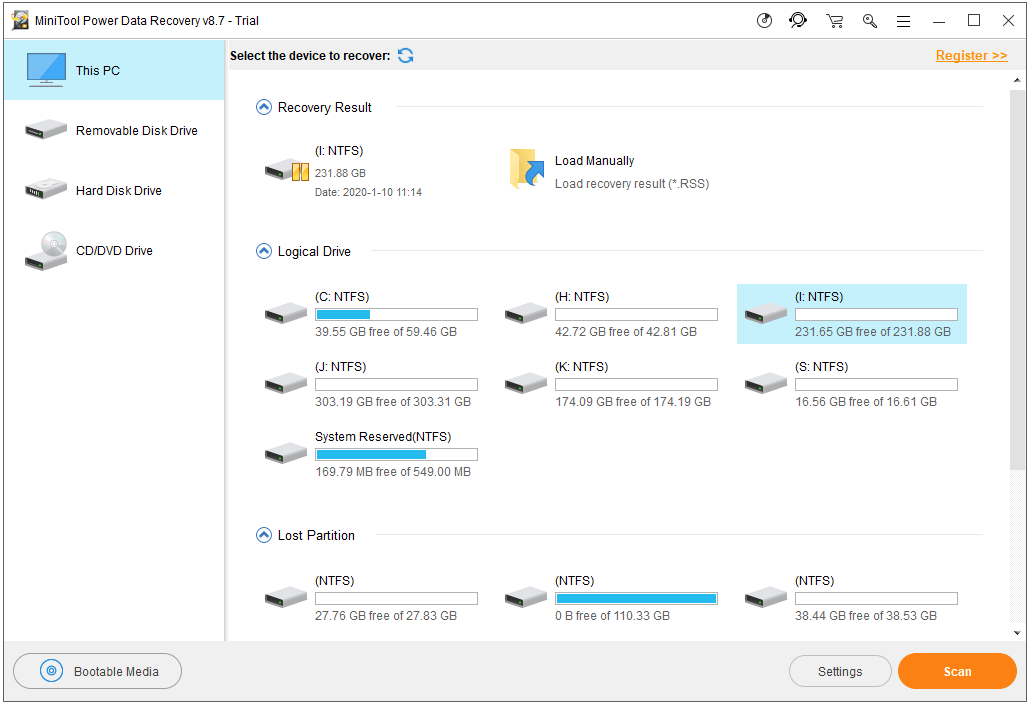
Step 1. Connect your USB device to your computer. Launch MiniTool Power Data Recovery to enter into its main interface.
Step 2. Then you can click Removable Disk Drive from the left panel. And choose the target USB device in the right window. Click Scan button, and this smart data recovery program will start scanning data on the USB devie.
Step 3. After it finishes the scan, you can check the scan result to find wanted files, check them and click Save button. You should choose a new device or new destination path to store the recovered files to avoid data overwriting.
User Comments :