
You may receive a security warning that “Macros have been disabled” or “Microsoft has blocked macros from running” when you try to run a macro or open a newly downloaded file in Excel. What are Macros? How to enable macros in Excel? MiniTool provides a specific guide for you in the following content.
If you are looking for free data recovery software, MiniTool Power Data Recovery is highly recommended. It is able to recover documents, photos, videos, and so on. You can use the free edition to scan and recover up to 1GB of files. Why not have a try?
MiniTool Power Data Recovery FreeClick to Download100%Clean & Safe
What Are Macros
Macros are a series of commands to complete repeated tasks automatically. They are pretty convenient when used in Excel. It can save your time and energy to a great extent. But it is not safe to enable all the macros in all files.
Macros are easily becoming viruses or malware attacks which may make your computer or internet infected. Therefore, macros settings are disabled by default in Microsoft Office like Excel and Word. When you need to enable macros in Excel, you need to confirm the security of the file source.

How to Enable Macros in Excel
When you open a file downloaded from a public website or try to run a macro, you probably receive a Security Risk message: Microsoft has blocked macros from running because the source of this file is untrusted. You may also receive a simple message that Macros have been disabled before you upgrade the macros.

In this section, two useful methods are provided to help you solve the Excel macros not working problem.
Method 1: Make the Document Trusted
Step 1: Select Enable Content on the SECURITY WARNING message.
Step 2: Select Yes in the popup window to make the document trusted. Then, macros are enabled on this document.
If you download files from a trusted location, there will be no warning message. Thus, you can save files to a trusted location so that you don’t need to set files one by one. To find out trusted locations, please follow the next steps:
- Open the workbook and click on File.
- Select Options and shift to Trust Center in the left pane.
- Choose Trust Center Settings on the right.
- Select Trusted Locations from the left pane. Then, you can find the list of trusted locations.

Method 2: Change Macro Settings in the Trust Center
You can use this method to enable macros in Excel, not only in one document.
Step 1: Select File > Options.
Step 2: Choose Trust Center > Trust Center Settings.

Step 3: In the following window, select Macro Settings.
Step 4: Select one option based on your needs, then click OK to save the change.
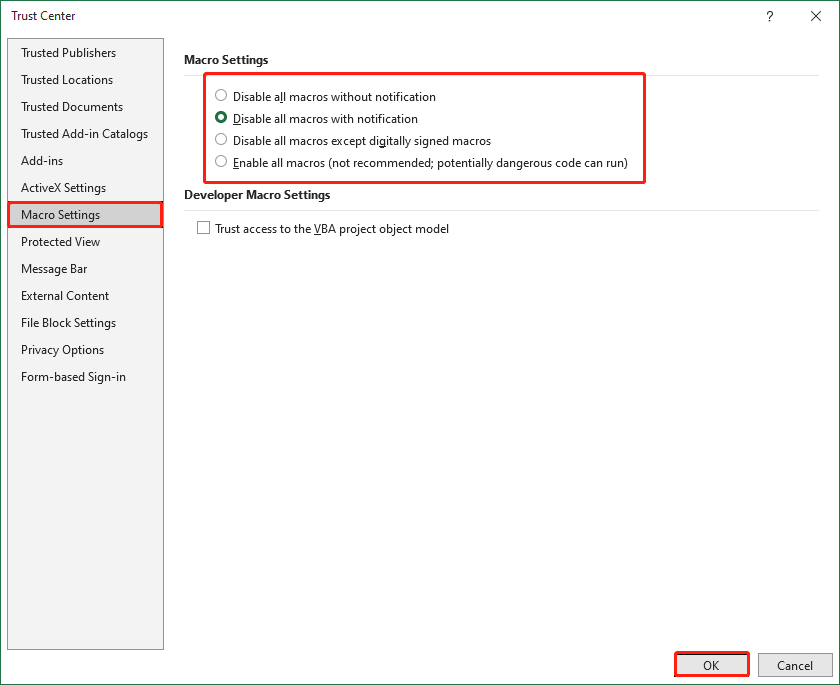
If you choose Enable all macros (not recommended, potentially dangerous code can run), your computer will become vulnerable since it will be easily attacked by malicious code.
If your files are lost because of virus or malware attacks, you are suggested to recover them as soon as possible. MiniTool Power Data Recovery is a professional and reliable free data recovery software. You can use it to recover lost or deleted files under various situations such as virus attack, OS crash, hard drive damage, etc.
MiniTool Power Data Recovery FreeClick to Download100%Clean & Safe
How to Disable Macros in Excel
You can also disable macros in Excel in the Macro Settings window with the same steps above. There are three choices to disable macros.
- Disable all macros without notification: Macros and security alerts are all disabled.
- Disable all macros with notification: Macros are disabled but you can receive security alerts. Thus, you can set disable or enable based on real situations.
- Disable all macros except digitally signed macros: If the macros are digitally signed by trusted publishers, they will run without security alerts. Otherwise, you will get a security warning.
How to Enable Macros in Word
When you open a file containing a macro, you may receive the security warning message. If you want to enable macros in this file, please follow these steps.
Step 1: Click on File > Info.
Step 2: If the file contains macros, you can find the Security Information section.

Step 3: Click on Security Information and then choose Enable All Content.
The macros will be enabled when you are using this file.
Bottom Line
If you ensure the files and macros are reliable, you can enable macros certainly. But for a safe environment for your computer, we do not suggest you enable all the macros without notification. If unfortunately, your data is lost because of a malware attack, please let MiniTool Power Data Recovery help you.
MiniTool Power Data Recovery FreeClick to Download100%Clean & Safe
User Comments :