
Windows 11 users are looking forward to this update and soon that will be officially applied. Those updated features and fixes can be previewed by Insider program users but there is a way to make those hidden features available for you. If you want to know how to end tasks from taskbar Windows 11, answers here on MiniTool.
How to End Tasks from Taskbar on Windows 11?
We usually go to Task Manager to end the running task when some rogue software does not react to your command and can’t close itself.
The procedure is complicated. You need to look through those running processes and locate the one you are prepared to close to click End task. Many people complained about the settings for a long time.
The good news is that, as tweeted by Windows Insider PhantomOfEarth found an option hidden in the new Windows 11 Insider build 25300. The publisher issued a picture that shows you the End task option will be displayed in the Jump List shown when right-clicking apps’ icons in the Windows 11 taskbar.
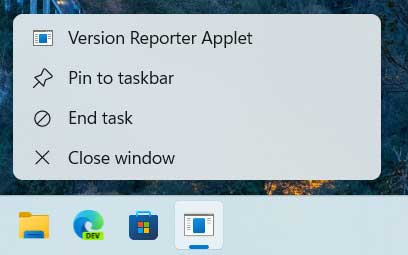
The picture comes from PhantomOfEarth on Twitter
If everything goes well, those features will be officially published for all Windows 11 users, but before that, you still can use ViveTool to enable this feature in your Windows, which will help easily kill running program from taskbar.
Step 1: Open GitHub website and download the latest version of ViveTool.
Step 2: Double-click on the zip folder and click the Extract all button.
Step 3: Then please choose the location you want to extract and hit Extract.
Note: Please copy and paste the location somewhere and that will be needed in the next move.
Step 4: Then type cmd in Search to run Command Prompt as an administrator and input cd + the directory where we extracted ViVeTool.
For example, if you extracted the file at C:\Users\WindowsReport\Documents\Tools\ViVeTool-v0.3.2, then please input the following command – cd C:\Users\WindowsReport\Documents\Tools\ViVeTool-v0.3.2 to enter.
Step 5: Type the following command then hit Enter.
vivetool /enable /id:42592269
When that finishes, close the window and restart your computer, then you can try this End task feature by right-clicking the program icon and choose End task from the drop-down menu.
New Features of Windows 11 Build 22621.1343
Windows second feature drops, which we call it “Moment 2”, is about to come in March. You may ask me about this Windows 11 “Moment 2” updates and many new features have been disclosed for Insider users.
Microsoft is planning to release new features as part of smaller Windows updates called “Moment”. The Moment 1 update has been released in 2022 after the release of Windows 11 22H2 release and, apparently, “Moment 2” will come soon.
According to what has been released in the Release Preview Channel on Windows 11, version 22H2, there is a sum-up for you.
- Easy to access Windows Studio Effects
- Optimized search box experience on the taskbar
- Energy recommendations in Settings
- Enhanced system tray
- Enhanced support for braille devices
- Voice Access enhancements
- AI-powered recommended content on your Start menu
- Tabs in Notepad
- Full-screen Widgets Panel and Third-party Widget support
Related article:
- [News] How to Enable Energy Recommendations on Windows 11?
- Windows 11 Enables You to Control RGB Lighting for PCs
Since you will enjoy these new features and evert time, Windows update will bring some annoying bugs, to avoid that, you may use MiniTool ShadowMaker to back up your important data.
Bottom Line:
Many Windows 11 users like this new design that allows them to end tasks directly from the taskbar, avoiding those unnecessary steps and saving time. This article has given you a guide to try this in advance and if you have other issues, you can leave your message below.
User Comments :