
Recently, Windows 11, version 22H2 has experienced the KB5022913 update and brought us more new features and updates. The Energy Recommendations feature is one of them. To know more information about Energy Recommendations Windows 11, you can refer to this article on MiniTool Website.
The KB5022913 Update Brings Energy Recommendations on Windows 11
February 21, 2023, Microsoft is releasing Windows 11 Build 22621.1343 (KB5022913) to Insiders in the Release Preview Channel on Windows 11, version 22H2. Many new features and improvements have been disclosed.
There are some special updates and changes applied in Windows 11 KB5022913, such as an updated start menu search box design, a new taskbar search, an improved task manager, etc.
“New taskbar search experience and updated start menu search box design are officially coming to Windows 11, version 22H2 with the KB5022913 update, which should be available by the end of this month for stable” published by Windows enthusiast PhantomOcean3 (@PhantomOfEarth) on Twitter.
Besides, Energy Recommendations on Windows 11 Build 22621.1343 is also available for Insider users. The Energy Recommendations feature gives tips to save energy and improve battery life. With the feature, you can easily reduce emissions and thereby your carbon footprint.
To enable and use Energy Recommendations on Windows 11, you can go to the next part.
How to Enable Energy Recommendations on Windows 11?
First of all, the Energy Recommendations feature is only available after joining the Insider program and installing the KB5022913 update. If you are not an Insider user yet, please go to the Microsoft’s Preview Windows page to get started.
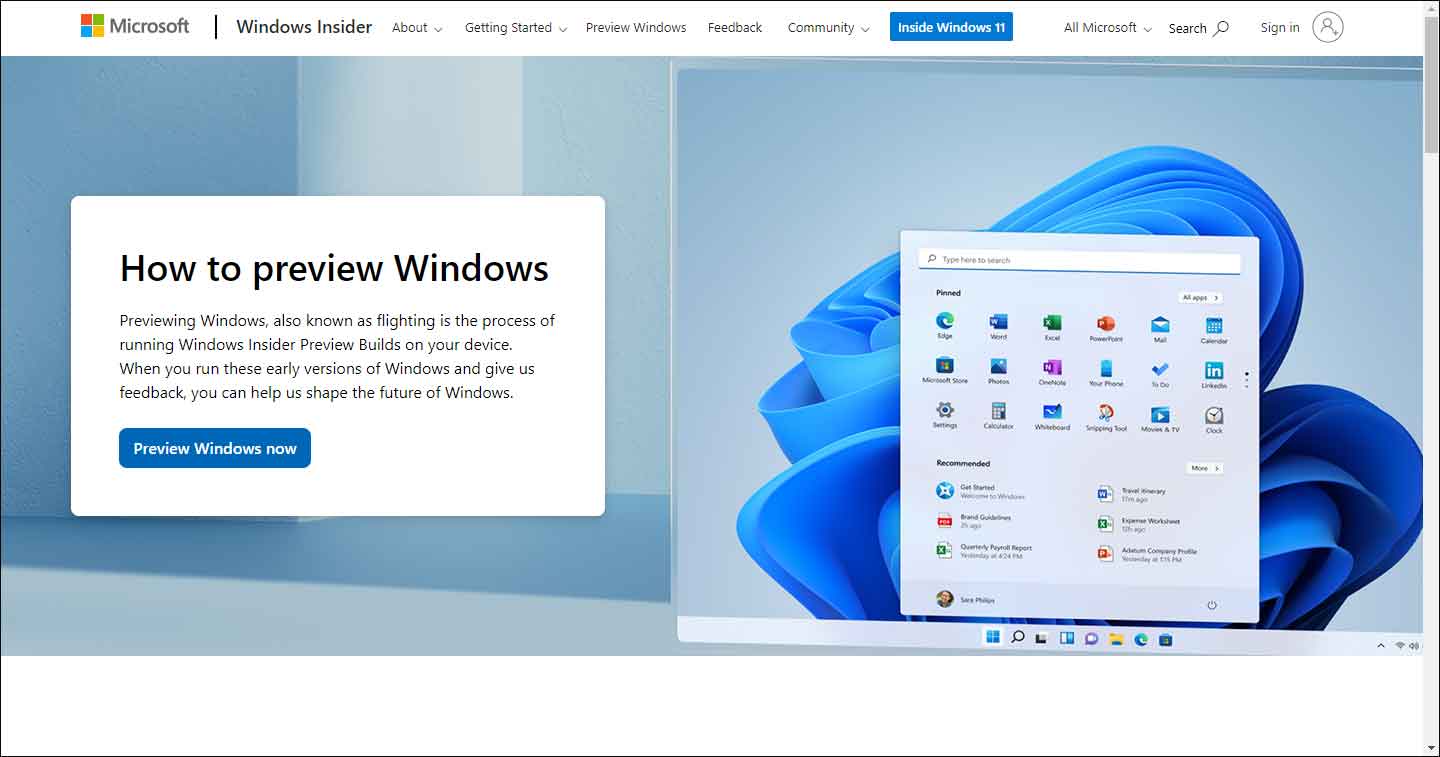
If you have a problem joining the Insider program, you can read this article and that will be helpful: How to Join the Windows Insider Program to Be a Windows Insider.
Make sure you have Windows 11 Build 22621.1343 installed in your system and then you can follow the next steps to enable Energy Recommendations on Windows 11.
Step 1: Open Start on the bottom menu bar and choose Settings.
Step 2: Go to System > Power > Energy Recommendations and then click on Apply all to enable all the recommendations.
Or if you don’t want to spend time on the Insider program, you can choose to download ViveTool from GitHub, extract the zip file, and open it to copy the path to the folder in the address bar. The follow the next to continue.
Step 1: Open Command Prompt as an administrator and type the following command to enter.
cd c:\folder\path\ViveTool
Step 2: Then type the following commands to enter to enable Energy Recommendations.
- vivetool /enable /id:39427030
- vivetool /enable /id:41249924
At last, restart your computer and go to Settings > System > Power > Energy Recommendations to check the settings.
Of course, apart from the Energy Recommendations feature, Microsoft also issued some changes to its taskbar, making this controversial interface much better. Go and come to try these new things!
It is highly advised to back up your important data. With new features pubilished by Windows, there may be some little glitches in it. To avoid any data loss, you can back up with MiniTool ShadowMaker.
Bottom Line:
In Windows 11 Build 22621.1343 (KB5022913), there are many new features and updates for your system. Many bugs have been fixed and new changes are waiting for you to try. After reading this article about Energy Recommendations Windows 11, you have resolved your concerns and the feature is worth trying!
User Comments :