
EVERSPACE 2 is a fast-paced single-player space shooter that combines exploration, combat, loot collection, RPG elements, mining, and crafting. Unlike its predecessor, EVERSPACE 2 no longer uses roguelike mechanics, but is more of an action role-playing game. Of course, cache files are very important for the game to run. You need to know where they are stored and how to restore them when they are lost.
Where Is the EVERSPACE 2 Save Game
On Windows PC, you can find the EVERSPACE 2 save file location in the following path:
C:\User\Test\AppData\Local\ES2\Saved\SaveGames
Additionally, the game’s configuration files are located at:
C:\User\Test\AppData\Local\ES2\Saved\Config\WindowsNoEditor

How to Recover EVERSPACE 2 Save Files
When it comes to save game file recovery, MiniTool Power Data Recovery is worth a try. It can perform deep scans on storage devices such as hard drives, SSDs, USB devices, SD cards, etc., to find lost or deleted save files. In addition, it supports data recovery from different situations such as accidental file deletion, formatted disks, damaged partitions, etc. This free file recovery software can recover game saves, pictures, videos, documents, and other file formats.
A free edition is available that can recover up to 1GB of files, which is suitable for small save recovery. Let’s examine how to recover EVERSPACE 2 save files.
Step 1: Download and install this software on your computer, and then launch it.
MiniTool Power Data Recovery FreeClick to Download100%Clean & Safe
Step 2: Under the Logical Drives tab, move your cursor to the Select Folder section, and then click on Browse.
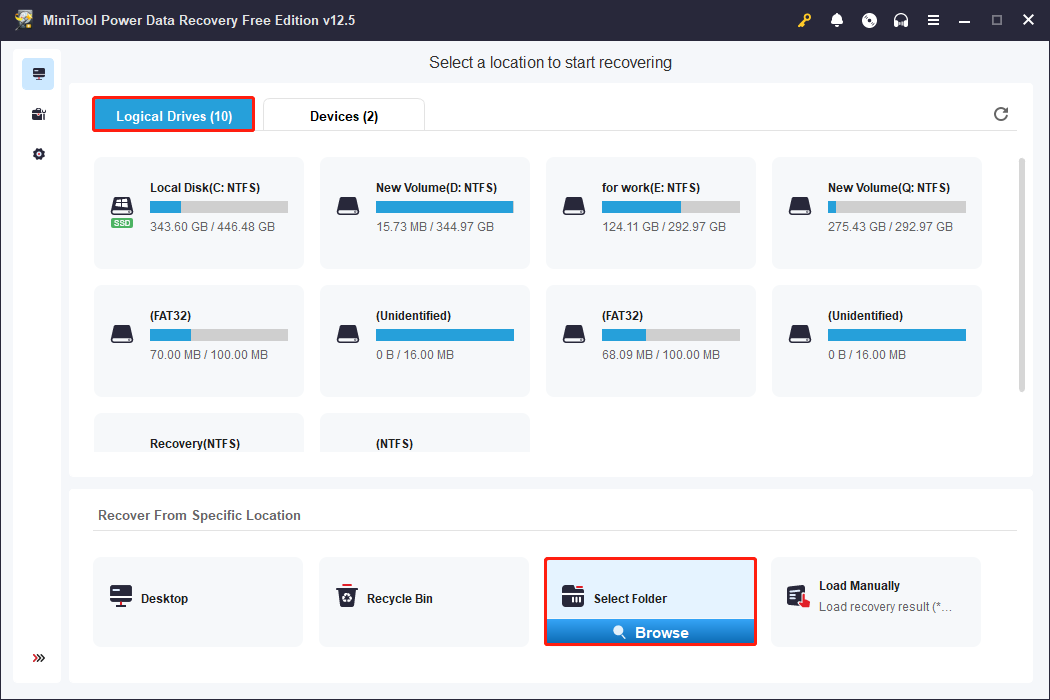
Step 3: According to Part 1 to find the saved games file and click on Select Folder.
Step 4: The scan process may take some time. You need to wait patiently for it to complete. When it ends, files will be listed by their paths. You can find files using the following features.
- Type: You can find files based on their types, such as documents, pictures, audio, and videos etc.
- Filter: It can filter files by setting some criteria, such as file type, file size, file category, and modified date.
- Search: You can find the target file by entering the full or partial file name and pressing Enter.
Step 5: After finding the files you want, you can choose to preview them before saving. Select the file and click on the Preview button, or just double-click on the file to check its content.
Step 6: Once you have confirmed the files, tick them all and click on the Save button. There will be a window prompting you to choose a location to store the recovered files. It is best to choose a new place to prevent files from being overwritten.

How to Back up Saved Files
Way 1: Copy Saved Files to Another Location
Copying files to another storage location is an easy way to back up EVERSPACE 2 saved files. You can do it by following these instructions.
Find your save files folder, and once inside, copy all the files and paste them into a safe location such as an external hard drive, cloud storage (such as OneDrive, Google Drive), or another folder.
Way 2: Use Backup Software
There are several advantages to using MiniTool ShadowMaker to back up game saves. You can set up regular backups to ensure that the saves are not lost accidentally. If the save is damaged or lost, you can quickly restore it to its previous state. It supports Windows 7/8/10/11 and is suitable for most PC games. Download and install it to get started.
MiniTool ShadowMaker TrialClick to Download100%Clean & Safe
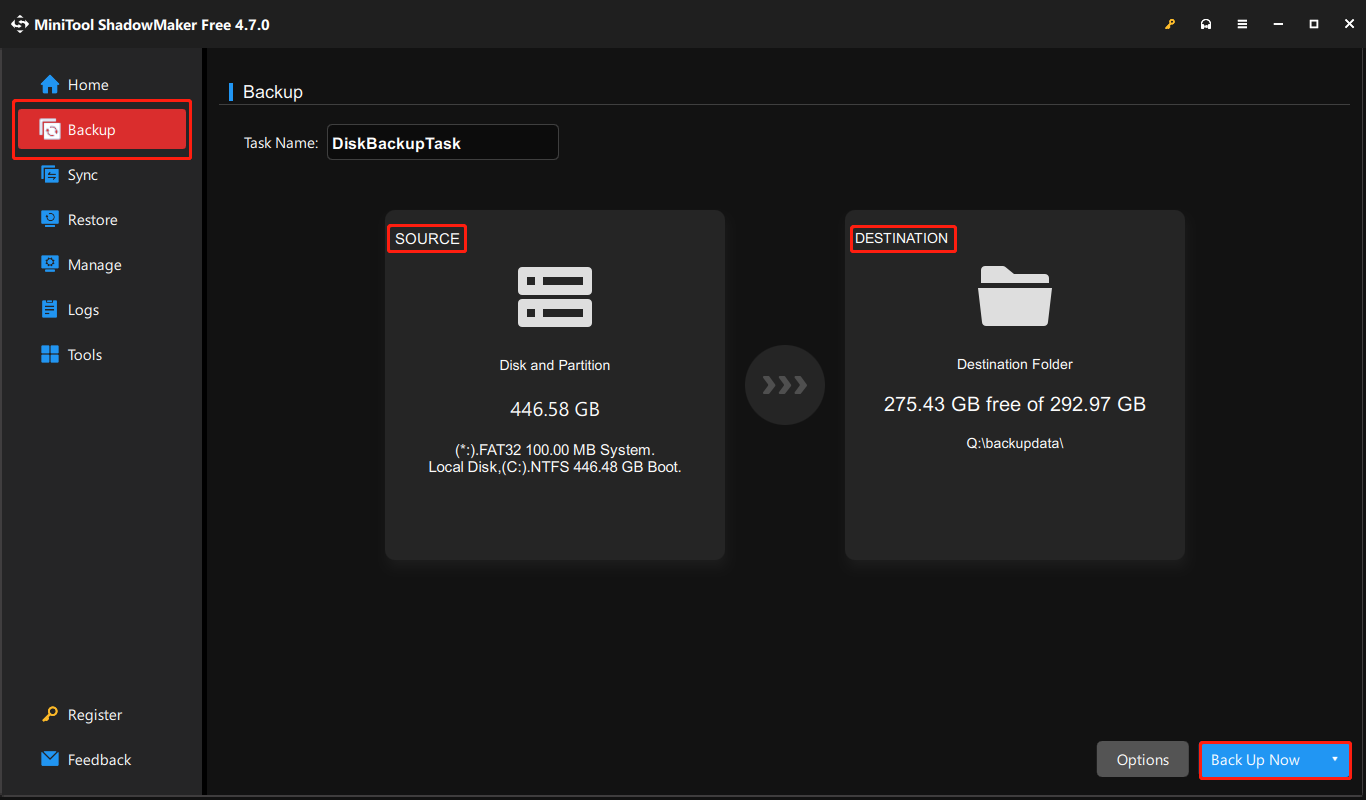
Step 1: Launch this software and switch to the Backup tab from the left pane.
Step 2: Click on the SOURCE section, and then choose Folders and Files to select the saved files.
Step 3: After selecting the save files, click on OK to go back to the main interface.
Step 4: Click on the DESTINATION section to choose a location to store the backup.
Step 5: Click on OK to return to the previous page and click on Back Up Now.
Final Words
All information about EVERSPACE 2 save file location, as well as how to restore and back up game files, is here. Hope they can help you.
User Comments :