
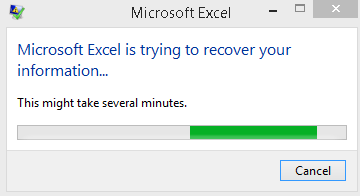
During the using of Microsoft Office, users may encounter different kinds of problems easily. For instance, some users reported that they met the “Microsoft Excel is trying to recover your information” error. In this post, I will show you several practical methods for fixing this problem on your PC.
As you all know, Microsoft Excel is a commonly used tool included in Microsoft Office. It is a good spreadsheet program and available for different platforms: Windows, macOS, Android and iOS. The Microsoft Excel makes data visualization and analysis an easy job. However, you may find your Excel not working sometimes.

Users Reported the Error: Microsoft Excel Is Trying To Recover Your Information
However, there are a lot of people talking about the error: Microsoft Excel is trying to recover your information.
- Some said the error occurs when they are working with the Excel and it leads to the loss of content.
- Others said everything works well and the data is fine, but the error message keeps showing up when their Excel is opening.
In the following part, I will tell you the exact steps to fix the issue: Microsoft Excel has stopped working. MiniTool Software provides you with various programs to help you protect data and improve performance.
How to Fix Microsoft Excel Error
First of all, you should open other Excel files to check whether the same problem occurs. If not, it means the error is caused since that file is damaged. If it’s a general issue, you should try the following ways that have been proved to help some people fix their Microsoft Excel error.
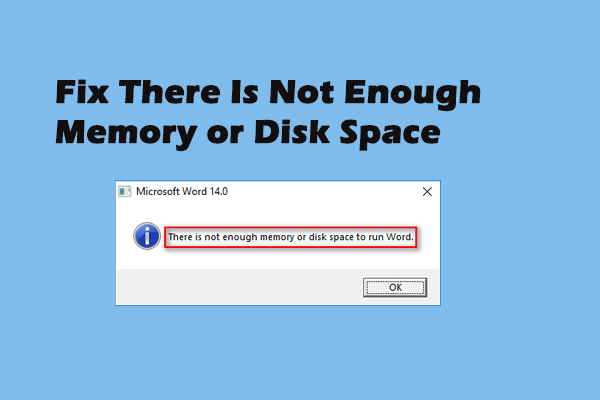
Extended reading: how to fix There is not enough memory or disk space error in Excel?
Measure one: check your antivirus software.
Some users said that they have found the error is caused since their antivirus software is too old or is conflict with the Microsoft Excel program.
- Please go to close the antivirus software temporarily.
- If the problem disappears, the cause may be the software conflict. If problem persists, please move on.
- Go to the website of your antivirus software manufacturer, search for the certain program, and download the latest version for it.
- Install the update on your computer properly.
- Reboot your computer and then open the problematic Excel to check whether the error goes away.
In addition, you need to check your RAM and make sure it’s enough to run Microsoft Excel.
Measure two: try clean boot.
- Sign in your system as an administrator.
- Click on the search box or icon on taskbar.
- Type MSConfig into the textbox.
- Select System Configuration.
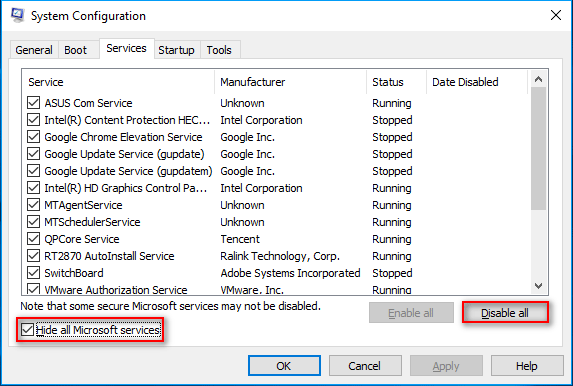
- Shift to the Services tab in System Configuration window.
- Find the Hide all Microsoft services option at the bottom left corner and check it.
- Click on the Disable all button.
- Then, shift to the Startup tab in the same window.
- Click Open Task Manager link.
- Disable all the items on the list by right clicking on them and choosing Disable.
- Close Task Manager and click on the OK button.
- Restart your computer.
Measure three: disable preview pane.
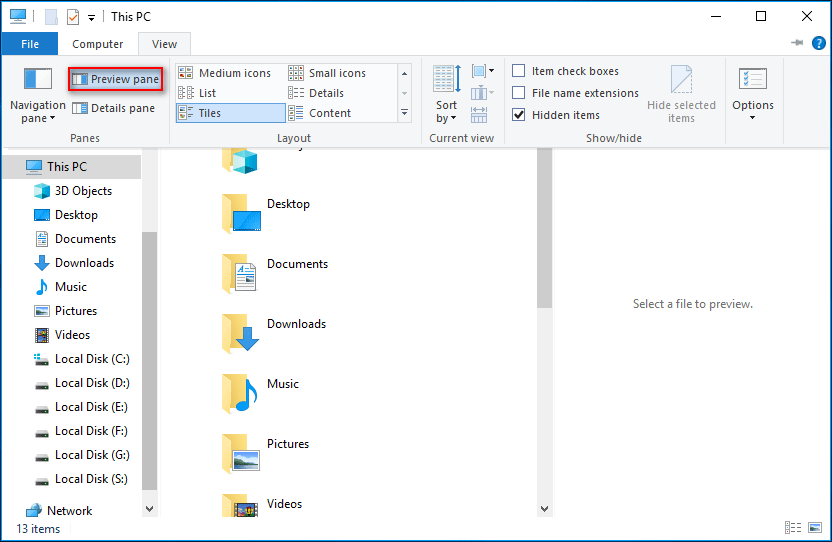
- Press Windows key + E to open Windows Explorer (how to fix Windows Explorer not working/responding).
- Select View from menu bar.
- Click Preview pane to uncheck it.
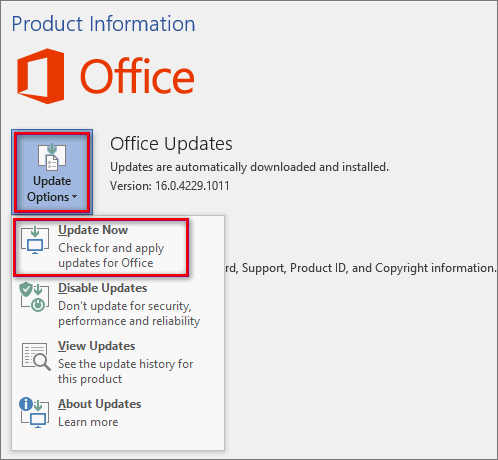
Measure four: update Microsoft Excel to the latest version.
- Open a Microsoft Excel.
- Click File in the upper left corner.
- Select Account from its submenu.
- Expand the Update Options by clicking on the arrow.
- Select Update Now.
- Wait for the update to complete.
- Restart your PC.
Measure five: update your Windows to the latest version.
- Press Windows key + I to open Settings window.
- Select Updates & Security.
- Click on the Check for updates button in the right-hand pane.
- Finish the update process under guidance.
- Restart the computer.
Please try these methods at once when you see the error Microsoft Excel is trying to recover your information.
User Comments :