
Failed to Load Library OPENGL32.dll in Roblox
In fact, “Failed to load library OPENGL32.dll” is not a new issue when loading Roblox. The prompt error window prevents users from loading Roblox and enjoying games. The OPENGL32.dll file plays an interactive role between the application and the graphics processing unit. Thus, it is important to handle the annoying issue in time.
If you are troubled by this issue, try the following methods to fix it.
#1. Run SFC & DISM Commands
You can use the Windows command prompt utility to check and fix the system file issues. The SFC and DISM command lines can find and repair problematic system files automatically. Here is how to use them.
Step 1. Press Win + R to open the Run window.
Step 2. Type cmd into the dialog and press Shift + Ctrl + Enter to run Command Prompt as administrator.
Step 3. Type sfc /scannow and hit Enter to execute this command line.
Step 4. When the command finishes, type DISM /Online /Cleanup-Image /Restorehealth and click Enter.

#2. Restore the OPENGL32.dll File
In case the OPENGL32.dll file is accidentally removed due to unintentional deletion, application crashing, or other reasons, you can take action to recover it on your device.
>> Restore from the Recycle Bin: If you remove the OPENGL32.dll file mistakenly, you can recover it from the Recycle Bin easily. Just open the Recycle Bin to find the file and right-click on it to choose Restore.
>> Restore using data recovery software: Causes, such as software crashing, disk failure, virus infection, etc., can result in the Opengl32.dll missing error. In this case, you can only recover the missing file by running data recovery software, like MiniTool Power Data Recovery.
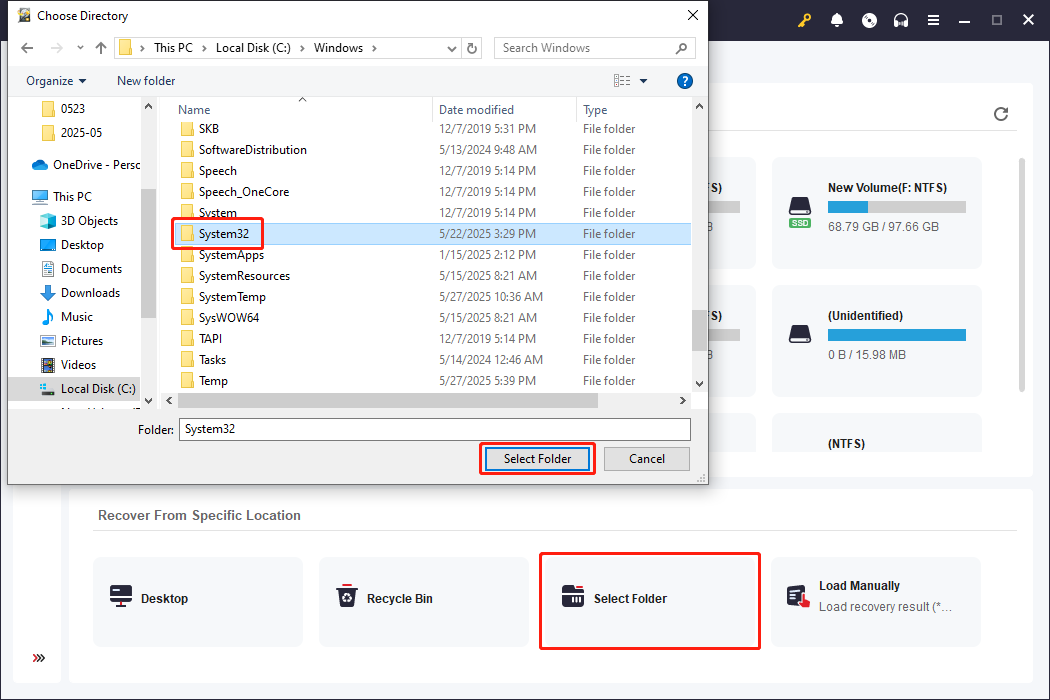
This free file recovery software supports you in recovering 1GB of files for free. Choose Select folder and navigate to C:\Windows\System32 to scan the System32 folder.
Once the scan process is done, type opengl32.dll into the search box at the top right corner and hit Enter can quickly locate the file.
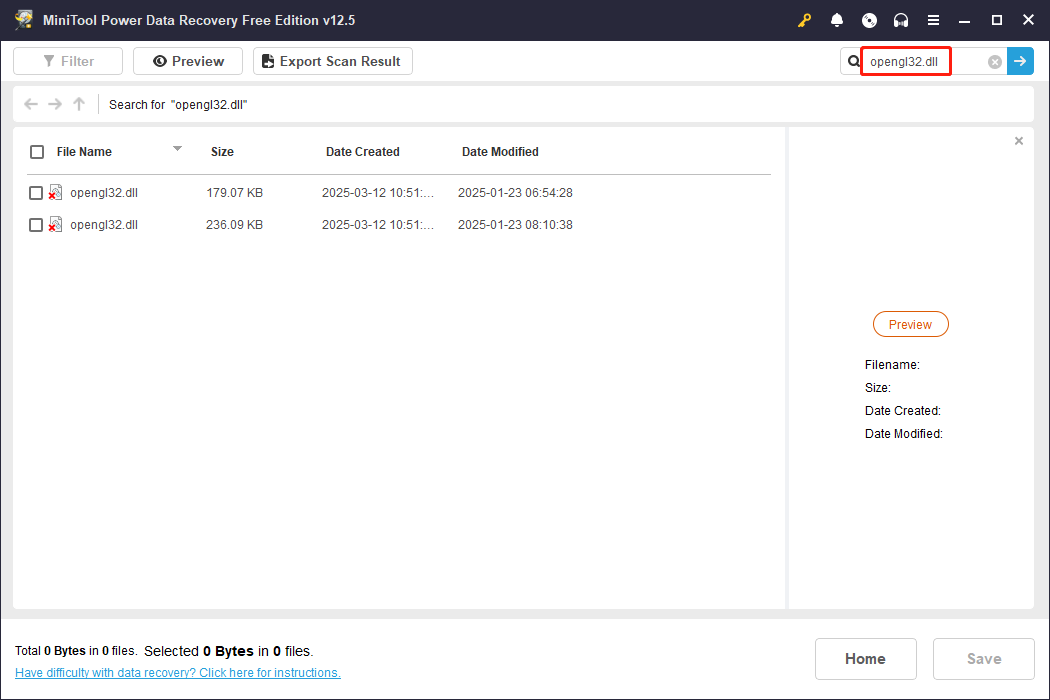
Then, just select the file and recover it to a new destination. After file recovery, you need to manually copy and paste the file to its original file path: C:\Windows\System32 and C:\Windows\SysWOW64.
>> Re-download from a reliable website: To perform this method, you need to opt for a trustworthy website to avoid downloading files with viruses. Once the OPENGL32.dll file is downloaded, you can move it to the C:\Windows\System32 and C:\Windows\SysWOW64 folders, respectively.
Afterward, launch Roblox to see if this operation helps to fix the Opengl32.dll error in Roblox.
#3. Perform System Restore
If the above methods don’t help you handle the failed to load library OPENGL32.dll error, the only way is to perform a system restore. To do this, you should have a system restore point that is created before the error occurs. If you have such a system restore point, try the following steps.
Please note that once the process starts, you cannot suspend it midway.
Step 1. Type Create a system restore point into the Windows Search bar and hit Enter.
Step 2. Click System Restore in the pop-up window.
Step 3. Click Next to choose a proper system restore point from the list.
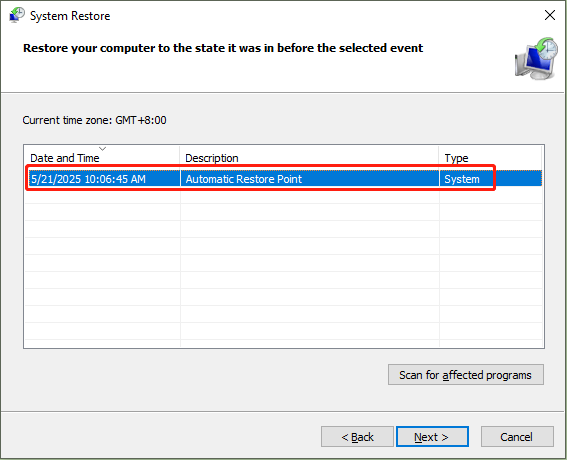
Step 4. Click Next > Finish to start the system restore process.
If you have no appropriate system restore point, the only way is to reset your computer. Be careful when manipulating this operation. You are highly advised to back up crucial files to prevent unexpected data loss during the reset process.
MiniTool ShadowMaker TrialClick to Download100%Clean & Safe
Final Words
This post delivers three methods in total to handle the “Failed to load library OPENGL32.dll” error on Windows. Try the above methods and hope one of them works in your case.
User Comments :