
When you try to move or change properties of multimedia files, you may encounter an error 0xC00D3E8E: The property is read only. This error will restrain you from any changes made to these multimedia files. MiniTool Solutions compiles several methods for you to fix this problem.
Several reasons can cause the error 0xC00D3E8E, such as Windows updates, ownership of the file loss, corrupted system files, virus infection, and more. Here are different ways to fix the 0xC00D3E8E read-only error. You can try the following methods one by one to find one resolving your problem.
Fix 1: Get the Ownership of the File
If the error 0xC00D3E8E occurs due to lost ownership of this file, you can follow the next steps to get back the ownership.
Step 1: Right-click on the problematic file and choose Properties from the context menu.
Step 2: Switch to the Security tab and click on the Advanced button at the bottom of this window.
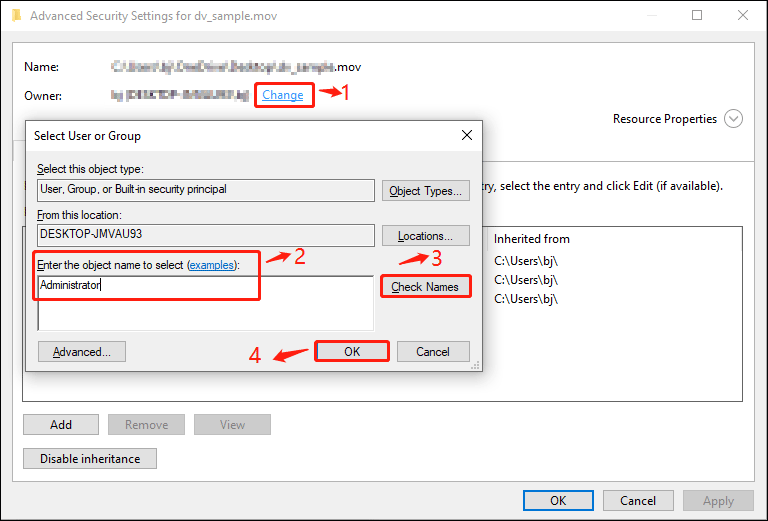
Step 3: Click Change in the Owner section. You need to type your username of the current account or Administrator if running an administrator account.
Step 4: Click Check Names and OK in sequence.

Fix 2: Run SFC/DISM Commands
To find and repair corrupted system files, you can run the System File Checker and DISM command lines via Command Prompt. Here are the steps to execute the commands.
Step 1: Press Win + R to open the Run window.
Step 2: Type cmd into the text box and press Shift + Ctrl + Enter to run Command Prompt as administrator.
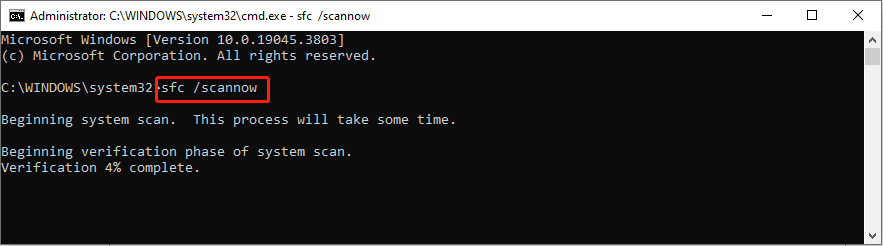
Step 3: Type sfc /scannow and hit Enter. Wait for the scan process to complete.
Step 4: Type DISM /Online /Cleanup-Image /RestoreHealth and hit Enter.
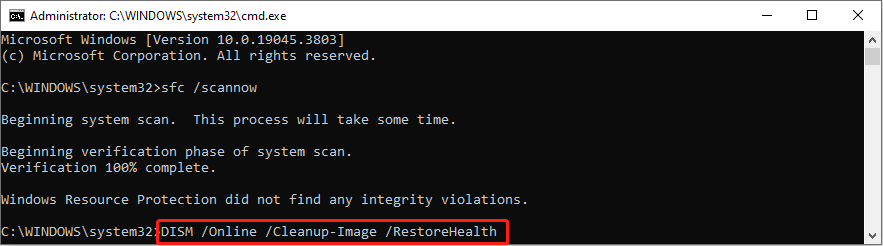
These two command lines will repair the corrupted system files and images during the execution process. You can try your operation to see if the 0xC00D3E8E error is fixed.
Fix 3: Restart File Explorer in Task Manager
Restarting File Explorer in Task Manager can also help to fix some bugs by refreshing the information of any existing files.
Step 1: Right-click on the Windows icon button at the left corner and choose Task Manager from the WinX menu.
Step 2: Look through the list under the Processes tab and right-click on the Windows Explorer option to choose End task.
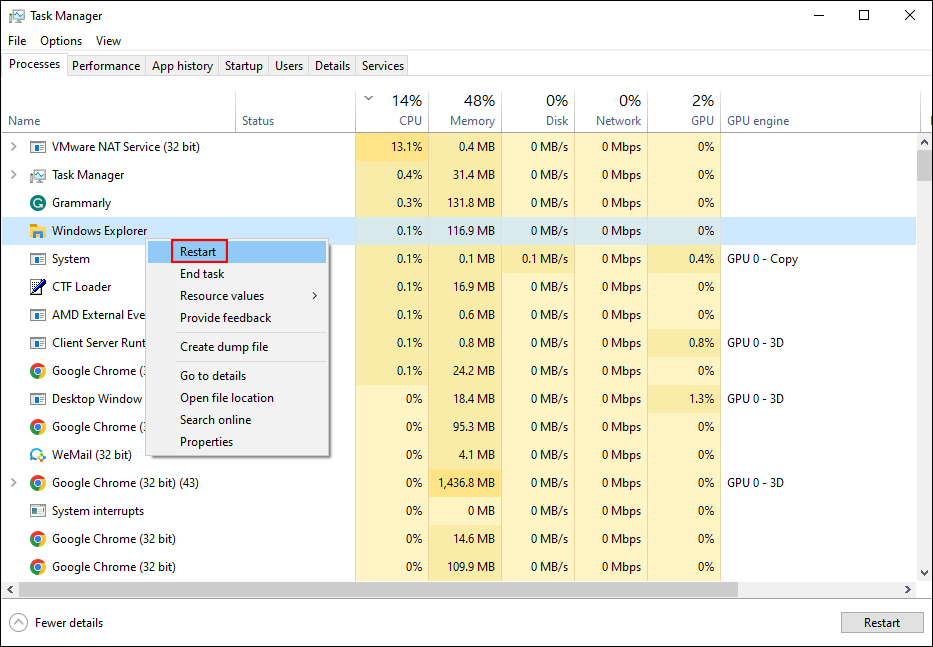
Step 3: Press Ctrl + Shift + Esc to open Task Manager again and click on the File option on the top toolbar.
Step 4: Choose Run new task from the context menu.
Step 5: Type in explorer.exe and hit Enter to restart the File Explorer.

Fix 4: Perform System Restore
You can also perform a system restore to try to fix this problem. This operation will revert your computer to the previous status before the problem happens. Using this method, you should create system restore points earlier. If you have system restore points, follow the next tutorial.
Step 1: Type Control Panel into the Windows Search bar and hit Enter to open this window.
Step 2: Choose Recovery when choosing Large icons of the View by menu.
Step 3: Click Open System Restore and choose Next.
Step 4: Choose the restore point from the following window and click OK.
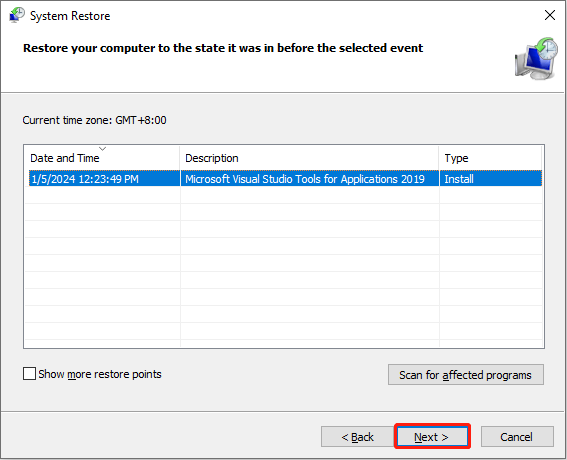
Step 5: Reaffirm the information in the next window and click Finish to start the process.
Further Reading: Recover Lost Files After System Restore
Typically, performing a system restore will not delete your personal files. However, there is no 100% thing in the world. Some people find that their files are lost after performing a system restore. Thus, we advise you to check the files after completing all the steps above. If your files are lost, use professional data recovery software, like MiniTool Power Data Recovery, to get them back.
This free file recovery software not only helps to recover types of files but also works well on various data storage device recovery, such as CF card recovery, USB file recovery, hard drive recovery, and more. Furthermore, this software has plenty of features to improve data recovery efficiency and accuracy.
You can get the Free edition by clicking the download button below to experience this powerful secure data recovery service and restore up to 1GB of files for free.
MiniTool Power Data Recovery FreeClick to Download100%Clean & Safe
Bottom Line
You can try the above four methods to fix the error 0xC00D3E8E. Since this error can be triggered by different reasons, you need to find a method that suits your situation. Hope this post gives you some inspiration.
User Comments :