
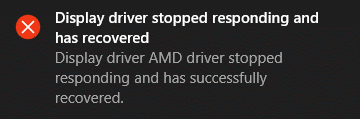
It's not an unfamiliar experience for all Windows users to discover that the computer becomes slow, hangs or freezes. In some cases, you may see this error message - Display driver stopped responding and has recovered - in the notification area. Here, I will demonstrate how to deal with such error properly.
When your computer has been used for a long time, it’s easy to find that it becomes slow. Sometimes, the computer even hangs or freezes. This is not a strange thing, indeed. Many factors may be responsible for this issue: such as low disk space, improper operating system configuration, and software & hardware conflict.
You must want need to speed up your computer, right? At this time, you need to find out what are the possible reasons to lead to the computer lagging; then, go to find responding solutions. You’d better get MiniTool software when necessary since it can be trusted.
Display Driver Has Stopped Responding And Has Recovered
When there is obviously sluggish on your PC, especially when you find the screen is going off and then turning back on again, you should suspect that you run into the problem – display driver stopped responding. At this time, please pay attention to your notification area; if it includes the error message Display driver stopped responding and has recovered, you can confirm that the problem is caused by display driver.
- If the display driver stopped responding and has recovered occur only once, you can still use the computer for a while.
- If it starts to show up frequently, it means your computer has a very serious underlying issue that needs to be fixed at once.
Why display driver has stopped working?
The root reason for causing display driver stopped working is that the GPU has not responded within specific time. The Timeout Detection and Recovery (TDR) feature detects the problem and then restarts the display driver to refresh. In this way, users don’t need to restart their PC completely.
What causes GPU not to respond?
- Open too many video/visual/graphic related applications; it will put much pressure on GPU.
- An old video driver is used and can’t be compatible with current system.
- The GPU temperature is too high due to certain reasons. (How to lower GPU temperature?)
- Other unknown issues.
According to study, the display driver not responding issue can be found on all the Windows operating system versions (from Windows XP to Windows 10).
Useful Tips On How To Improve Windows 10 Performance.
How to Fix When Display Driver Has Stopped Working
Method 1: update the display driver to the latest version.
- Press Start + R buttons on the keyboard to open Run window.
- Type msc into the textbox and hit Enter button.
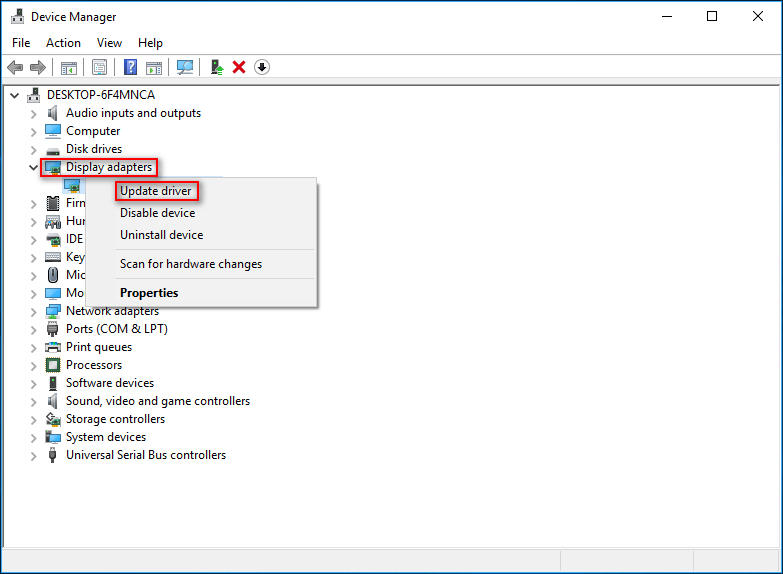
- Look for Display adapters in Device Manager window and expand it.
- Right click on the graphics card and choose Update driver from the context menu.
- Click Search automatically for updated driver software and wait.
- Let Windows update the driver for you.
Another way to get the latest display driver is:
- Go to the official website of your GPU’s manufacturer.
- Find the Downloads or Support section.
- Check whether a newer version of graphics drivers is available for you.
- Download and install the new version properly.
You can also try to fix the problem by uninstalling and reinstalling your graphics drivers.
Method 2: reset Visual Effects to defaults if you have changed it before.
- Press Start + R to open Run.
- Type control panel and hit Enter.
- Choose to view by icons and click System.
- Shift to Advanced system settings option in the left pane.
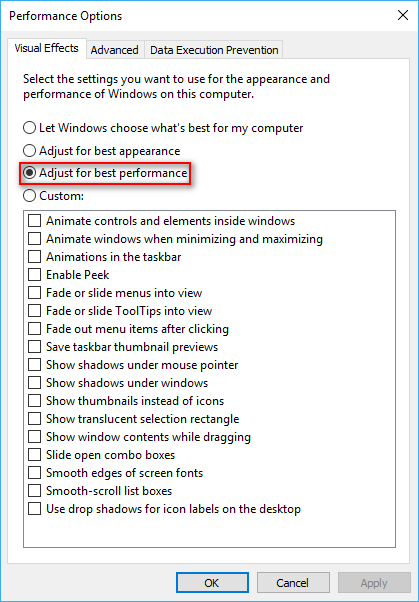
- Click on the Settings button under Performance section.
- Check Adjust for best performance and click OK.
- Click OK again in the System Properties window.
Method 3: increase the TDR timeout.
- Press Start + R to open Run.
- Type regedit and hit Enter.
- Go to HKEY_LOCAL_MACHINE\SYSTEM\CurrentControlSet\Control in Registry Editor.
- Select GraphicsDrivers.
- Right click on the blank area in the right pane.
- Choose New and select DWORD (32-bit) Value on a 32-bit Windows or QWORD (64-bit) Value on a 64-bit Windows.
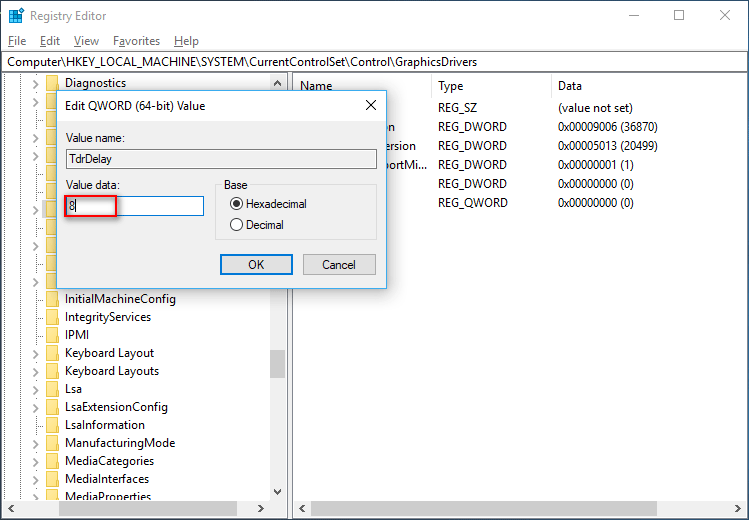
- Give it a name – TdrDelay & hit Enter.
- Double click on TdrDelay & type 8 into the context menu under Value data.
- Click on the OK button and close Registry Editor.
- Restart your computer.
If above methods failed, please try to fix display driver stopped working by disabling Hardware Acceleration, increasing the GPU processing time and closing unnecessary apps to relieve GPU stress.
User Comments :