
Elden Ring Nightreign Sound Not Working
The audio design of Elden Ring Nightreign continues the immersive style of Elden Ring, providing epic soundtracks, environmental sounds and combat sounds, allowing players to experience the game world more deeply.
However, some players claim that they have encountered audio issues in Elden Ring Nightreign, which may be caused by multiple factors, including game settings, drivers, system compatibility or hardware problems. Here are some possible reasons:
- Corrupted game files: If the game files are incomplete or damaged, audio loss or distortion may occur. You can try to verify the integrity of the game files in Steam.
- Audio driver problems: Outdated or damaged audio drivers may affect the sound of the game. It is recommended to update or reinstall the Realtek, Intel or NVIDIA audio drivers.
- Windows sound settings: Certain system settings (such as audio format or default playback device) may cause sound problems. You can try adjusting the settings in Control Panel.
- In-game audio settings: The game’s audio options may be adjusted incorrectly, such as the volume is too low or some sound effects are disabled.
- Compatibility Issues: Certain hardware (such as USB audio devices) may be incompatible with the game, causing distorted or delayed sound.
Method 1: Test Sound Quality
Incorrect speaker or headphone setup can cause game audio issues, and testing the sound quality can ensure that your devices are properly connected and working properly. Here are the steps.
Step 1: Type Control Panel in the Windows search box and press Enter.
Step 2: Click Hardware and Sound > Sound.
Step 3: Select your audio device and click Properties.
Step 4: Switch to the Advanced tab, and then change the bitrate and test the sound.

See Also: How to Improve Audio Quality in Windows 11? Here Are 4 Tricks
Method 2: Update Audio Driver
Old or damaged audio drivers may cause the game to not output sound correctly. Updating the driver can ensure that the system uses the latest stable version. Here is how you can do it.
Step 1: Right-click the Windows button and choose Device Manager.
Step 2: Click the small arrow in front of Sound, video and game controllers.
Step 3: Right click on the audio driver and choose Update Driver.
Step 4: Finally, choose Search automatically for drivers.
Follow the on-screen instructions to finish the whole process.
Method 3: Verify Integrity of Game Files
If the game’s audio files become corrupted during a download or update, this can cause audio issues. Verifying integrity can re-download and repair these files, restoring normal audio. Do as follows.
Step 1: Open Steam and open the Library section.
Step 2: Find and right-click the game, and choose Properties.
Step 3: Switch to the Installed Files tab and click Verify integrity of game files.
Method 4: Disable All Enhancements
Some audio enhancement features of Windows (such as ambient sound, equalizer, virtual surround sound) may conflict with the game’s audio system, causing abnormal sound. Turning off this feature can effectively solve audio problems
Step 1: Open Control Panel and click Hardware and sound > Sound.
Step 2: Right-click the audio device and choose Properties.
Step 3: Go to the Advanced tab and untick the box for Enable audio enhancements.
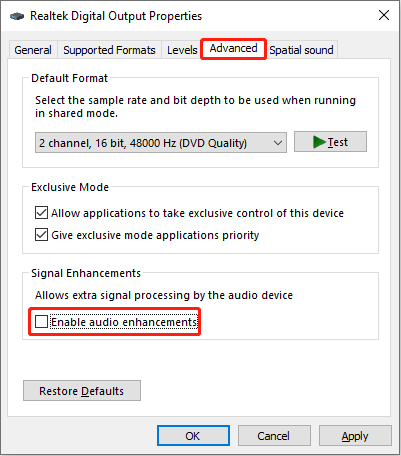
Step 4: Finally, click Apply > OK.
Method 5: Troubleshoot Audio Device
If audio is not working properly in Elden Ring Nightreign, Troubleshoot Audio Device can help you identify and fix Elden Ring Nightreign audio not working.
Step 1: Press the Win + I keys to open the Settings app.
Step 2: Click Update & Security > Troubleshoot > Additional troubleshooters.
Step 3: Under Get up and running, click Playing Audio > Run the troubleshooter.
Method 6: Disable Windows Sonic
Windows Sonic is a virtual surround sound technology that can cause game audio output to sound strange, especially when using stereo headphones. Disabling Windows Sonic may help resolve issues such as distortion, noise, echo, or silence.
Step 1: Right-click the Sound icon in the taskbar and choose Spatial sound.
Step 2: Click Off from the context menu.
MiniTool Power Data Recovery FreeClick to Download100%Clean & Safe
Bottom Line
Now you know how to fix Elden Ring Nightreign audio not working. When the problem occurs, try these methods one by one.
User Comments :