
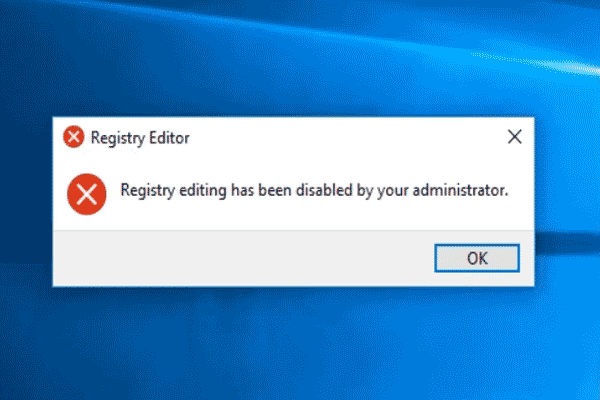
Various factors can lead to the error accessing the registry, while the most common two are corrupted system files and insufficient administrative privileges. You can consider the following methods to resolve this problem.

Fix 1: Import a Registry File with Administrator Privileges
Some users cannot import registry files because of insufficient permissions. You can try to import the required registry file with administrator privileges. Here are the specific steps to complete the operation.
Step 1: Press Win + R to open the Run window.
Step 2: Type regedit and press Shift + Ctrl + Enter to run Registry Editor as administrator.
Step 3: Choose Yes in the UAC window.
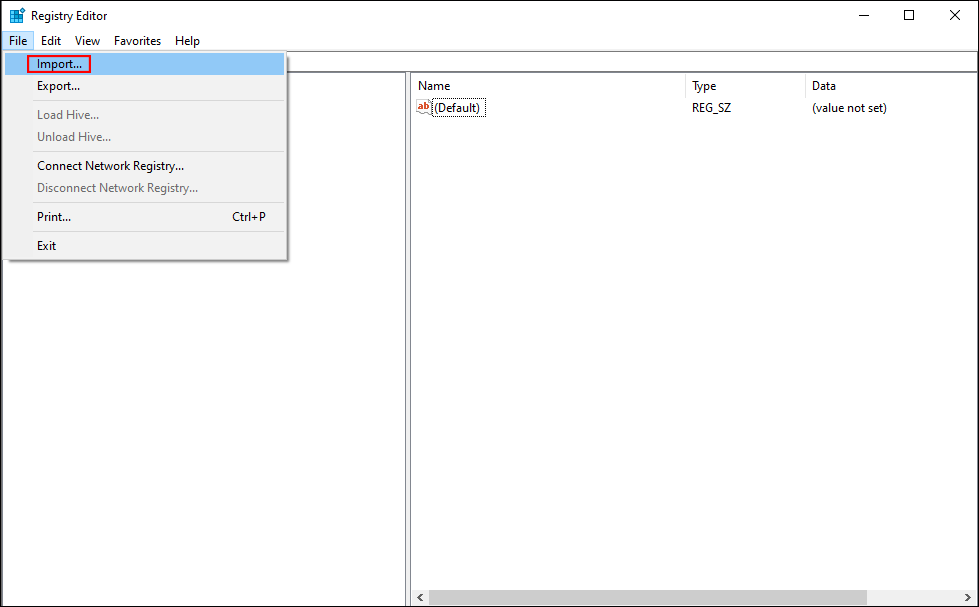
Step 4: Select File > Import to choose the file you need to import, then click Open to merge the file with the registry.
If you still get the error accessing the system registry, you may try the next method to fix the corrupted system files.
Fix 2: Run the SFC Command Line
Corrupted system files may lead to various problems. The error accessing the registry is one of them. Corrupted system files interfere with the function of importing registry files. You can run the System File Checker utility to repair the corrupted or missing files to run functions properly.
Step 1: Type Command Prompt into the Windows search bar.
Step 2: Right-click on the best-matched options and choose Run as administrator from the context menu.
Step 3: Type sfc /scannow and hit Enter to execute this command line.
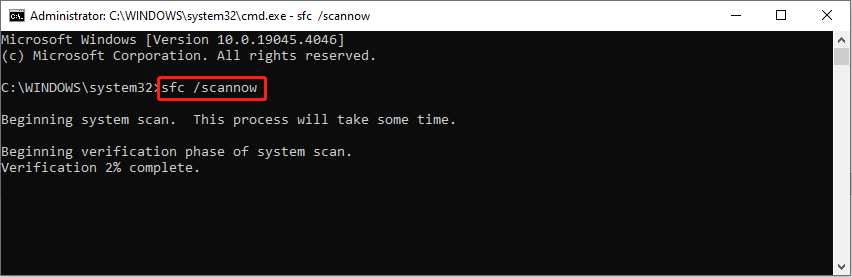
During this process, your computer will automatically detect and repair the problematic system files with backup system files.

Fix 3: Perform a System Restore
If the above two methods don’t work as expected, try this method as the last solution. System Restore restores the computer to a state before the error occurs. Using this method requires you to create system restore points earlier.
Windows enables the System Restore feature on C drive by default. If you need to perform a system restore on other drives, you should enable it manually. The following steps show you how to start the system restore process.
Step 1: Type Control Panel into the Windows search bar and hit Enter to open it.
Step 2: Choose Large icons under the View by menu, then find and select Recovery.
Step 3: Opt for the Open System Restore choice in the following interface.
Step 4: Click Next to choose a system restore point created before the problem happens.
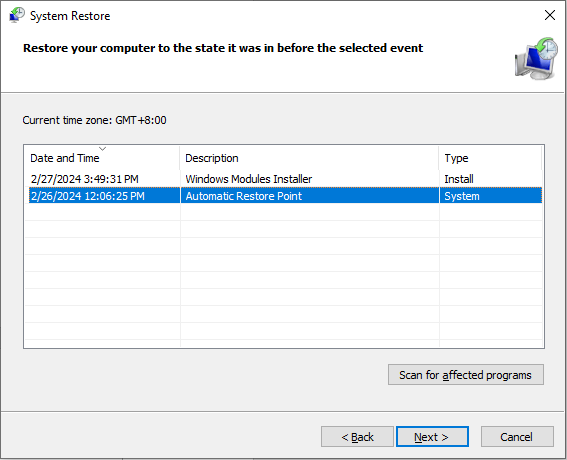
Step 5: Click Next to confirm all the information. You need to choose Finish if all information is correct.
Your computer will start the system restore process. Once the process starts, it can’t be interrupted. Hence, you should be careful with the above steps.
Further Reading: Recover Files Lost Due to System Restore
To safeguard your information, you are highly advised to check files after performing a system restore. Although the system restore process will not modify personal files on most occasions, some users find their files disappeared. If you find files are lost, go to the Recycle Bin to find lost files first.
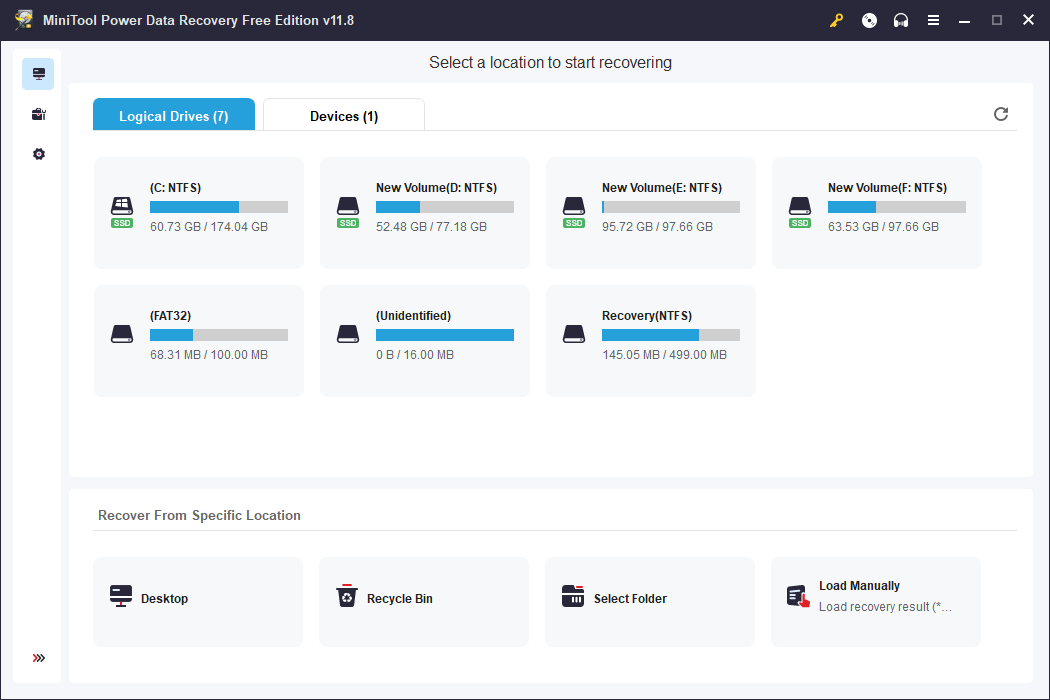
However, you may fail to complete the Recycle Bin recovery as no required files are found. In this case, seeking help from data recovery services makes sense. Professional data recovery software, like MiniTool Power Data Recovery, is an effort-saving and highly effective option. It can complete data recovery tasks under various data loss scenarios. You can get MiniTool Power Data Recovery Free to see if this tool can find your wanted files and restore up to 1GB of files for free.
MiniTool Power Data Recovery FreeClick to Download100%Clean & Safe

Bottom Line
This post tells how to fix the system registry error with three methods. Manipulating different solutions to handle the error caused due to different reasons. Hope you can resolve the problem with this guide successfully.
User Comments :