
The Media Creation Tool developed by Microsoft is very useful when users want to update or reinstall their systems; it can help them create the required installation media like bootable USB drive and CD/DVD disc. However, the error code – 0x80072F76 – appears suddenly on users’ computers while they are using Media Creation Tool or trying to install a system via Windows Installer.
Windows Media Creation Tool Not Enough Space Error: Solved!
MiniTool Solution offers great methods for solving Windows 10 update problems.
0x80072F76 in Media Creation Tool
You’ll see the following error messages when encountering Media Creation Tool error 0x80072F76.
There was a problem running this tool
We’re not sure what happened, but we’re unable to run this tool on your PC. If you continue experiencing problems, reference the error code when contacting customer support. Error code: 0x80072F76 – 0x20017/Error code: 0x80072f76 – 0x20016
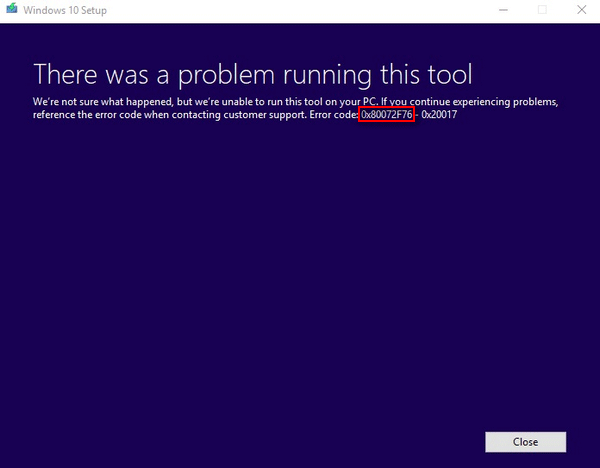
According to users’ feedback, this Media Creation Tool error often occurs a few seconds after they launched the tool (the same error may occur after opening Microsoft Refresh Tool).
What Are the Main Reasons to Cause 0x80072F76
In summary, there are mainly 4 types of factors that will lead to Media Creation Tool error.
Type 1: compatibility issue.
This type can be subdivided into two cases.
- Windows XP compatibility mode: the Media Creation Tool was found to try to open with Windows XP, which is set as the compatibility mode. You should go to change the settings to Windows 8 or Windows 10 based on actual needs and get enough administrative privileges.
- M.A.R.T monitoring conflict: the conflict between SMART HDD/SSD monitoring and operating system installation will also lead to 0x80072F76. You can fix the problem in this case by disabling SMART in BIOS.
Type 2: corrupt system files.
If system file corruption is found in the Windows Update component files, the 0x80072F76 error will show up. You may need to rename/clear corresponding folders to solve the problem.
How To Repair Corrupted Or Missing System Files On Windows 10?
Type 3: improper Windows version configuration.
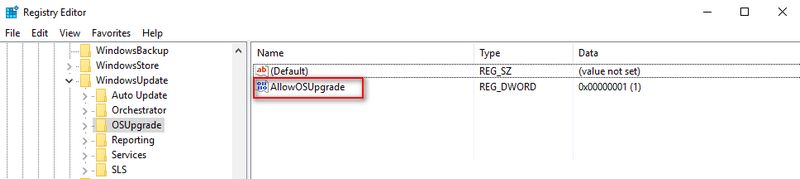
You will also receive the Media Creation Tool error if your Windows configuration is set to reject the operating system upgrade. Please change the value of AllowOSUpgrade in Registry Editor to fix the error.

Type 4: virus/spyware attack or improper shutdown.
As you know, virus attack/invasion can be the cause of a series of computer problems.
How to Fix 0x80072F76
Please try the following methods for fixing 0x80072F76 and other similar Windows 10 update problems.
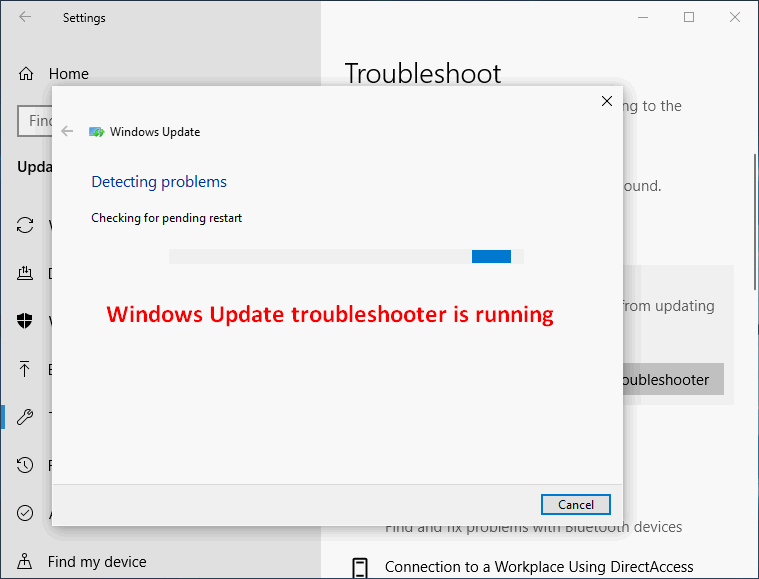
Method 1: run Windows Update troubleshooter.
- Press Windows + I to open Settings.
- Scroll down to choose Update & Security.
- Select Troubleshoot from the left sidebar.
- Choose Windows Update under Get up and running.
- Click on the Run the troubleshooter button.
- Wait until the troubleshooting process is finished.
- Click Apply this fix option to enforce the recommended repair strategy.
- Wait for the action to complete and restart your computer.
Method 2: change the compatibility mode.
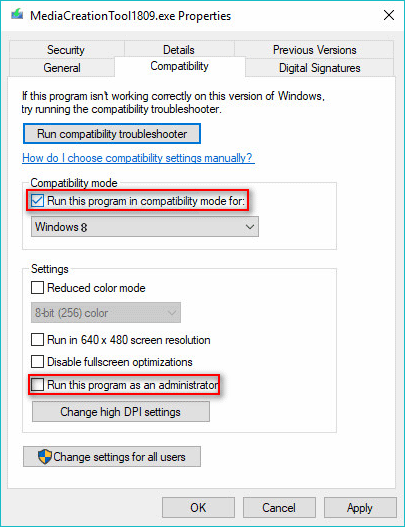
- Go to the storage path of installed Media Creation Tool.
- Right click on the executable file and choose Properties.
- Shift to the Compatibility tab and look for the Compatibility mode section.
- Check Run this program in compatibility mode.
- Make sure Windows 10 (or Windows 8) is chosen.
- Check Run this program as an administrator.
- Click on the Apply button to confirm the changes.
Method 3: disable SMART Monitoring.
- Restart your computer.
- Press corresponding button to enter BIOS.
- Go to the Main tab inside BIOS settings.
- Choose the HDD with problem.
- Shift to the SMART Monitoring option and choose Disabled for it.
- Exit BIOS and Save Then, reboot your PC.
Solved: PC Not Booting After BIOS Update – Recovery & Repair!
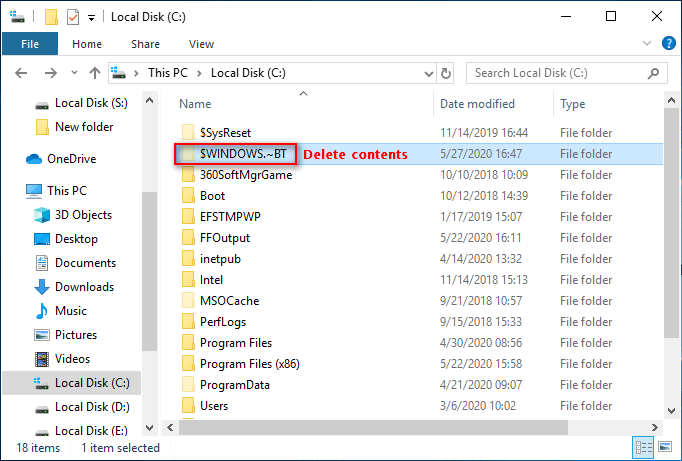
Method 4: clear $WINDOWS.~BT and $Windows.~WS folder.
- Make sure your computer is set to show hidden files, folders, and drives.
- Open File Explorer and double click on Local Disk (C:).
- Open $WINDOWS.~BT -> select all items in it -> press Delete -> choose Yes.
- Empty the contents of $Windows.~WS.
Method 5: change AllowOSUpgrade value.
- Right click on the Windows logo button.
- Choose Run.
- Type regedit and hit Enter.
- Copy & paste this to the address bar: Computer\HKEY_LOCAL_MACHINE\SOFTWARE\Microsoft\Windows\CurrentVersion\WindowsUpdate\OSUpgrade. Then, hit Enter.
- Right click on the blank area in the right pane -> choose New -> choose DWORD (32-bit) -> name it AllowOSUpgrade.
- Double click on AllowOSUpgrade and change the value data from 0 to 1.
- Click OK, close Registry Editor, and restart PC.
Also, you can try to fix 0x80072F76 by:
- Using the Refresh tool via Windows Defender Security Center
- Changing DNS to another like OpenDNS
- Changing the ISP connection
- Using Windows 10 Update Assistant to replace Media Creation Tool
User Comments :