
Office 365 is a comprehensive suite in which you can access various software like Word, Excel, Outlook, and so on. However, problems might happen occasionally. You may get an error code 0xCAA70010 when trying to sign into Office 365. This issue can be triggered by connectivity, improper login entry, server problems, and more. Here are four solutions to help you try to fix this problem. You can go through the tutorial and try them one by one.

Solution 1: Check Internet Connection
You need to check whether your device is working in a stable internet environment. If the internet is too slow to affect the performance of Office 365, you can read this post to fix slow internet speed.
Additionally, you can disable VPN, Proxy, and third-party antivirus software to see if this helps to fix the Office 365 sign-in error. If not, you can move on to the next method.
Solution 2: Disable Modern Authentication
Modern Authentication is a combination of authentication and authorization methods between a client and a server. You can disable Modern Authentication to resolve some authentication security errors such as the 0xCAA70010 error.
Step 1: Press Win + R to open the Run window.
Step 2: Type regedit and hit Enter to open Registry Editor.
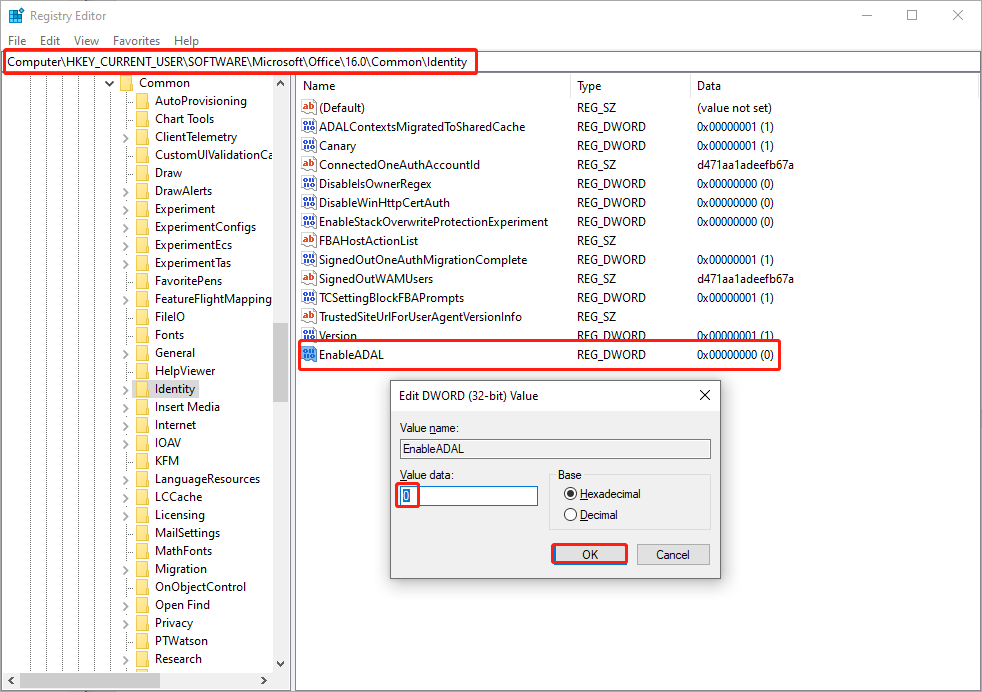
Step 3: Navigate to HKEY_CURRENT_USER > SOFTWARE > Microsoft > Office > 1x.0 > Common > Identity. 1x.0 refers to the version of your Office.
Step 4: Right-click on the blank space on the right pane and choose New > DWORD (32-bit) Value to create a new subkey. You need to rename the newly created subkey to EnableADAL.
Step 5: Double-click on EnableADAL to set the Value data to 0 and click OK to save the change.
Solution 3: Clear Saved Credentials
You can remove the stored credentials cache to avoid file corruption. After clearing, you can save new credentials to see whether you can sign in successfully.
Step 1: Type Control Panel into the Windows search bar and hit Enter to open it.
Step 2: Choose Large icons from the dropdown menu of the View by and choose Credential Manager.
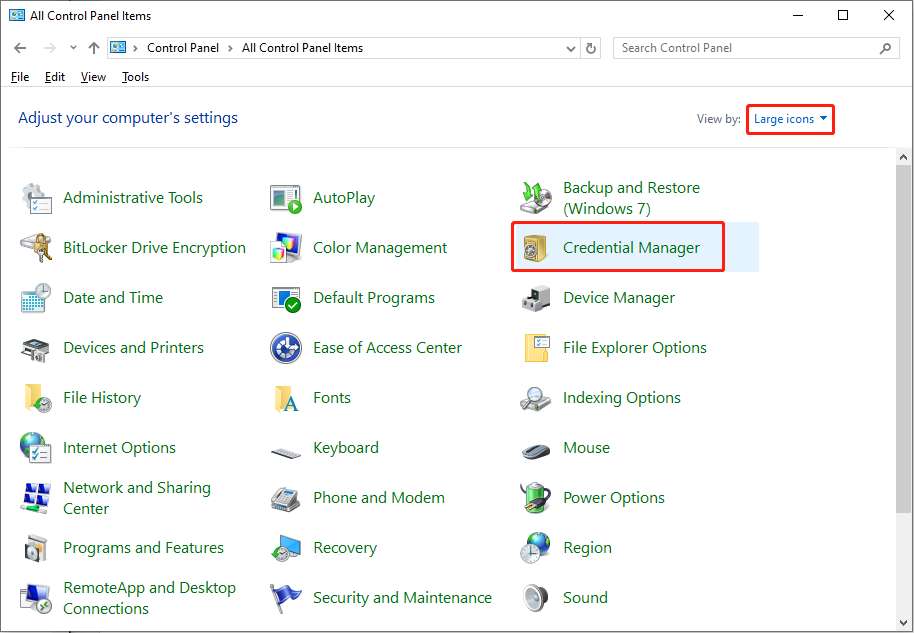
Step 3: Select Windows Credentials, then scroll down to the Generic Credentials section. You need to find and click the Microsoft 365 credentials from the list and choose Remove.
Step 4: Click Yes to confirm.
Solution 4: Repair Office 365
If the above methods don’t work well, you can repair Office 365 in Windows to have a try.
Step 1: Press Win + R to open the Run window.
Step 2: Type appwiz.cpl and hit Enter to open the Programs and Features window.
Step 3: Look through the list to find Microsoft 365. You can right-click on it and choose Change.
Step 4: Choose Online Repair and click Repair to start the process.
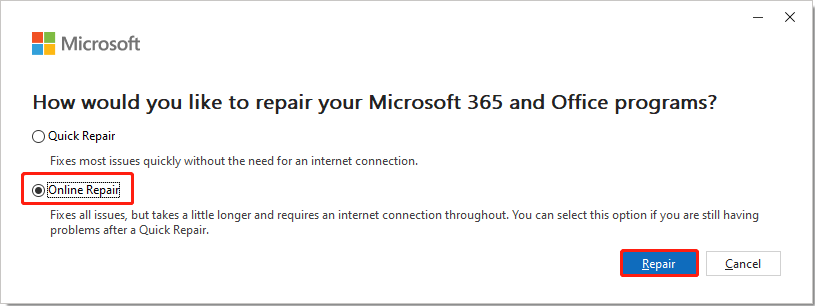
Wait for the process to complete and restart your computer to check if you successfully fix error 0xCAA70010 in Office 365.
If the problem reappears, you can reinstall the Office 365 app from the official website. Read this post to know specific information: Microsoft/Office 365 Download/Install/Reinstall on Win 10/11.
Bonus Tip: Protect Your Files with MiniTool Power Data Recovery
Though Microsoft Office is widely used nowadays, you may encounter various problems, for example, failure to save files, software becoming corrupted, Microsoft Office not opening, and more. In these cases, except to fix the software problem, you must consider the security of your data.
If your files are deleted or lost due to application issues, don’t panic. You can run MiniTool Power Data Recovery to recover files. This free file recovery software allows you to restore types of files lost in different situations, including virus infection, device corruption, partition loss, hard drive formatting, etc.
You can get MiniTool Power Data Recovery Free to experience the powerful features of this software and recover 1GB of files for free.
MiniTool Power Data Recovery FreeClick to Download100%Clean & Safe
Bottom Line
You may get the error code 0xCAA70010 for several reasons. Try the above methods one by one to find one that works for your situation. If your files are lost accidentally, you can also try MiniTool Power Data Recovery to get them back securely and easily.
User Comments :