
Firefox is a popular web browser. But this doesn’t mean that you will not encounter issues when using it. Firefox is already running but is not responding is just an annoying issue. You want to open it but it doesn’t show on the screen. How to get rid of this problem? MiniTool Software will show you some effective solutions.
Firefox keeps your bookmarks, personal settings, and other information on your Firefox profile. It needs an unlocked profile for normal running. If the profile is locked by mistake, it will show you a message like Firefox is already running, but is not responding. In this post, we will show you how to get rid of this error message and use Firefox as normal again.
Related recommendation: Firefox Won’t Open? Try These Methods to Fix It
What to Do If Firefox Is Already Running?
- End all Firefox processes in Task Manager
- Restart your computer
- Remove the profile lock file
- Remove the -no-remote startup option
- Initialize the connection to a file share
- Check access rights
- Restore data from a locked profile
Fix 1: End All Firefox Processes in Task Manager
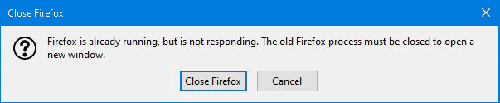
If Firefox was not shut down normally last time, some Firefox processes may be still running in the background. These running processes are the causes of Firefox is already running. If you see the following interface, you can click the Close Firefox button and then see whether you can re-open it as normal.
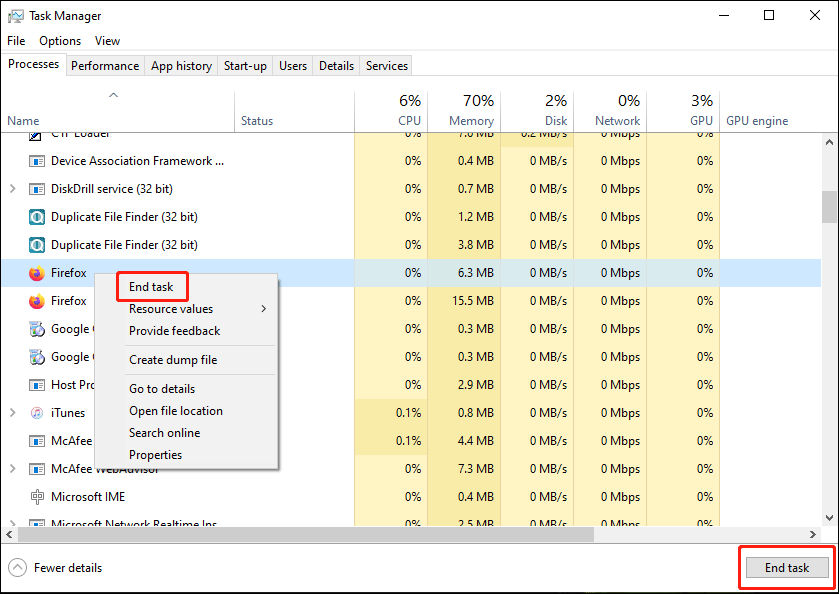
If the above action doesn’t work, you can open Task Manager to find these processes and force end them.
- Right-click the taskbar and select Task Manager.
- Scroll down to find the Firefox process and end them one by one.
Fix 2: Restart Your Computer
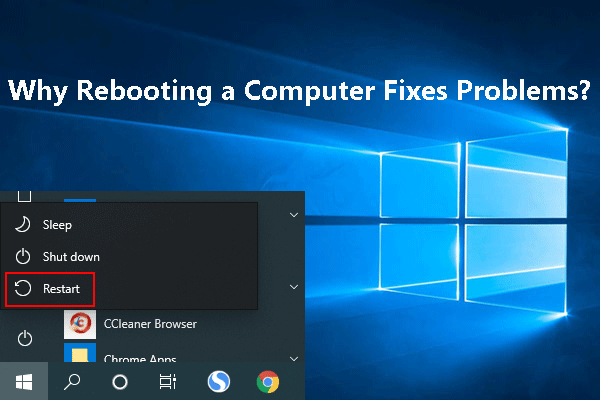
You can also directly restart your computer to solve the problem. This can make your computer run under a clean environment and end all invisible Firefox processes. It can also remove the temporary issues that may cause Firefox not responding, Firefox won’t close, or Firefox not opening.
Fix 3: Remove the profile Lock File
The abnormal shutdown of Firefox leaves the lock files in place. To make everything back to normal, you need to go to the profile folder and then delete the parent.lock file in it.
- Press Win+R to open Run.
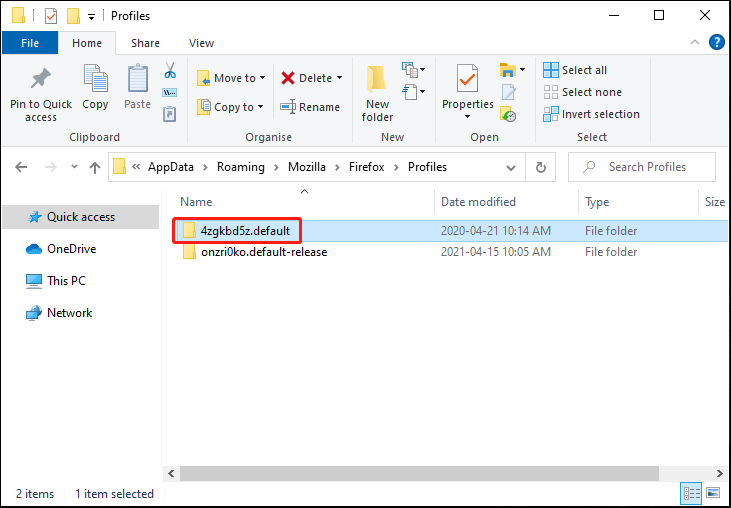
- Input %APPDATA%\Mozilla\Firefox\Profiles\.
- Press Enter to open the profile folder.
- Find the folder which name ends with .default and open it. You may only see one folder here. But there should always be a .default folder.
- Find the parent.lock file and delete it.
Fix 4: Remove the -no-remote Startup Option
You can use command line options to specify some startup options for Mozilla applications. But this can be the cause of Firefox is already running but is not responding.
If you start Firefox with the -no-remote command line option, you can remove this option and then check whether you can open Firefox successfully.
Fix 5: Initialize the Connection to a File Share
If you store the profile files on a file share, you can go to Windows Explorer to access the file share beforehand to initialize the connection to a file share.
Fix 6: Check Access Rights
You also need to make sure that your Firefox has the privilege to create files in the profile folder. If not, you will be unable to open Firefox as usual.
Here are the things you should do:
- Press Win+R to open Run.
- Input %APPDATA%\Mozilla\Firefox\Profiles\.
- Press Enter to open the profile folder.
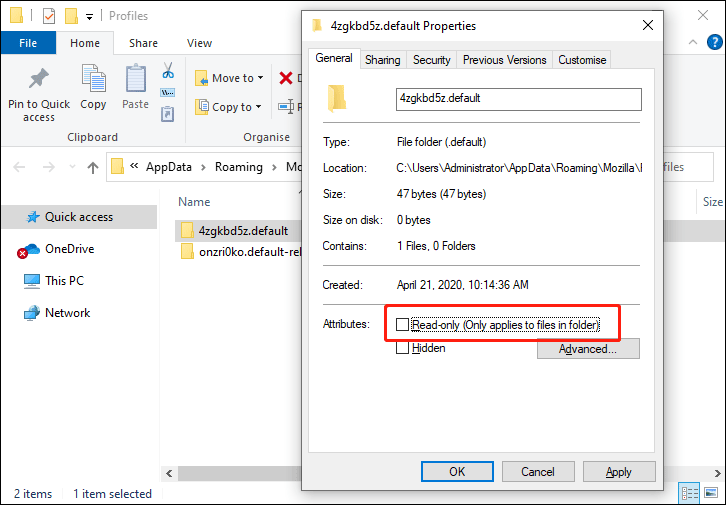
- Right-click the .default folder and select Properties.
- Under General, you need to make sure the Read-only option is not checked.
Fix 7: Restore Data from a Locked Profile
If all of the above 6 methods can’t help you solve the issue, you may need to use the Profile Manager to create a new profile and then transfer your data from the locked profile to the new profile. This post is helpful: Profile Manager – Create, remove, or switch Firefox profiles.
We hope these methods can help you get rid of Firefox is already running but is not responding. Should you have any other issues, you can let us know in the comments.
About The Author

Position: Columnist
Stella has been working in MiniTool Software as an English Editor for more than 8 years. Her articles mainly cover the fields of data recovery including storage media data recovery, phone data recovery, and photo recovery, videos download, partition management, and video & audio format conversions.
User Comments :