
Spotify is an audio streaming and media services provider. Most of you must use it to listen to songs. But you may also encounter errors, like error code 1, error code 3, error code 17, and so on. Have you met Spotify error auth 74? Do you know how to fix it? Here MiniTool Solutions will provide you with a full guide to solve it.
MiniTool also provides lots of powerful tools to help you recover deleted/lost files, manage partitions, back up systems, etc. You can choose a suitable tool to resolve your problem. If you need to rescue your files from inaccessible partitions, corrupted systems, or other data storage devices, you can choose MiniTool Power Data Recovery, a free data recovery software.
MiniTool Power Data Recovery FreeClick to Download100%Clean & Safe
What is Spotify Error Code Auth 74
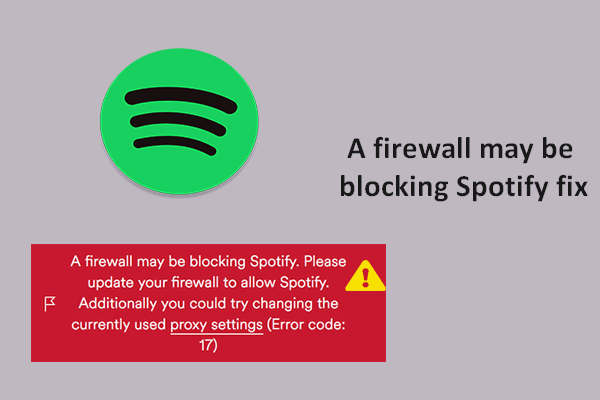
Spotify error auth 74 happens when Spotify cannot connect to its servers. You may receive the error message: A firewall may be blocking Spotify. Please update your firewall to allow Spotify. Additionally, you could try changing the currently used proxy settings. (Error code: auth 74)
Actually, error code 74 on Spotify is common. When this error occurs, Spotify will be prevented from running and you are unable to use this app. Why does the Spotify error auth 74 happen?
Several reasons can be listed:
- Interference of firewall or antivirus software
- Corrupted files
- Different locations
- Enabled proxy
- …
How to Fix Spotify Error Auth 74
This section will show you how to fix Spotify error auth 74 with six practical methods.
Way 1: Change the Region in Spotify
Step 1: Log in Spotify as normal. You can log in with your email, Google, Facebook, or Apple account.
Step 2: Click on Profile at the top right.
Step 3: Choose Account from the drop-down menu.
Step 4: Click on Edit profile and set the proper region in the following window.
Step 5: Click Save profile to save the change.
Then, you can reopen Spotify to see if the error is solved.
Way 2: Disable the Proxy Settings/VPN
If you are using VPN or proxy, you may also receive the error code 74. You can disable VPN or proxy in the Settings window with the next steps to fix the error.
Step 1: Press Win + I to open the Settings window.
Step 2: Select Network & Internet.
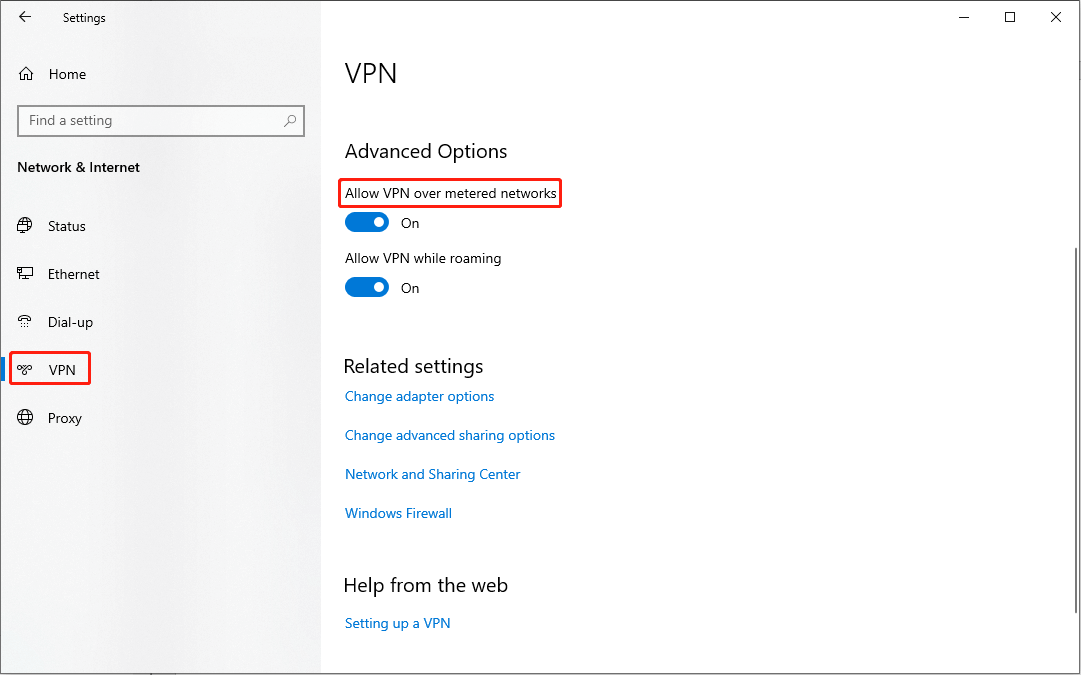
Step 3: Shift to the VPN tab on the left side, then scroll down to find Advanced Options.
Step 4: Toggle the switch to Off under the Allow VPN over metered networks.
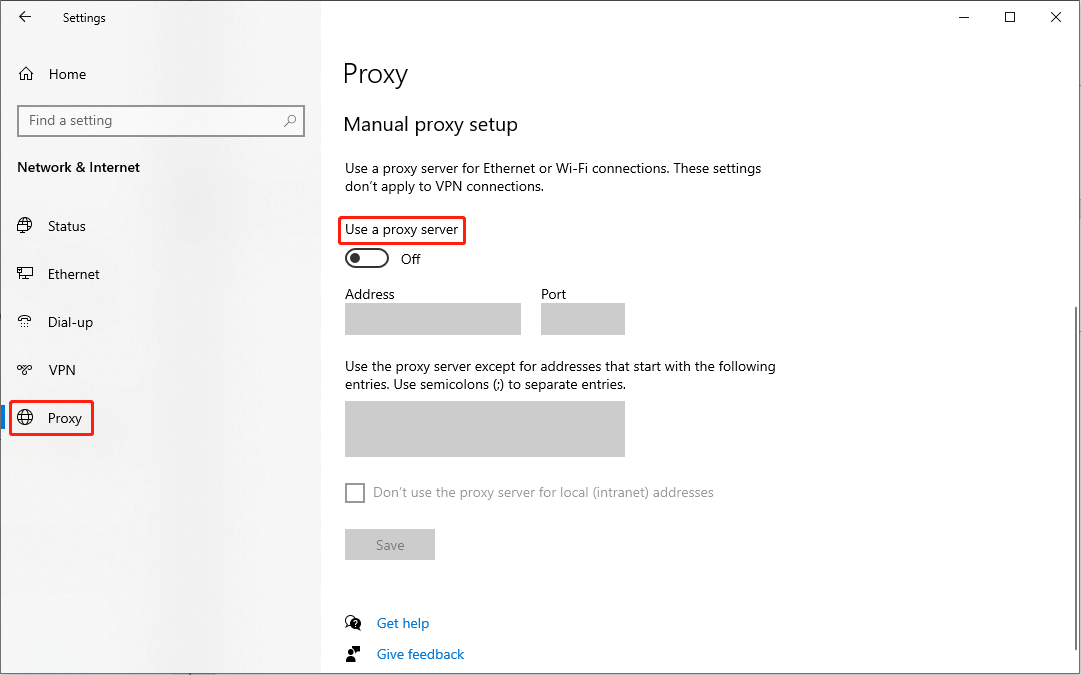
Step 5: Navigate to the Proxy section, then find Manual proxy setup on the right pane.
Step 6: Turn off the Use a proxy server service.
Way 3: Allow Spotify through the Windows Firewall
Step 1: Press Win + S and type Control Panel into the search box.
Step 2: Hit Enter to open it.
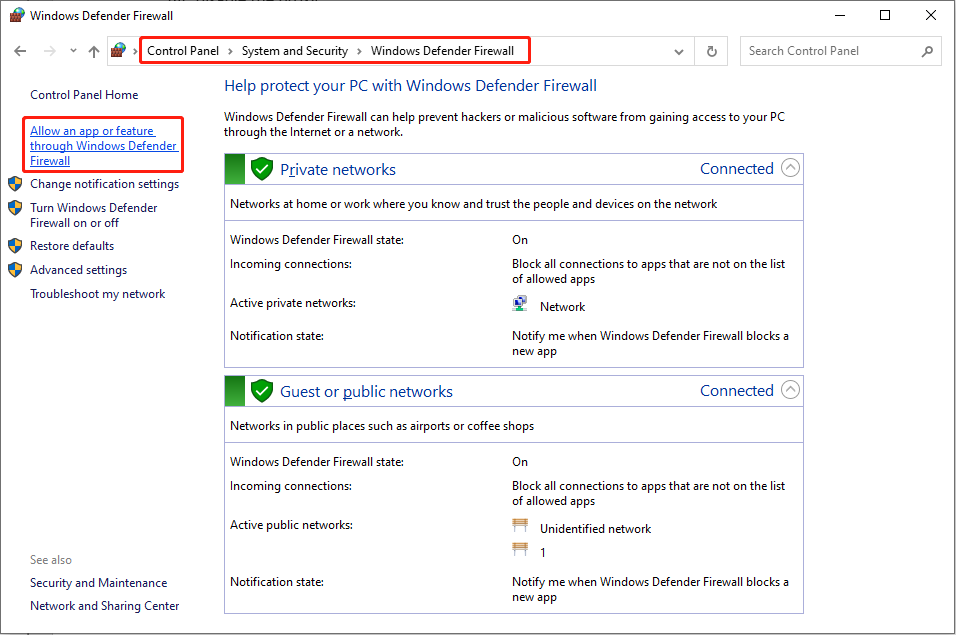
Step 3: Select System and Security, then choose Windows Defender Firewall.
Step 4: Choose Allow an app or feature through Windows Defender Firewall on the left side.
Step 5: In the following window, click Change settings and then find Spotify Music in the Allowed apps and features section.
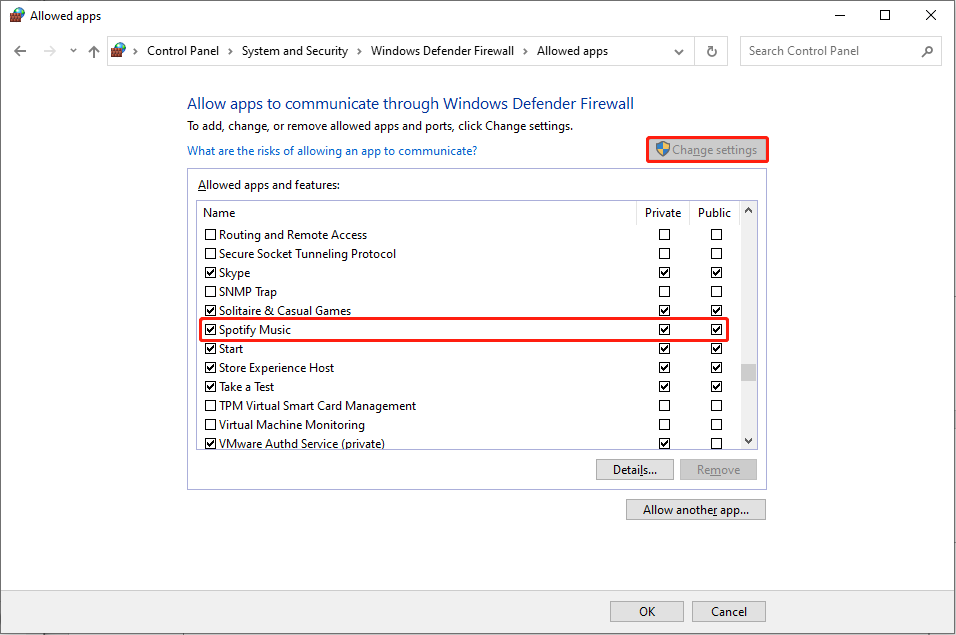
Step 6: Add check marks on both Private and Public options.
Step 7: Click OK to save the changes.
Way 4: Modify the Hosts File
Step 1: Press Win + S and type Notepad into the text box.
Step 2: Choose Run as administrator on the right pane.
Step 3: In the Notepad window, press Ctrl + O to open the browse window.
Step 4: Navigate to Local Disk (C:) > Windows > System32 > drivers > etc.
Step 5: Double-click on the hosts file to open it.
Step 6: If you find 0.0.0.0 weblb-wg.gslb.spotify.com0.0.0.0 entry, you can delete it directly. If don’t find it, please skip to the next method.
Step 7: Press Ctrl + S to save the change.
To know more information about the hosts file, you can go to this post: How to Edit Hosts File in Windows 10.
Way 5: Repair/Reset Spotify
Step 1: Press Win + I to open the Settings window.
Step 2: Select Apps and navigate to Apps & features section.
Step 3: Type Spotify into the box under Apps & features.
Step 4: Click on Spotify Music and double-click on Advanced options.
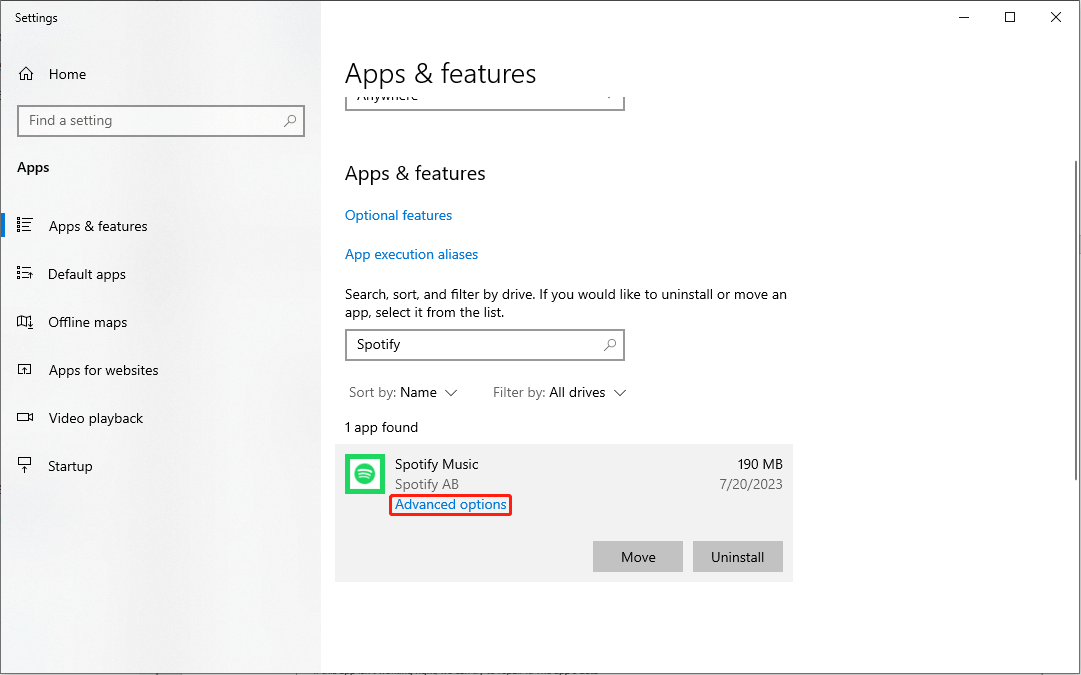
Step 5: Select Repair in the following window.
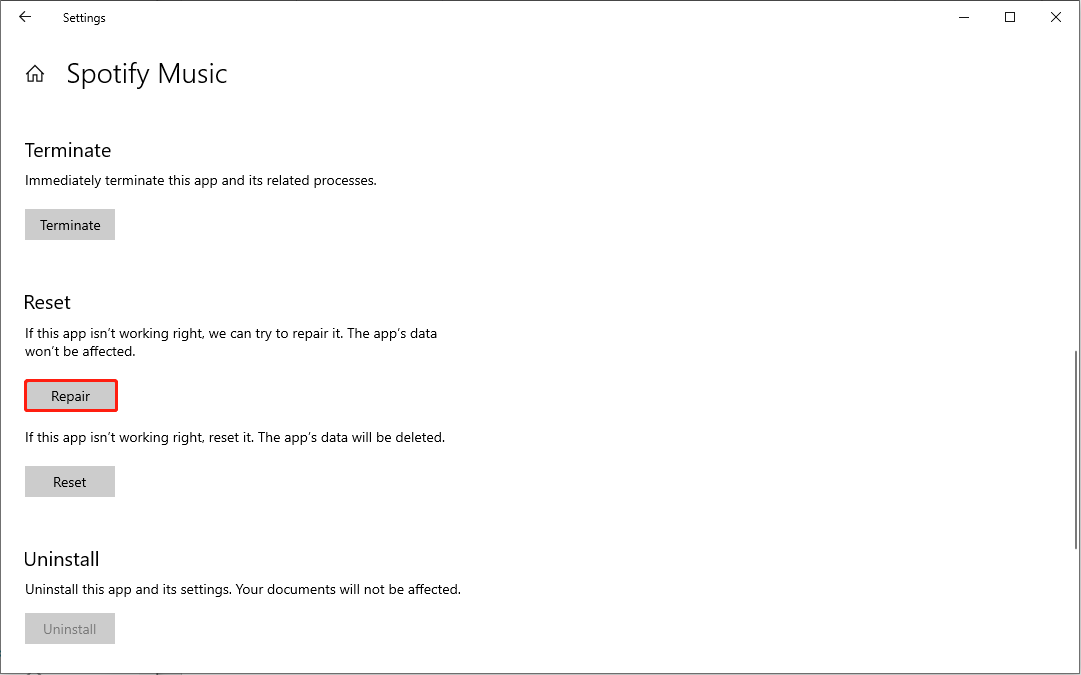
After the repair process completes, you can check whether the error is fixed. If it still exists, you can click Reset on the same window. But please note that resetting the app will erase all the data on it.
Way 6: Reinstall Spotify
Step 1: Click on the Start icon.
Step 2: Look through the Start menu to find Spotify.
Step 3: Right-click on it and choose Uninstall from the context menu.
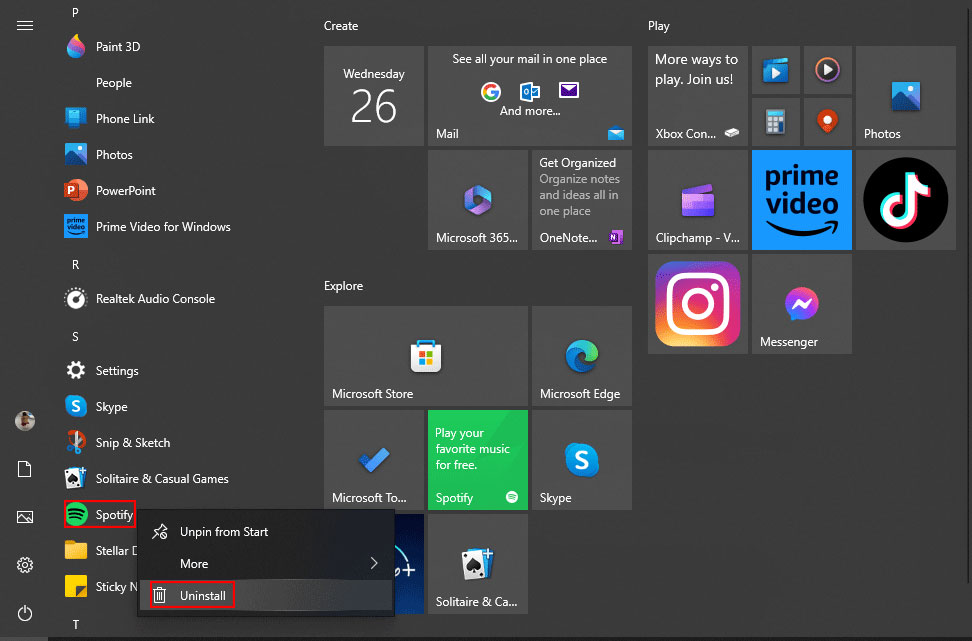
After that, you can go to Microsoft Store to download Spotify again.
Bottom Line
Spotify error auth 74 is not a horrible error. You can read this post and try to fix it by yourself. Hope the methods can help you indeed.
Besides, I’d like to recommend MiniTool Power Data Recovery, a powerful file recovery software, to you. If you are looking for data recovery software, why not give a chance to MiniTool Power Data Recovery?
MiniTool Power Data Recovery FreeClick to Download100%Clean & Safe
User Comments :